Apply Restrictions for Promotional Offers
Stay is enhanced to allow users to configure and apply restrictions for promotional offers.
Previously, restrictions could not be applied to promotional offers. When users selected the Enable promotional offer nights checkbox in the Add/Edit pop-up screens (Interfaces à CMS Settings à Offer Management à Offers), the Restrictions section was not displayed for configuration.
Through this enhancement, when users select the Enable promotional offer nights checkbox, the Restrictions section will be displayed, allowing users to configure restrictions for promotional offers.
When restrictions are configured for promotional offers, the restrictions are validated at the time of booking, and the promotional offer is applied only when the booking meets all the configured restriction rules. When any of the restrictions are not satisfied, the offer will not be applied.
When the Enable promotional offer nights checkbox is selected for an offer, the Maximum Nights Allowed field in the Restrictions section will be hidden automatically since this field is not applicable for promotional offers. Other fields will remain enabled for configuration.
When an offer is marked as NA for specific days, the offer will not be displayed for those days in the Check Rates tab of the Book a Reservation screen.
Modify Stay Screen
Whenever users modify a reservation and the Modify Stay screen appears, all offers applied to the reservations are validated again. The following restrictions are validated for the existing nights:
-
Latest Arrival Date
-
Arrival Days (day-of-week rules)
-
Minimum Length of Stay
-
Maximum Length of Stay
When any of the restrictions are not satisfied, the offer is removed from the reservation and not displayed in the Modify Stay screen.
The following table lists the various scenarios in which the restrictions are validate again:
|
Field |
Validation |
|---|---|
|
Latest Arrival Date |
When the arrival date is modified beyond the allowed date, the applied offer is removed. |
|
Arrival Days |
When the arrival date is modified to a date that is not allowed, the applied offer is removed. |
|
Minimum LOS |
When the stay duration is shortened below the minimum limit, the applied offer is removed. |
|
Maximum LOS |
When the stay duration is extended above the maximum limit, the applied offer is removed. |
For the newly added nights, all restrictions are always validated.
Clone Offers
Users can clone existing offers. A new button, Clone, has been added to the Offers tab. Users can select the preferred offer and click on the Clone button. When clicked, the Add pop-up screen appears with the offer details prepopulated. Users can modify the details if required and save the offers with a new name and code.
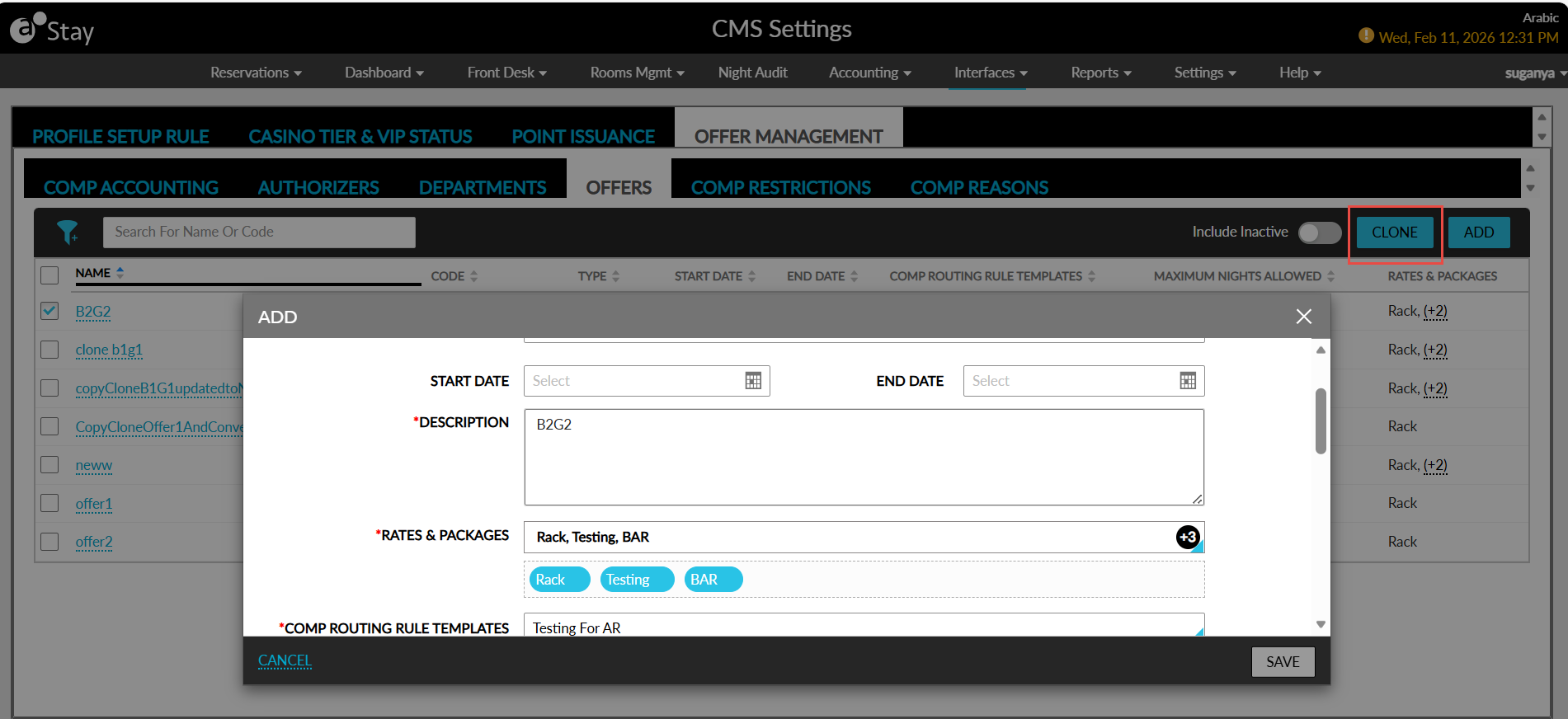
The following messages will be displayed when users save the offer with an existing name or code:
-
Error: Existing offer has the same offer name
-
Error: Existing offer has the same offer code
The Clone button will be disabled when more than one offer is selected.
Convert Offers
When users convert a non-promotional offer into a promotional offer, all the previously configured restrictions will be retained.
Similarly, when converting a promotional offer into a non-promotional offer, the existing restrictions will continue to apply without any changes.