Map Special Request Codes Sent from ACRS in Stay
The Stay - ACRS integration is enhanced to associate the special request codes (SRCs) sent for a reservation from ACRS with the service codes configured in Stay.
For example, when a code, S1, is sent for a reservation from ACRS and if the code is associated with Pet in Stay, then pet services are enabled for the reservation.
Users can import the special request codes in Stay using a template. The imported codes are then matched with the codes received for reservations from ACRS and the associated services are enabled accordingly.
Contact Agilysys to set up the ACRS integration for the property.
Permission
The following new permission must be assigned to use this feature:
-
Stay_UpdateSRCcode
This permission is assigned to the System Administrator role by default.
Only users with this permission can view and import the special request codes in Stay. The special request codes will not be displayed to users without permission.
Interface Mapping
A new tab, Interface Mapping, has been added to the Interfaces Setup screen (Settings ➜ Interfaces). This tab is displayed when the ACRS integration is active for the property.
The Interface Mapping tab displays the following sections:
-
SRC Code Setup
-
Log Details
SRC Code Setup
Users can download the template to import special request codes in Stay using the Download Template button. Once the special request code details are entered in the downloaded template, the codes can be imported in to Stay using the Import option. When clicked, the Import pop-up screen appears where the file to be imported must be selected. When users click Upload, details in the imported template are validated.
The service codes are imported successfully only when the following conditions are satisfied:
-
User must be assigned the Stay_UpdateSRCcode permission
-
Details for all mandatory fields must be provided in the imported file
-
The imported file must be either in the .xls or .xlsx format.
-
When any of the special request codes in the imported file are duplicated, the latest record will be imported in Stay.
-
Only records with valid details will be imported.
-
Once the file is imported successfully, the following message is displayed: File uploaded successfully.
The import of the special request codes fails when:
-
User is not assigned the Stay_UpdateSRCcode permission
-
The format of the imported file is invalid
-
Invalid details are entered for the fields
-
The following message is displayed when the file is not imported successfully: Could not upload the file. Please try again later with correct data
Users can filter and select the type of the special request code from the Type drop-down list. This is a single-select drop-down list that displays the following options:
-
Comment
-
Guest Preference
-
Pet
-
Requested Attributes
-
VIP Status
-
Housekeeping Pattern
-
Red Eye
-
ID Verification
-
Nightly Upgrade Award
Special request codes are displayed for the type selected.
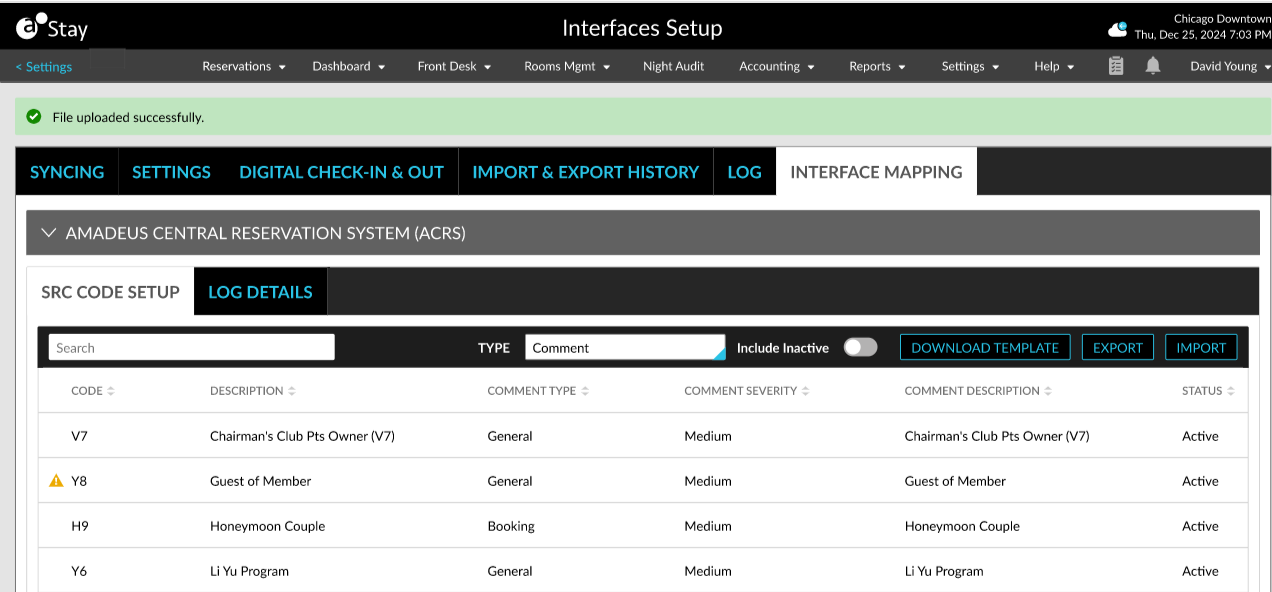
Comment
The following columns are displayed when the type is selected as Comment.
-
Code
-
Description
-
Comment Type
-
Comment Severity
-
Comment
-
Status
All columns can be sorted. When the imported file contains a comment type or severity (not configured in the property), a warning symbol is displayed in front of the code. When hovered upon, the following message is displayed: Incorrect data uploaded.
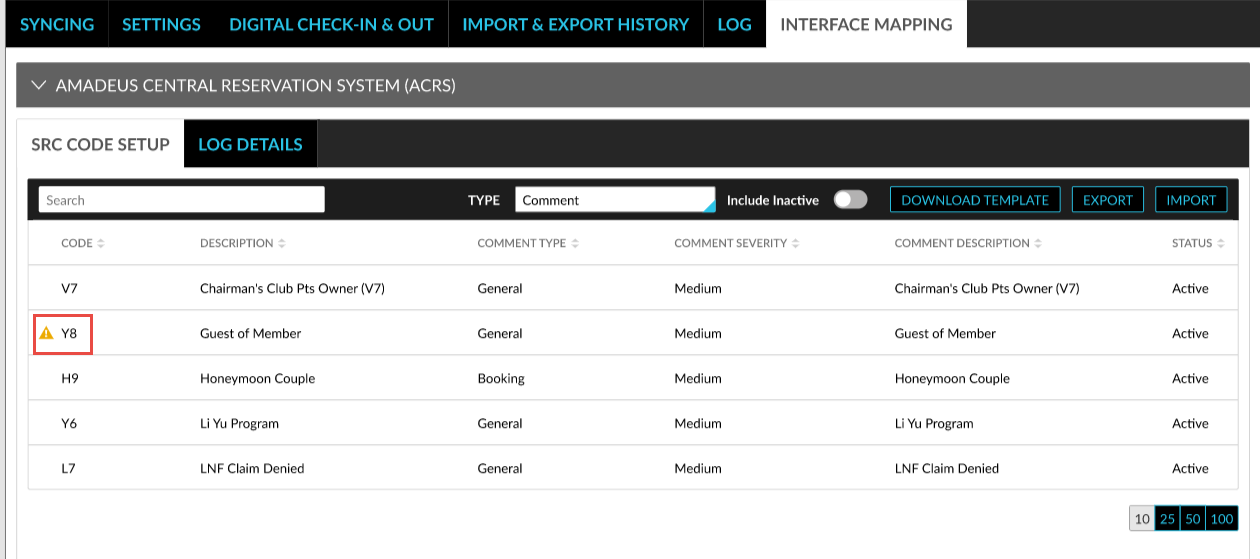
When the imported file does not contain any comment data, the message, No data available, is displayed. Users can search for a record in the SRC Code Setup tab using the code, description, comment type, comment severity, and comment data.
When a reservation sent from ACRS has a special request code and the code matches the comment code in Stay, it is displayed in the Comments section of the reservation.
For example, when a code, H9, received from ACRS matches a code configured in Stay with the following details, the comment is added to the reservation automatically.
-
Type: Comment
-
Code: H9
-
Description: Honeymoon Couple
-
Comment Type: Reservation
-
Comment Severity: Medium
-
Comment: Honeymoon Couple
Guest Preference
The following columns are displayed when the type is selected as Guest Preference.
-
Code
-
Description
-
Category Code
-
Preference Code
-
Preference Option
-
Status
All columns can be sorted. When the imported file contains an incorrect category code, preference code, or preference option (not configured in the property), a warning symbol is displayed in front of the code. When hovered upon, the following message is displayed: Incorrect data uploaded.
When the imported file does not contain any guest preference data, the message, No data available, is displayed. Users can search for a record in the SRC Code Setup tab using the code, description, category code, preference code, and preference option.
When a reservation sent from ACRS has a special request code and when the code matches the guest preference code in Stay, the guest preference is added to the Guest Preferences tab in the Preferences & History section of the reservation.
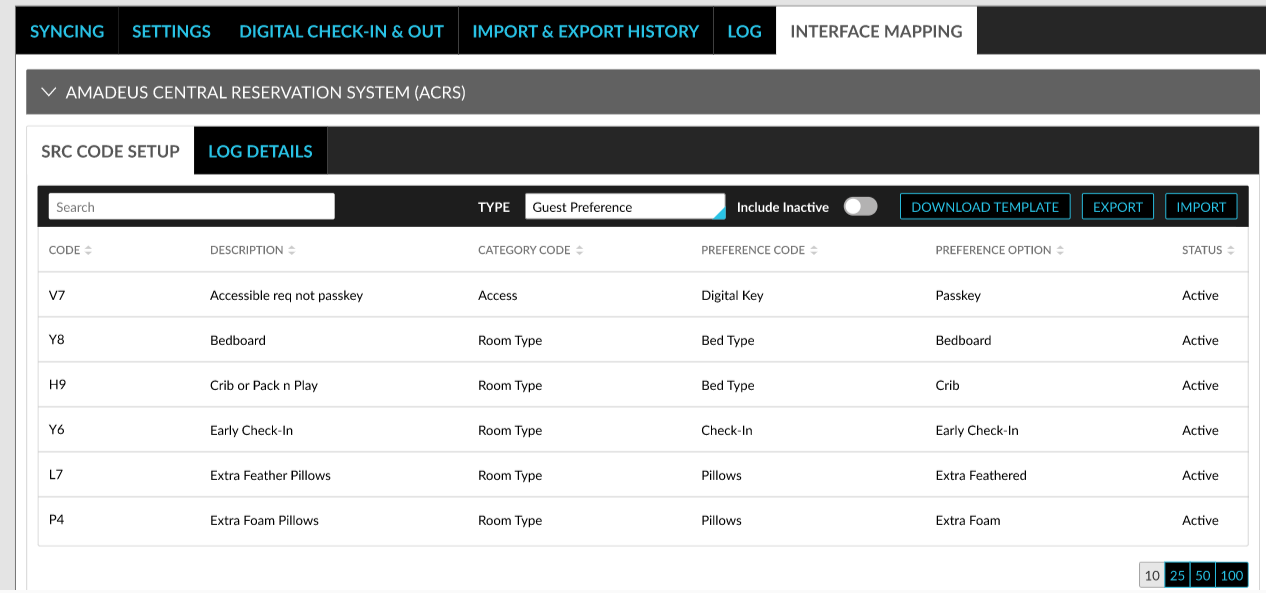
For example, when a code, Y2, received from ACRS matches a code configured in Stay with the following details, the guest preference is added to the reservation automatically.
-
Type: Comment
-
Code: Y2
-
Description: Extra Foam Pillow
-
Category Code: PILO1
-
Preference Code: PILOWF1
-
Preference Option: Extra Foam Pillow
Pet
The following columns are displayed when the type is selected as Pet.
-
Code
-
Description
-
Status
All columns can be sorted. When the imported file does not contain any pet data, the message, No data available, is displayed. Users can search for a record using code and description.
When a reservation sent from ACRS has a special request code and when the code matches the pet setup in Stay, the service animal is added to the reservation. Charges for the pet added is based on the configurations in Stay.
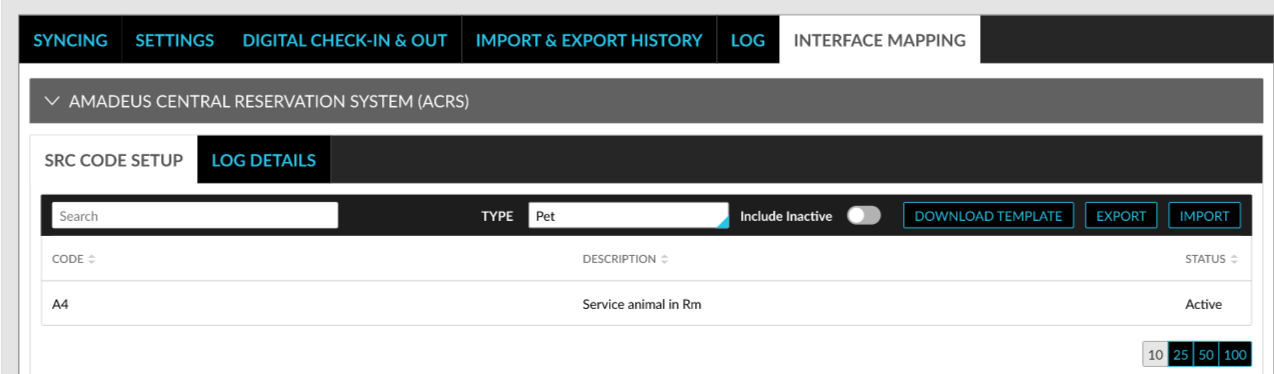
For example, when a code, P2, received from ACRS matches a code configured in Stay with the following details, the service animal is added to the reservation along with pet charges if applicable.
-
Type: Comment
-
Code: P2
-
Description: Service Animal
Requested Attribute
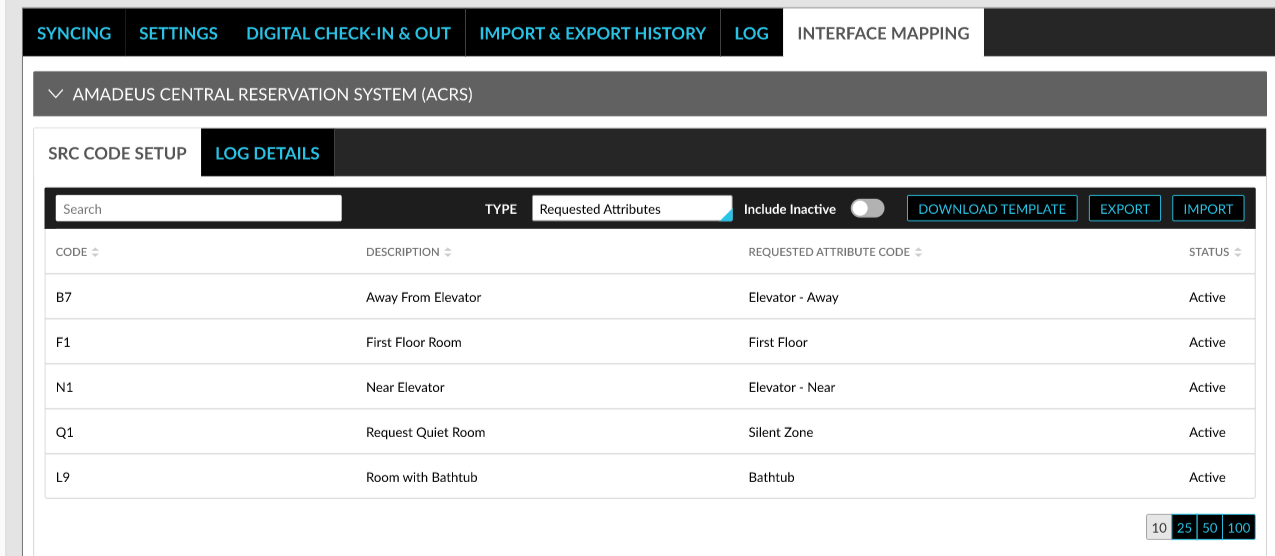
The following columns are displayed when the type is selected as Requested Attribute.
-
Code
-
Description
-
Requested Attribute Code
-
Status
All columns can be sorted. When the imported file contains incorrect requested attribute (not configured in the property), a warning symbol is displayed in front of the code. When hovered upon, the following message is displayed: Incorrect data uploaded.
When the imported file does not contain any requested attribute data, the message, No data available, is displayed. Users can search for a record using the code, description, and requested attribute code.
-
When the Guaranteed Attribute feature setting is turned off, the service code will not be applied to the reservation.
-
When the feature setting is turned on and the reservation sent from ACRS has a special request code that matches the requested attribute code in Stay, the requested attribute is added and displayed in the Reservation Summary section of the reservation.
For example, when a code, F1, received from ACRS matches a code configured in Stay with the following details, the requested attribute is added to the reservation.
-
Type: Requested Attribute
-
Code: F1
-
Description: First floor room
-
Requested Attribute Code: F1RM
VIP Status
The following columns are displayed when the type is selected as VIP Status.
-
Code
-
Description
-
VIP Code
-
Status
All columns can be sorted. When the imported file contains incorrect VIP code (not configured in the property), a warning symbol is displayed in front of the code. When hovered upon, the following message is displayed: Incorrect data uploaded.
When the imported file does not contain any VIP status data, the message, No data available, is displayed. Users can search for a record using the code, description, and VIP code.
When a reservation sent from ACRS has a special request code and when the code matches the VIP status code in Stay, the VIP status is added to the reservation.
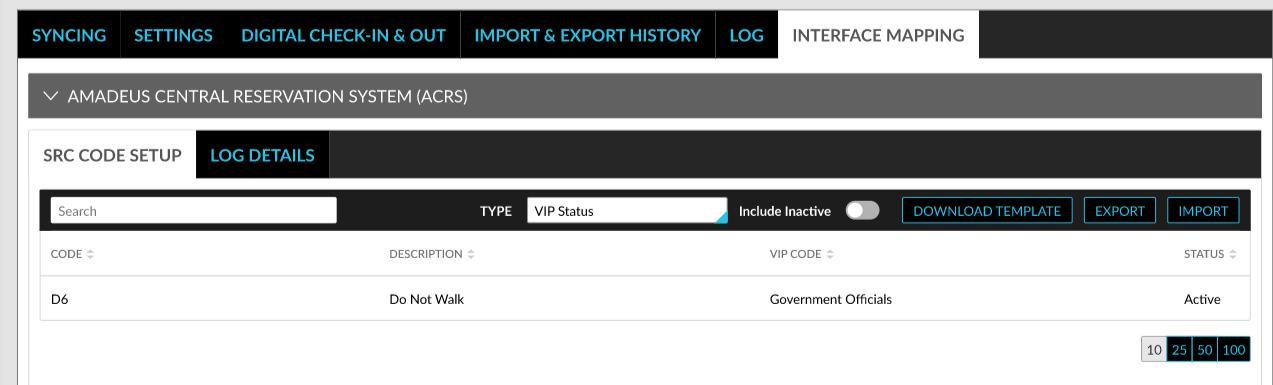
For example, when a code, V1, received from ACRS matches a code configured in Stay with the following details, the VIP status is added to the reservation.
-
Type: Requested Attribute
-
Code: V1
-
Description: Government Official
-
VIP Code: GO1
Housekeeping Pattern
The following columns are displayed when the type is selected as Housekeeping Pattern.
-
Code
-
Description
-
House Keeping Pattern
-
Status
All columns can be sorted. When the imported file contains incorrect housekeeping patterns (not configured in the property), a warning symbol is displayed in front of the code. When hovered upon, the following message is displayed: Incorrect data uploaded.
When the imported file does not contain any housekeeping pattern data, the message; No data available, is displayed. Users can search for a record using the code, description, and housekeeping pattern.
When a reservation sent from ACRS has a special request code and when the code matches the housekeeping pattern code in Stay, the housekeeping pattern is added to the reservation.
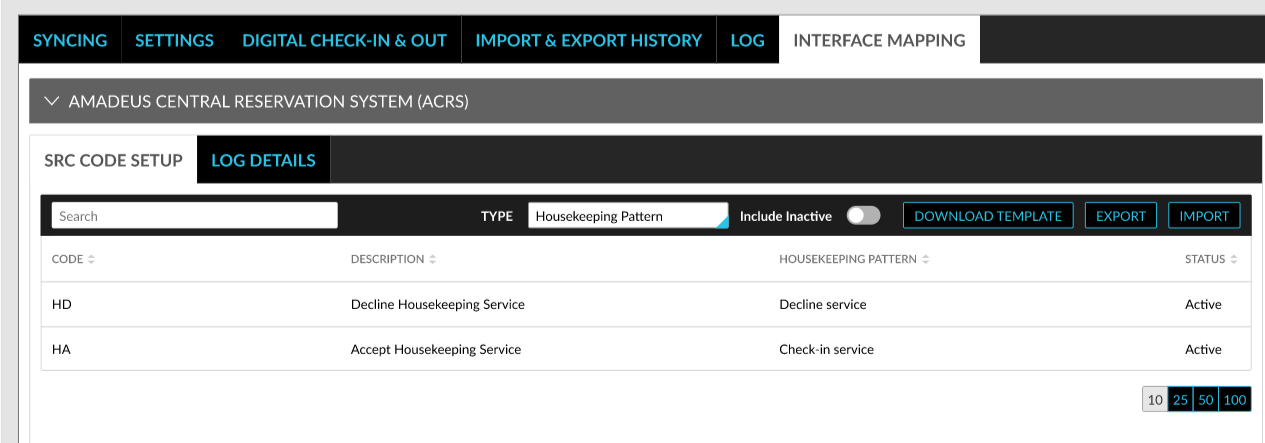
For example, when a code, HK1, received from ACRS matches a code configured in Stay with the following details, the housekeeping pattern is added to the reservation.
-
Type: Requested Attribute
-
Code: hk1
-
Description: Accept housekeeping pattern
-
Housekeeping pattern: Accept housekeeping pattern
Red Eye
The following columns are displayed when the type is selected as Red Eye.
-
Code
-
Description
-
ETA
-
Status
All columns can be sorted. When the imported file contains incorrect ETA (not configured in the property), a warning symbol is displayed in front of the code. When hovered upon, the following message is displayed: Incorrect data uploaded.
When the imported file does not contain any red-eye pattern data, the message, No data available, is displayed. Users can search for a record using the code and description. When the Red-Eye feature setting is turned off, the special request code is not added to the reservation.
When a reservation sent from ACRS has a special request code and when the code matches the code in Stay, the reservation is marked as red-eye. Only reservations for which the arrival date matches the current property date can be marked as red-eye. The ETA of the reservation is updated as per the configurations made in Stay and the status of the reservation is updated as Yet to Arrive.
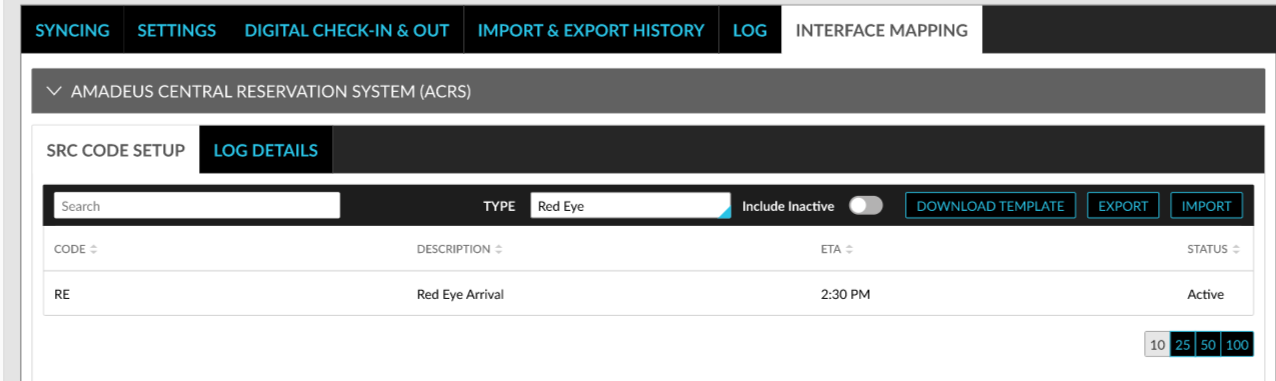
For example, when a code, RE, received from ACRS matches a code configured in Stay with the following details, the reservation is marked as red-eye and the ETA and status of the reservation is updated.
-
Type: Requested Attribute
-
Code: RE
-
Description: Red eye arrival
-
ETA: 15:30
By default, only active codes are displayed. Users can view the inactive codes by enabling the Include Inactive flag. The service codes can be exported using the Export option.
ID Verification
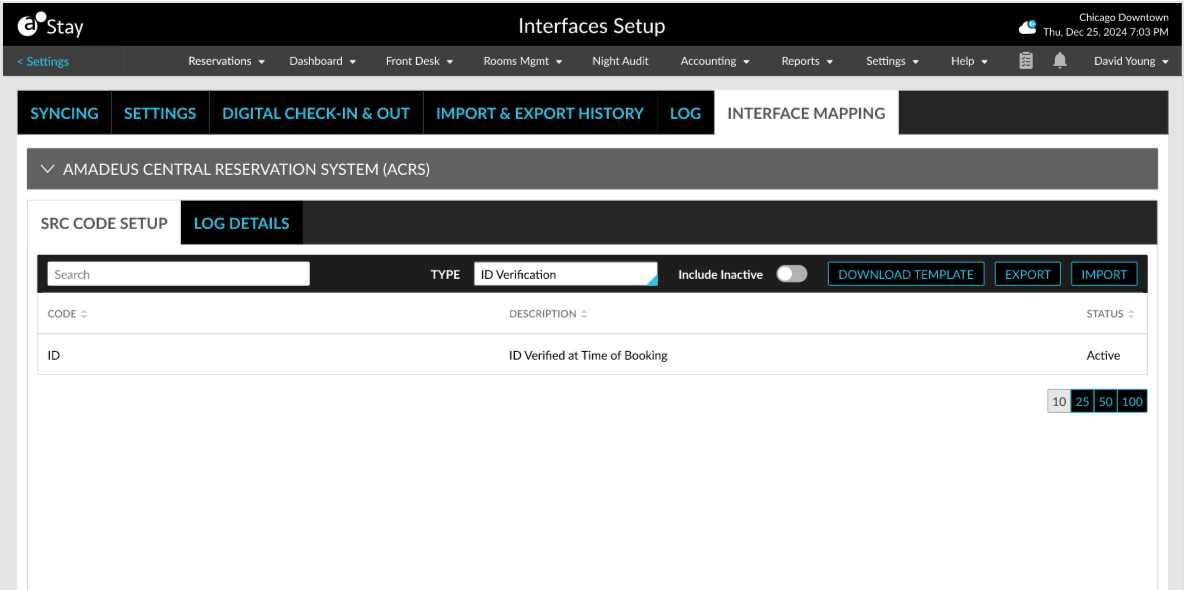
The following columns are displayed when the type is selected as ID Verification.
-
Code
-
Description
-
Status
Once users download the template, configure ID verification data, and import the file, the ID verification data available in the imported file is displayed in the columns. When the imported file does not contain any ID verification data, the following message is displayed: No data available.
The columns can be sorted. Users can search for a record using the code and description. When a reservation sent from ACRS has a special request code and when the code matches the ID verification code in Stay, then the ID verified badge is turned on for the reservation in Stay.
For example, when a code, ID, received from ACRS matches a code configured in Stay with the following details, then the ID verified badge is turned on for the reservation in Stay.
-
Code: ID
-
Description: ID verified at the time of booking
-
Status: Active
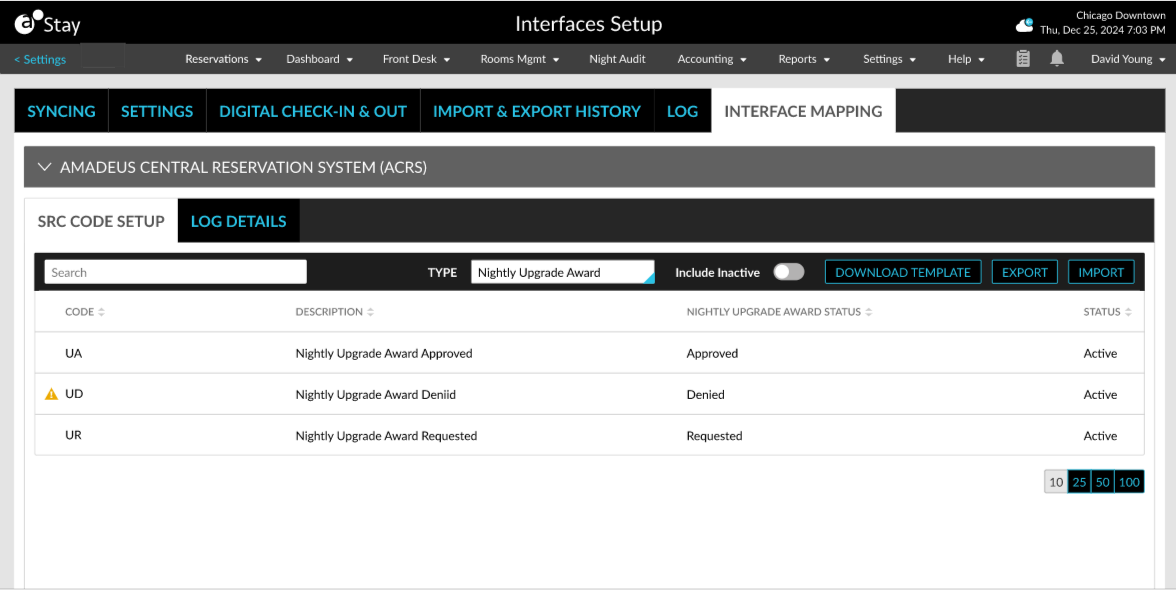
Nightly Upgrade Award
The following columns are displayed when the type is selected as Nightly Upgrade Award.
-
Code
-
Description
-
Nightly Upgrade Award Status
-
Status
Once users download the template, configure nightly upgrade award data, and import the file, the nightly upgrade award data available in the imported file is displayed in the columns.
The following nightly upgrade award statuses can be entered in the template:
-
Requested
-
Approved
-
Denied
When the imported file does not contain any nightly upgrade award data, the following message is displayed: No data available. Users can search for a record using the code, nightly upgrade award status, and description. When a reservation sent from ACRS has a special request code and when the code matches the nightly upgrade award code in Stay, then the nightly upgrade award badge will be turned on for the reservation along with the appropriate status (NUA (A)/NUA(D)/ NUA (R)).
For example, when a code, NUA, received from ACRS matches a code configured in Stay with the following details, then the NUA (A) badge is turned on for the reservation in Stay.
-
Code: NUA
-
Description: Nightly Upgrade Award Accepted
-
Type: Nightly Upgrade Award