Accounting
Threshold Amount
The Threshold Amount option allows users to configure a threshold amount for a transaction item or payment method and then prompt or warn the user if they exceed the set amount. The feature helps avoid accidental overcharges as it validates the amount and alerts accordingly.
Perform the following steps to configure the threshold amount:
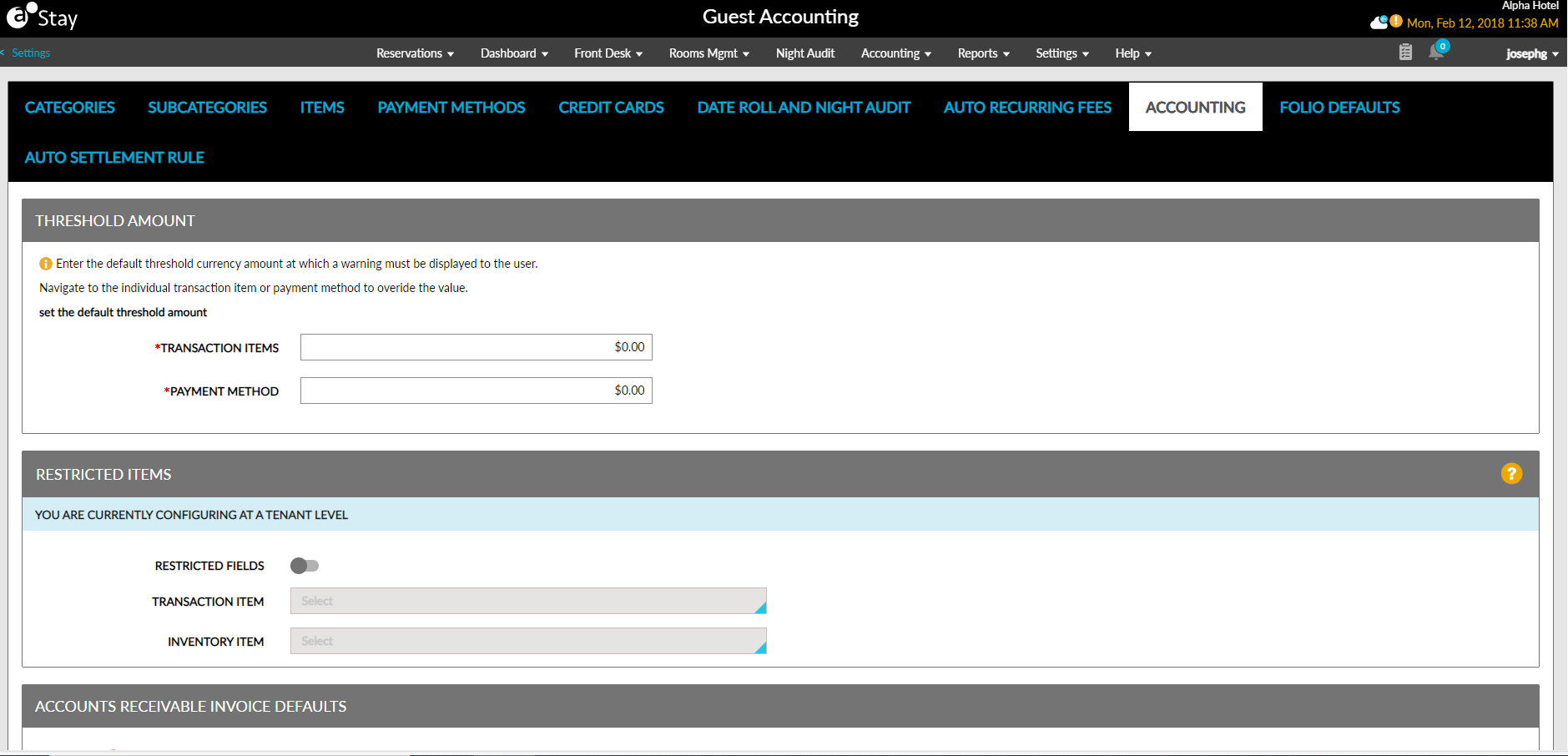
Navigate to Settings ➜ All Settings ➜ Accounting ➜ Guest Accounting ➜ Accounting ➜ Threshold Amount.
Enter a dollar amount in the Transaction Items option, for example, $10. The amount entered here is the default threshold currency amount at which a warning is displayed to the user.
Enter a dollar amount in the Payment Method option, for example, $1000.
Click Save.
The amount that is set here can be overridden in the individual transaction item or the payment method.
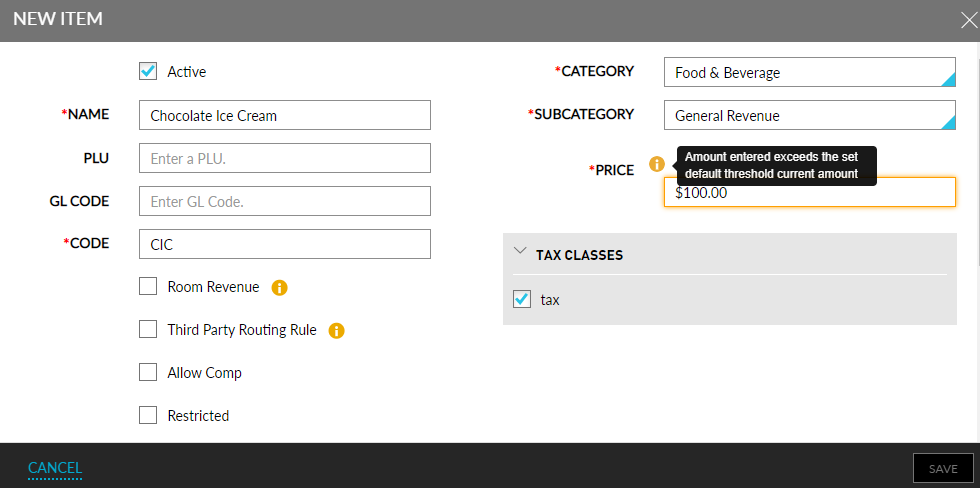
When the threshold amount set for a transactional item or payment method in Guest Accounting is exceeded, the input field is highlighted. And an info icon is displayed to alert the user that the amount exceeds the set threshold.
Scenarios where transactional charges are added, like shopping cart, pantry items, charges for pets, etcetera, will be highlighted based on the transactional amount’s threshold.
Similarly, when payments are made, for example, using the Make Payment pop-up in a reservation, the payment amount input field will be highlighted if it exceeds the payment methods threshold.
Restricted Items
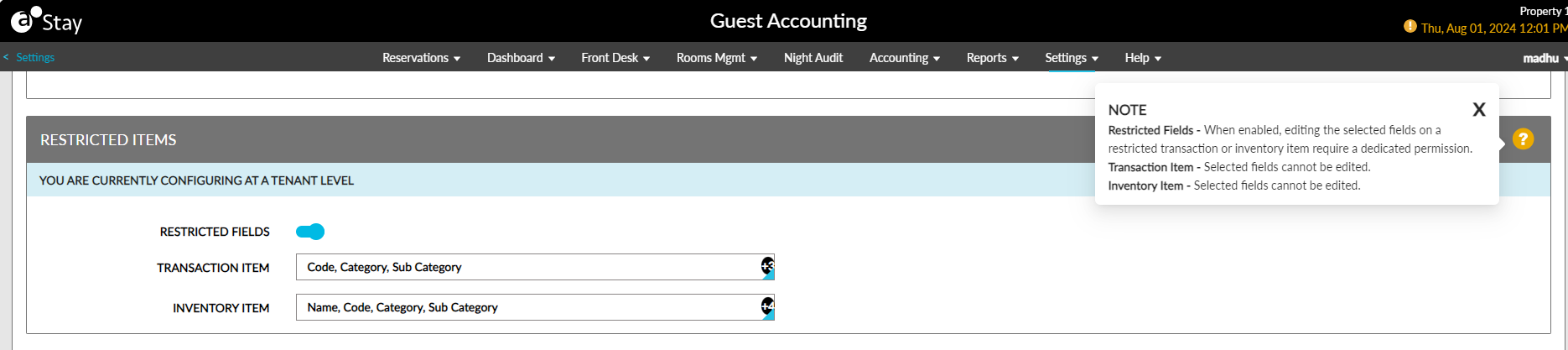
This section allows users to select the fields that cannot be modified by users for transaction and inventory items at the tenant-level.
The following permissions must be assigned to modify this section:
-
Stay_ManageItemFields
This section displays the following fields:
|
Field |
Description |
|---|---|
|
Restricted Fields |
Users must enable this flag to select the restricted fields for transaction and inventory items at the tenant-level. This flag is disabled by default. |
|
Transaction Item |
This is a multi-select drop-down list that is enabled for selection only when the Restricted Fields flag is enabled. Users can select the restricted fields for transaction items from this drop-down list. This field displays the following fields:
The following fields will be selected by default and can be deselected by users if required:
|
|
Inventory Item |
This is a multi-select drop-down list that is enabled for selection only when the Restricted Fields flag is enabled. Users can select the restricted fields for inventory items from this drop-down list. This field displays the following fields:
The following fields will be selected by default and can be deselected by users if required:
|
When users click on the legend icon in the Restricted Items section, the following details will be displayed:
Restricted Fields - When enabled, editing the selected fields on a restricted transaction or inventory item require a dedicated permission.
Transaction Item - Selected fields cannot be edited.
Inventory Item - Selected fields cannot be edited.
Accounts Receivable Defaults
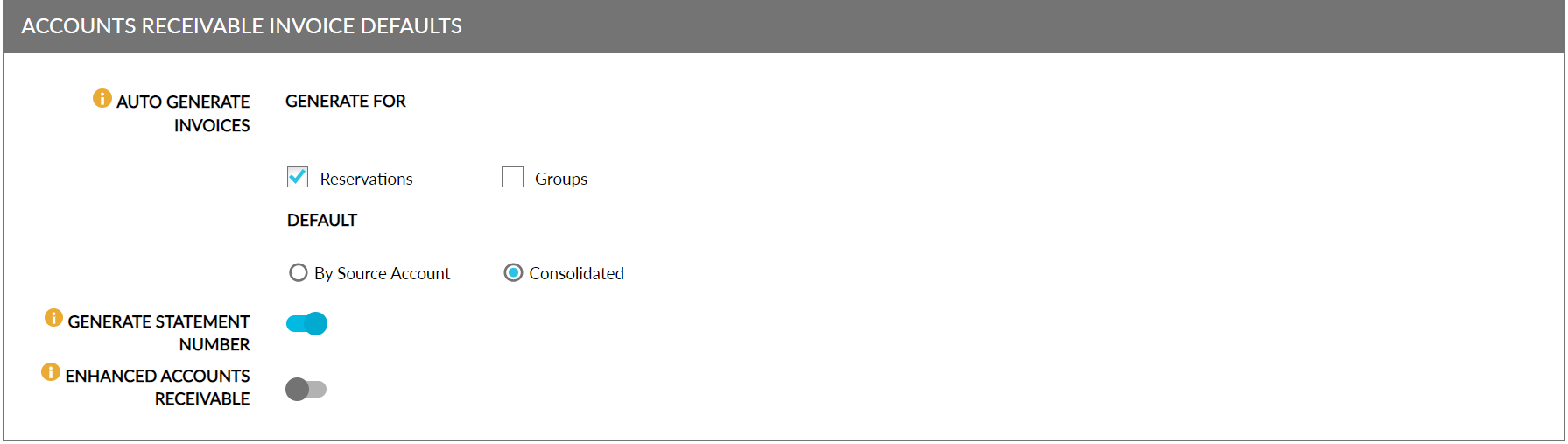
This section contains the following options:
-
Enhanced Accounts Receivable: When enabled, users can set up the validity dates for AR accounts and impose restrictions for posting charges. When the flag is disabled, the start and end date fields are not displayed in the Accounts Receivable screen.
-
Generate Statement Number: Allows users to generate a unique statement number for the statements created for A/R Invoices via print or email. This feature is not applicable for the statements created at the customer level by print or email.
-
Auto Generate Invoices: Allows users to automatically create A/R invoices for reservations and groups that are direct billed to an A/R account, during night audit. When the charges are routed/transferred to the A/R account, the invoices are automatically generated for the reservations and groups, with the invoice creation date as the current property date. This feature is not applicable for charges transferred from the reservation/group after the departure date.
-
Default
-
By Source Account: Invoices for the charges posted from reservations are generated individually by the source account. Charges that are directly posted to the group are invoiced separately as a group invoice.
-
Consolidated: Invoices are generated as per the existing functionality. This option is selected by default.
-
These options are disabled when neither Reservation nor Group is selected in the Generate For section.
-
-