Allocations
Agilysys Stay has now been enhanced to allow a user to group rate plans and packages to create a rate allocation group. Users can define the maximum number of room nights that can be sold by an allocation group. Allocation is another method of increasing yield. For example, a property may choose to limit the number of Couples Getaway packages to be sold on a date.
When rate allocation is being used, and the maximum number of rooms for a room type to be sold have been reached, then that rate plan (or rate plans if in an allocation group) is closed for that room type and is no longer available to sell. The default, unless changed by the user, is no limit.
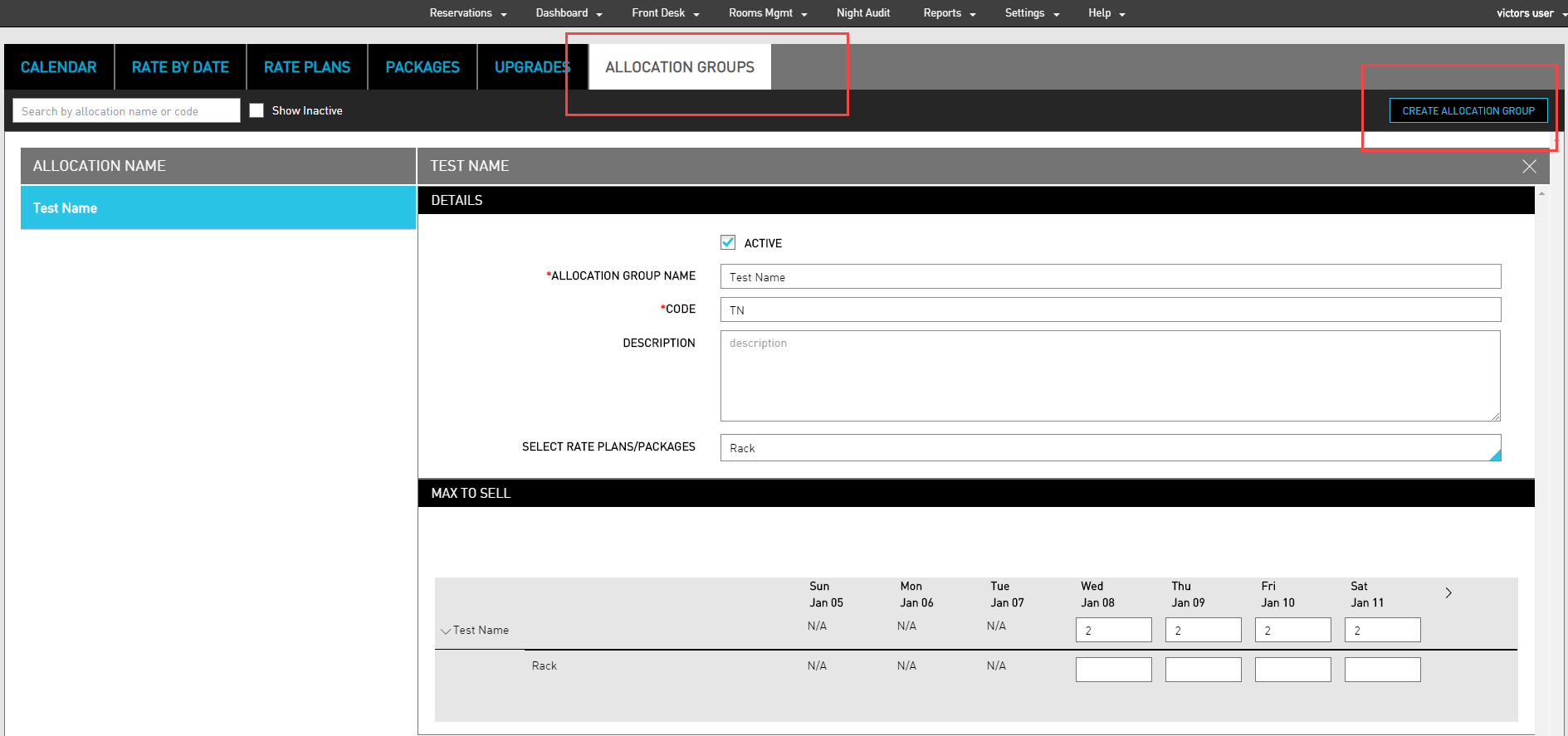
Create an Allocation Group
To create an allocation group:
Navigate to Settings ➜ Rates ➜ Allocation.
Click the New button. The Create Allocation screen is displayed.
In the Detail section, enable the Active checkbox.
Enter the following details:
|
Field |
Description |
|---|---|
|
Allocation Group Name |
Enter a name for the allocation group. |
|
Code |
Enter a unique code to identify the allocation group. |
|
Description |
Provide a relevant description of the allocation group. |
|
Select Rate Plans / Packages |
Select the rate plans and packages that must be grouped together to for the allocation group from the dropdown. |
Click Next.
In the Max to Sell section, click the dropdown next to the allocation group name to view all the rate plan and packages that are associated to the allocation group.
If you want to edit the group count, click on a cell that must be edited. The Edit Allocation Group Count screen is displayed.
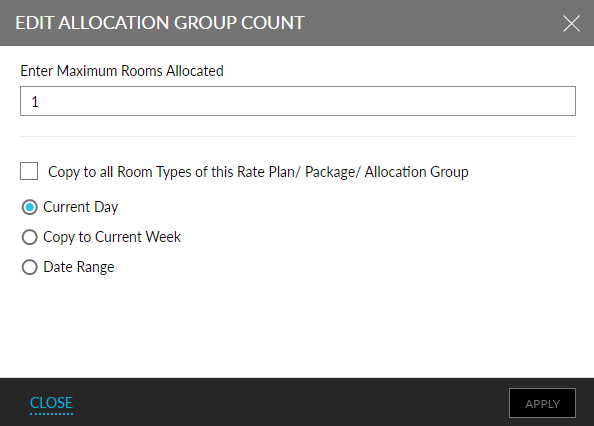
Make the following changes in this screen:
|
Field |
Description |
|---|---|
|
Enter Maximum Rooms Allocated |
Enter the maximum number of rooms that must be allocated for a room type. |
|
Copy to all Room Types of this Rate Plan/ Package/ Allocation Group |
Allows the user to copy the Max to Sell values for the entire rate plan, package, or allocation group. |
|
Current Day |
Allows the user to copy the Max to Sell values for the current day selected in the Max to Sell grid. |
|
Copy to Current Week |
Allows the user to copy the Max to Sell values for the current week displayed in the Max to Sell grid. |
|
Date Range |
Allows the user to copy the Max to Sell values for a selected date range displayed in the Max to Sell grid. Users can select the End Date. A maximum of 2 months can be selected. Users can also select specific days in the week. |
Click Apply. The allocation group count is applied to the Max to Sell grid.
Click Save to complete changes. Users can navigate to the next week only after clicking on Save.
Manage Rate Allocation Groups from Rate Plans and Packages
Navigate to Settings ➜ Rates ➜ Rate Plans.
Click More.
Click Allocations. The user is then automatically redirected to the Allocation Groups tab.
Users can also view the associated allocation group from the rate plan and package level.
Navigate to Settings ➜ Rates ➜ Rate Plans/Packages.
Click on the Rate Plan or Package.
In the Details section, the Allocation Group field displays the associated Allocation Group name to the selected rate plan or package.