Buildings
The Buildings option allows users to add property details for each additional building if they are spread across more than one main building.
Buildings are not intended to be used as a separate financial entity. If the buildings require separate financial statements and ledgers, contact Agilysys.
Perform the following steps to create a building:
Navigate to Settings ➜ All Settings ➜ Property, buildings, & outlets (under General).
Navigate to the Buildings tab.
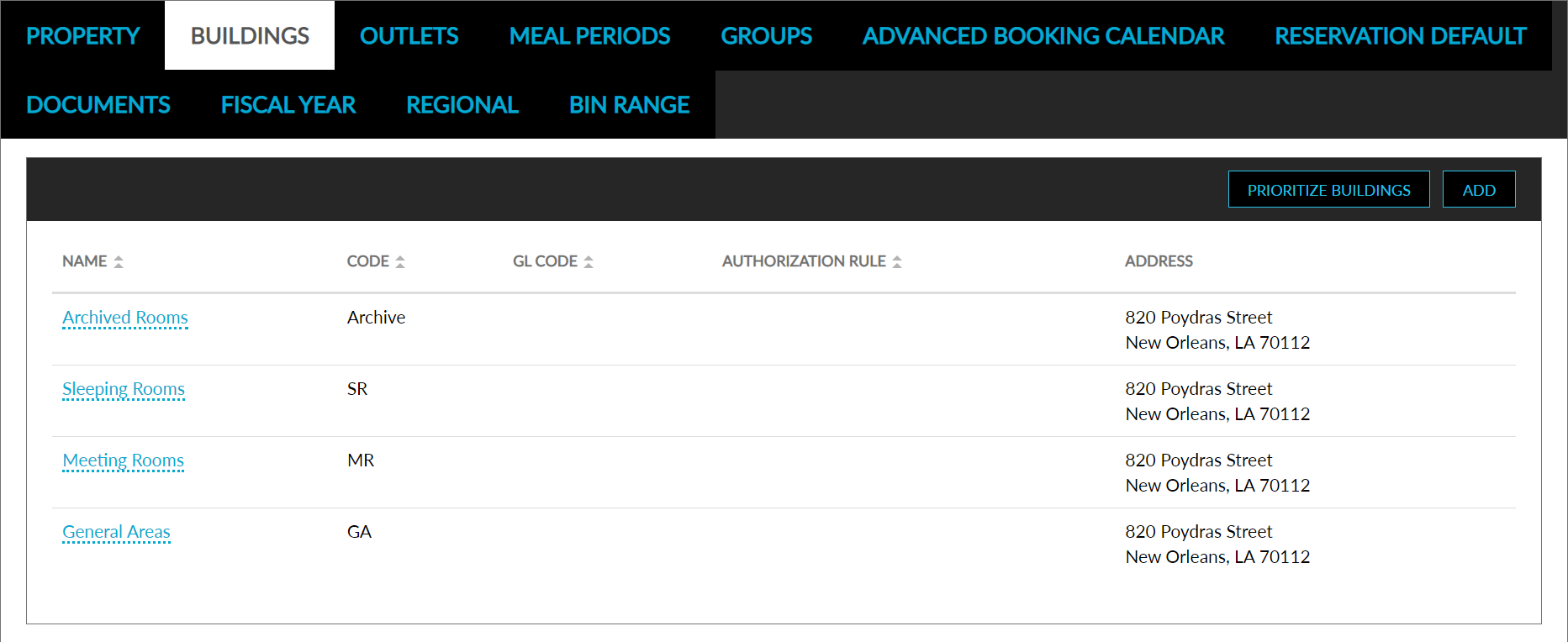
Click Add. The New Building dialog box appears.
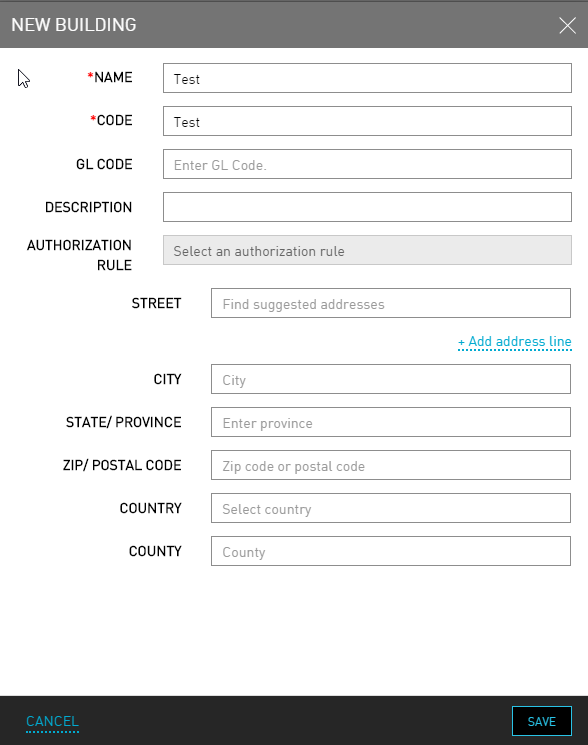
Refer to the following table and fill in the fields to set up the building:
|
Field |
Description |
|---|---|
|
Name |
The name of the building. |
|
Code |
A unique code to identify the building. |
|
GL Code |
A unique general ledger code for the building. |
|
Description |
The description of the building. |
|
Authorization Rule |
The authorization rule for the building. |
|
Street |
The street address of the building. |
|
City |
The city where the building is located. |
|
State/Province |
The state or province where the building is located. |
|
Zip/Postal Code |
The zip postal code of the building location. |
|
Country |
The country where the building is located. |
|
County |
The county where the building is located. |
Click Save. A new building is created.
Prioritize Building Display Order in Tape Chart
Users can prioritize the building order, and the set building order will appear in the Tape Chart only.
Click Prioritize Buildings.
Drag and drop the buildings and set the priority of display in the Building Order pop-up screen.
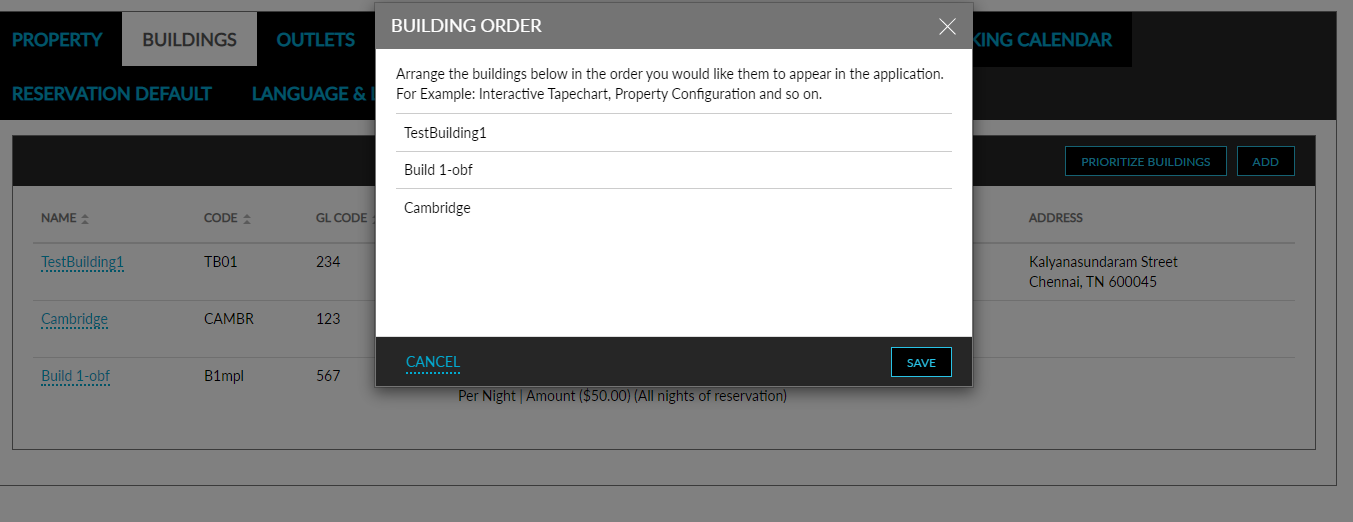
Click Save to save the building order.