Categories
The Categories option is a way of grouping like items together for accounting and reporting purposes. Each category often has associated subcategories, and within each subcategory, there are specific items. Standard categories and subcategories are available by default, but users can add or change accordingly.
For example, here's an example of how to set up a Room category:
Rooms (category):
-
Fees (subcategory)
-
Cancellation Fee (item)
-
Smoking Fee (item)
-
Damage Fee (item)
-
Pet Fee (item)
-
Movie Fee (item)
-
-
Revenue (subcategory)
-
Nightly Room Revenue (item)
-
Room Discount (item)
-
If the property has only one building, that building is the default accounting source for all posted charges and routing rules. If the property has multiple buildings or outlets, the user may choose to associate different categories to each location. For example, suppose a user has a café on the property set up as an outlet. In that case, the user can associate a Food and Beverage and a Newspaper category to that outlet. Since there are no rooms in the café, leave the Rooms category unassociated so no charges of that type can be posted from the café (outlet).
Perform the following steps to create a new category:
Navigate to Settings ➜ All Settings ➜ Accounting ➜ Guest Accounting.
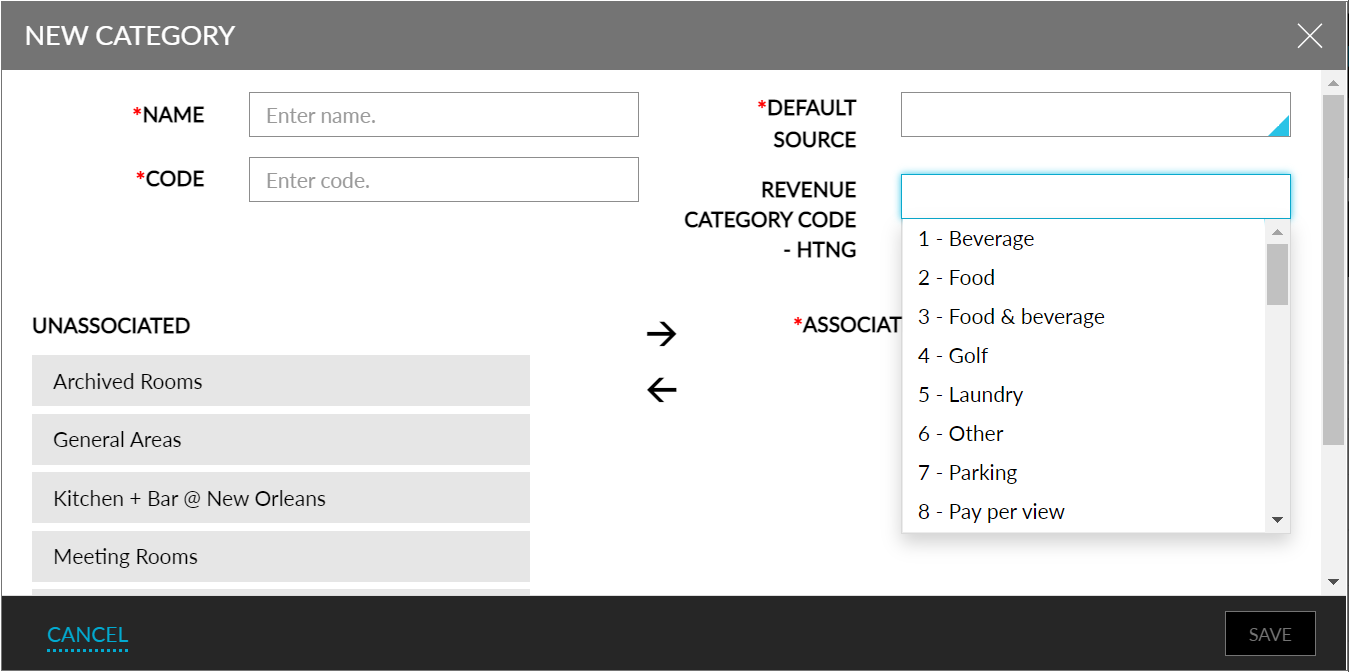
Click Add under Categories. The New Category dialog box appears.
Refer to the following table and fill in the fields to add a new category:
|
Field |
Description |
|---|---|
|
Name |
The name of the category. |
|
Default Source |
The default source for charges, if the property has more than one building. |
|
Code |
A unique code to identify the category. |
|
Revenue Category Code - HTNG |
The revenue category code to be added. |
Select an Unassociated building or outlet on the property and click the right arrow to move it to the Associated box. When a location is listed in the Associated box, the category charges can be posted from that building or outlet only.
Users can select more than one building or outlet and click the right arrow to move them together.
Choose an associated building or outlet from the Default Source list. It becomes the default accounting Source in the Add Charge dialog box (under Folio Summary in Reservations) for all posted charges. The guest service agent can change the default source when they add a charge if they choose.
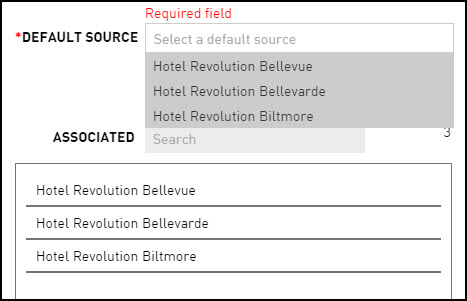
Click Save. The new category is created successfully.
Adding Revenue Codes in Guest Accounting
Stay allows users to add Revenue Category Codes which can be mapped to an appropriate Category (Settings ➜ All Settings ➜ Accounting ➜ Guest Accounting). The list of revenue category codes to be mapped can be displayed in the UI by adding them to the property import sheet.
To support this, he feature setting, Revenue Category Code - Htng, must be enabled to display the Revenue Category Code dropdown.