Cloud Logs
The Cloud Logs tab displays detailed logs of each transaction, including request/response details, attachments, and error messages. Users can filter records based on the following options:
-
Date range
-
Properties
-
Interfaces
-
Status
-
Direction
-
Type
Users can search for a record using attributes, identify transactions with icons, view/copy attachments and errors, and retry eligible outbound transactions.
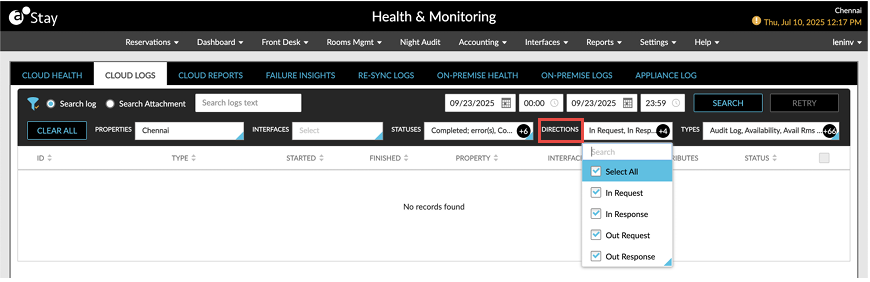
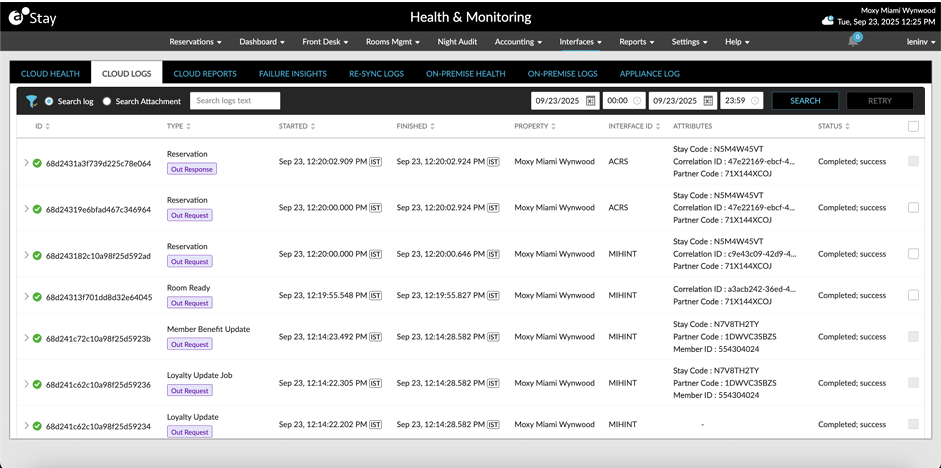
Perform the following to view the logs:
Click the Filters icon, to filter logs by Interfaces, Properties, Statuses, and Types.
Select From and To fields from the calendar for which the report must be generated.
Users can also select the specific time range for which they wish to see the API logs.
Click Refresh. The API log is generated.
This report displays the following parameters:
|
Field |
Description |
|---|---|
|
ID |
The ID of the API log. |
|
Started |
The start time of the generated log. |
|
Finished |
The end time of the generated log. |
|
Property |
The property name for which the log was generated. |
|
Interface |
The interface type for which the log was generated. |
|
Type |
The type of request sent. |
|
Status |
The status of the log generated. |
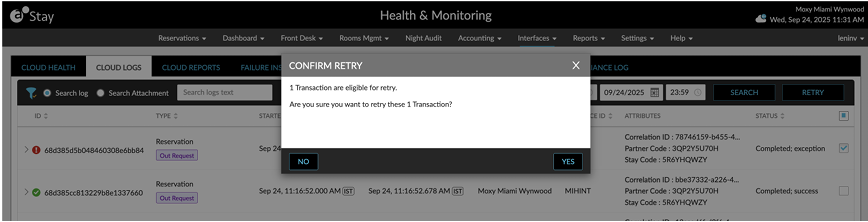
When users select the failed transactions and click on the Retry button, the Confirm Retry pop-up screen appears that prompts users to confirm if the selected transaction must be retried.
When users click Yes, the message, Retry is triggered, is displayed as a banner.
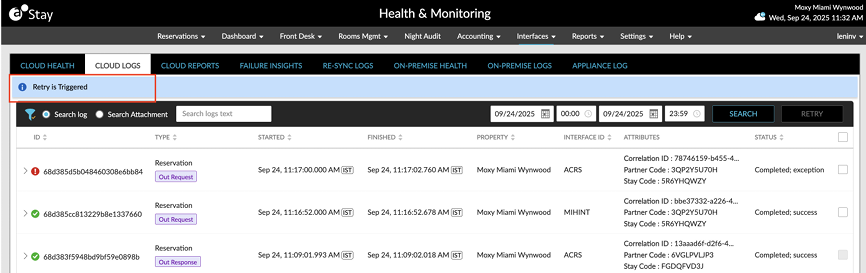
Once the retry is completed successfully, the username of the user who performed the retry is indicated in the Status column.
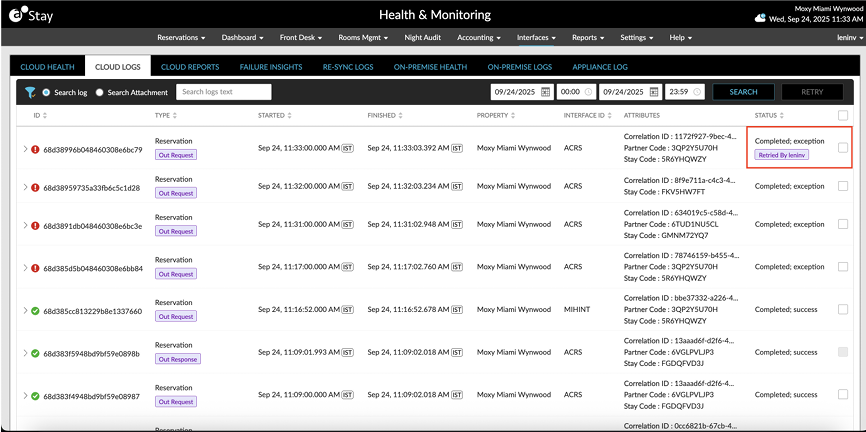
Retry is supported for the following messages and types:
-
Group - Out Request
-
Reservation - Out Request
-
AR Aging - Out Request
-
Folio NOC - Out Request
-
General Ledger - Out Request
-
House Account - Out Request
-
Inventory Blocks - Out Request
-
Loyalty Update - Out Request
-
Night Audit - Out Request
-
Physical Key - Out Request
-
Link Reservation Request - Out Request
-
Room Ready - Out Request