Condition
Room conditions enables users to manage what housekeeping services are needed for a particular room. There are many default room conditions, including Dirty, In Progress, Occupied Clean, and more. If your property manages additional conditions, you can add more.
Perform the following steps to create a new condition:
Navigate to Settings ➜ All Settings ➜ Housekeeping (under Back of House).
Click Condition tab or scroll down the page.
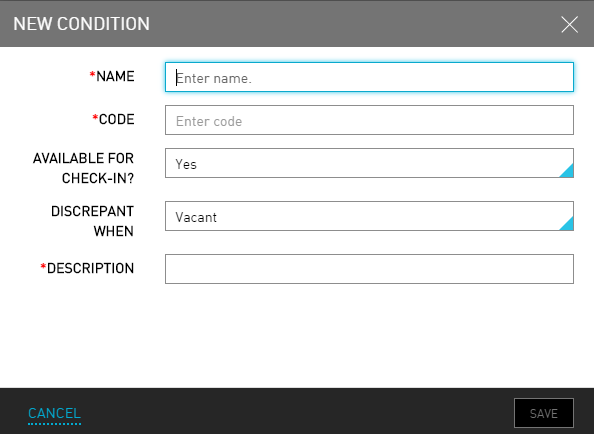
Click Add New. The New Conditions dialog box appears.
Refer the following table and fill in the fields to add a guest service:
|
Field |
Description |
|---|---|
|
Name |
The name of the guest service. |
|
Code |
A unique code to identify the guest service. |
|
Available For Check-In |
Select Yes, if the room is in this particular condition. For example, a room that is dirty or out-of-order shouldn’t be available for a guest to check in. |
|
Discrepant When |
Select a room condition from the Discrepant When list to indicate when there is a discrepancy between the occupancy status of a room versus its housekeeping status. For example, if you add a “Vacant” condition, you’d need to indicate that there should be a discrepancy if the room status is set to occupied. |
|
Description |
The staff role or service type associated with the guest service. |
Navigate to Housekeeping ➜ Condition.
Click Save.