Custom Fields
The Custom Fields option allows users to add new input fields to collect information, feedback, or reviews.
The custom fields can be made available in the Guest Profiles, Travel Agent Profiles, Company Profiles, Group Bookings, and Reservations.
The feature setting named Custom Fields should be enabled to create new custom fields. If the feature setting is disabled, existing custom fields will no longer be available, and the user will not be able to create new custom fields.
Perform the following steps to create new custom fields:
Navigate to Settings ➜ All Settings ➜ General ➜ Property, buildings, & outlets. The Property tab displays by default.
Click the Custom Fields tab.
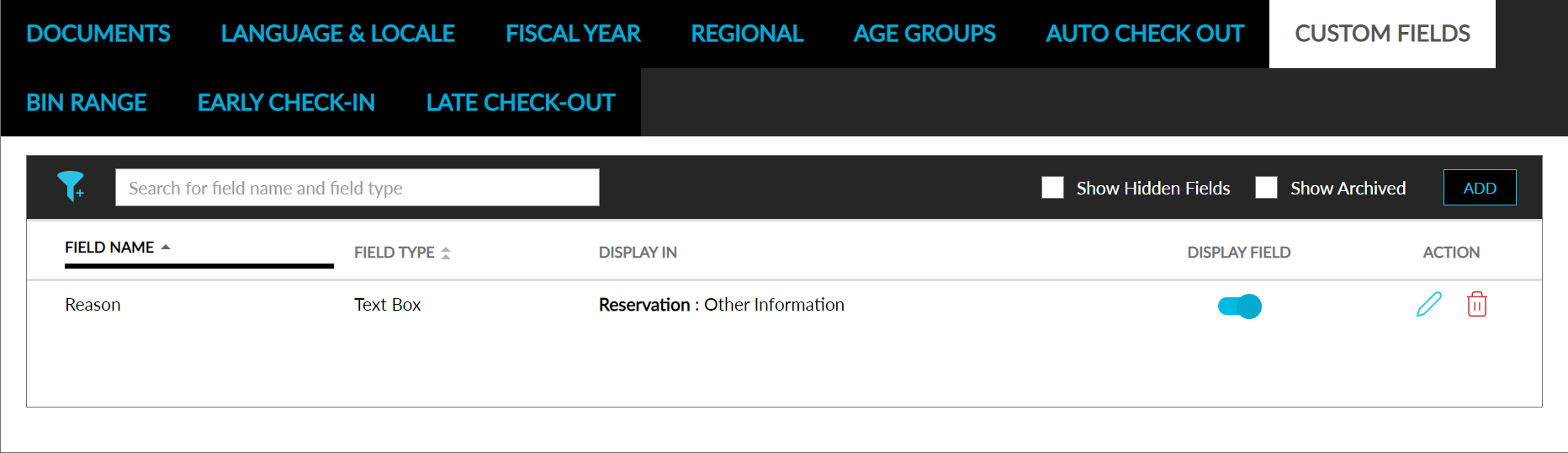
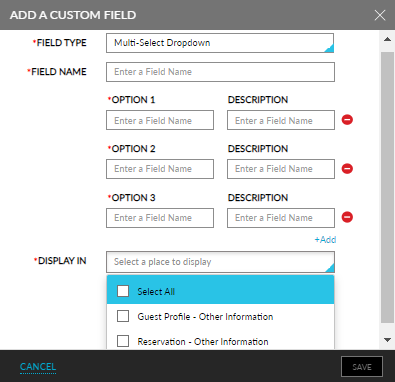
Click Add to open the Add a Custom Field pop-up screen.
Enter the following details to create a new custom field:
|
Field |
Description |
|---|---|
|
Field Type |
Select an input field from the following options in the drop-down list:
|
|
Field Name |
Enter the name of the custom field. For drop-down lists, options and descriptions for the list can be added, edited, or removed |
|
Display In |
Select where the custom field should display from the following options in the drop-down list:
|
The custom fields table displays the following details:
|
Field |
Description |
|---|---|
|
Field Name |
Field name assigned to the custom field. |
|
Field Type |
Type of input field, for example, toggle or text box. |
|
Display In |
Where the custom field will be displayed, Reservation or Guest Profile or both. |
|
Display Field |
Enable the toggle to keep the custom field active and on display in the desired sections to collect input. |
|
Edit Icon |
Edit an existing custom field. |
|
Bin Icon |
Archive an existing custom field. |

Use the filter icon to filter the table appearance.
Use the search bar to search the field name or field type.
Select Show Hidden Fields to display disabled custom fields.
Select Show Archived to display archived custom fields.
The changes made to the Custom Fields, including new additions, edits, etcetera will be captured and displayed in the audit logs Screen.