Customize Folio Print and Email in Reservations and Groups
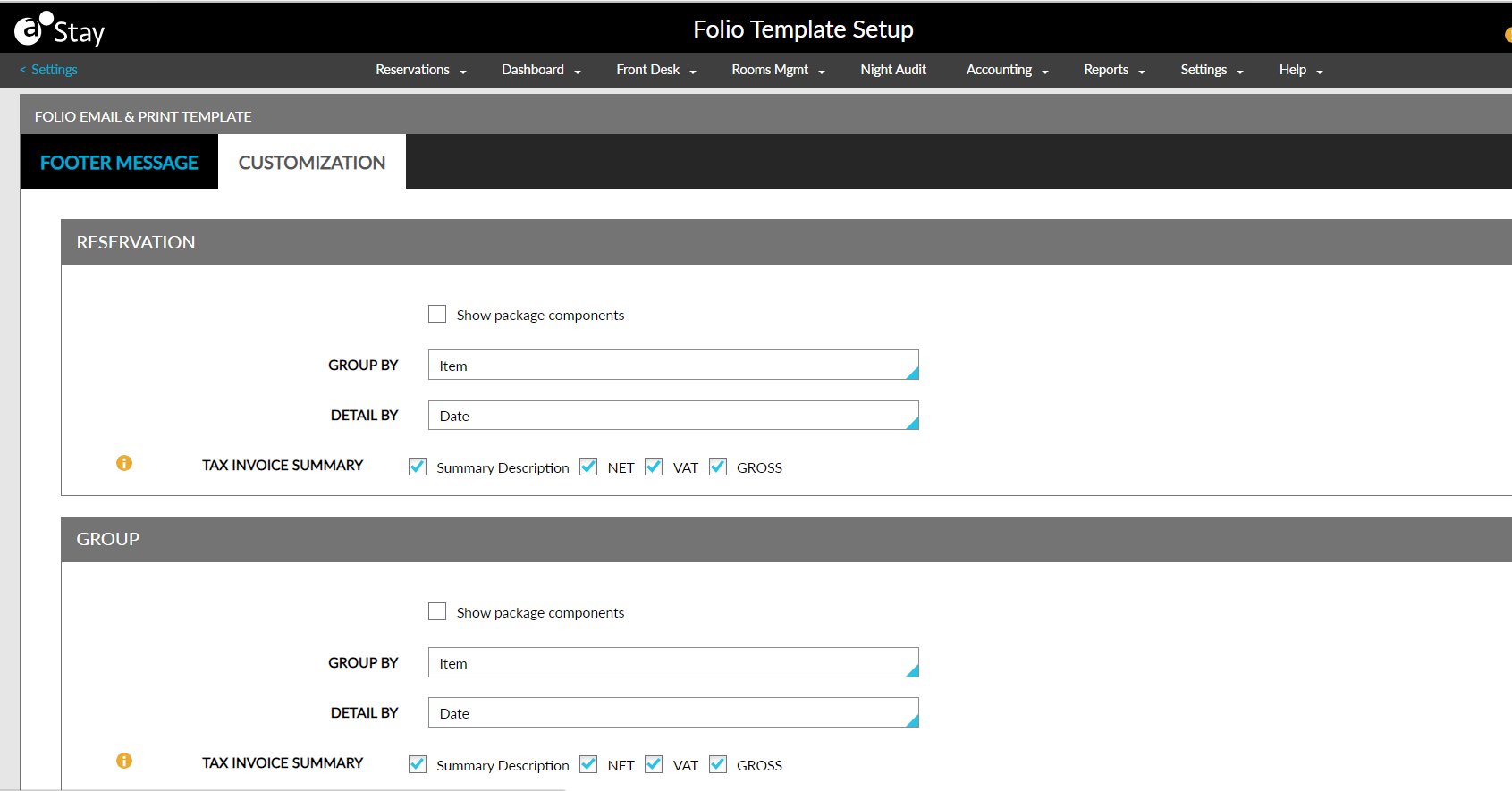
Stay allows users to customize the display of the folio when printed or emailed. Users can decide how the transactions in reservation and group folios can be displayed by configuring the grouping and display options.
This feature is applicable only for guest folios and third-part folios of reservations and groups. This feature is not applicable for package and comp folios.
Feature Setting
-
Name: Reservation and Group Folio Customization
-
Value: Must be enabled
-
Comments: License is not required
Reservation Section
The Reservation section on the Customization tab of the Folio Email & Print Template section of the Folio Template Setup screen allows users to customize how the transactions in reservation folios should be displayed in folio print and email. The Reservation section displays the following fields:
|
Field |
Description |
|---|---|
|
Show Package Components |
When enabled, all the package components are displayed in folio print and email. When disabled, only the sum of the rate of the package components are displayed. |
|
Group By |
This is a single-select drop-down list that allows users to select how the transactions in the folios should be grouped. Users can select from the following options:
|
|
Detail By |
This is a single-select drop-down list that allows users to select how the transactions in the folios should be displayed/detailed. Users can select from the following options:
|
|
Tax Invoice Summary |
This is a multi-select option that allows users to select the columns to be displayed when the tax invoice summary is printed. Users can select from the following options:
|
The Help icon in this section displays the following information about the Group By options when users hover over the icon:
Group By Options:
-
Item: Each item is displayed in the order in which it is posted to the folio.
-
Summary by Stay: The nightly room rate and the package rate are displayed first, followed by the other charges.
-
Room Revenue and Non-Room Revenue: The room revenue charges are displayed first, followed by the non-room revenue charges.
-
Category: The items are grouped by category and sorted alphabetically.
-
Balance: The total of all charges, credits, and payments are displayed.
The selected options are applied to each guest and third-party folios of a reservation when emailed/printed.
Group Section
The Group section on the Customization tab of the Folio Email & Print Template section of the Folio Template Setup screen allows users to set the Group By and Detail By options for the transactions in group folios both at the property level and inside each group. This section displays the following fields:
|
Field |
Description |
|---|---|
|
Show Package Components |
|
|
Group By |
This is a single-select drop-down list that allows users to select how the transactions in the folios must be grouped. Users can select from the following options:
When charges are added to a group and if the Group By option is selected as Room/Reservation/Guest Name, these charges are displayed under Other Charges for each date. When there are charges transferred from other groups/house accounts/A/R accounts and if the Group By option is selected as Room/Reservation/Guest Name, these charges are displayed under Transferred Charges for each date. |
|
Detail By |
This is a single-select drop-down list that allows users to select how the transactions in the folios must be displayed/detailed. Users can select from the following options:
|
|
Tax Invoice Summary |
This is a multi-select option that allows users to select the columns to be displayed when the tax invoice summary is printed/emailed. Users can select from the following options:
If no option is selected, the tax invoice summary will be blank when printed/emailed. |
The Help icon in this section displays the following information about the Group By options when users hover over the icon:
Group By Options:
-
Item: Each item is displayed in the order in which it is posted to the folio.
-
Summary by Stay: The nightly room rate and the package rate are displayed first, followed by the other charges.
-
Room Revenue and Non-Room Revenue: The room revenue charges are displayed first, followed by the non-room revenue charges.
-
Category: The items are grouped by category and sorted alphabetically.
-
Room: The items are grouped by room number and sorted numerically.
-
Reservation: The items are grouped by reservation confirmation ID and sorted alphabetically.
-
Guest Name: The items are grouped by guest name and sorted alphabetically by the guest’s last name.
-
Balance: The total of all charges, credits, and payments are displayed.
When users click the Print Customization button on the Folio & Routing Rules tab of a group, the Folio Customization screen appears that displays the following options:
-
Show Package Components Check Box
-
Group By
-
Detail By
-
Tax Invoice Summary
-
Help icon next to Group that displays the information for each group by option when hovered upon.
By default, the configurations made at the property level are displayed. Users can override the selected options for each group.
A new record is created in the Group History section of a group that displays the username, date, and time when users made changes to any of the following options:
-
Show package components
-
Group By
-
Detail By
-
Tax Invoice summary