Early Check-In
The Early Check-In screen allows users to create fee names and associate charges for early check-in at the property.
Perform the following steps to set up early check-in fees at the property.
Navigate to Settings ➜ All Settings ➜ General ➜ Property, buildings, & outlets. The Property tab displays by default.
Click the Early Check-In tab.
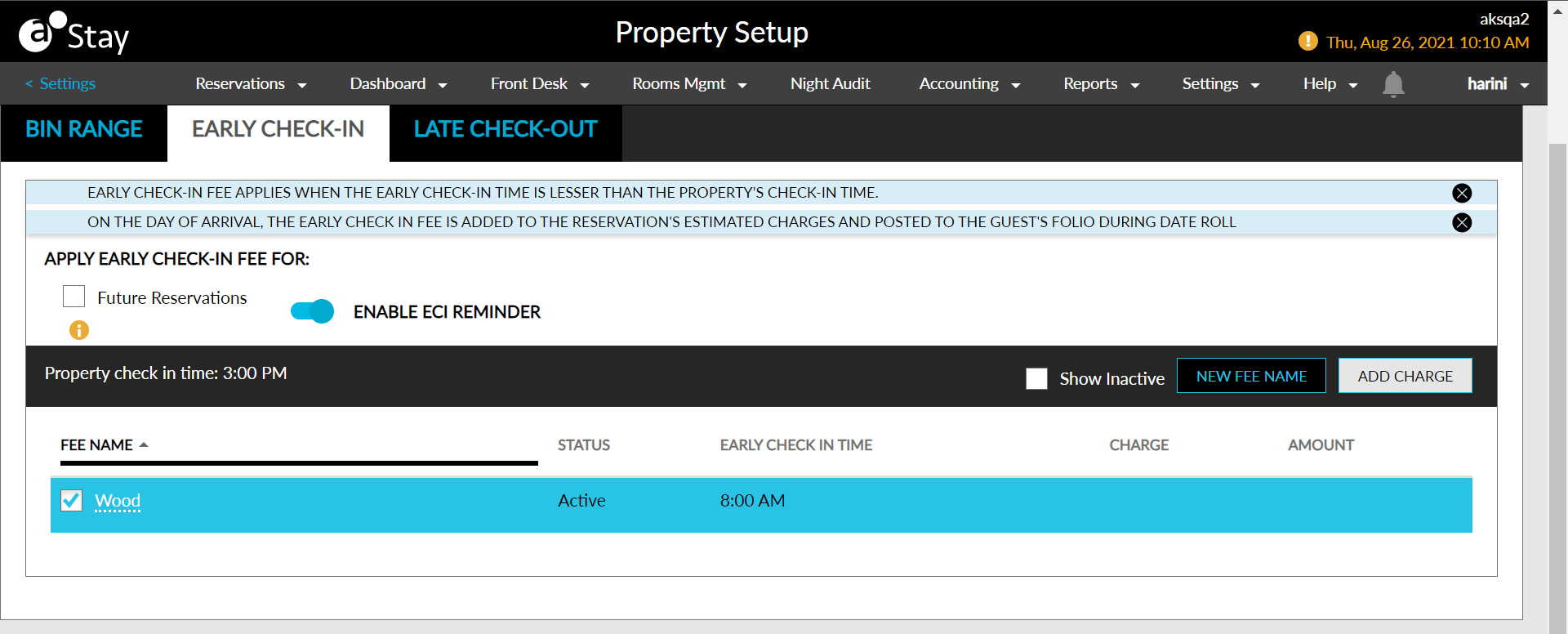
The feature setting named Early Check-In Fee should be enabled.
Enable Enable ECI Reminder, flag to control the display of the ECI fee pop-up window that is displayed during an early check-in. By default, this flag is enabled.
Select whether the early check-in fees are applied for future reservations by selecting Future Reservations under Apply Early Check-In Fee For label. If unselected, early check-in fees are also applicable for already created active reservations.
Click New Fee Name in the right top corner of the grid. The New Fee Name pop-up screen displays.
Select Active to active the fee name.
Type the name of the fee in the Fee Name text box.
Enter the early check-in time and select AM or PM in the Early Check-In Time field.
Click Save to confirm the name of the fee.
Select the fee name from the grid and click Add Charge on the right top corner of the grid.
Add the charges associated with the vehicle type using +Add next to the transaction item. Click Next to navigate to the next screen.
Confirm the charges by clicking Save.
Click the fee name in the grid to edit and save the name or inactive the status.
Click the delete icon next to each charge to remove the charge associated with the early check-in fee.