Editing the Schedule Deposit Due Template
Allows users to define how to display the deposit due notification email and create a custom message. The template allows the property to create separate messages for deposit dues, success, and failure.
Navigate to Settings ➜ All Settings ➜ Templates.
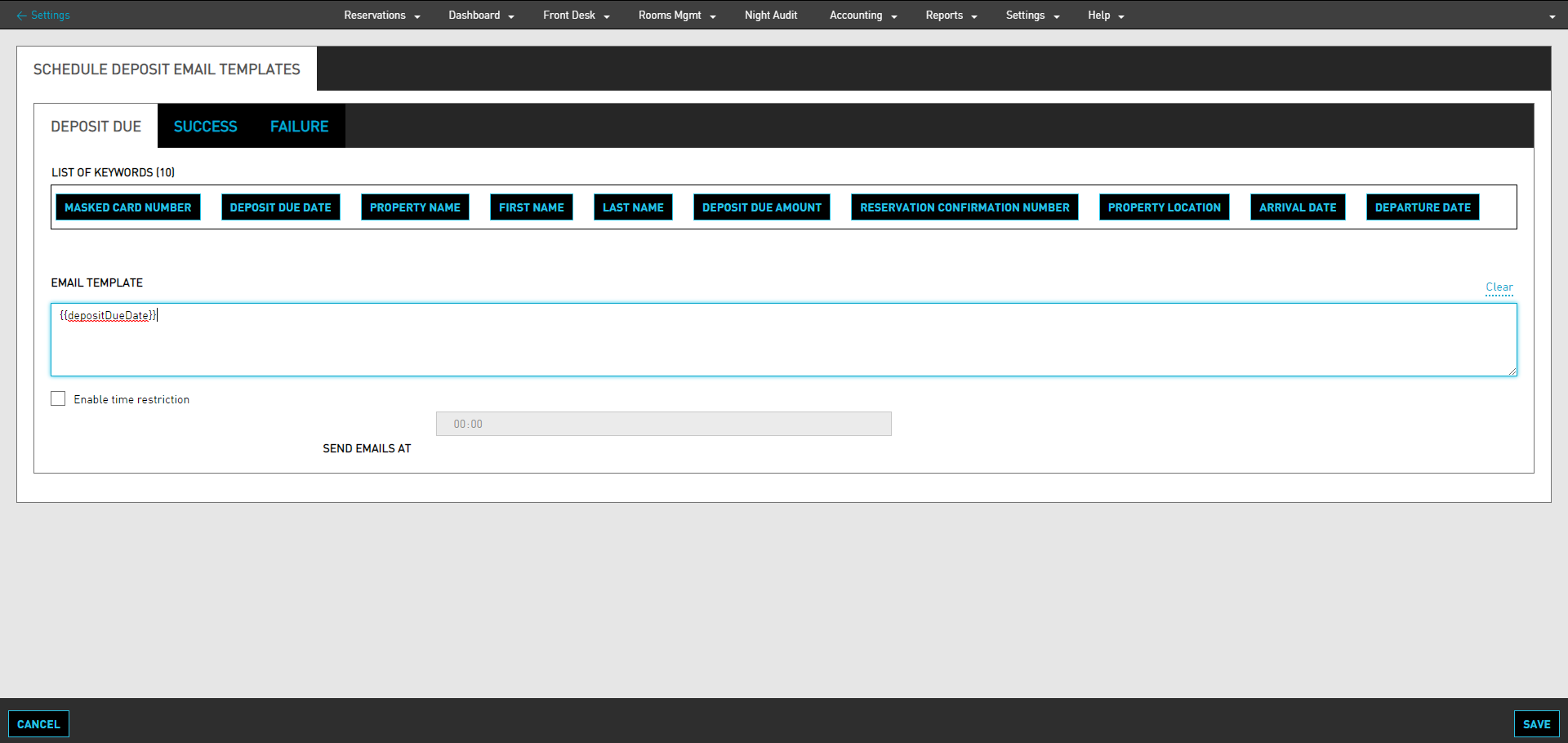
Select Schedule Deposit Due. The Schedule Deposit Email Templates page is displayed.
To set the email template for Deposit Dues, from the Deposit Dues tab, click on a List of Keywords to add to the Email Template.
Enable the Enable time restriction checkbox. This option allows you to send the Deposit Due email at a specific time to guests.
Click on the timer to set the time.
Click Save.
The same options are available for both the Success and Failure mail templates. The option to set the time is not available for the Success and Failure templates.