Items
The menu includes the following options:
-
Transaction Items - create new transaction items for posting to the guest account.
-
Inventory Items - create new inventory items that the property tracks and stores for later sale.
-
Converting Items - convert transaction items to inventory items.
Transaction Items
The Transaction Items option is sometimes known as post types. They are posted to a guest account or folio, so the names of these items are visible to a guest on their printed folio. Examples of transaction items include cancellation fees, damage fees, and a nightly room charge. Some standard items are available by default, but users can add accordingly:
Rooms (category):
-
Fees (subcategory)
-
Cancellation Fee (item)
-
Smoking Fee (item)
-
Damage Fee (item)
-
Pet Fee (item)
-
Movie Fee (item)
-
-
Revenue (subcategory)
-
Nightly Room Revenue (item)
-
Room Discount (item)
-
Perform the following steps to create a new item:
Navigate to Settings ➜ All Settings ➜ Accounting ➜ Guest Accounting ➜ Items.
Click Items. The Transaction Items appear by default.
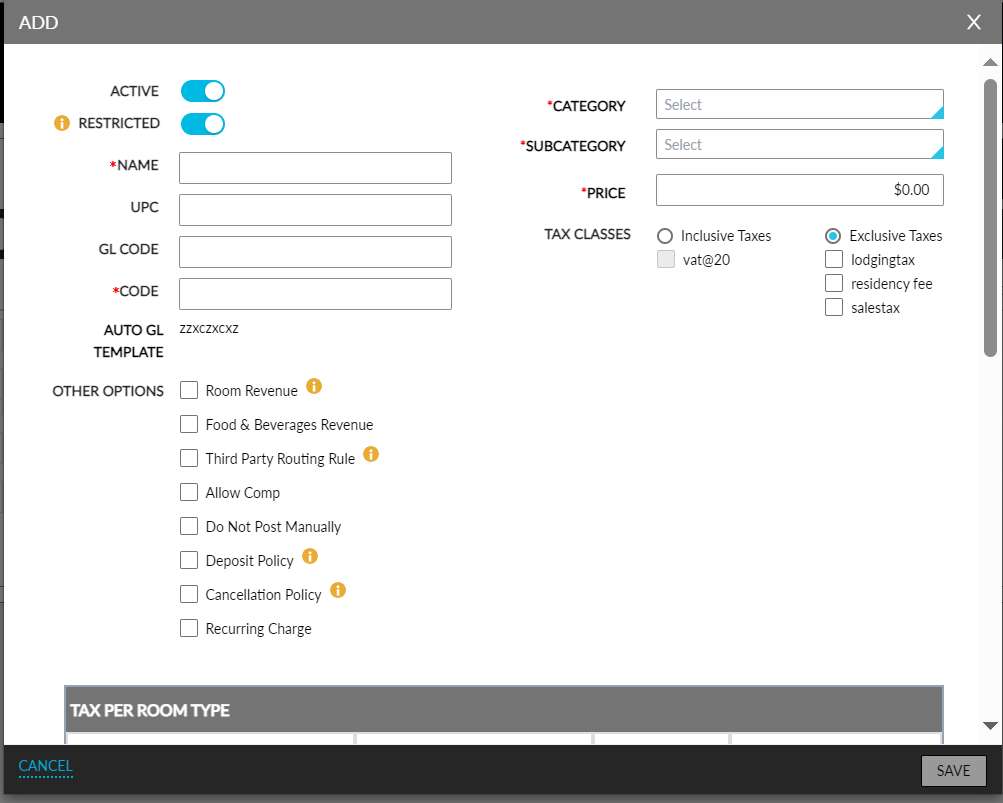
Click Add. The New Item dialog box appears.
Refer to the following table and fill in the fields to add a new item:
|
Field |
Description |
|---|---|
|
Active |
Enable the checkbox to activate the item. |
|
Category |
The category type of the item. For example, a Cancellation Fee item could be categorized under a Rooms category. |
|
Name |
The name of the item. |
|
Subcategory |
The appropriate subcategory type for the item. For example, a Cancellation Fee item is subcategorized under a Fees subcategory. The available subcategories in this list are those that are grouped under that category. |
|
UPC |
The universal product code associated with the item. |
|
GL Code |
A unique general ledger code to record financial transactions for the item. Users can enter a maximum of 30 characters in the GL Code field that includes dot (.) and hyphen (-) special characters. When any other special character is entered, the following message is displayed: GL code must not be greater than 30 characters. It includes only numbers, (.) and (-). It should not start or end with a special character. The entered GL code can contain a combination of both the special characters, for example, 53.-73-.45. But the GL code cannot begin or end with a dot (.) or hyphen (-). |
|
Price |
The default cost of the item. This amount can be overridden when posting a charge. |
|
Code |
A unique code to identify the item. |
|
Tax Classes |
The tax class associated with the item. Taxes are automatically posted along with the item. |
Select the Room Revenue checkbox to report the item as revenue associated with rooms.
Select the Third Party Routing Rule checkbox to mark the item for a third-party routing rule automatically. Once this option is enabled, all such items will be automatically routed to a Company AR account for a reservation with the direct bill selected as the payment method, provided the Company AR chooses the Third Party Items option for its Default Rule Setting.
Select the Allow Comp checkbox if the item is allowed for comp accounting purposes.
Select the Do Not Post Manually checkbox if the item needs to be restricted from usage.
Select the Deposit Policy checkbox to include the add-on charges to the deposit amount calculated for the reservations.
Select the Cancellation Policy checkbox to include the add-on charges to the cancellation fee calculated for the reservations.
Select Non-Bedded Room Revenue checkbox to post transaction items as the revenue name for non-bedded rooms. Only one item can be associated with non-bedded room revenue.
Select an Unassociated source (a building or outlet on the property) and click the right arrow to move it to the Associated box. When a location is listed in the Associated box, charges for this item type can be posted from that building or outlet.
Users can select more than one item and click the right arrow to move them together.
Click Save.
Inventory Items
The Inventory Items option contains the non-perishable goods that the property tracks and stores for later sale. These items are identifiable by a tag that only appears on inventory items.
Perform the following steps to create a new inventory item:
Navigate to Settings ➜ All Settings ➜ Accounting ➜ Guest Accounting ➜ Items.
Click the Inventory Items tab.
Click Add. The New Item dialog box appears.
Refer to the following table and fill in the fields to add a new item:
|
Field |
Description |
|---|---|
|
Active |
Enable the checkbox to define whether the inventory item is available at the property. |
|
Category |
The category for the item created. For example, a Rollaway Bed could be categorized under a Rooms category. |
|
Name |
The name of the inventory item. |
|
Subcategory |
The appropriate subcategory for the item created. For example, a rollaway bed item could be subcategorized under a Reusables subcategory. The available subcategories in this list are those that are grouped under that category. |
|
UPC |
The universal product code associated with the item. |
|
GL Code |
The general ledger records financial transactions used by the property. Users can enter a maximum of 30 characters in the GL Code field that includes dot (.) and hyphen (-) special characters. When any other special character is entered, the following message is displayed: GL code must not be greater than 30 characters. It includes only numbers, (.) and (-). It should not start or end with a special character. The entered GL code can contain a combination of both the special characters, for example, 53.-73-.45. But the GL code cannot begin or end with a dot (.) or hyphen (-). |
|
Price |
The default cost of the item. This amount can be overridden when posting a charge. |
|
Code |
A unique code to identify the item. |
|
Tax Classes |
The tax class associated with this item. Taxes are automatically posted along with the item. |
By default, inventory items are automatically set to Active. When an inventory item is active, it's available to associate to a reservation or charge. If an item need not be displayed, uncheck the Active checkbox and save to make the item inactive.
Select the Room Revenue checkbox to report the item as revenue associated with rooms.
Select the Third Party Routing Rule checkbox to mark the item for a third party routing rule automatically. Once this option is enabled, all such items will be automatically routed to a Company AR account for a reservation with the direct bill selected as the payment method, provided the Company AR chooses the Third Party Items option for its Default Rule Setting.
Enter the number of items available in inventory (number of units currently available for sale). This inventory item will now be available in the shopping cart list when the user adds an item.
Select an Unassociated source (a building or outlet on the property) and click the right arrow to move it to the Associated box. When a location is listed in the Associated box, charges for this item type can be posted from that building or outlet.
Enter the number of inventory items in the Max Allowed Per Reservation section to limit the number of inventory items assigned to a room.
Inventory items cannot be overridden during the reservation process. Any reservations made with a maximum count provided will be barred from exceeding this number.
Choose to room type to assign the inventory item. Or select the All Room Types checkbox to make the inventory item apply to all rooms.
If there are specific meal periods associated with the venue, select the appropriate meal period checkboxes.
Click Save.
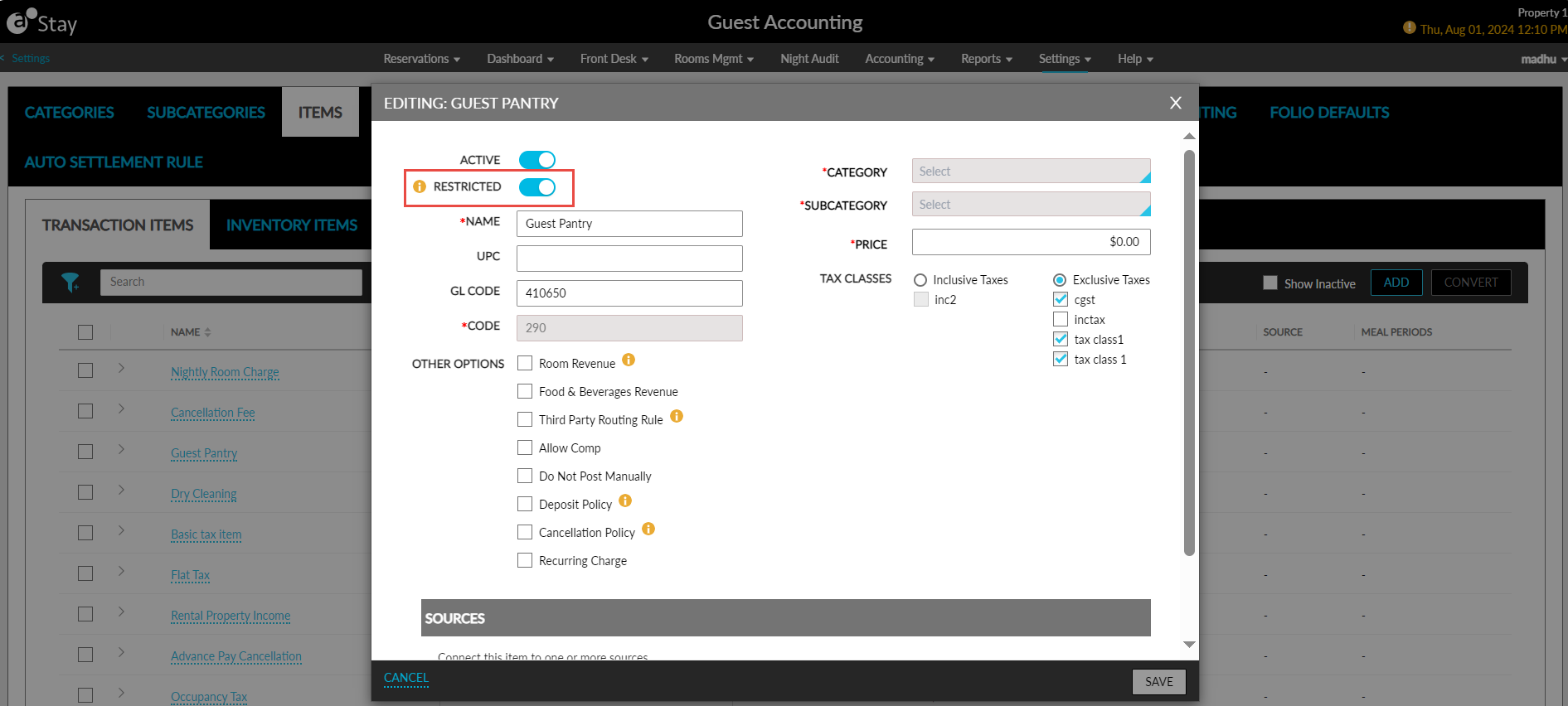
Modify Transaction and Inventory Items Markes as Restricted
Once users select the fields to be restricted from being modified in the Restricted Items section, a new flag, Restricted, will be displayed for the transaction and inventory items in the following screens:
-
Guest Accounting ➜ Items ➜ Transaction Items ➜ Add
-
Guest Accounting ➜ Items ➜ Transaction Items ➜ Click on an item name to modify
-
Guest Accounting ➜ Items ➜ Inventory Items ➜ Add
-
Guest Accounting ➜ Items ➜ Inventory Items ➜ Click on an item name to modify
The following permission must be assigned to modify the details configured for the restricted transaction and inventory items.
-
Stay_ManageItemFields
An information icon added next to the flag displays the following message when hovered upon: When enabled, this option will make all restricted fields non editable. The Restricted flag will be enabled by default in the Add pop-up screen that appears when users add a new transaction or inventory item. When users modify an existing transaction or inventory item, users must enable the Restricted flag manually to prevent users from modifying the selected restricted fields. Once the Restricted flag is enabled, the restricted fields selected in the Restricted Items section will be greyed out and cannot be modified.
A new column, Restricted, has been added to the Transaction Items and Inventory Items tabs that displays if the transaction or inventory item has been restricted for modifying. A new filter option, Restricted, has been added to the Transaction Items and Inventory Items tabs that allows users to filter records based on the following values:
-
Yes: When selected, only the restricted items will be displayed.
-
No: When selected, only the non-restricted items will be displayed.
When users export the transaction and inventory items as a CSV file, a new column, Restricted, in the CSV file displays if the item is a restricted or non-restricted item. When users export the property details from the Property Import/Export screen (All Settings ➜ General ➜ Property Import/Export), a new column, Restricted, in the Transaction Item and Inventory Item tabs of the exported file displays if the item is a restricted or non-restricted item.
A record is created in the Audit Log screen (Reports ➜ Audit Log) when users enable or disable the Restricted flag for a transaction or inventory item.
Select Tax Classes for Each Room Type for a Transaction/Inventory Item
Users can select tax classes for a transaction item and apply it to preferred room types. When an item is posted to a reservation, the tax amount will be calculated based on the tax class applied to a room type. For example, a transaction item, Nightly Room Charge, has 3 Inclusive Tax Classes (Occupancy tax 5%, State tax 5%, and State tax 8%) configured and a user selects the following tax class for each room type:
For example, a transaction item, Nightly Room Charge, has 3 Inclusive Tax Classes (Occupancy tax 5%, State tax 5%, and State tax 8%) configured and a user selects the following tax class for each room type:
|
Room Type |
Tax Classes |
|---|---|
|
NKX |
Occupancy tax 5% |
|
NQQ |
State tax 5% |
|
QNP |
State tax 8% |
When the Nightly Room Charge transaction item is posted to a reservation booked using the NKX room type, the tax amount is calculated based on the Occupancy tax 5% tax class. When the item is posted to a reservation booked using the QNP room type, the tax amount is calculated based on the State tax 8% tax class.
This feature is applicable only for the items posted to reservations. It is not applicable for the items posted to groups, A/R accounts and house accounts.
Feature Setting
-
Name: Tax per Room Type
-
Value: Must be enabled
-
Comments: License is required
Users can select a tax class for each room type by clicking the Add option in the Tax Per Room Type section in the Add/Edit Item screen (Guest Accounting ➜ Items ➜ Transaction/Inventory Item ➜ Add/Edit). When clicked, the following fields appear:
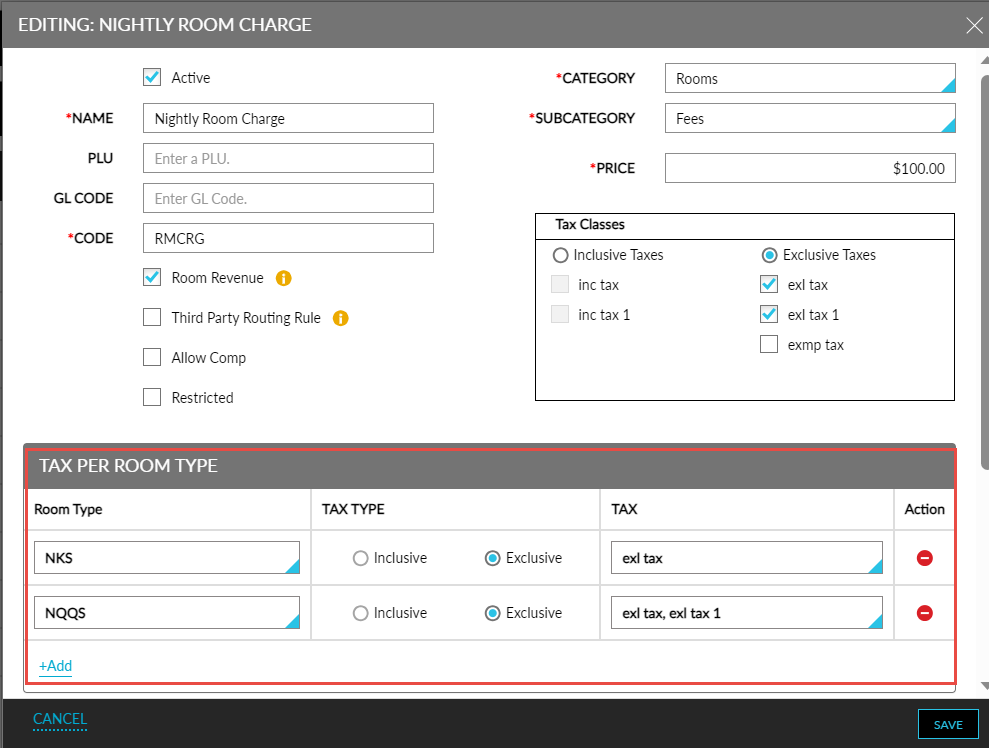
|
Field |
Description |
|---|---|
|
Room Type |
|
|
Tax Type |
|
|
Tax Class |
|
|
Action |
Users can delete a row using the remove icon. |
The tax classes configured for each room type is displayed in the following screens:
-
Book a Reservation: When a reservation is booked using multiple room types with a different tax class selected for each room type, the tax amount is calculated accordingly and displayed in the Estimated Charges section of this screen.
-
Add Charge: When users post charges to reservations, the tax amount is calculated based on the tax class selected for the room type of the reservation and displayed in this screen.
-
Batch Posting: When users post charges for multiple reservations of different room types on the Batch Posting tab of the Batch Operations screen, the tax amount is calculated based on the tax class selected for the room type of the reservation. A hyphen (-) is displayed under the Tax column on the Add Charge screen and the following message is displayed: Tax will be posted according to the room type selected in the reservation.
-
When users transfer or route charges from one reservation to another, the charge amount and the tax amount is routed/transferred based on the room type of the source reservation.
-
When users adjust the charges at the destination, the tax amount is adjusted based on the room type of the source reservation.
-
When the tax classes are modified for a room type, the tax amount is updated only for the current and future stay dates of the reservation. The tax amount is not updated for the past days.
Converting Items
The Convert option allows users to convert transaction items to inventory items. Inventory items are used to define and manage nonperishable items that the property makes available for sale or rent. These items differ from transaction items because the sale of inventory items is limited by the quantity available. For example, scuba gear.
Perform the following steps to convert transaction items to inventory items:
Navigate to Settings ➜ All Settings ➜ Accounting ➜ Guest Accounting ➜ Items.
Choose the Transaction Items to change.
Click Convert. The Convert Transactions Items to Inventory Items dialog box appears.
Enter the number of items in the Quantity field available to convert the transaction item into an inventory item. This action is irreversible.
Enter the number of inventory items maximum allowed in the Max Allowed Per Reservation field to limit the number of inventory items assigned to a room.
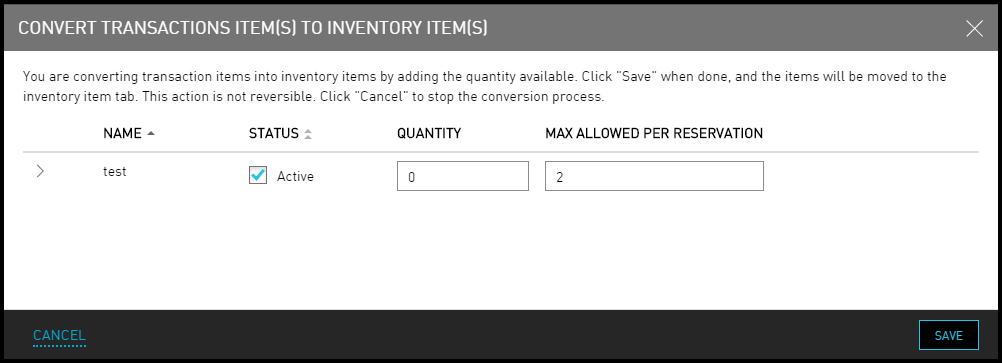
Click Save. Once Save is selected, the converted item(s) appear under the Inventory Item tab.
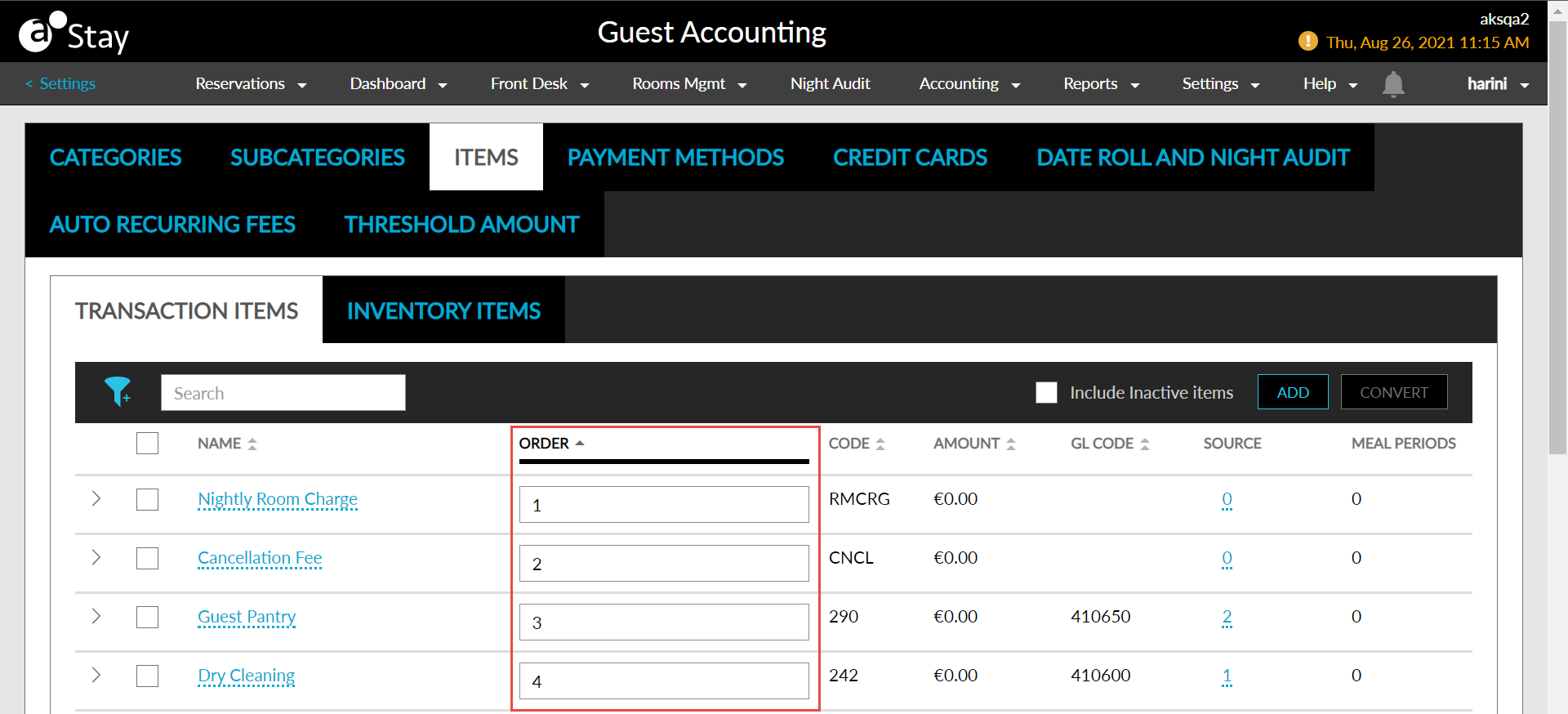
Set the order of display of Transaction Items and Inventory Items in the guest’s shopping cart by using the fields under Order as shown in the following screen.
Configure Adjustment Transaction Items to Display the Adjusted/Corrected Charge in Folios
Stay allows users to configure a separate adjustment transaction item for each transaction item in Guest Accounting. Whenever an adjustment or correction is made to a transaction item in a folio, the adjustments or corrections are indicated by the adjustment transaction item posted to the folio. Users are also provided with the ability to change the labels of Posted Incorrectly and Guest Satisfaction at the property level.
For example, if a user configures Pet_Charge_Adjustment as the adjustment transaction item for Pet Charge (original transaction item). When an adjustment or correction is made to Pet Charge, the adjusted/corrected amount is displayed against the adjustment transaction item, Pet_Charge_Adjustment, in the folio.
Feature Settings
The Modify Label for Adjustments & Correction feature setting is introduced to allow users to change the labels for adjustments and corrections at the property level.
-
Name: Modify Label for Adjustments & Correction
-
Value: Must be enabled
-
Comments: License is not required
The Configure Adjustment Transaction Item feature setting is introduced to enable users to post the adjusted/corrected amount against the adjustment transaction item in the folio.
-
Name: Configure Adjustment Transaction Item
-
Value: Must be enabled
-
Comments: License is required
Permissions
The following new permission is introduced to allow users to configure adjustment transaction items:
-
Stay_AdjustedNewTxnItem
By default, these permissions are provided to users with access to the following roles:
-
System Administrator
-
Stay Hotel Manager
-
Department Manager
-
Profile Management
-
Guest Service Agent
-
Stay Front Desk
-
Stay Hotel Supervisor
-
Guest Service Agent Supervisor
-
Stay Housekeeping Supervisor
-
Stay Accounting Accounts Receivable Manager
-
Stay Night Audit
-
Stay Reporting
Label Configuration for Adjustments Section
This section displays the following text box fields that allow users to configure a label for Guest Satisfaction and Posted Incorrectly.
-
Adjustment Type 1: This field allows users to configure a label for Guest Satisfaction. When user updates the label, only the label changes throughout the property. The functionality remains the same.
-
Adjustment Type 2: This field allows users to configure a label for Posted Incorrectly. When user updates the label, only the label changes throughout the property. The functionality remains the same.
Adjustment Transaction Items section
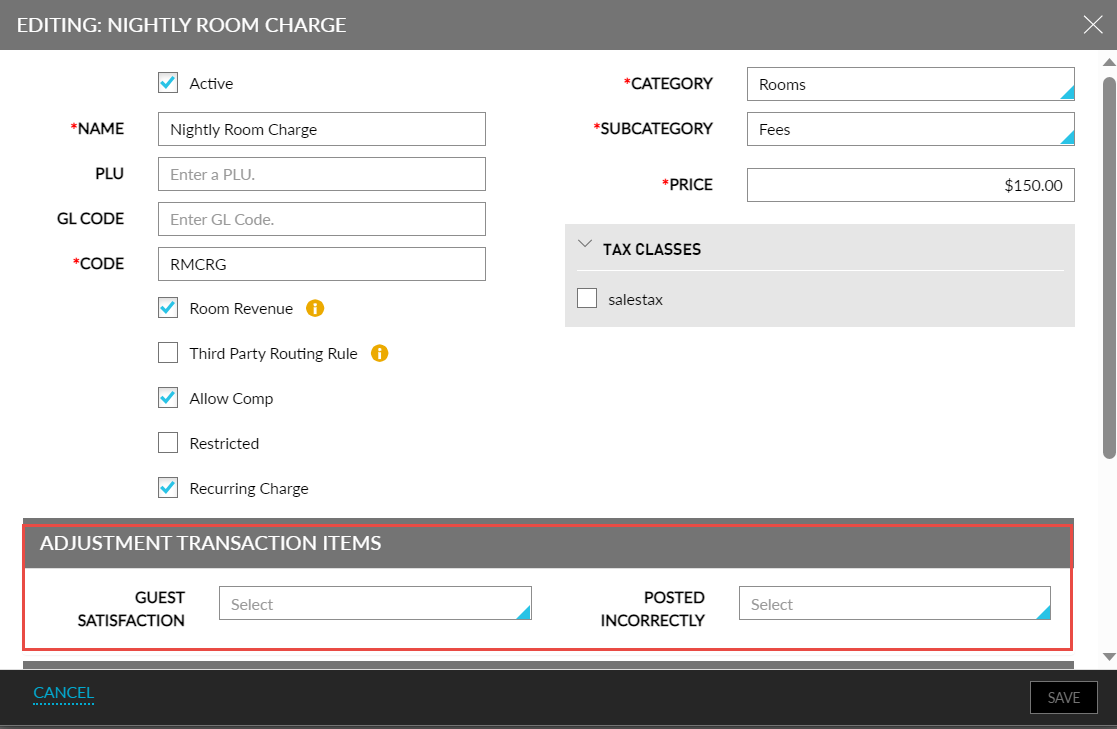
Only users with the Stay_AdjustedNewTxnItem permission can edit this section on the New Item screen. Users can configure adjustment transaction items when creating a new transaction item only. Existing transaction items cannot be modified. This section displays the following fields:
-
<Adjustment Type 1> Label: This is a drop-down list that allows users to select an adjustment transaction item from the list of all the existing configured transaction items. When a guest satisfaction adjustment is performed for the transaction item, the adjusted charge is displayed against the associated adjustment transaction item as a separate line record in the folio.
-
<Adjustment Type 2> Label: This is a drop-down list that allows users to select an adjustment transaction item from the list of all the existing configured transaction items. When an incorrectly posted adjustment is performed for the transaction item, the corrected charge is displayed against the associated adjustment transaction item as a separate line record in the folio.
The corrected/adjusted charge posted against the adjustment transaction item is displayed in the following reports:
-
Transactions Report
-
Transactions Details Report
-
Transactions Journal Report
-
Department Revenue Report
-
Ledger Activity Detail Report
-
Revenue by Transaction Items Report
-
Ledger Summary Report
-
Trial Balance Report
-
Recurring Charges Report
-
Ledger Detail Report
-
Tax Postings Report