Language and Locale
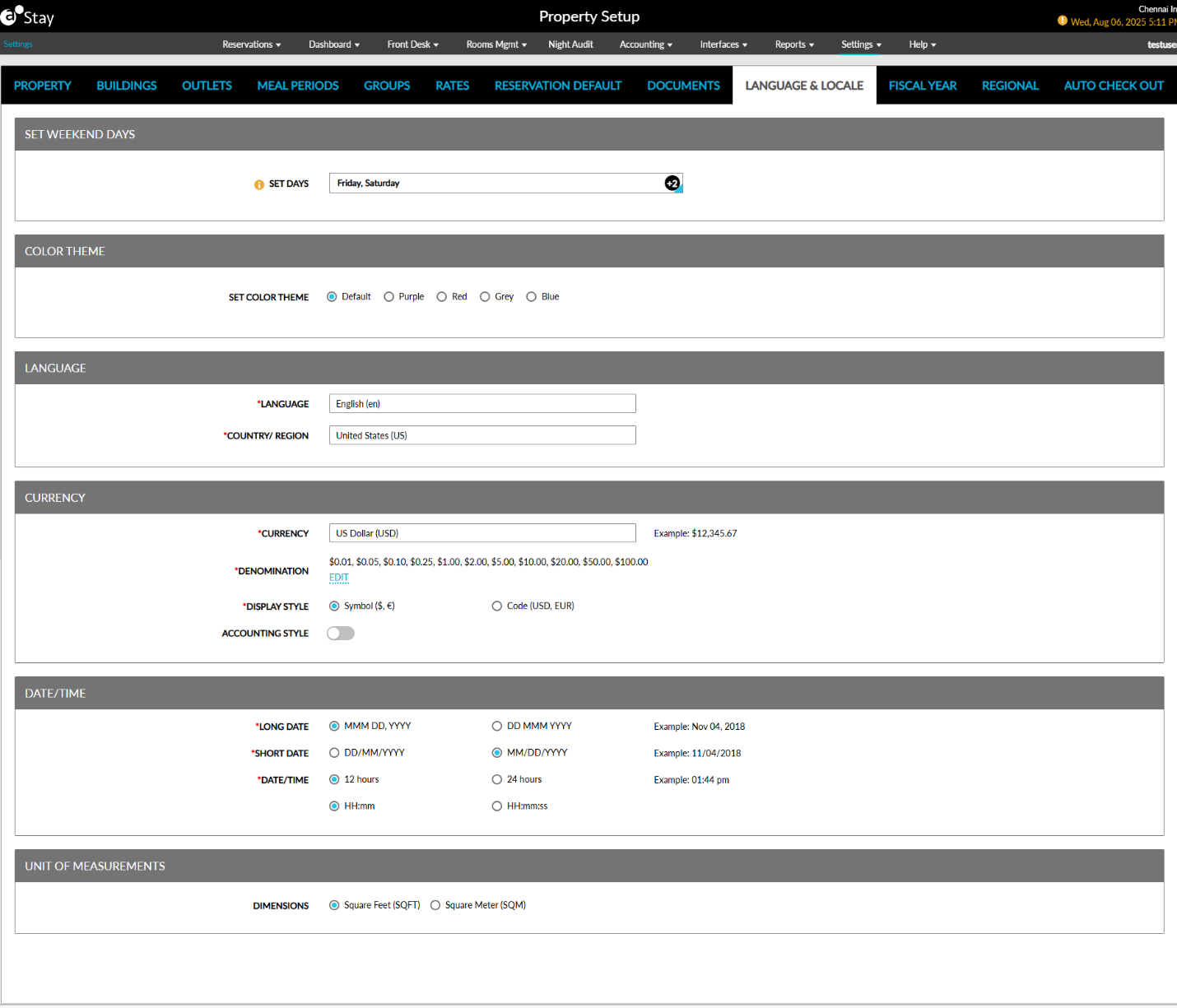
The Language and Locale option allows users to set the language, currency, and date and time representations in the application-specific to the property location.
Perform the following steps to set the default language, currency, and date:
Navigate to Settings ➜ All Settings ➜ General ➜ Property, buildings & outlets.
Navigate to the Language & Locale tab.
Refer to the following table and fill in the fields to set the language and locale for the property:
|
Field |
Description |
|---|---|
|
Set Weekend Days |
|
|
Set Days |
Select the days of a week to be considered as weekends. |
|
Color Theme |
|
|
Set Color Theme |
Select the preferred color theme for the Stay interface. |
|
Language |
|
|
Language |
The default language of the property. |
|
Country |
The country where the property is located. |
|
Currency |
|
|
Currency |
The default currency of the country where the property is located. |
|
Denomination |
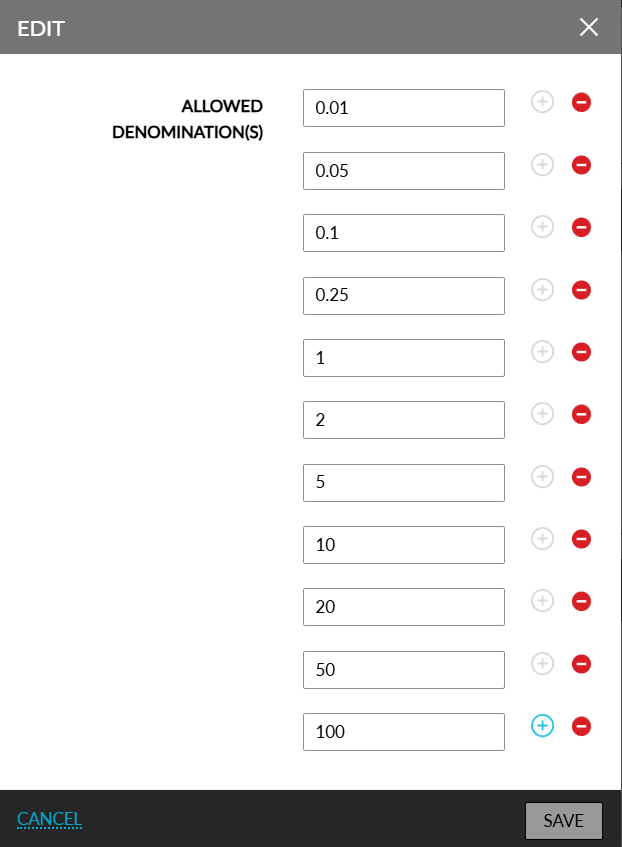
The existing denominations available for the selected currency. Users must click on the Edit hyperlink to define supported denomination values based on the selected currency. When clicked, the Edit pop-up screen appears that allows the property to define the smallest currency units that can be used for payments (For example, 0.05, 0.10, 1.00, and so on). Denomination values can be configured for each currency. Duplicate values cannot be configured. Upon clicking Save, the entered values are validated, and messages are displayed when the following validations are not successful:
|
|
Display Style |
Format for displaying currency values. Users can select from the following options:
|
|
Accounting Style |
Use this flag to determine the display of negative amounts in Stay:
This flag can be enabled only when Symbol ($, €) option is selected as the display style. |
|
Date/Time |
|
|
Long Date |
The format for the long date. Users can either choose the DD MMM YYYY (for example, 04 Nov 2018) or the MMM DD, YYYY (for example, Nov 04, 2018) format |
|
Short Date |
The format for the short date. Users can either choose the DD/MM/YYYY or the MM/DD/YYYY format. |
|
Time |
The default time format. Users can either choose the 12-Hour or the 24-Hour format. The user also can choose whether to display the time with hours and minutes only (HH: MM) or with hours, minutes and seconds (HH: MM: SS). |
|
Units of Measurement |
|
|
Dimensions |
Users can select from the following units of measurement to be used for measuring the dimensions of the rooms at the property:
|
Click Save. The weekend days, language, currency, and date/time format are now successfully updated for the property.