No-Show Policies
Stay allows users to configure No-Show Policies at the property to charge no-show fees to reservations that are marked as No-Show on date roll.
Feature Setting
The following feature setting must be enabled to allow users to configure No-Show Policies:
-
Name: No Show Policy to charge No show fee during date roll
-
Value: Must be enabled
-
Comments: License is not required
When the feature setting is enabled, users must mandatorily choose a no-show policy when creating/modifying and cloning rate plans, packages, and groups created for guest/company/travel agent profiles.
Users can configure a new no-show policy by clicking Add on the No Show Policies section of the Policies and Codes screen (All Settings ➜ Reservations ➜ Policies & Codes). When clicked, the New No Show Policy screen appears that displays the following fields:
|
Field |
Description |
|---|---|
|
Active Checkbox |
|
|
Code |
Allows users to enter the code for the policy. |
|
Post Charge As |
This is a drop-down list that allows users to select the transaction item using which the no-show fees must be posted to the reservation’s folio. |
|
Description |
Allows users to enter a description for the policy. |
|
Charge Type |
This is a drop-down list that allows users to choose from the following options:
|
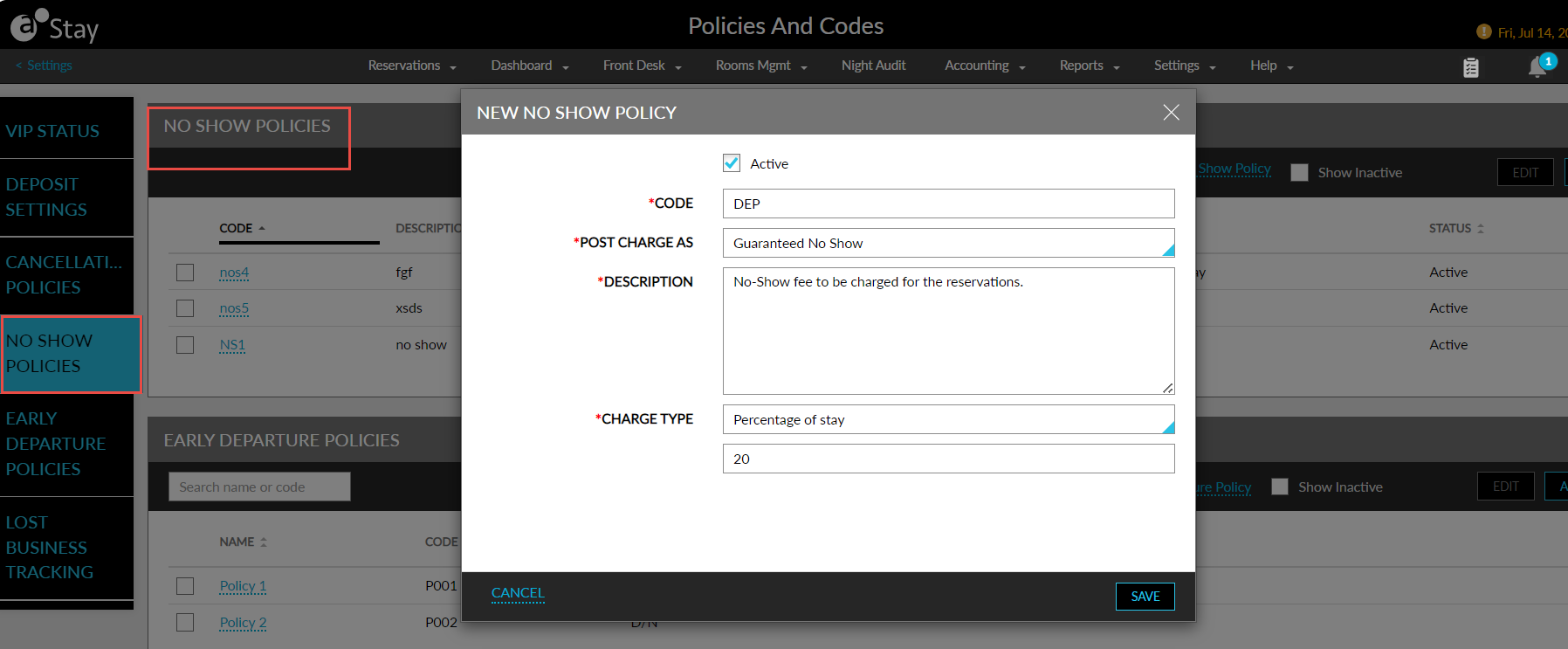
When the No Show Policy to charge No show fee during date roll feature setting is enabled, by default, a no-show policy, NSP, is created by the system and displayed in the No Show Policies section of the Policies and Codes screen. When users click this policy, the Edit No Show Policy pop-up screen appears that displays the following values configured for the policy:
|
Field |
Description |
|---|---|
|
Code |
NSP |
|
Post Charge As |
Cancellation Fee |
|
Description |
Default No Show Policy |
|
Charge Type |
Day/Nights - 1 |
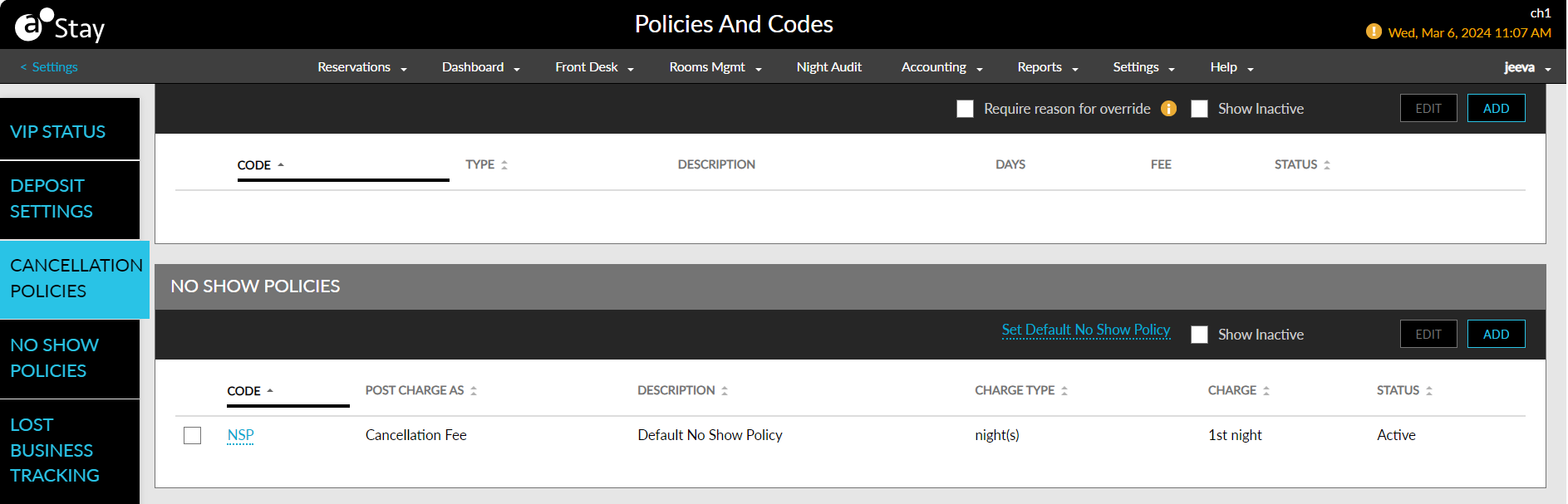
Users can set a default no-show policy for the property using the Set Default No Show Policy hyperlink in the No Show Policies section. When clicked, the Default No Show Policy pop-screen appears that allows users to select a policy from the No Show Policy drop-down list. By default, the policy created by the system, NSP, is set as the default policy.
The default policy selected by the users is applied to all existing rate plans/packages and groups that do not have a no-show policy mapped.