Patterns
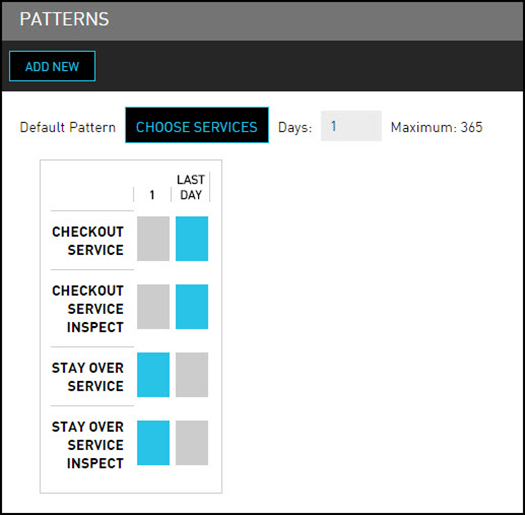
The Patterns option enables the user to set a pattern for when specific services must be performed. For example, on the first full day that a guest is in house, a service request is triggered for Stay over Service and Stay Over Service Inspect. It also triggers a Checkout Service and Checkout Service Inspect on the last date of the Guest’s stay. User can modify this default pattern or add new patterns. For example, user may want to define a different pattern for a Short Stay or Extended Stay.
Perform the following steps to create a new pattern:
Navigate to Settings ➜ All Settings ➜ Housekeeping (under Back of House).
Click Patterns tab or scroll down the page.
Click the boxes next to the service name to set the default housekeeping pattern for the property or click a blue box to remove that service from the default pattern.
To extend the default pattern beyond just the first and last day of a stay, enter the number in the Days box that represents the length of a housekeeping pattern.
Click Save.
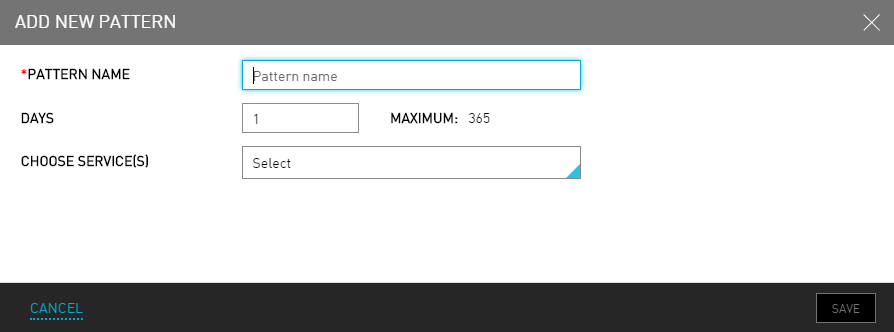
Click Add New to create a new pattern. The Add New Pattern dialog box appears.
Refer the following table and fill in the fields to create new patterns:
|
Field |
Description |
|---|---|
|
Pattern Name |
The name of the pattern. |
|
Days |
The frequency of days the service would occur. For example, type 1 if the service must occur on the first full day that the Guest is in house. Or type 3 if the user wants the pattern to repeat every three days. The maximum number of days is 365. |
|
Choose Service(s) |
The services that must take place as part of this pattern. |
The new pattern appears under the default patterns.
Click the boxes next to the new service name to set the pattern. Selected boxes (days) are part of the pattern and unselected, gray boxes (days) are not.
Click Save. The new pattern is created successfully.