Payment Methods
The Payment Methods option allows users to define the payment methods that the property will accept from guests. Some standard payment methods are available by default, but the user can add accordingly.
Perform the following steps to create a new payment method:
Navigate to Settings ➜ All Settings ➜ Accounting ➜ Guest Accounting ➜ Payment Methods.
Click Add. The New Payment Method dialog box appears.
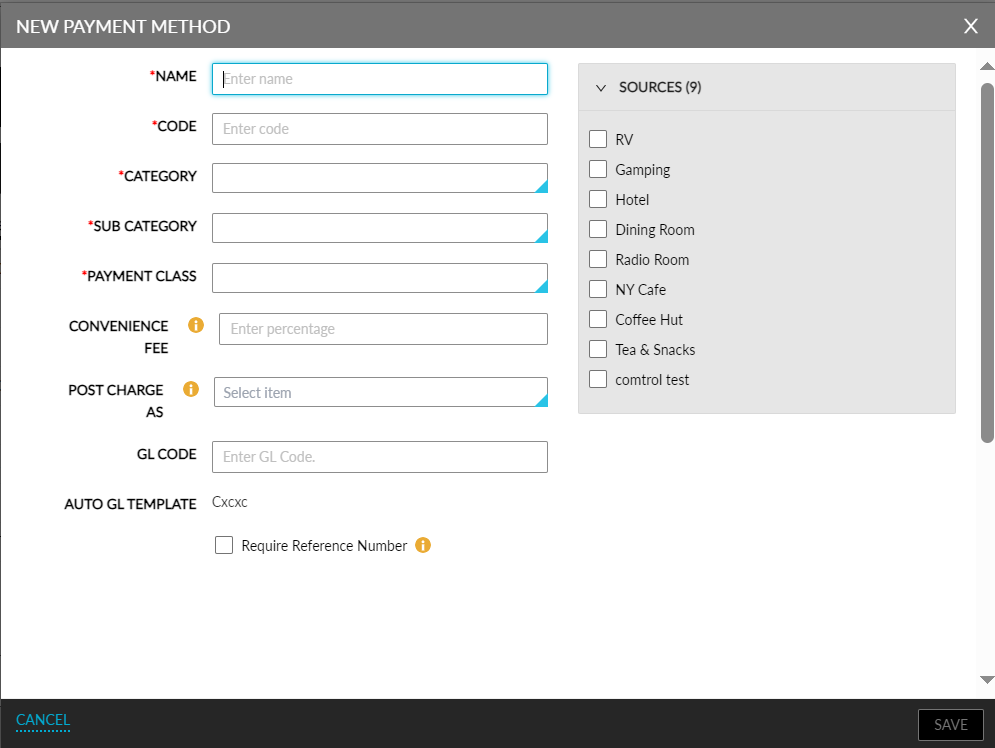
Refer to the following table and fill in the fields to add a new payment method:
|
Field |
Description |
|---|---|
|
Name |
The name of the payment method. |
|
Code |
A unique code to identify the payment method. |
|
Category |
The category to which the payment method must be associated. This is a single-select drop-down list that displays the active categories configured in the Categories tab of the Guest Accounting screen. |
|
Subcategory |
The sub-category to which the payment method must be associated. This is a single-select drop-down list that displays the active sub-categories configured in the Subcategories tab of the Guest Accounting screen. |
|
Payment Class |
The payment class for the payment method. This is a single-select drop-down list that displays the following options:
|
|
Convenience Fee |
The convenience fee percentage to be applied when the payment method is used for making payments. |
|
Post Charge As |
Select the transaction item using which the convenience fee must be posted to the account folio. |
|
GL Code |
The general ledger code to record financial transactions. |
|
Require Reference Number |
Select if users must enter a reference number while making a payment using the payment method. |
Enter the GL Code if the property uses a general ledger to record financial transactions.
Select the Sources on the property (buildings or outlets) authorized to use this payment method.
Select the appropriate Interfaces associated with the payment method in the Interfaces section.
Click Save to save the new payment method.
Select a Payment Class for Payment Methods
Users must select a payment class for a payment method from the Payment Class drop-down list. Users can select from the following options:
-
Cash: This option must be selected for payment methods that involve cash or check payments. When selected, the Prompt for Change Due checkbox is displayed. When selected, users can view the total cash due, the cash collected, and the change due when a guest makes a payment.
When the Cash class is selected, a new field, Permission, is displayed that displays a checkbox, Restrictive Posting. This checkbox must be selected to limit users with the relevant permission to select payment methods and make payments. The roles that are assigned to the permission are displayed below the Restrictive Posting checkbox.
-
Credit Card: This option must be selected for credit card or debit card payment methods that involve payments processed through a payment gateway. When this option is selected, a new drop-down list, Issuer, is displayed that allows users to select the issuer type for the card. For example, Visa. The values displayed in the drop-down list are hardcoded in Stay. The following issuer types are supported:
-
Visa
-
Master
-
JCBCard
-
Discover
-
DinersClub
-
American Express
-
Canadian Interac
-
ChinaUnionPay
Contact Agilysys to configure additional issuer types for the property.
-
-
Account Charge: This option must be selected for direct-bill payment methods that involve transfer of payments to an A/R account. For example, when a guest traveling on a business trip books a reservation using a payment method mapped to this class, the guest’s expenses during the stay will be transferred to the company’s A/R account upon check-out.
-
Send Authorize Form: This option is displayed when the Authorize integration is enabled for the property. This option must be selected for payment methods that involve payments processed through Agilysys Authorize. When a payment method that is associated with this class is selected, a payment/authorization form is sent to guests from Authorize to perform authorization of the credit card and to collect payments.
Contact Agilysys to set up the Authorize integration for the property.
-
Gift Card: This option is displayed when a Gift Card integration (SVS, GiveX, Agilysys Gift Card, and so on) is enabled for the property. This option must be selected for payment methods that involve payments made using a gift card.
Contact Agilysys to set up the Gift Card integration for the property.
Currency Rounding Configurations
The Rounding Setting section in the Edit pop-up screen that appears when users modify a payment method (All Settings ➜ Guest Accounting ➜ Payment Method) allows users to configure currency rounding settings for the payment method. This section includes an Active flag that supports the following functionality:
-
When enabled, rounding configuration options are displayed.
-
When disabled, no rounding is applied for the selected payment method.
This flag is disabled by default for all properties.
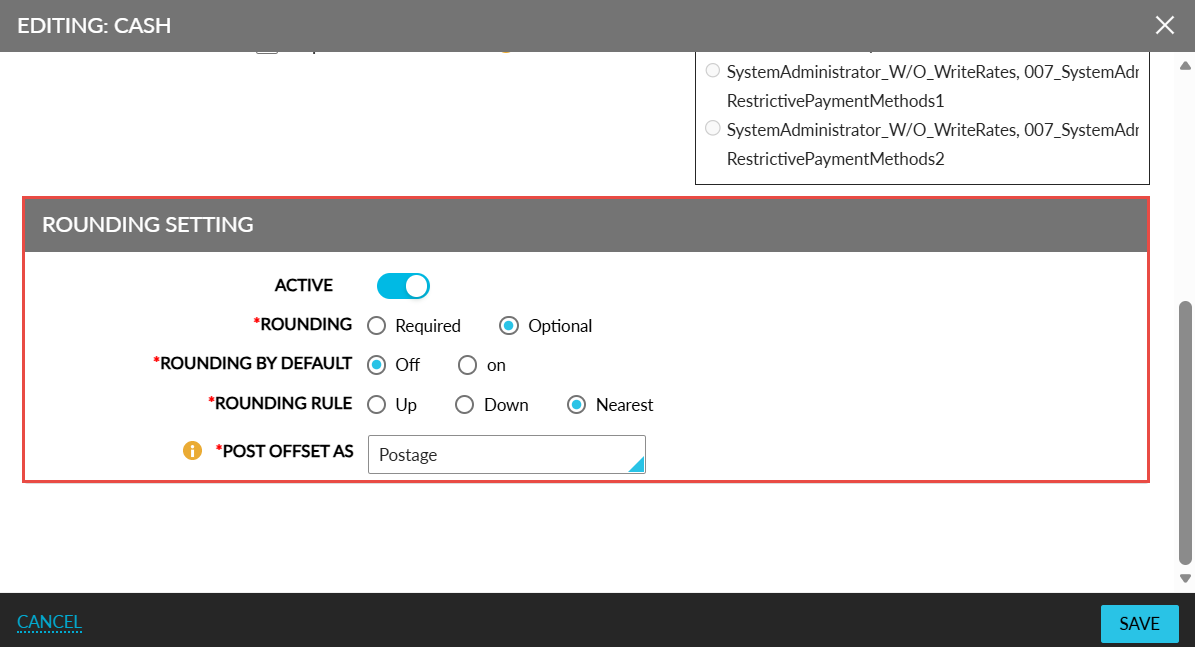
When the Active flag is enabled, the following fields are displayed:
|
Field |
Description |
|---|---|
|
Rounding |
This is a mandatory field that displays the following options:
|
|
Rounding By Default |
This is a mandatory field that displays the following options:
|
|
Rounding Rule |
This is a mandatory field that displays the following options:
|
|
Post Offset As |
This is a mandatory field that displays the list of transaction items. The selected item will be associated with the payment method and used to offset the folio balance to zero. The adjusted amount will be posted as either a charge or credit under the selected transaction item. The selected transaction item must not include price or tax values. The transaction items already associated with a payment method cannot be deactivated. An information icon added to this field displays the following message when hovered upon: Selected transaction item should not have a price or associated tax class. |