Services
The Services option allows users to create services at the property. There are different responsibilities, or service types, that each housekeeping role is responsible for providing. There are many available default services, such as Checkout Service, Checkout Service Inspect, and more. If the property offers additional services, users can add more types.
Perform the following steps to create a new housekeeping service:
Navigate to Settings ➜ All Settings ➜ Housekeeping (under Back of House).
Click Services tab or scroll down the page.
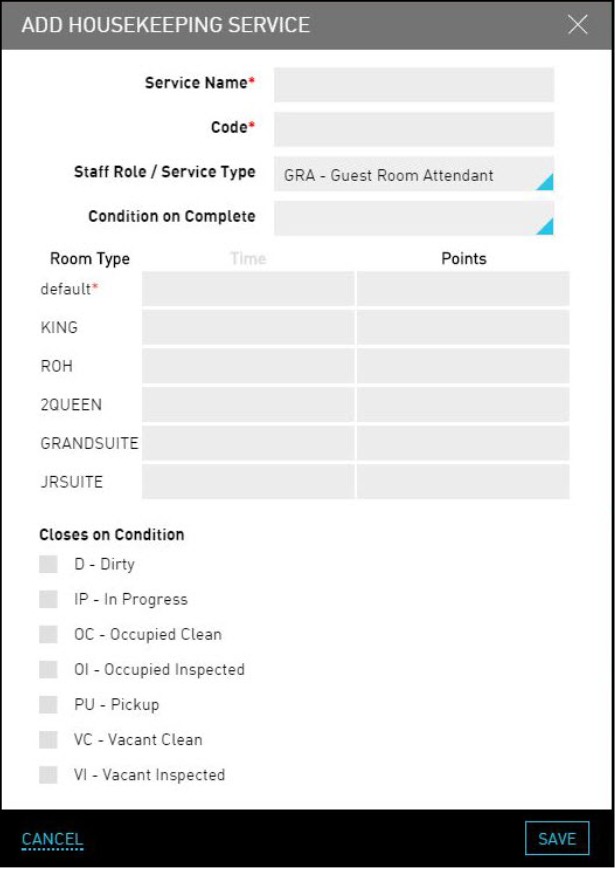
Click Add New. The Add Housekeeping Service dialog box appears.
Refer the following table and fill in the fields to add the services:
|
Field |
Description |
|---|---|
|
Service Name |
The name of the service. |
|
Code |
A unique code to identify the service. |
|
Staff Role / Service Type |
The housekeeping role assigned for the service. |
|
Condition On Complete |
The room condition after the service is complete. For example, once a Guest Room Attendant has completed the Checkout Service type, the room condition is Vacant Clean. |
|
Room Type |
The type of room in which the service is performed. |
|
Time |
The default time allocated for the room type. |
|
Points |
The default points allocated for the room type. |
Other roles can also perform the service if they are manually assigned.
The user can also customize by room type.
Select the appropriate Closes On Condition type to indicate that a service is complete when a room status is changed to that type. For example, the Full Service type is completed when the room status changes to Vacant Clean (VC) or Vacant Inspected (VI).
Click Save. The new service is created successfully.