Staff
The Staff option allows users to add staffs and assign them to the housekeeping roles. The housekeeping roles and service details must be predefined before entering the staff details.
Perform the following steps to create a new staff:
Navigate to Settings ➜ All Settings ➜ Housekeeping (under Back of House). The Staff tab appears by default.
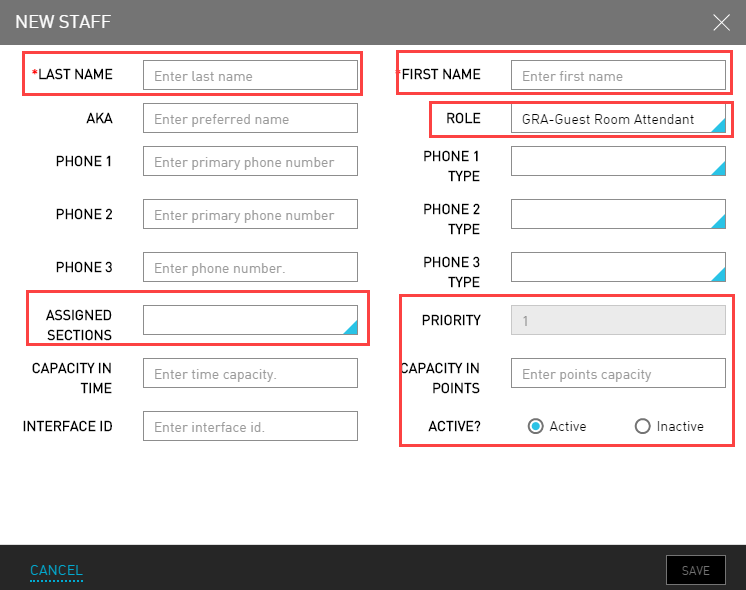
Click Add New. The New Staff dialog box appears.
Refer the following table and fill in the fields to create a new staff:
|
Field |
Description |
|---|---|
|
Last Name |
The last name of the staff member. |
|
First Name |
The first name of the staff member. |
|
AKA |
Also Known as. Any other name the staff member would like to be called. |
|
Role |
The housekeeping role to be performed by the staff member. |
|
Phone |
The phone number of the staff member. |
|
Phone Type |
The type of phone number of the staff member. |
|
Assigned Sections |
The specified section under which the staff member is assigned to work. |
|
Priority |
The priority order determines room assignment order. Housekeepers with a lower priority may not get all 16 points or 8 hours of work if there are not enough rooms to service that day. |
|
Capacity In Time |
The time capacity of the staff member. |
|
Capacity In Points |
The points capacity of the staff member. |
|
Interface ID |
The unique interface ID of the staff member. |
|
Active? |
Indicates that the staff member is available for assignment. |
The assigned points or time per room, as well as the assigned services, are listed on the Assign page in Housekeeping.
Click Save.
Repeat these steps to add all the housekeeping staffs. The staff details are created successfully.