Upgrades
The Upgrades option allows users to define which room types are available for upgrade and the associated upgrade fee. If the property is not filled on a certain date, guest service agents may want to suggest room upgrades to their incoming guests. Or a guest may decide that the like to upgrade from their Standard room to a Suite room.
To enable this, user must define which room types are available for upgrade and the associated upgrade fee. Once upgrade rates are defined, guest service agents will see available rooms in the Recommended Upgrades section of the Reservations page.
Perform the following steps to upgrade the rooms:
Navigate to Settings ➜ Rates.
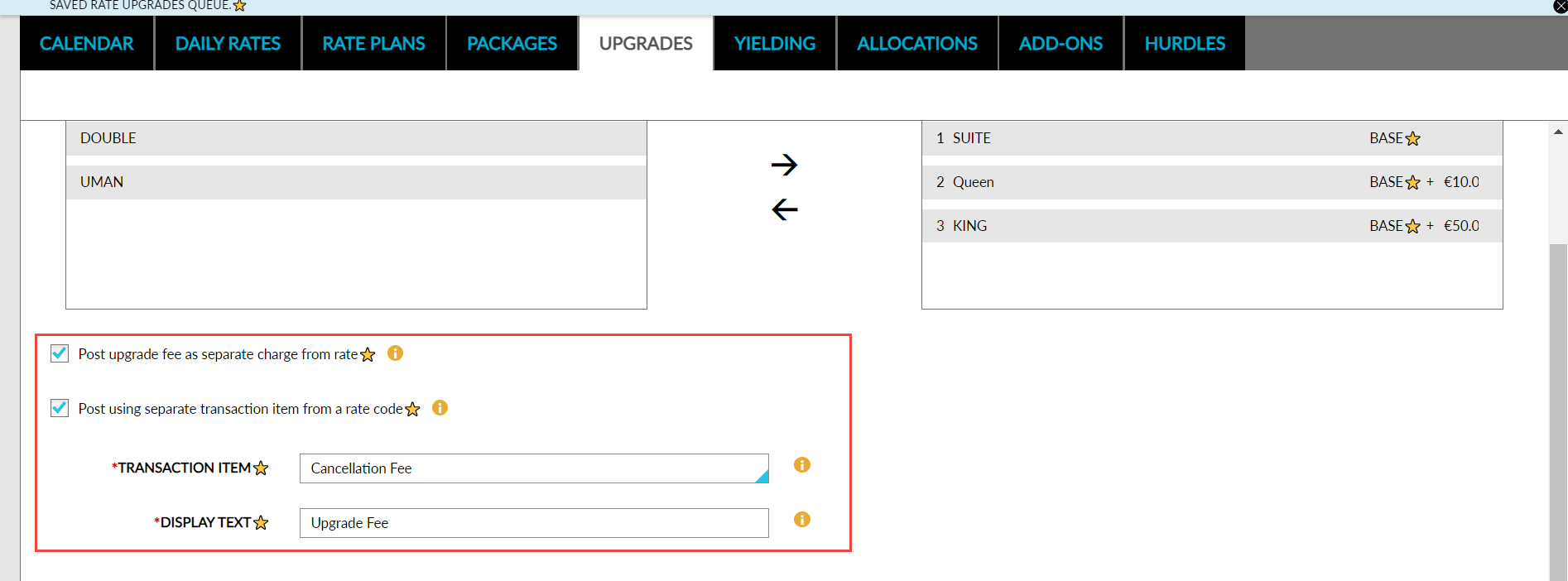
Click the Upgrades tab. The room types set up are listed in the Non-Queued Upgrade Classes box.
Select the rooms to make available for upgrade.
Click the right arrow to move them to the Upgrade Queue box. Or drag and drop between boxes.
If the rooms are not in the order in which they must be considered for upgrade, drag the rooms into order within the Upgrade Queue box. For example, move Standard first so it’s set as the Base rate room, and then move any remaining rooms into the correct order.
User cannot drag rooms up and down in the Upgrade Queue box if all boxes are selected (shaded blue).
Click the boxes to unselect at least one room.
Click and drag one room at a time or multiple rooms as a group.

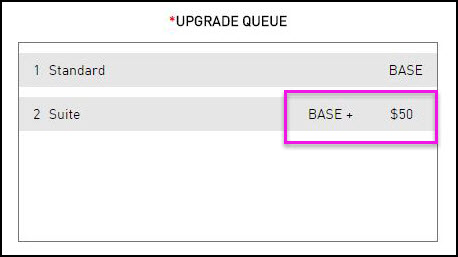
Enter the upgrade fee to apply for the upgrade. For example, type 50 next to Suite to charge the guest the base room rate plus a $50 upgrade fee if they move from the Standard room to a Suite.
Click Save.
Users can also choose to post upgrade fee as a separate line item in the guest folio when room upgrades are performed in the reservation. Users can choose from the following options:
-
Post upgrade fee as a separate charge from the room rate.
-
Post upgrade fee as a separate transaction item that is not associated with the rate plan of the reservation.
-
Post upgrade fee both as a separate charge from the room rate and as a different transaction item.
Select the following options to post the upgrade fee as a separate line item:
-
Post Upgrade Fee as a Separate Charge from the Room Rate: When this flag is selected, the Display Text drop-down list is enabled. Users can configure the text to be displayed when an upgrade fee is posted to the folio. A maximum of 64 characters can be entered.
-
Post Using Separate Transaction Item from a Rate Code: When this flag is selected, the Transaction Item and the Display Text drop-down lists are enabled. Users can select the transaction item to be mapped with the upgrade fee and configure the text to be displayed in the folio.
-
When the two new flags are disabled, the Transaction Item and the Display Text drop-down lists are disabled, and the upgrade fee will be posted to the guest folio as per the existing functionality.