Yielding
The Yielding option allows users to dynamically adjust rates based on specified business rules.
Perform the following steps to add a new rule set:
Navigate to Settings ➜ Rates ➜ Yielding. The list of active Rule Sets is displayed.
Click New to add a new rule set. The Add Rule Set page appears.
Refer the following table and fill in the fields in the Details tab:
|
Field |
Description |
|---|---|
|
Active |
Enable the checkbox to activate the rule set. |
|
Name |
The name for the rule set. |
|
Code |
A unique code to identify the rule set. |
|
Description |
The brief description of the rule set. |
|
Minimum Rate |
The lowest yielding rate a room must be sold at. |
|
Start |
The scheduled time period for the rule set to commence. |
|
End |
The scheduled time period for the rule set to end. It automatically becomes inactive on expiration of the specified time period |
Click Next. The Rules tab appears.
In the Rules section, set the rules either for any one of the 3 rulesets or for all the rulesets. If the user wants to set all 3 rulesets, they are applied in the following order: Occupancy, Length of Stay, and Advance Booking.
Click on Add a level.
Select one of the conditions for the level. All 3 rulesets have the following conditions: Less than, less than or equal to, Equal to, More than, More than or equal to.
|
Field |
Description |
|---|---|
|
Less than |
Select this option when the occupancy percentage is less than a specified percent or the length of stay booking is less than a specified number of days and advance booking is done less than a specified number of days. |
|
Less than or equal to |
Select this option when the occupancy percentage is less than or equal to a certain percent or the length of stay and advance booking is less than or equal to a certain number of days. |
|
Equal to |
Select this option when the occupancy percentage is equal to a certain percent or the length of stay, and advance booking is equal to a certain number of days. |
|
Greater than |
Select this option when the occupancy percentage is more than a specified percent or the length of stay, and advance booking is more than a specified number of days. |
|
Greater than or equal to |
Select this option when the occupancy percentage is more than or equal to a certain percent or the length of stay and advance booking is more than or equal to a certain number of days. |
Specify the Percent and/or Days depending on the selection of rule.
In the Result column, select any one of the possible results to implement: Increase rate by, Decrease rate by, Close rate plan, None, Flat rate.
|
Field |
Description |
|---|---|
|
Increase rate by |
Select this option if the yielded rate must be increased by a certain rate or percent. |
|
Decrease rate by |
Select this option the yielded rate must be decreased by a certain rate or percent. |
|
Close rate plan |
Select this option to close the availability of the rate plan. |
|
None |
Select this option if the level must not have an impact on the rule set. |
|
Flat rate |
Select this option if the yielded rate is based on a flat rate. |
Click Save. The rule set is now successfully added.
Preview a Rate Plan with a Rule Set
Perform the following steps to preview rates with rule sets:
To preview rates with rule sets applied, navigate to Settings ➜ Rates ➜ Yielding.
From the left panel, select the Rule Set.
From the right panel click Preview. The Preview Rates page appears.
Associate a Rate Plan to a Rule Set
Perform the following steps to associate rate plan to the rule set:
Once rule sets have been successfully added, users can associate a rule set to a rate plan.
Navigate to Settings ➜ Rates ➜ Daily Rates.
Select the Rate by Rule Set option.
From the Rate Plan dropdown menu, select the rate plan to associate a rule set to.
From the right panel, click on any date in the calendar. The Select Rule Set page appears.
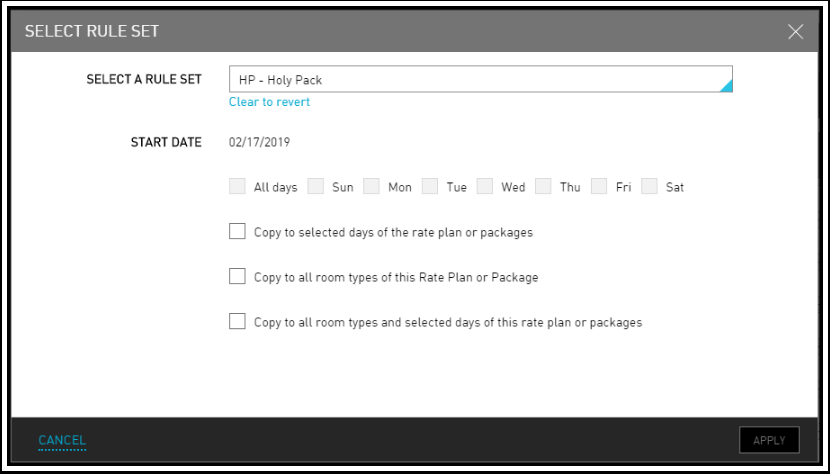
From the Select a Rule Set dropdown, select the rule set to associate with the rate plan.
Click on Clear to Revert to undo the selection of the rule set.
To copy the rule set to a rate plan or package, select any of the following rules to copy:
-
Copy to selected days of the rate plan or packages - This applies the rule set only to selected days of the rate plan. Users can select the specific days of the week to apply the rule set.
-
Copy to all room types of this rate plan or package - This applies the rule set to all room types associated with this rate plan.
-
Copy to all room types and selected days of this rate plan or package - This applies the rule set to all room types of the rate plan and can be applied to specific days.
Click Apply.
On the Confirmation page, click Yes to confirm and proceed with the completion of the copy of the rule set to a rate plan.
Create Yielding Rules Based on Room Types
Stay allows users to create yielding rules based on room types that can be applied to the configured rate plans and room types for the selected date range. This enhancement allows users to price the rooms at the property, based on their room types.
This feature is also applicable to the reservations created using OTAs and Agilysys Book.
Configuring and Applying Yielding Rules by Room Type
Users can create yielding rules by room type by enabling the Price By Room Type checkbox in the Details section of the Add/Edit Rule Set screen (Settings ➜ Rates ➜ Yielding ➜ New/Edit). An information icon present next to this checkbox displays the following message: By enabling, the yielding rules will be priced by room type.
When the Price By Room Type checkbox is enabled, the Apply To section appears that displays the following fields:
|
Field |
Description |
|---|---|
|
Start Date |
|
|
End Date |
|
|
Days of Week |
This is a mandatory field that allows users to select the days of the week to which the configured rule set must be applied. |
|
Rate & Packages |
|
|
Room Types |
|
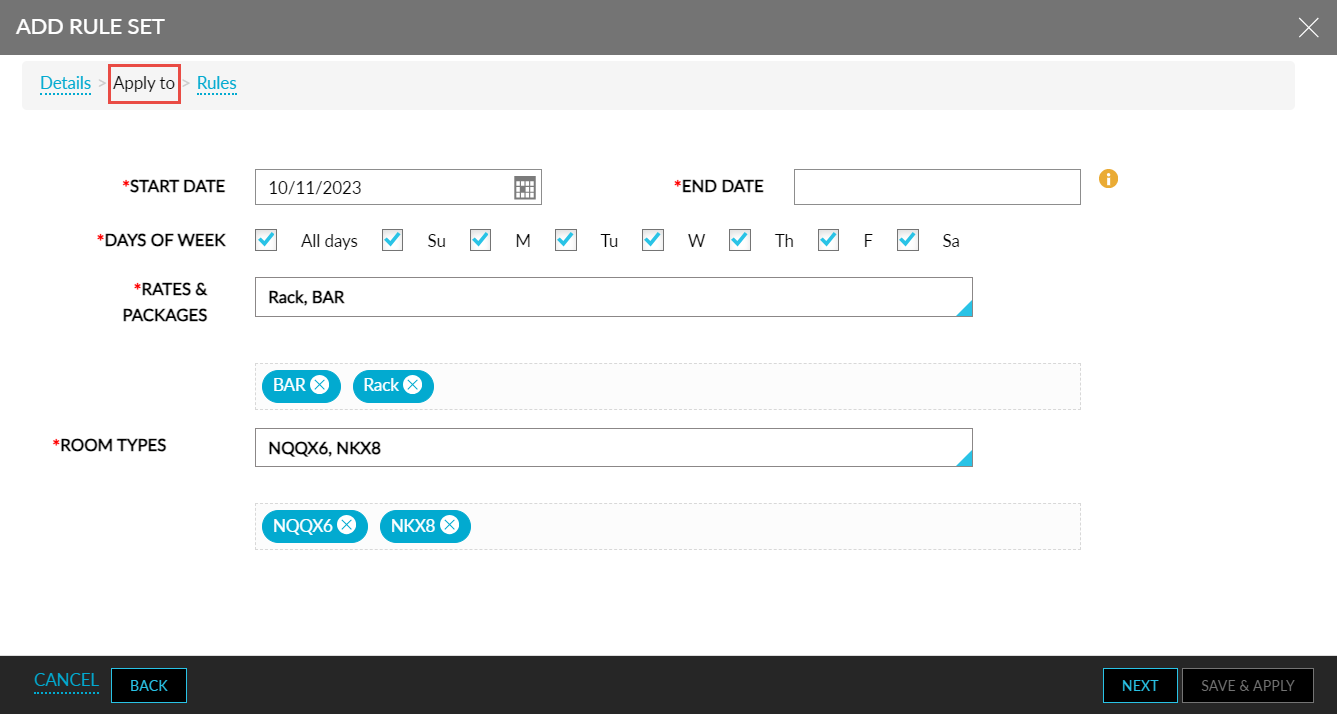
The room types selected in the Apply To section are displayed under the Result column in the Rules section. When users add a level for Occupancy, Length of Stay, or Advance Booking sub-sections, the number of rows generated under the Result column is the same as the number of room types selected in the Apply To section. For example, if users choose King, Queen, and Suite room types in the Apply To section and then add a level in Occupancy/ Length of Stay/Advance Booking sub-sections, three rows are added under the Result column, that is, one for each room type.
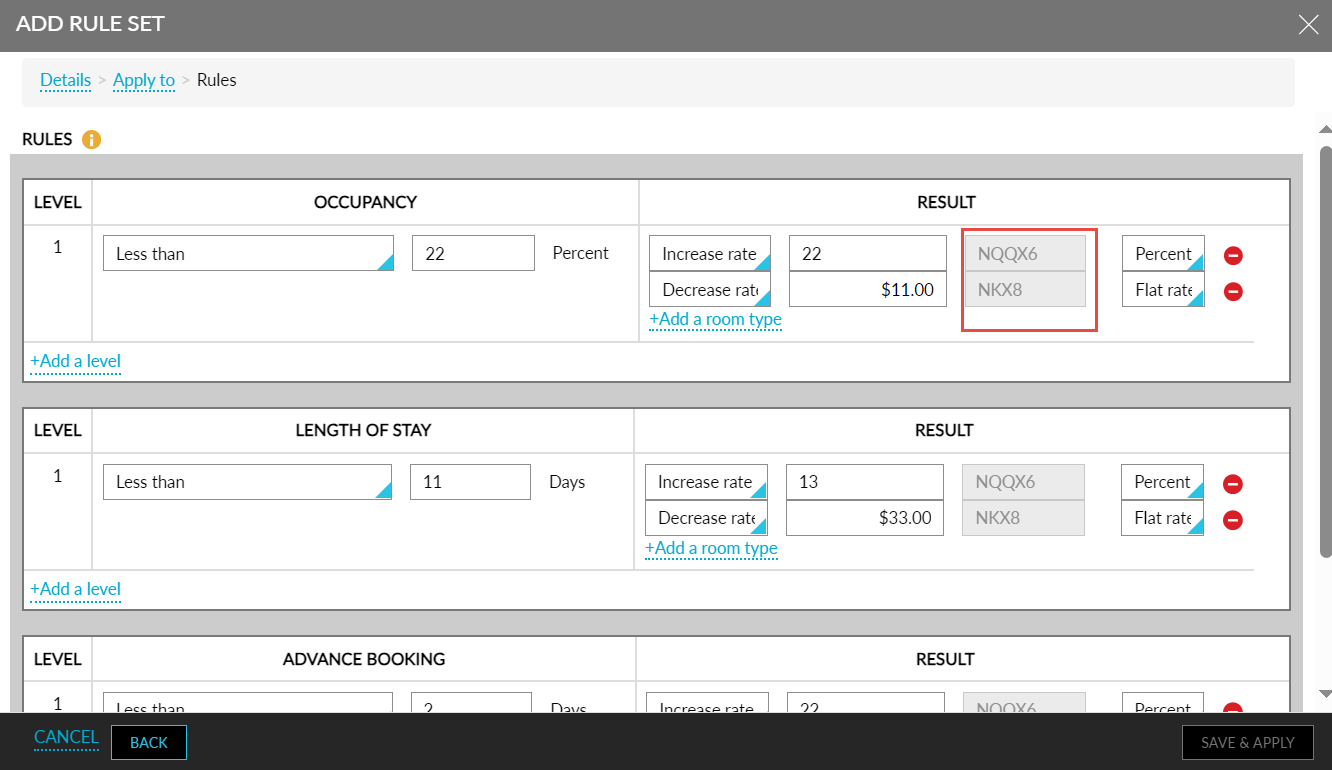
When users delete a row under the Result column, the row can be regenerated for the deleted room type if required using the +Add a room type hyperlink. Using this hyperlink, users can only generate rows for the room types that were previously selected in the Apply To section and not for any other additional room types.
When users configure the rules and click Save & Apply, the created rules are automatically applied to the Daily Rates tab based on the rate plans, room types, and date range selected for the rules.
When users create yielding rules with the Price By Room Type checkbox enabled, duplicate rules cannot be created with existing values for the following fields:
-
Start Date and End Date
-
Days of week
-
Rates & Packages
-
Room Types
When users try to create new yielding rules with values of the mentioned fields identical to a previously created rule, the following message is displayed: This combination already exists in Rule [Rule1], [Rule2].
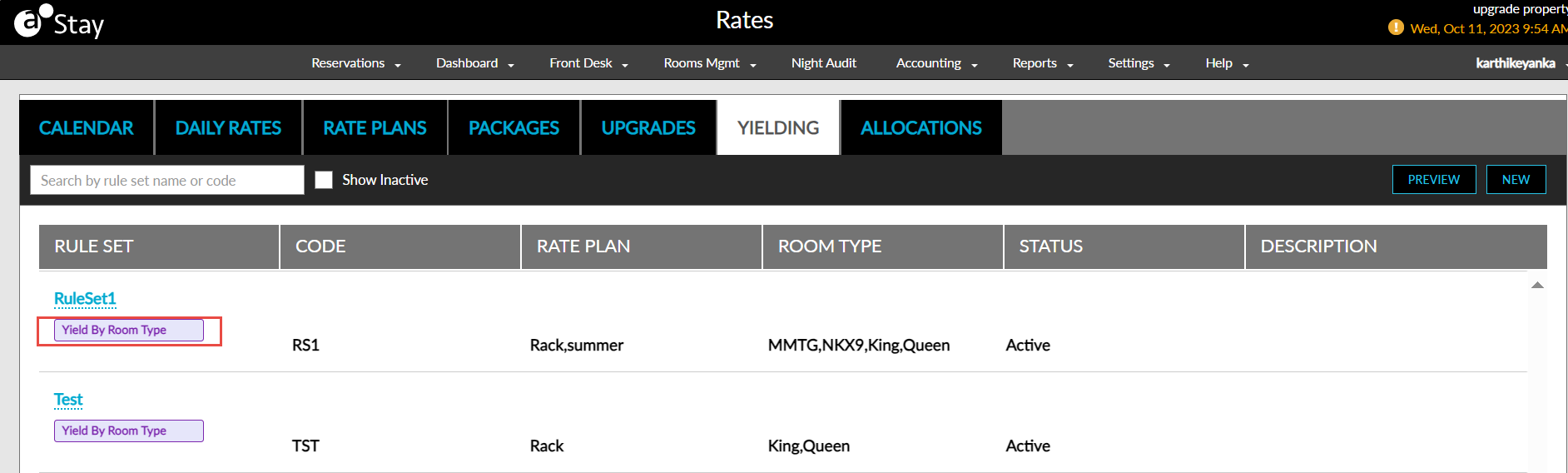
The yielding rules created with the Price By Room Type checkbox enabled are indicated with a Yield by Room Type indicator in the Yielding and Daily Rates tabs of the Rates screen. These rules display the selected rate plans and room types in the Rate Plan and Room Type columns in the Yielding tab. These columns are left blank for the normal yielding rules.
The Set Rule Set option under More will be disabled when users select the cells on the Daily Rates tab for which the yielding rules created with the Price By Room Type checkbox enabled are applied.
Applying Yielding Rules to Reservations Created Usings OTAs and Agilysys Book
The Occupancy level yielding rules created with the Price By Room Type checkbox enabled can be applied to the reservations created using OTAs when the Include Yielding Rates checkbox is enabled in the Rates Out section of the interface in the Settings tab of the Interface Channel Management screen.
The Occupancy, Length of Stay and Advance Booking level yielding rules can be applied to the reservations created using Agilysys Book.
Calculate Room Type Occupancy Percentage at the Room Type Level for Yield by Room Type Rule Sets
Stay allows users to choose if the room type occupancy percentage for a Yield By Room Type rule set must be calculated either at the room type level or at the property-level. Previously, the occupancy percentage was calculated at the property-level.
For example, consider there are 4 rooms available at a property, where 2 rooms belong to the Deluxe room type, and the other 2 rooms belong to the Standard room type. When 1 room from the Deluxe room type is booked, the occupancy percentage at the room type level is calculated as follows: ½ * 100 = 50. The occupancy percentage at the property-level is calculated as follows: ¼ * 100 = 25.
The Yield by Room Occupancy checkbox in the Add/Edit Rule Set screen (Settings ➜ Rates ➜ Yielding ➜ Add/Edit Rule Set) must be selected to calculate the room type occupancy percentage for a Yield By Room Type rule set at the room type level.
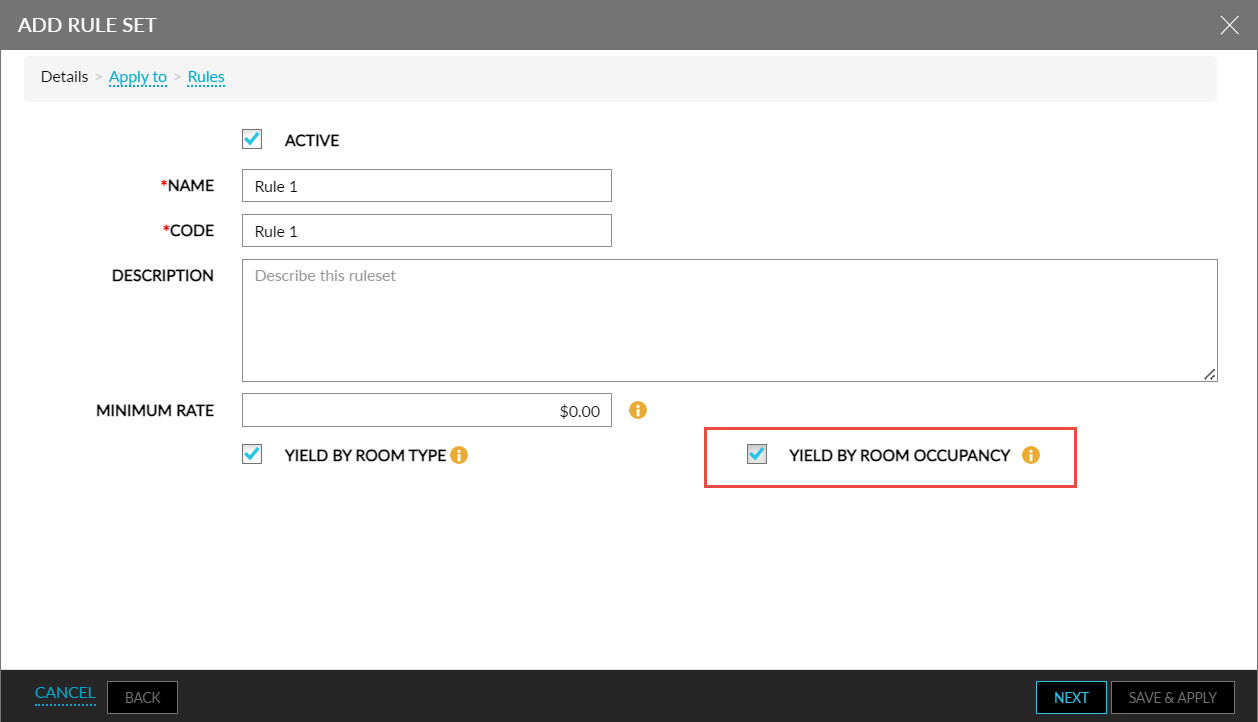
This checkbox is displayed only when the Yield By Room Type checkbox is selected. When this checkbox is not selected, the room type occupancy percentage is calculated at the property-level.
Copy Contents of a Row in Yield By Room Type Rule Sets
Stay allows users to copy the values configured for a room type in the Result column present in the Rules tab of the Add Rule Set screen (Settings ➜ Rates ➜ Yielding ➜ New) to the other room types within the same level.
For example, assume a yield by room type rule set created at the Occupancy level for the room types, NQQSOU, NKX, and NKSJ. The values configured for the first room type, NQQSOU, under the Result column can be copied to the other room types below it within the level.
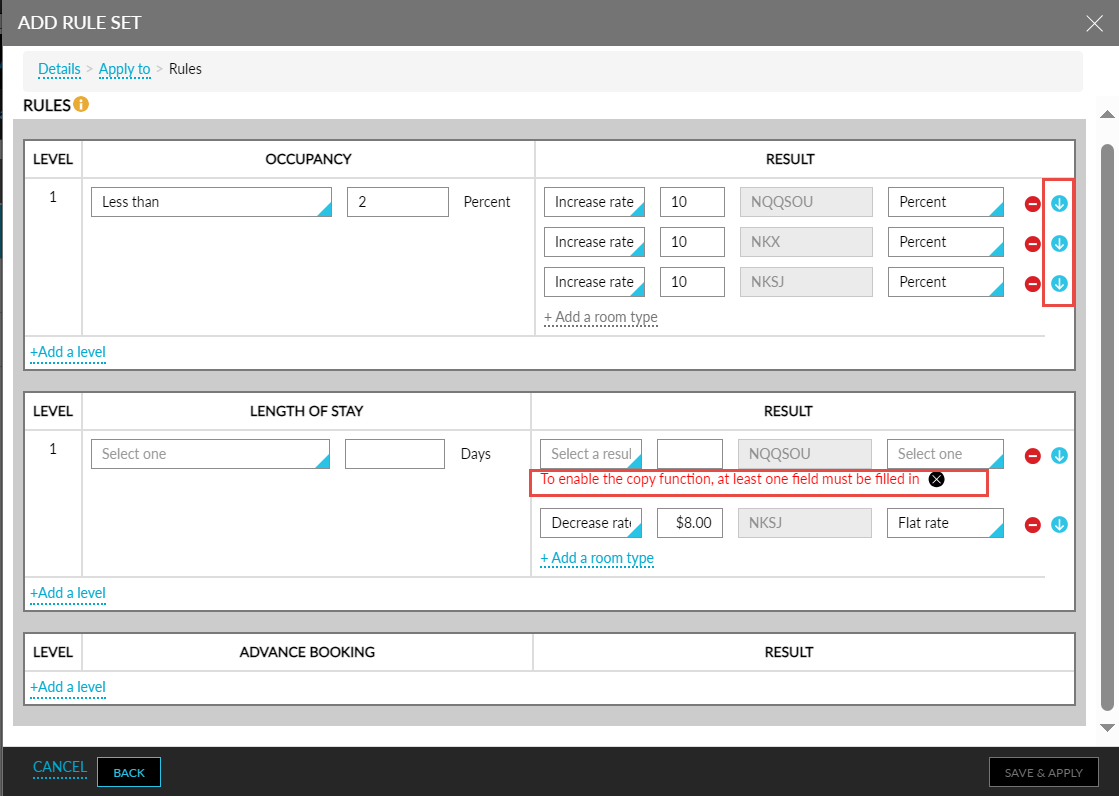
When users select the Yield By Room Type checkbox, the rate plans, packages, and room types in the Details, and Apply To tabs of the Add Rule pop-up screen and navigate to the Rules tab, users can copy the contents of the preferred row by clicking on the copy icon that is present at the end of each row under the Result column. When users click the icon for a row, the contents of all cells except the room type are copied to the rows below. If the user clicks the copy icon of the first row, the contents are copied to all the rows after the first.
When users click the Copy icon for a row that does not have any values configured, the following message is displayed: To enable the copy function, at least one value must be filled in. The Copy icon is greyed out when a negative percentage value is entered for a row.
Batch Update Yielding Rules
Stay allows users to bulk modify the Yield By Room Type rule sets created at the property. Users can export the existing rule sets as a CSV file, make the preferred updates, and import the updated file. The updates made by the users will be applied to the rule sets.
This feature is applicable for the Yield By Room Type rule sets only.
Feature Setting
The following feature setting must be enabled to use this feature:
-
Name: Import/Export Yielding Rules
-
Comments: License is not required
Export Rule Sets
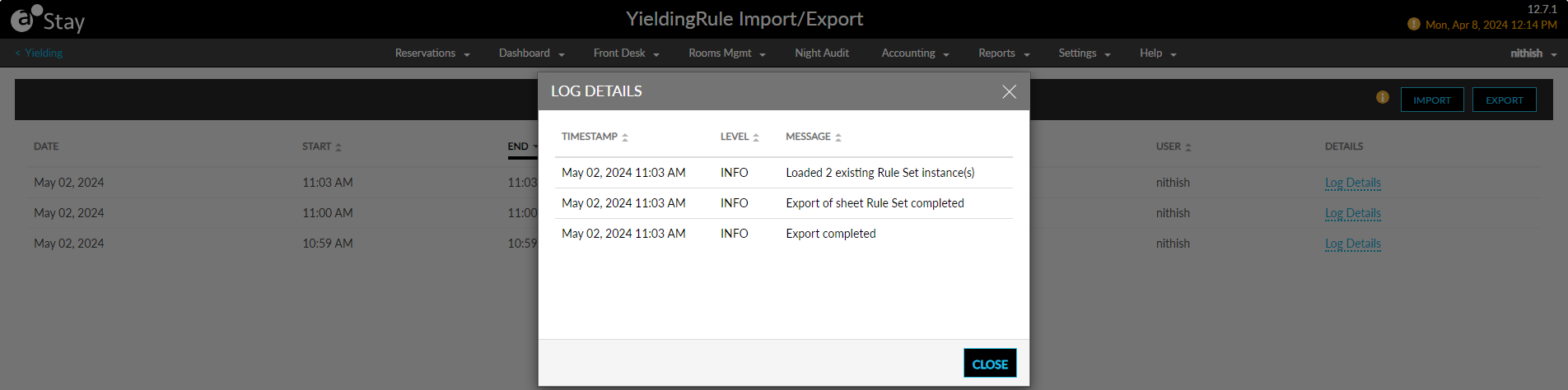
Users can export the Yield By Room Type rule sets available at the property from the Yielding Rule Import/Export screen that appears when users click the Import/Export hyperlink in the Yielding screen (Settings ➜ Rates ➜ Yielding ➜ Import/Export). When users click Export, the Export pop-up screen appears that informs users that the rule sets are being exported.
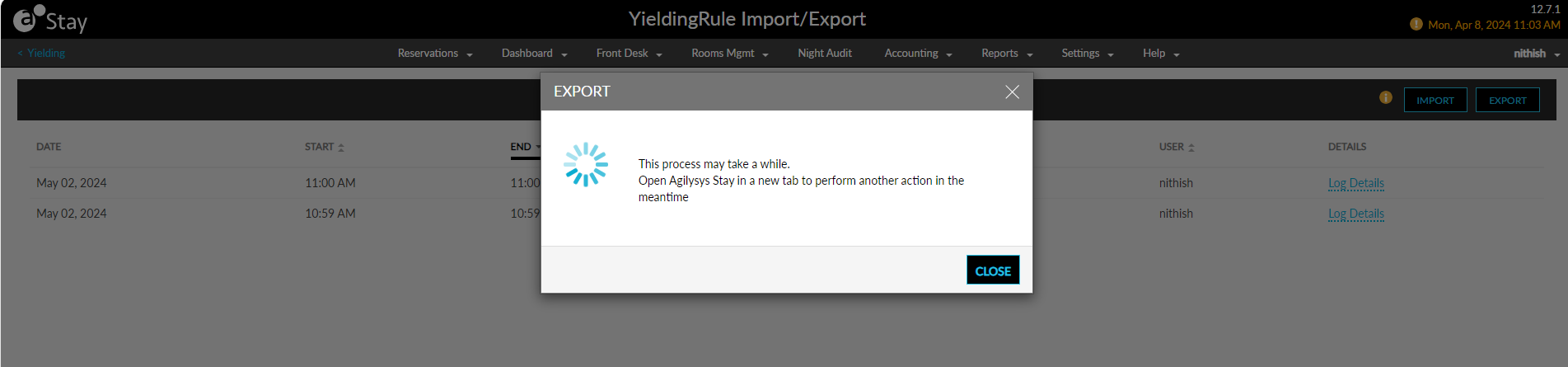
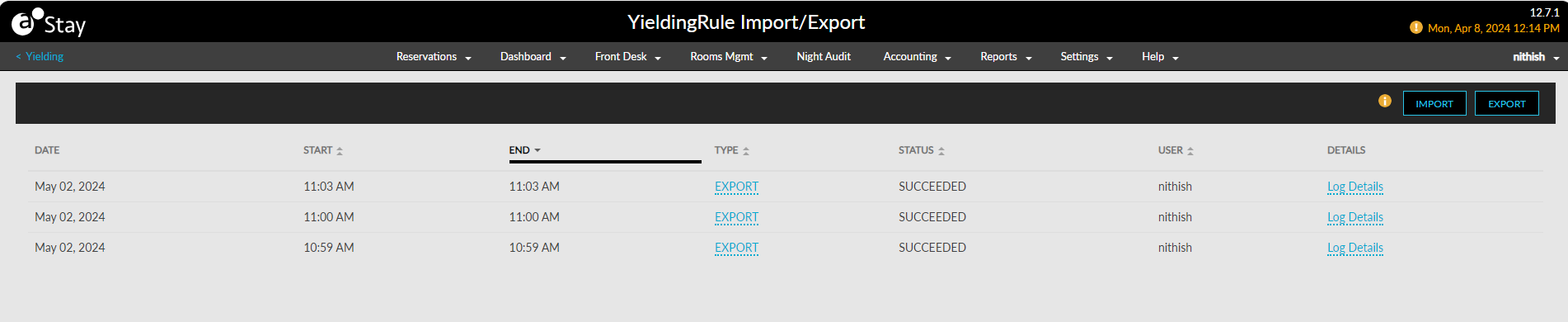
Once the export is completed successfully, the rule sets are exported as a CSV file. The Yielding Rule Import/Export screen displays the following columns:
|
Column |
Description |
|---|---|
|
Date |
The date when the import/export was performed. |
|
Start |
The time when the import/export was initiated. |
|
End |
The time when the import/export was completed. |
|
Type |
The type of action performed. Displays the following options:
|
|
Status |
The status of the import/export performed. Displays the following options:
|
|
User |
Displays the username of the user who initiated the import/export. |
|
Details |
Displays the label, Log Details, as a hyperlink. When clicked, the Log Details pop-up screen appears that displays the details of each export/import performed. |
Modify Rule Sets in CSV File
Once the rule sets are exported, users can update the values for the preferred fields in the exported CSV file. When the updated file is imported, the modifications are applied to the rule sets.
Sample Scenario
Consider the following Yield by Room Type rule set created for the selected room types with two levels for the Occupancy level, and one level each for the Length of Stay and Advance Booking levels.
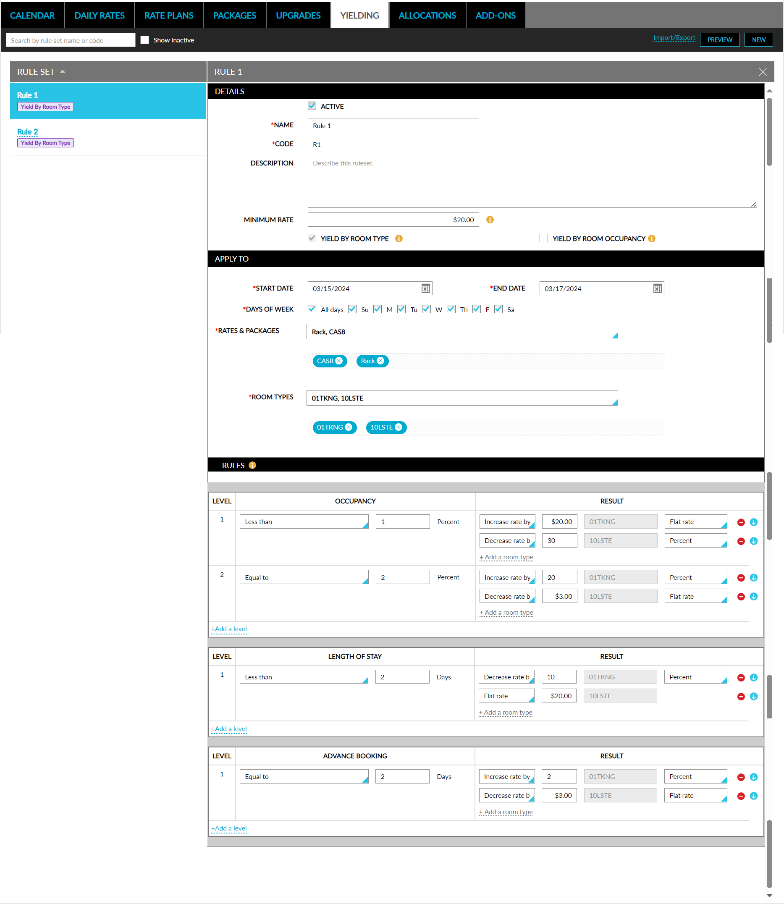
When this rule set is exported, a row-wise record is created for each room type associated with a level. For example, in the above rule set, level 1 and 2 of the Occupancy level contains 2 room types each. In this case, 4 records will be created in the exported file for the Occupancy level.

If users prefer to modify the values of the records in the columns ruleCode to roomTypes, the value must be updated for each record in the level or for the last record created for the level. For example, if users want to modify the value of the Minimum Rate, the value must be updated for the 4 records created in the Occupancy level and in the 2 records created for the Length of Stay and Advance Booking levels. Alternatively, users can also update the value in the last record created for each level.
The following columns in the exported CSV file display the details of the rule sets that are exported.
|
Column |
Description |
|---|---|
|
Sequence |
The sequence of the rule set. |
|
Active |
The status of the rule set. Displays True if the Active checkbox in the rule set is selected. |
|
Name |
The name of the rule set. |
|
Rule Code |
The code for the rule set. |
|
Description |
The description of the rule set. |
|
Minimum Rate |
The value of the Minimum Rate configured for the rule set. |
|
Yield By Room Type Occupancy |
Displays True if the Yield By Room Occupancy checkbox is selected for the rule set in the Yielding screen. |
|
Start Date |
The start date configured for the rule sets. |
|
End Date |
The end date configured for the rule sets. |
|
Days of Week |
The Days of Week selected for the rule sets displayed in the following format: ["M","Tu","W","Th","F","Sa","Su"]. |
|
Rates |
The rate plans and packages selected for the rule sets displayed in the following format: ["RACK","CAS8"]. |
|
Room Types |
The room types selected for the rule sets displayed in the following format: ["NKX","SMTG"]. |
|
Rule |
Displays the level of the rule. For example, Occupancy, Length of Stay, or Advance Booking. |
|
Level |
Displays the level for each room type selected in the rule. When multiple room types are selected in a single level, each room type is displayed as a separate row with the same level value. |
|
Rule Operator |
Displays the operator selected for each rule set such as, Greater than, Greater than or equal to, less than, less than or equal to, and Equal to. |
|
Rule Threshold |
Displays the value configured for each result operator selected for the room types in a level. |
|
Result Operator |
Displays the operator selected for each room type in a level, such as, Increase rate by, Decrease rate by, Close rates, None, and Flat rate. |
|
Result Value |
Displays the result type selected for each room type in a level, such as, Flat rate and Percent. |
|
Room Type |
Displays the room types selected in each level. |
|
Result Type |
Displays the result type selected for each rule level, such as, Flat Rate, Percent. For Occupancy level the result type is displayed as Percent and for Length of Stay and Advance Booking levels the result type is displayed as Flat Rate. |
|
Remove |
This column allows users to remove a room type associated with a rule set. Users can remove the room types added to a rule at a single or multiple level by entering the value True for the preferred room type. |
All columns in the file can be filtered.
Import Updated File
Once the updates are made to the rule sets in the CSV file, users can import the updated file using the Import option in the Yielding Rule Import/Export screen. When clicked, the Import pop-up screen appears that allows users to import the updated CSV file.
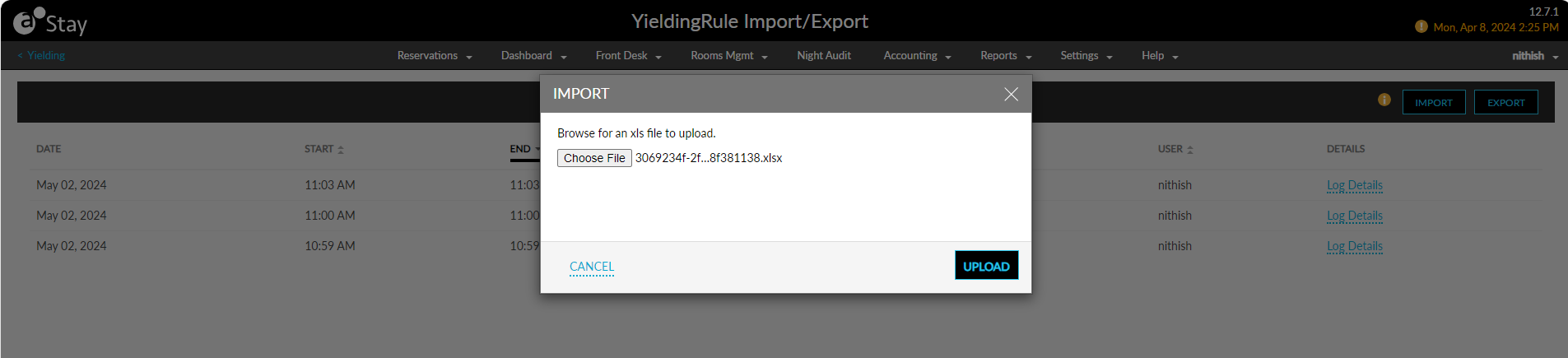
When users select the file and click Upload, the file will be imported successfully, and the modifications will be applied to the rule sets.
Associate New Rate Plans and Packages with Existing Yield Rule Sets
Stay allows users to associate new rate plans and packages with the existing yield rule sets available at the property during creation. Users can associate a rate plan or package with the preferred yield rule sets during creation, thereby reducing the manual effort required to update each rule set individually.
To use this feature, users must access the Yielding tab displayed in the following pop-up screens that appear when users create, clone, or modify a rate plan or a package:
-
Add (Settings ➜ Rates ➜ Rate Plans ➜ Add)
-
Edit (Settings ➜ Rates ➜ Rate Plans ➜ Select a rate plan ➜ Edit)
-
Add (Settings ➜ Rates ➜ Packages ➜ Add)
-
Edit (Settings ➜ Rates ➜ Packages ➜ Select a package ➜ Edit)
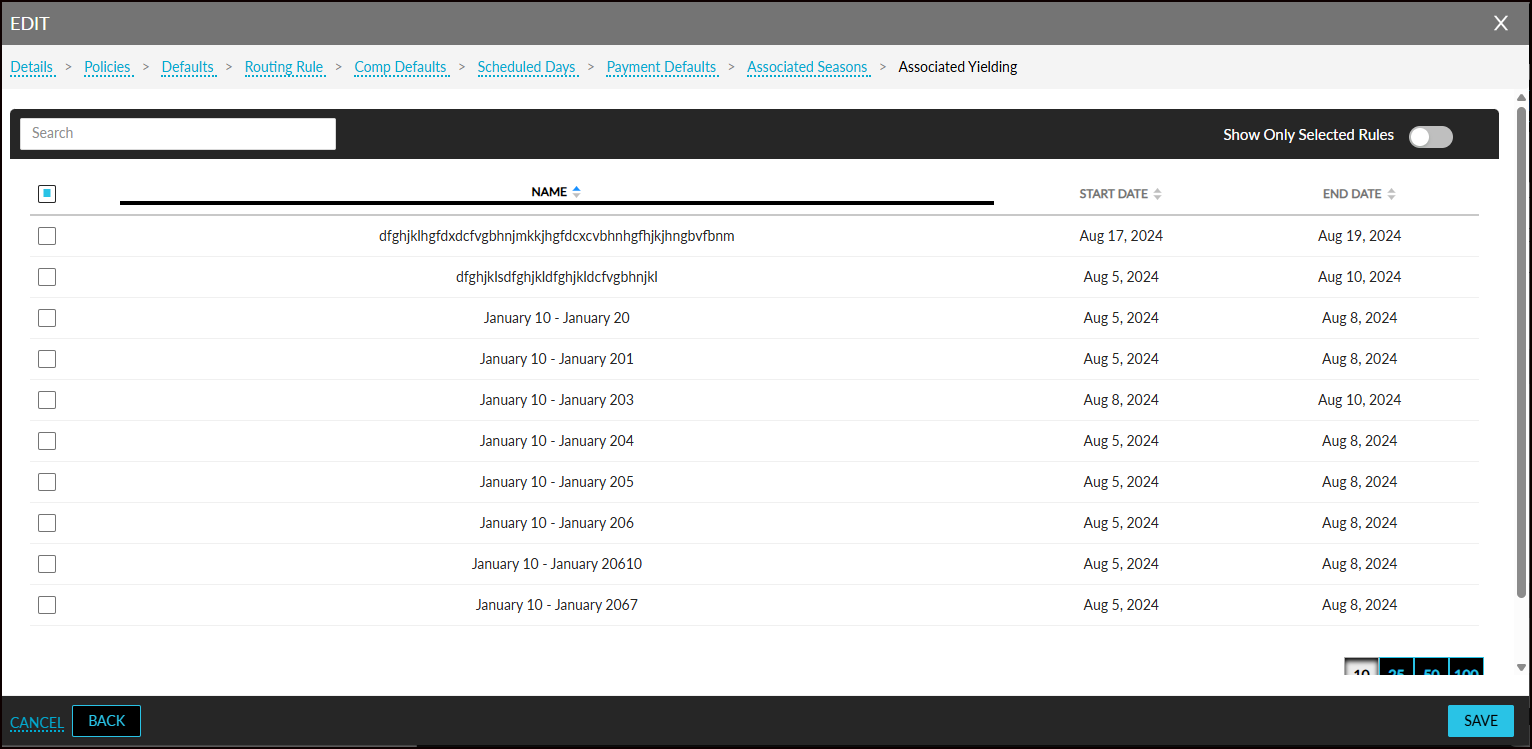
This tab displays the active yield rule sets available at the property. The following columns are displayed in this tab:
|
Column |
Description |
|---|---|
|
Name |
The name of the yield rule set. |
|
Start Date |
The start date selected for the rule set. |
|
End Date |
The end date selected for the rule set. |
Users can select the preferred rule sets to be associated with the rate plan/package. Users can search for a rule set using the rule set’s name, start date, or end date. Once the preferred yield rule sets are selected and users click Save, the selected rule sets are associated with the rate plan/package successfully.
The selected rule sets are displayed in the Associated Yielding section of the rate plan/package. Users can modify the rule sets selected by clicking on the Edit button. When clicked, the Edit pop-up screen appears that displays the rule sets selected for the rate plan/package.
Users can select different rule sets for the rate plan/package if required.