AR Aging Forecast Details
The AR Aging Forecast Details report allows users to view how long customer invoices have been outstanding, along with a breakdown of the total balance for each open invoice within each account.
Perform the following steps to generate the report:
Navigate to Reports ➜ Dynamic Reports ➜ Accounting ➜ AR Aging Forecast Details report.
Refer to the following table and fill in the fields.
|
Field |
Description |
|---|---|
|
Report Name |
AR Aging Forecast Details |
|
Property |
This is a mandatory single-select drop-down list that allows users to select the property for report generation. By default, the current property is selected. |
|
Date |
This mandatory field allows users to select either a past or future date. By default, the current property date is displayed. |
|
Aging By |
This is an optional field that allows users to select from the following options:
|
|
Options |
This is an optional multi-select drop-down list that displays the following options:
|
Click Run to generate the report.
Click Save to save the report under User Favorites section.
Sample Report
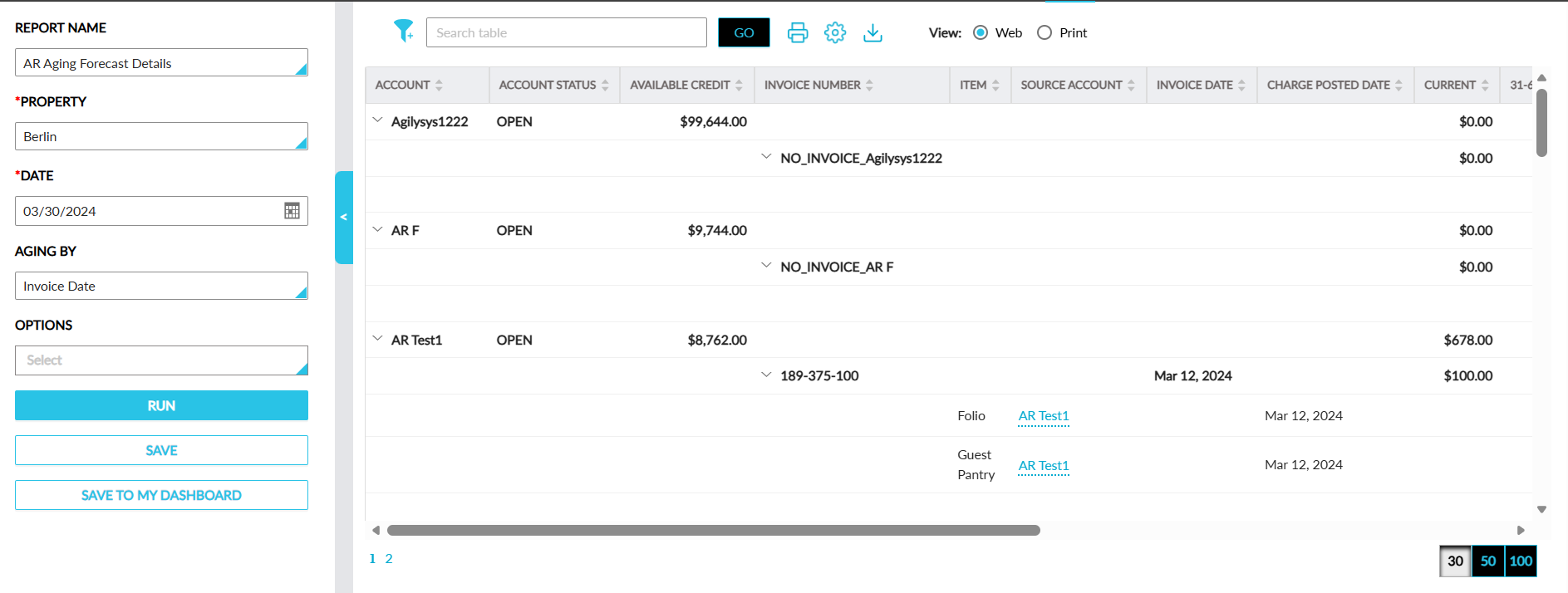
Report Fields
This report displays the following fields:
|
Field |
Description |
|---|---|
|
Account |
The guest name associated with the reservation. This column can be sorted and filtered. |
|
Invoice Number |
The invoice number of the invoice generated for an account. This column can be sorted and filtered. |
|
Item |
The name of the transaction item. This column can be sorted and filtered. |
|
Source Account |
The account to which the item was posted. This column can be sorted and filtered. |
|
Invoice Date |
The date when the invoice was posted. This column can be sorted and filtered. |
|
Charge Posted Date |
The date when the charge was posted to the guest folio of a reservation. This date will continue to be displayed even when the charges are transferred to an A/R account. |
|
Current |
Total amount of invoices that are past due as of the current date. This column can be sorted. |
|
31-60 Days |
The sum of the charges for which invoices were created between 31-60 days in the past from the selected date. This column can be sorted. |
|
61-90 Days |
The sum of the charges for which invoices were created between 61-90 days in the past from the selected date. This column can be sorted. This column can be sorted. |
|
91-120 Days |
The sum of the charges for which invoices were created between 91-120 days in the past from the selected date. This column can be sorted. |
|
121+ Days |
The sum of the charges for which invoices were created beyond 121 days in the past from the selected date. This column can be sorted. |
|
Uninvoiced |
The sum of the charges in the Non-Invoiced Charges section of the A/R accounts for which invoices are not created, calculated for the selected date. The value, 0, is displayed by default when no value is available. This column can be sorted. |
|
Unapplied |
The sum of the unapplied payments remaining in the Unapplied Payments section of the A/R accounts calculated for the selected date. The value, 0, is displayed by default when no value is available. This column can be sorted. |
|
Disputed |
The sum of the disputed charges for the account. This column can be sorted and filtered. |
|
Invoiced |
The sum of the charges for which invoices were created for the account. This column can be sorted. |
|
Total Balance |
Total amount due for the account, including the current and past due balances calculated as follows: Total Balance = (Invoiced + Un-Invoiced) - (Unapplied Payments). The value, 0, is displayed by default when no value is available. This column can be sorted. |
|
Account Status |
The status of the account. This column can be sorted and filtered. |
|
Available Credit |
The credit amount available for the account. This column can be sorted and filtered. |