AR Unapplied Payments Report
The AR Unapplied Payments report allows users to track the unapplied payments made to A/R account invoices, the date and time of the payment, and username of the user who processed the payment.
Perform the following steps to generate the report:
Navigate to Reports ➜ Dynamic Reports ➜ Front Desk ➜ AR Unapplied Payments.
Refer to the following table and fill in the fields.
|
Field |
Description |
|---|---|
|
Report Name |
AR Unapplied Payments. |
|
View By |
These are mandatory fields that allow users to select the date range within which the unapplied payments are made, and their aging details must be displayed. Users can select a date that is a maximum of 5 years prior to or beyond the current property date. The maximum date range that can be selected is 365 days. |
|
Companies |
This is an optional multi-select drop-down list that displays the A/R accounts available at the property. Users can select the preferred accounts for report generation. |
|
Sort By |
This is an optional single-select drop-down list that allows users to select from the following options:
|
Click Run to generate the report.
Click Save to save the report under User Favorites section.
Sample Report
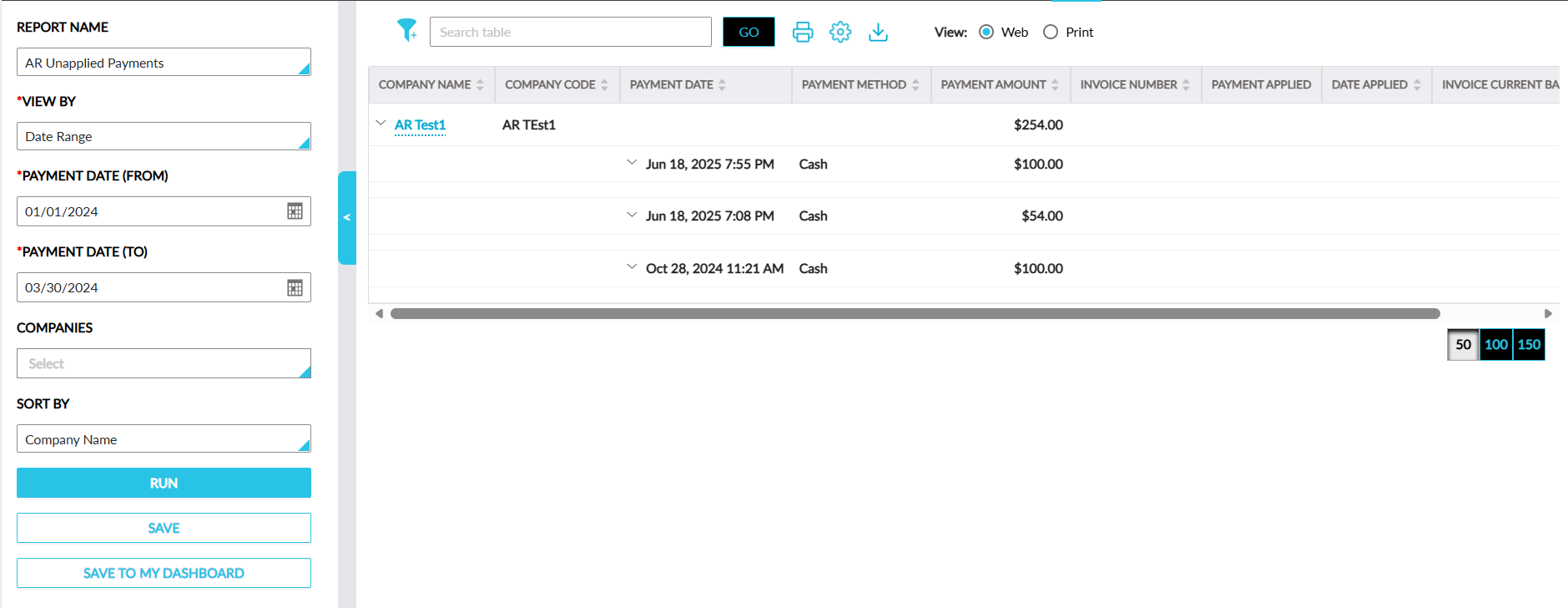
Report Fields
This report displays the following fields:
|
Field |
Description |
|---|---|
|
Company Code |
The company profile code. This column can be sorted. |
|
Company Name |
The company name displayed as a hyperlink. When clicked, users will be navigated to the A/R account in a new tab. This column can be sorted. Users can search and filter records using this value. |
|
Account# |
The account number of the account. This column can be sorted. |
|
Account Contact |
The contact selected for the account. This column can be sorted. |
|
Payment Date |
The date when the unapplied payment was made. This column can be sorted. |
|
Payment Method |
The payment method name used for making the payment. This column can be sorted. |
|
Payment Amount |
The unapplied payment amount added to the account. This column can be sorted. |
|
Invoice Number |
The invoice number to which the unapplied payment is applied. This column can be sorted. Users can search and filter records using this value. |
|
Payment Applied |
The amount applied to the invoice from the unapplied payment. This column can be sorted. |
|
Date Applied |
The date when the unapplied payment is applied to the invoice. This column can be sorted. Users can filter records using this value. |
|
Invoice Current Balance |
The current balance of the invoice to which the unapplied payment is applied. This column can be sorted. Users can search and filter records using this value. |
|
User |
The username of the user who applied the unapplied payment to the invoice. This column can be sorted. |
|
Available Amount |
This column is displayed next to the Payment Amount column. The balance of unapplied payments are displayed in this column and calculated as follows: Available Amount = Payment Amount- Payment Applied. For example, when an A/R account has an unapplied amount of $300 and when it is applied to make payment for an invoice of $120, then the available amount is displayed as $180. This column can be sorted. |
|
The available amount is displayed in each of the aging columns based on the following calculation: Current Property Date - Payment Date. For example, consider the following details for an A/R account:
As the aging period for the available amount is 82 days, the available amount is displayed in the 61 - 90 days column. |
|
Status |
The following values are displayed in this column:
The unapplied payments with the status Closed are not displayed in the report. |
|
Unapplied Payment (User) |
The user who made the unapplied payment. |