Arrivals
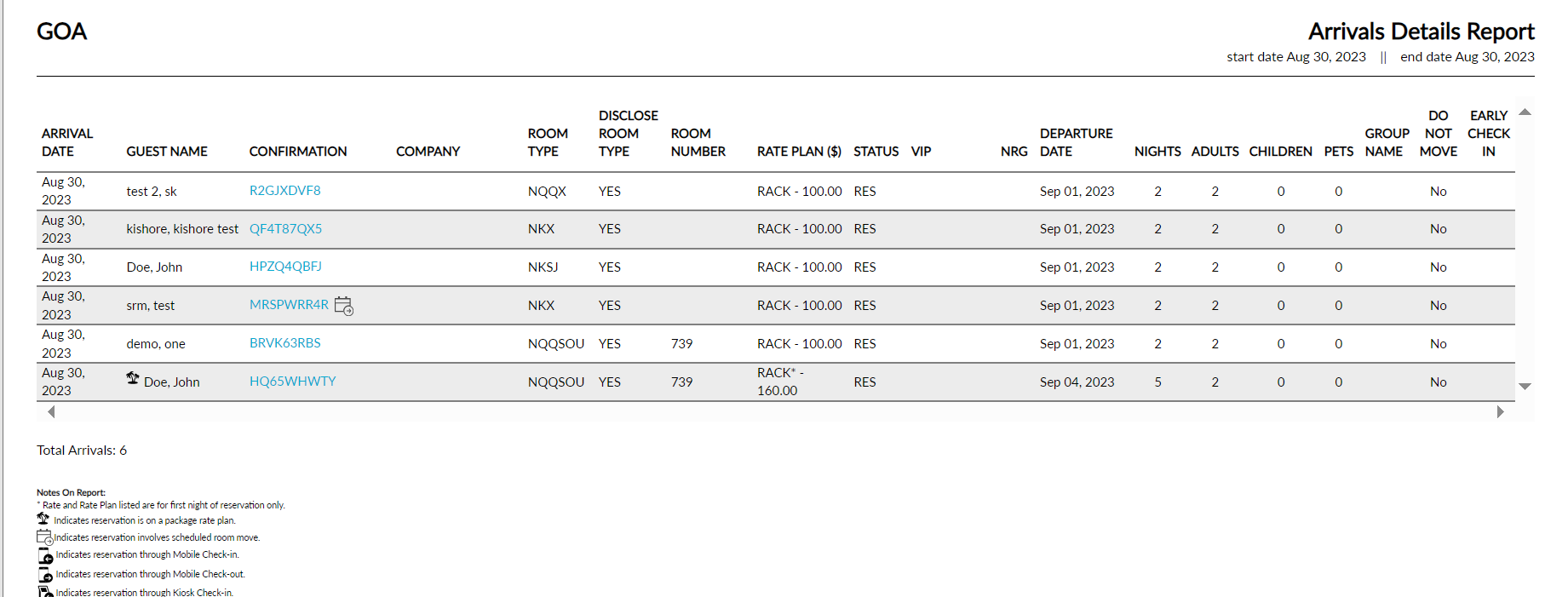
The Arrivals report allows users to view all arriving guests within the selected date range. As a property manager, user can determine which guests are in house and/or which guests are due to arrive on the selected date. When a confirmation number is available, it is linked to the reservation and opens in a separate tab when selected. It is not available if it does not appear in the report. If a package rate plan is associated with the reservation, it appears on the report with a palm tree icon.
Perform the following steps to generate the report:
Navigate to Reports ➜ All Reports ➜Front Desk ➜ Arrivals .
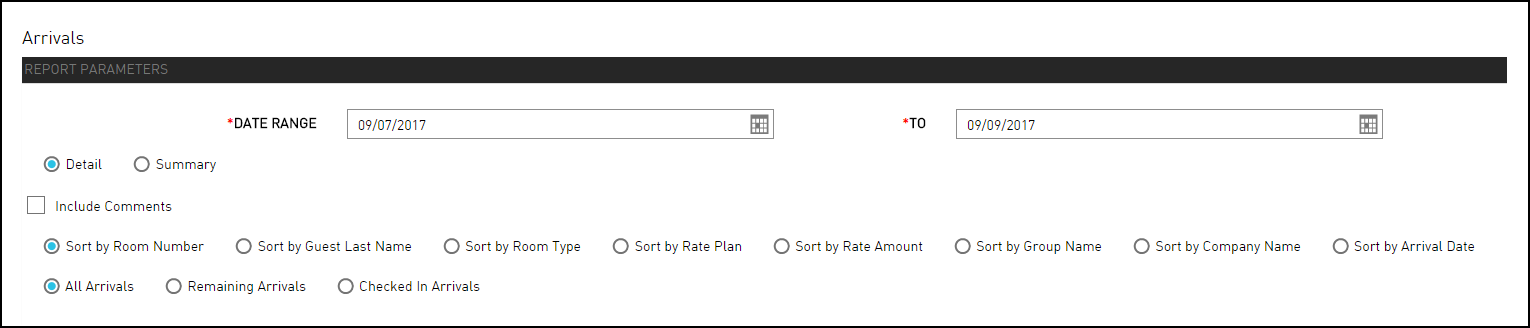
Select the Date Range field from the calendar to generate dates for the report.
Select the Include Comments checkbox to include the comments associated with guest reservations that have not already checked in.
Choose Detail or Summary option to sort the report.
Choose which sort options to include in the report.
Click Generate. The report with the selected data appears.
Click Print to send a copy of the report to the printer.
Sample Report
Report Parameters
The following new columns are added to the Arrivals Report (Dynamic):
-
Add-ons: Displays the code of the add-ons bundle added to the reservation.
-
Recurring Charge: Displays the code of the recurring charges added to the reservation. For example, if the recurring charge pet fee is added to a reservation for all the three days of stay, the code for pet fee will be displayed only once.
-
Package Component: Displays the package code from which the reservation was created. If more than one package is attached to a reservation, the codes of all the attached packages will be displayed.
-
Balance: Displays the reservation’s current folio balance.
This report displays the following parameters:
|
Field |
Description |
|---|---|
|
Arrival Date |
The arrival date for the reservation. |
|
Guest Name |
The guest name on the reservation. |
|
Confirmation |
The confirmation number on the reservation. |
|
Company |
The group name associated with the reservation if one applies. |
|
Room Type |
The type of room that the guest has reserved. |
|
Disclose Room Type |
Displays Yes when the Do not disclose room type to guest flag is disabled and displays No when the flag is enabled. |
|
Room Number |
The room number that the guest is staying in, if assigned. |
|
Rate Plan |
The rate plan associated with the reservation. If multiple rate plans are associated with the reservation, the rate plan currently in effect appears on the report. |
|
Status |
The status of each reservation:
|
|
VIP |
The VIP status of the guest. |
|
NRG |
Identifies whether a non-registered guest is on the reservation. |
|
Departure Date |
The departure date for the reservation. |
|
Nights |
The number of nights that the guest is staying for the reservation. |
|
Adults |
The number of adults associated with each reservation |
|
Children |
The number of children associated with each reservation. |
|
Pets |
The number of pets associated with each reservation. |
|
Group Name |
The group name associated with the reservation if one applies. |
|
# Docs |
The number of documents attached to the reservation. |