Overbooking Event Report
The Overbooking Event report allows users to track the overbookings performed for a day. Perform the following steps to generate the report:
Navigate to Reports ➜ Dynamic Reports ➜ Guests/Reservations ➜ Overbooking Event.
Refer to the following table and fill in the fields.
|
Parameters |
Description |
|---|---|
|
Report Name |
Overbooking Event. |
|
Property |
This is a single-select drop-down list that displays the properties available for a tenant. By default, the logged-in property is selected. |
|
Created Date - Start |
Users can select a start date to filter and view reservations that were booked on or after the selected date. This field allows users to select past dates up to the current property date. Future dates cannot be selected. By default, the current property date is selected. |
|
Created Date - End |
Users can specify an end date to filter and view reservations that were booked on or before the selected date. This field allows users to select past dates up to the current property date. The duration between the selected start and end dates can be a maximum of 31 days. By default, the current property date is selected. Based on the selected date range, the overbookings created during the period are displayed. |
|
Group By |
This is a single-select drop-down list that allows users to select from the following options:
|
Click Run to generate the report.
Click Save to save the report under User Favorites section.
Sample Report
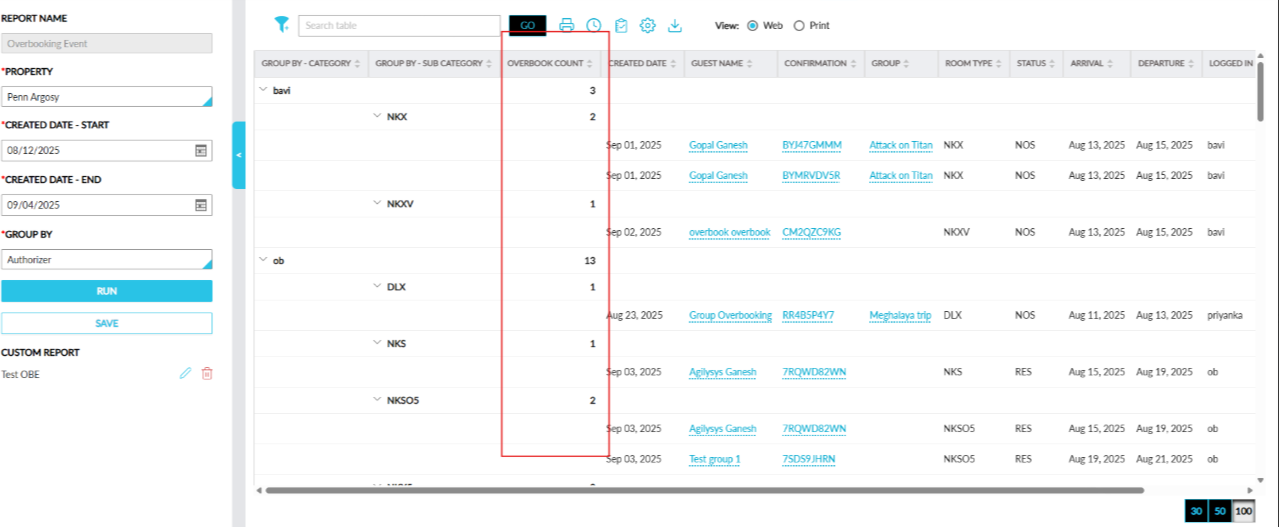
Report Fields
This report displays the following fields:
|
Field |
Description |
|---|---|
|
Group By - Category |
Displays data based on the Group By option selected. When grouped by authorizer, the authorizer’s username is displayed. This column can be sorted. |
|
Group By - Sub Category |
The second level of grouping based on the option selected in the Group By field. This column can be sorted. |
|
Created Date |
The date when the reservation was booked displayed in the following format: <Month>, <Date>, <Year>. This column can be sorted. |
|
Room Type |
The name of the room type associated with the overbooked reservation. This column can be sorted. Users can search and filter records using room types. |
|
Overbook Count |
The count of overbookings done at each grouping-level. This column can be sorted. |
|
Guest Name |
The name of the primary guest associated with the overbooked reservation is displayed as a hyperlink in the following format: <LastName>, <FirstName>. When clicked, the guest profile is opened in a new tab in the browser. This column can be sorted. Users can search and filter records using the guest name. |
|
Confirmation |
The confirmation ID of the overbooked reservation displayed as a hyperlink. When clicked, the reservation is opened in a new tab in the browser. This column can be sorted. Users can search for a record using this value. |
|
Group |
The group name associated with the overbooked reservation displayed as a hyperlink. When clicked, the group is opened in a new tab in the browser. This column is displayed blank when no group is associated with the reservation. This column can be sorted. Users can search and filter records using the group name. |
|
Status |
The status of the overbooked reservation. The following statuses are displayed:
This column can be sorted. Users can search and filter records using the reservation status. |
|
Arrival |
The arrival date of the overbooked reservation. This column can be sorted. |
|
Departure |
The departure date of the overbooked reservation. This column can be sorted. |
|
Logged In User |
The username of the user who was logged into Stay at the time of overbooking. This column can be sorted. Users can search and filter records using the logged in username. |
|
Authorizer |
The username of the user whose credentials were used to authorize an overbooking. This column can be sorted. Users can search and filter records using the authorizer’s name. |