Reservations
The Reservations report allows users to view reservations through various filters for the selected date. As a property manager, user can reference the reservation by rate plan details. When a confirmation number is available, it’s linked to the reservation and opens in a separate tab when selected. It’s not available if it does not appear in the report. If a package rate plan is associated with the reservation, it appears on the report with a palm tree icon.
Perform the following steps to generate the report:
Navigate to Reports ➜ All Reports ➜ Reservations (under Guests/Reservations).

Select a date range from the calendar to generate dates for the report.
Choose which sort options to include in the report:
|
Field |
Description |
|---|---|
|
Sort by Guest Last Name |
Sorts the report alphabetically by guest last name. |
|
Sort by Room Number |
Sorts the report alphanumerically by room number. |
|
Sort by Room Rack Number |
Sorts the report alphanumerically by room rack number. |
|
Sort By Group Name |
Sorts the report alphanumerically by group number. |
|
Sort by Company |
Sort the report alphabetically by company name. |
|
Sort by Rate Plan |
Sorts the alphabetically by rate plan. |
|
Sort by Arrival Date |
Sorts the report alphanumerically by arrival date. |
|
Sort by Departure Date |
Sorts the report alphanumerically by departure date. |
|
Sort by Source of Business |
Sorts the report alphabetically by the business source name. |
Choose Include Guest Email and Include Guest Phone field to the guest’s email address and phone number in the report.
Choose Include Daily Room Rates field to include room rates on a daily basis to the report.
Choose Include Reservation Comments field to add reservation comments in the report.
Choose Include Profile Comments field to add profile comments in the report.
Choose which Reservation Status field to include in the report:
|
Field |
Description |
|---|---|
|
Select All |
Includes all account statuses. |
|
In House |
Guests who are checked in and on the property. |
|
Departed |
Guests who already departed. |
|
Reservation |
Guests who have reservations on a future date and have not checked in. |
|
Cancelled |
Guests who abandoned their reservations, including walk-in and no-show reservations. |
|
No Show |
Guests who had guaranteed reservations but have not cancelled or arrived at the property. |
Choose which Room Type field to include in the report.
Enter which Rate Plan field to include in the report.
Enter which Company field to include in the report.
Enter which Group field to include in the report.
Enter which Guest Name field to include in the report.
Enter a Room Number field to include in the report.
Click Generate. The report with the selected data appears.
Click Print to send a copy of the report to the printer.
Sample Report
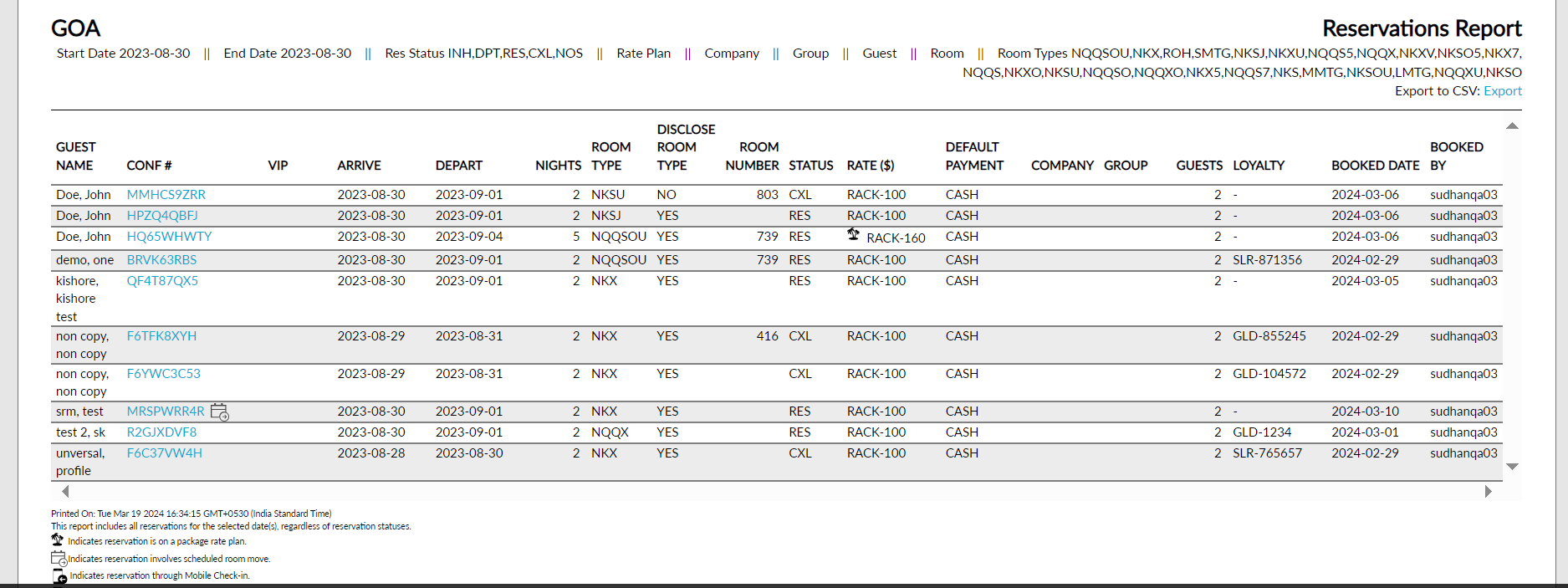
Report Parameters
The following columns are added to the Reservations Report (Dynamic) to display the reservations for which the comp restrictions are overridden:
-
Player ID: Displays the player ID details.
-
Comp Restriction Overridden: Displays Yes when comp restrictions are overridden for the reservation.
-
Comp Restriction Overridden By: Displays the username of the user who performed the override.
This report displays the following parameters:
|
Field |
Description |
|---|---|
|
Guest Name |
The guest name on the reservation. |
|
Conference # |
The conference number that the guest is associated with, if assigned. |
|
VIP |
The VIP status of the guest. |
|
Arrive |
The arrival date of the reservation. |
|
Depart |
The departure date of the reservation. |
|
Nights |
The number of nights that the guest is staying for the reservation. |
|
Room Type |
The room number that the guest is staying in, if assigned. |
|
Disclose Room Type |
Displays Yes when the Do not disclose room type to guest flag is disabled and displays No when the flag is enabled. |
|
Status |
The reservation status that indicates whether the reservation is still in house, due to depart, or already departed. |
|
Rate |
The rate being charged for each reservation. |
|
Default Payment |
The payment method on the on the guest profile. |
|
Company |
The company name on the account. |
|
Group |
The group name associated with the reservation if one applies. |
|
Guests |
The number of guests associated with each reservation. |
|
Loyalty |
The loyalty number that the guest is associated with, if assigned. |
|
Booked Date |
The date of booking. |
|
Booked By |
The user who booked the reservation. |
|
Source of Business |
The source of business of the reservation. |
|
Old PMS Confirmation Code |
The old PMS confirmation code of the reservation. |
|
Postal Code |
The postal code of the guest. |
Source of Business, Old PMS Confirmation Code, and Postal Code are available in the new Dynamic Reporting Framework only. Refer to the Dynamic Report section to generate a dynamic Reservation report (Report ➜ Dynamic Report ➜ Front Desk).