Revenue by Market Segments
The Revenue by Market Segments report displays the revenue generated across different market segments associated with booked reservations.
Perform the following steps to generate the report:
Navigate to Reports ➜ Dynamic Reports ➜ Revenue/Forecasting ➜ Revenue by Market Segments.
Refer to the following table and fill in the fields.
|
Field |
Description |
|---|---|
|
Report Name |
Revenue by Market Segments. |
|
Property |
This is a mandatory multi-select drop-down list that displays the current property by default. Users can select the preferred properties for report generation. |
|
Start Date |
The start date for report generation. This is a mandatory field that displays the current property date by default. Users can select any date in the past, present, or future. |
|
End Date |
The end date for report generation. This is a mandatory field that displays the current property date by default. Users can select any date in the past, present, or future. |
|
Year Over Year - Start Date |
This is an optional field that allows users to select the start date for calculating the year over year revenue. |
|
Group By |
This is a mandatory single-select drop-down list that allows users to select the option based on which the records must be grouped:
|
|
Segment Filter |
This is an optional multi-select drop-down list that allows users to select the market segments to be included in the report. |
|
Building Filter |
This is an optional multi-select drop-down list that allows users to select the buildings to be included in the report. |
|
Rate Filter |
This is an optional multi-select drop-down list that allows users to select the rate plans to be included in the report. |
|
Exclude OOO Rooms |
Select this checkbox to exclude the out of order rooms from revenue calculation. |
|
Include Zero Balance Days |
Select this checkbox to include the zero balance days in revenue calculation. |
Click Run to generate the report.
Click Save to save the report under User Favorites section.
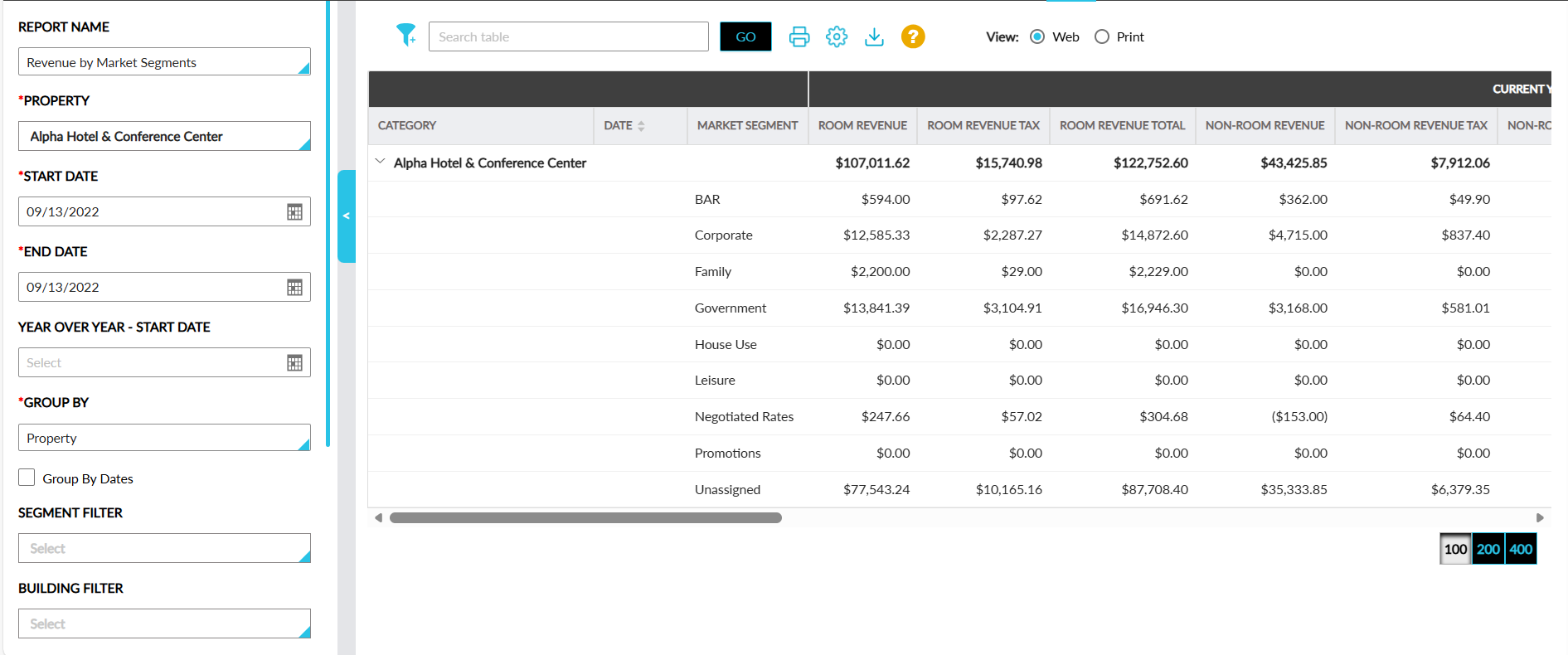
Sample Report
Report Fields
This report displays the following fields:
|
Field |
Description |
|---|---|
|
Category |
The group by option selected is displayed with an accordion. The market segments and their revenue details are displayed when the accordion is expanded. This column can be filtered. |
|
Date |
Each date in the selected date range. This column can be sorted. |
|
Market Segment |
The market segment associated with the revenue. |
|
Room Revenue |
The net revenue generated from room charges for the current period. |
|
Room Revenue Tax |
The tax amount associated with the room charges. |
|
Room Revenue Total |
The total room revenue including tax. |
|
Non-Room Revenue |
The net revenue from other sources (for example, F&B, Spa and so on) for the current period. |
|
Non-Room Revenue Tax |
The tax amount associated with the non-room charges. |
|
Non-Room Revenue Total |
The total non-room revenue including tax. |
|
Occupied Rooms (Bedded) |
The count of standard sleeping rooms occupied. This column can be sorted. |
|
Occupied Rooms (Non Bedded) |
The count of non-sleeping rooms occupied. This column can be sorted. |
|
Occupancy % |
The percentage of available bedded rooms that were occupied. This column can be sorted. |
|
ADR |
The average daily rate (average price paid per occupied room). This column can be sorted. |
|
Date |
The corresponding comparison date from the previous year. This column can be sorted. |
|
Room Revenue |
The net room revenue from the previous year's comparison period. |
|
Room Revenue Tax |
Tax on room revenue from the previous year. |
|
Room Revenue Total |
The total room revenue from the previous year. |
|
Non-Room Revenue |
The net non-room revenue from the previous year. |
|
Non-Room Revenue Tax |
Tax on non-room revenue from the previous year. |
|
Non-Room Revenue Total |
The total non-room revenue from the previous year. |
|
Occupied Rooms (Bedded) |
The occupied bedded rooms count from the previous year. This column can be sorted. |
|
Occupied Rooms (Non Bedded) |
The occupied non-bedded rooms count from the previous year. This column can be sorted. |
|
Occupancy % |
The occupancy percentage from the previous year. This column can be sorted. |
|
ADR |
The average daily rate from the previous year. This column can be sorted. |