Shared Digital Key Report
The Shared Digital Key report provides details on digital room keys that have been shared with additional users.
Perform the following steps to generate the report:
Navigate to Reports ➜ Dynamic Reports ➜ Guests/Reservations ➜ Shared Digital Key report.
Refer to the following table and fill in the fields.
|
Parameters |
Description |
|---|---|
|
Report Name |
Shared Digital Key. |
|
Property |
This is a mandatory single-select drop-down list that displays the current property by default. Users can select the preferred property for report generation. |
|
Start Date |
The start date for report generation. This is a mandatory field that displays the current property date by default. Users can select any date in the past up to the current property date. Future dates cannot be selected. |
|
End Date |
The end date for report generation. This is a mandatory field that displays the current property date by default. Users can select any date in the past up to the current property date. Future dates cannot be selected. |
|
Guest Type |
This is an optional multi-select drop-down list that allows users to select the preferred guest types for report generation. |
|
Digital Key Status |
This is an optional multi-select drop-down list that allows users to select the digital key statuses to be included in the report. |
Click Run to generate the report.
Click Save to save the report under User Favorites section.
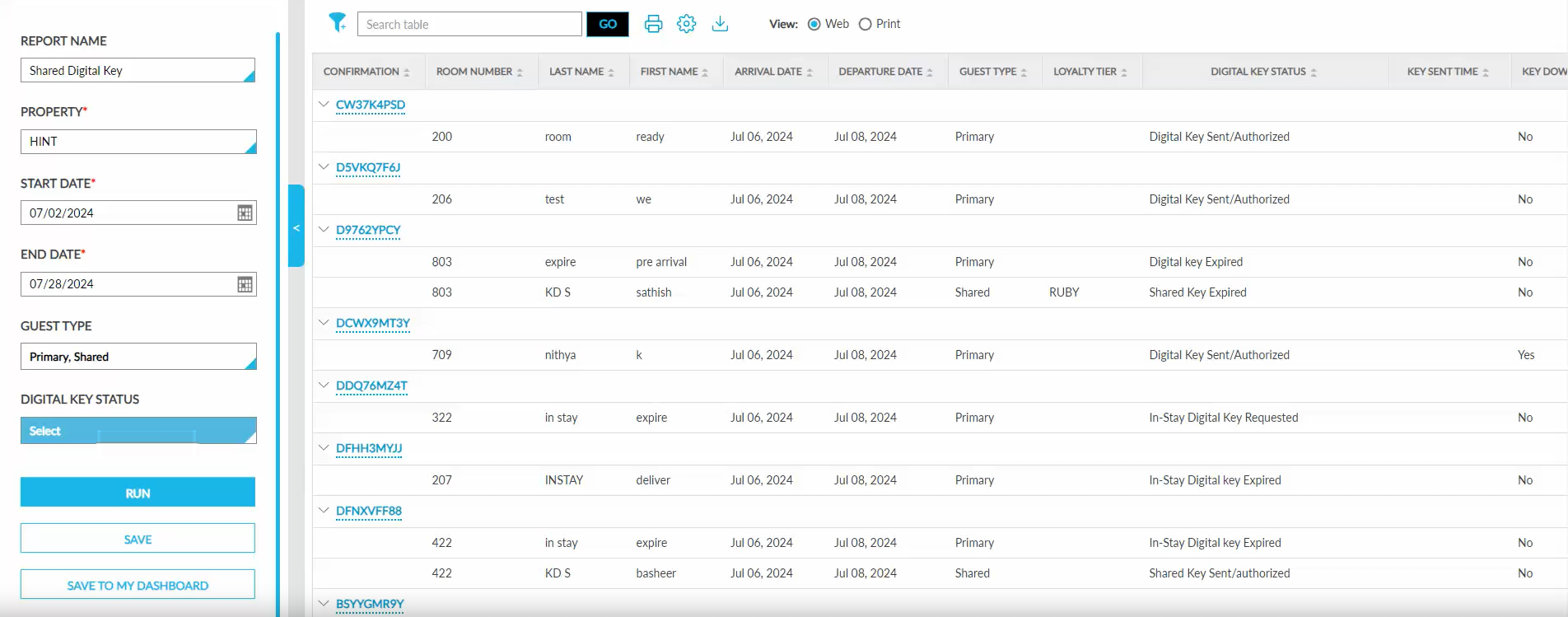
Sample Report
Report Fields
This report displays the following fields:
|
Field |
Description |
|---|---|
|
Confirmation |
The reservation confirmation number associated with the digital key. This column can be sorted. Users can search for a record using this value. |
|
Room Number |
The room number assigned to the guest for key access. This column can be sorted and filtered. |
|
Last Name |
The last name of the person who is assigned the digital key. This column can be sorted and filtered. Users can search for a record using this value. |
|
First Name |
The first name of the person who is assigned the digital key. This column can be sorted and filtered. Users can search for a record using this value. |
|
Arrival Date |
The scheduled arrival date for the reservation. This column can be sorted. |
|
Departure Date |
The scheduled departure date for the reservation. This column can be sorted. |
|
Guest Type |
The key holder is classified as either the main guest or secondary guest. This column can be sorted. |
|
Loyalty Tier |
The loyalty tier of the guest. This column can be sorted and filtered. |
|
Digital Key Status |
The status of the digital key. This column can be sorted and filtered. |
|
Key Sent Time |
The date and time when the digital key was sent to the guest's device. This column can be sorted. |
|
Key Downloaded |
Indicates if the guest has successfully downloaded the key to their mobile app. This column can be sorted and filtered. |
|
Key Used |
Indicates if the guest has used the digital key to unlock a door. This column can be sorted and filtered. |
|
ID Checked |
Indicates whether the guest’s physical ID was verified successfully. This column can be sorted and filtered. |