Storage Details Report
The Storage Details report allows users to track the storage tickets created for reservations.
Perform the following steps to generate the report:
Navigate to Reports ➜ Dynamic Reports ➜ Housekeeping ➜ Storage Details report.
Refer to the following table and fill in the fields.
|
Field |
Description |
|---|---|
|
Report Name |
Storage Details |
|
Property Name |
This is a mandatory single-select drop-down list that allows users to select the property for report generation. The current property is displayed by default. |
|
Start Date |
The start date for report generation. This is a mandatory field that allows users to select past dates up to the current property date. The current property date is selected by default. Future dates cannot be selected. |
|
End Date |
The end date for report generation. This is a mandatory field that allows users to select past dates up to the current property date. The current property date is selected by default. Future dates cannot be selected. |
|
Item Type |
This is a mandatory multi-select drop-down list that allows users to select the item types to be included in the report. |
Click Run to generate the report.
Click Save to save the report under User Favorites section.
Sample Report
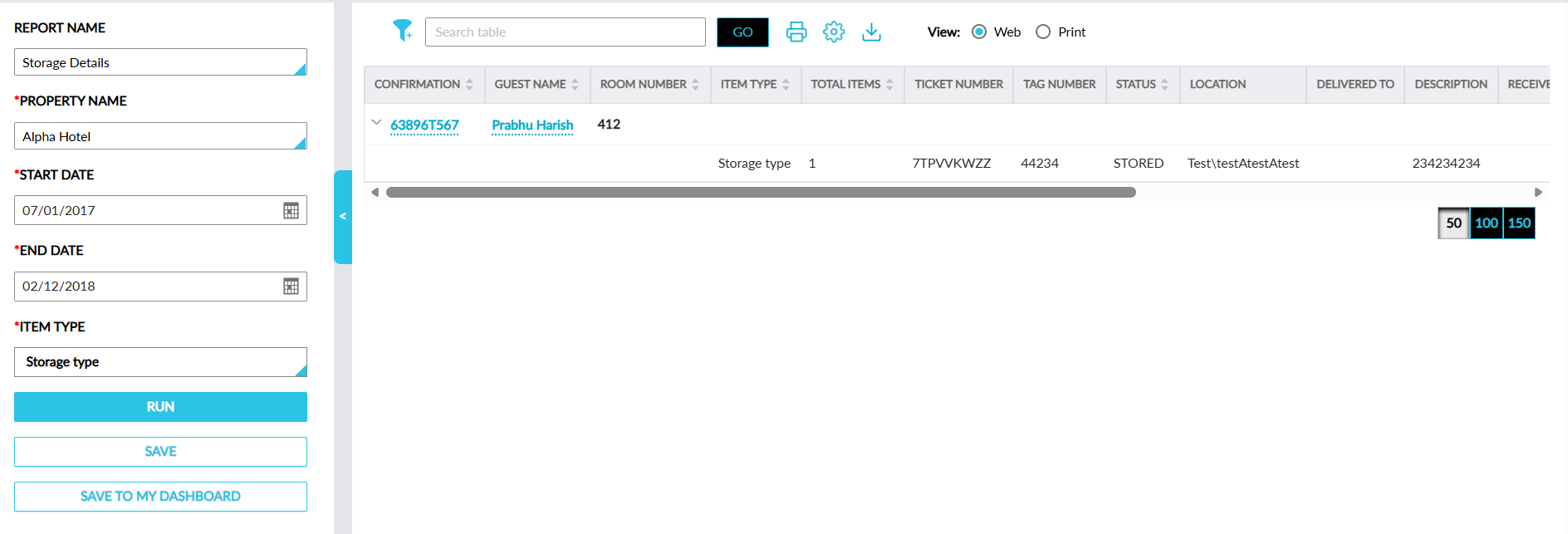
Report Fields
This report displays the following fields:
|
Field |
Description |
|---|---|
|
Confirmation |
The confirmation ID of the reservation displayed as a hyperlink along with an accordion. When clicked, users are navigated to the respective reservation. When the accordion is collapsed, only the guest name and room number is displayed. When the accordion is expanded, values for the remaining columns are displayed. This column can be sorted. |
|
Guest Name |
The guest name associated with the reservation displayed as a hyperlink. When clicked, users are navigated to the respective guest profile. This column can be sorted. |
|
Room Number |
The room number assigned to the reservation. This column can be sorted. |
|
Item Type |
The item type selected in the ticket. This column can be filtered and sorted. |
|
Total Items |
The total number of items selected. This column can be sorted. |
|
Ticket Number |
The ticket number. |
|
Tag Number |
The tag number entered in the ticket. |
|
Status |
The status of the ticket. This column can be filtered and sorted. |
|
Location |
The location selected in the ticket. This column can be filtered. |
|
Delivered To |
The guest to whom the item is delivered. |
|
Description |
The description entered in the ticket. |
|
Received By |
The name of the person who received the item. |
|
External Tracking Number |
The tracking number of the item. |
|
Cost Quoted |
The cost quoted for storing the item. |
|
Created On |
The date when the ticket was created. This column can be sorted. |
|
Closed On |
The date when the ticket was closed. This column can be sorted. |
|
Closed By |
The user who closed the ticket. This column can be sorted. |