Tax Exemptions Report
The Tax Exemption report allows users to track the tax amount exempted from accounts.
Perform the following steps to generate the report:
Navigate to Reports ➜ Dynamic Reports ➜ Accounting ➜ Tax Exemption.
Refer to the following table and fill in the fields.
|
Field |
Description |
|---|---|
|
Report Name |
Tax Exemptions. |
|
Start Date |
The start date from which the report must be generated. By default, the current property date is displayed. This is a mandatory field that allows users to select any date in the past up to the current property date. Future dates cannot be selected. |
|
End Date |
The end date up to which the report must be generated. By default, the current property date is displayed. The duration between the start and end dates can be a maximum of one month. This is a mandatory field that allows users to select any date in the past up to the current property date. Future dates cannot be selected. |
|
Account Type |
This is a multi-select drop-down list that allows users to select from the following account types to be included in the report:
|
|
Transaction Type |
This is a multi-select drop-down list that allows users to select from the following transaction types to be included in the report:
|
|
Group By |
This is a single-select drop-down list that allows users to select from the following options based on which the records must be grouped:
|
|
Include Item Details |
By default, the Item and Item Code columns are not displayed in the report. When this checkbox is selected, the item details are displayed in the mentioned columns. |
Click Run to generate the report.
Click Save to save the report under User Favorites section.
Sample Report
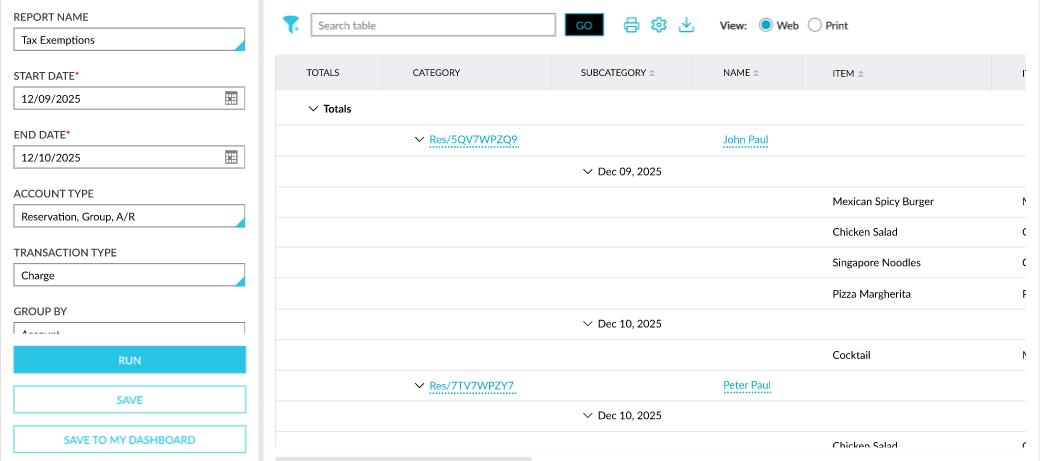
Report Fields
This report displays the following fields:
|
Field |
Description |
|---|---|
|
Totals |
The overall charge value and tax value exempted for each tax class. |
|
Category |
The data in this column is displayed based on the Group By option selected. By default, the records are grouped by account. Users can filter records using this value. This column can be sorted. |
|
Subcategory |
The type of account in which the transaction is done when the report is grouped by Date. The account type is displayed as a hyperlink. When clicked, users are navigated to the account. All the dates selected in the date range are displayed when grouped by Account. Users can filter records using this value. This column can be sorted.
|
|
Name |
The name of the account in which the transaction has occurred is displayed as a hyperlink. When clicked, users are redirected to the respective profile. The following account names are displayed:
Users can filter records using this value. This column can be sorted. |
|
Item |
The name of the item for which tax is exempted. Users can filter records using this value. This column can be sorted. This column will not be selected by default. Users must select this column from the Column Settings screen. |
|
Item Code |
The item code for which tax is exempted. Users can filter records using this value. This column can be sorted. Users must select this column from the Column Settings screen. |
|
Tax Exempt ID |
The exemption ID added to the account at the time of report generation. Users can filter records using this value. This column can be sorted. |
|
Tax Exempt Reason |
The exemption reason added to the account at the time of report generation. Users can filter records using this value. This column can be sorted. |
|
Transaction Type |
The type of transaction. Users can filter records using this value. This column can be sorted. |
|
Amount |
The amount posted for each item. This column also displays the total charge value at the account and date levels. This column can be sorted. |
|
Dynamic Tax Class Columns |
At the time of generating the report, the name of the tax classes for which tax is exempted for each item is displayed as dynamic columns. This column also displays the total tax amount exempted at the account and date levels. |
|
Posted Date/Time |
The date and time when the transaction was posted. |