User Permissions
The User Permissions report allows users to view a list of all users and their associated permissions. As a property manager, user can reference the report to track which user’s roles and permissions.
Perform the following steps to generate the report:
Navigate to Reports ➜ All Reports ➜ User Permissions (under Manager).

Choose which sorting options to include in the report:
|
Field |
Description |
|---|---|
|
Sort by User Name |
Sorts the report alphabetically by user name. |
|
Sort by Last Name |
Sorts the report alphabetically by last name. |
Select the Include Roles checkbox to include user roles on the report. If the checkbox is selected, the Roles associated with the property ID appear in the columns of the report.
Select the Include Inactive Users checkbox to include users who are inactive on the report
Click Generate. The report with selected data appears.
Click Print to send a copy of the report to the printer.
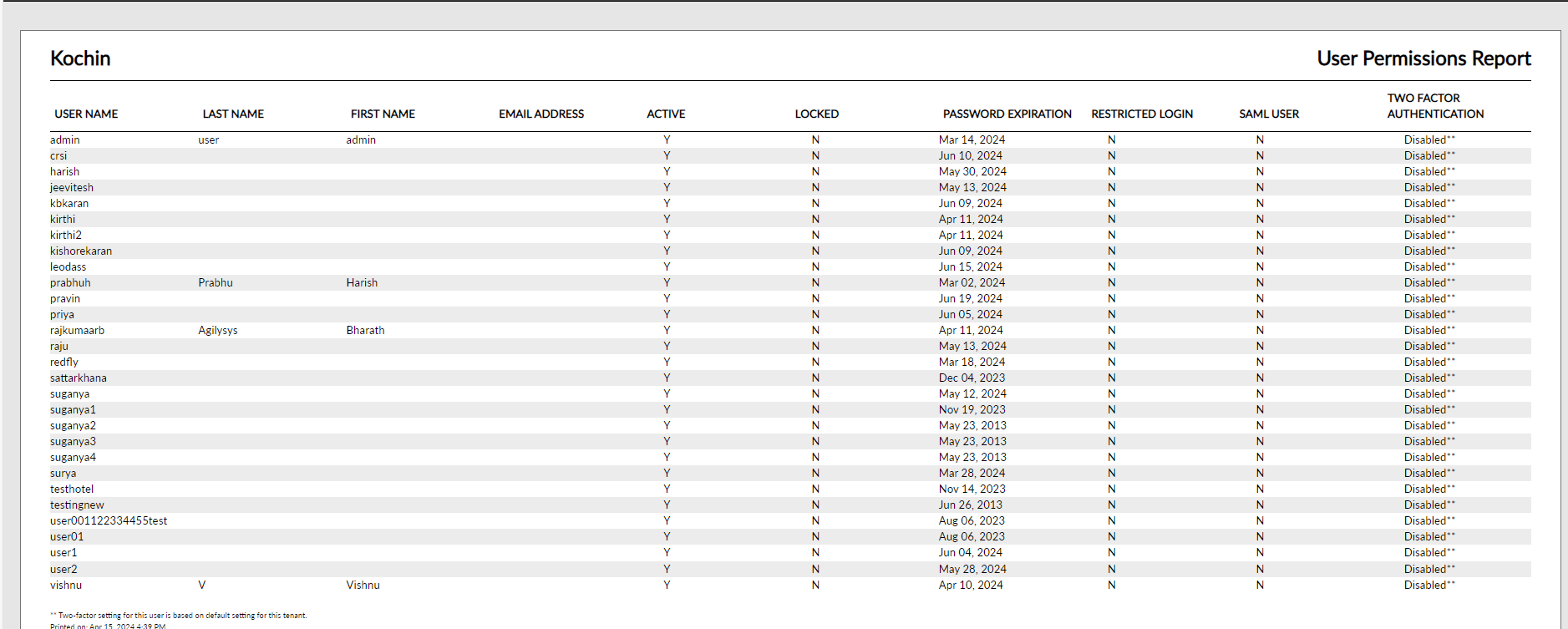
Sample Report
Report Parameters
This report displays the following parameters:
|
Field |
Description |
|---|---|
|
User Name |
The user name used to sign in to Stay. |
|
Last Name |
The last name of the user. |
|
First Name |
The first name of the user. |
|
Email Address |
The email address that the user is associated with, if assigned. |
|
Active |
Indicates whether the user's account is active or inactive. |
|
Locked |
Indicates whether the user's account is locked or unlocked. |
|
Password Expiration |
The date that the user's password is expected to expire. |
|
Restricted Login |
|
|
SAML User |
|
|
Two Factor Authentication |
|