Users Report
The Users report allows properties to track the users, and the permissions assigned to them in Stay.
Perform the following steps to generate the report:
Navigate to Reports ➜ Dynamic Reports ➜ Manager ➜ Users.
Refer to the following table and fill in the fields.
|
Field |
Description |
|---|---|
|
Property |
The property under a tenant for which the report is to be generated. The current property is selected by default. Multiple properties can be selected. |
|
Created Date (From) |
The date from which users were created. The default date is displayed as the current property date - 365 days. Users can select any dates in the past. Future dates cannot be selected. |
|
Created Date (To) |
The date up to which users were created. By default, the current property date is displayed. Users can select any dates in the past. Future dates cannot be selected. The duration between the start and end date can be a maximum of 365 days. |
|
Roles |
This is a multi-select drop-down list that displays the roles created for a property at the tenant-level. By default, no role is selected. Users can select all or multiple roles. |
|
Include Roles |
Select this checkbox to display the roles associated with a user in the Property & Roles column of the report. |
|
Include Inactive Users |
Select this checkbox to display details of inactive users in the report. |
|
Sort By |
Users can sort records in the generated report based on the following options:
|
Click Run to generate the report.
Click Save to save the report under User Favorites section.
Sample Report
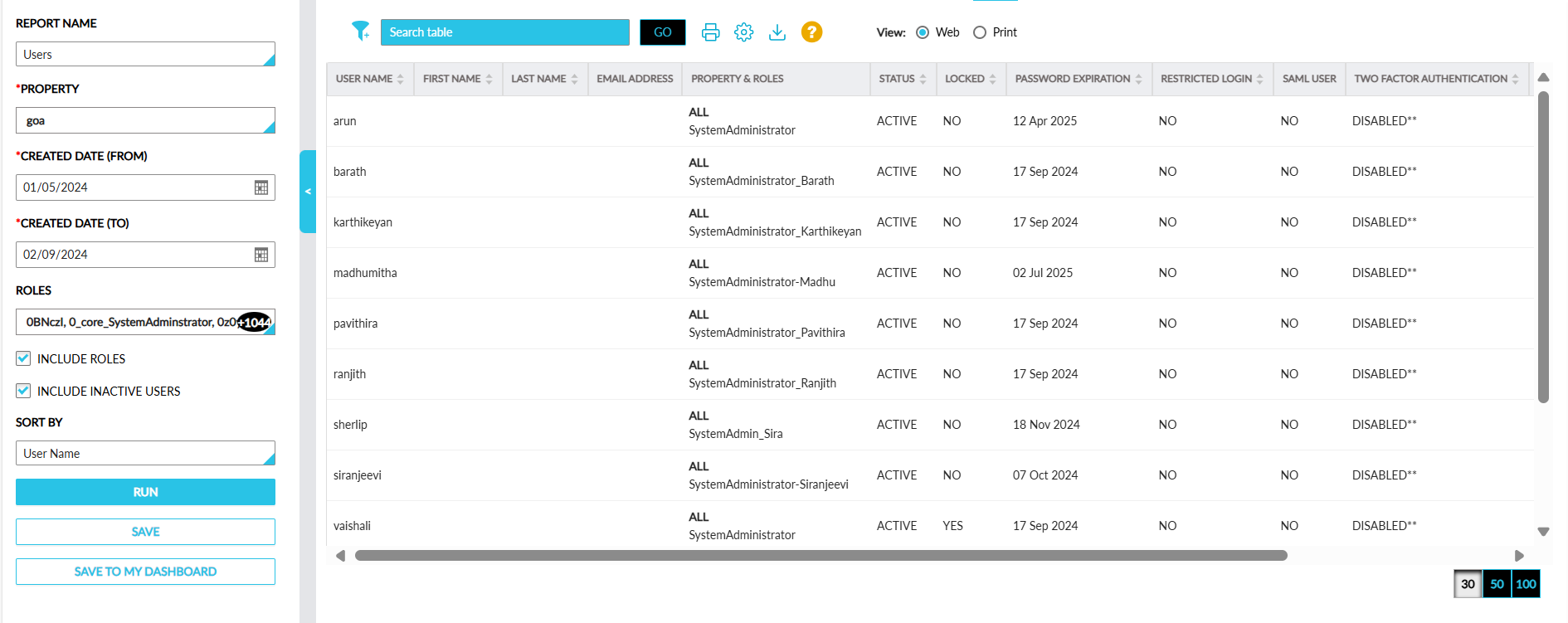
Report Fields
This report displays the following fields:
|
Field |
Description |
|---|---|
|
Username |
The username used to sign in to Stay. Users can search records using the username. This column can be sorted. |
|
First Name |
The first name of the user. Users can search and filter records using the first name. This column can be sorted. |
|
Last Name |
The last name of the user. Users can search and filter records using the last name. This column can be sorted. |
|
Email Address |
The email address associated with the user. Users can search and filter records using the email address. |
|
Property & Roles |
The properties and its associated roles. |
|
Status |
The status of the user’s account. This column can be sorted. |
|
Locked |
Indicates whether the user’s account is locked or unlocked. This column can be sorted. |
|
Password Expiration |
The date when the user’s password is expected to expire. This column can be sorted. |
|
Restricted Login |
|
|
SAML User |
Users can filter records using the values displayed in this column. |
|
Two Factor Authentication |
This column can be sorted. |
|
Creation Date & Time |
The date and time when the role was created. |
|
Last Updated Date & Time |
The date and time when the role was last updated. |