A/R Accounts
Stay is enhanced to support rounding behavior for payments made in A/R accounts. The Show Additional Options hyperlink in the Make a Payment pop-up screen that appears when users make payments to A/R accounts must be clicked to apply the rounding behavior.
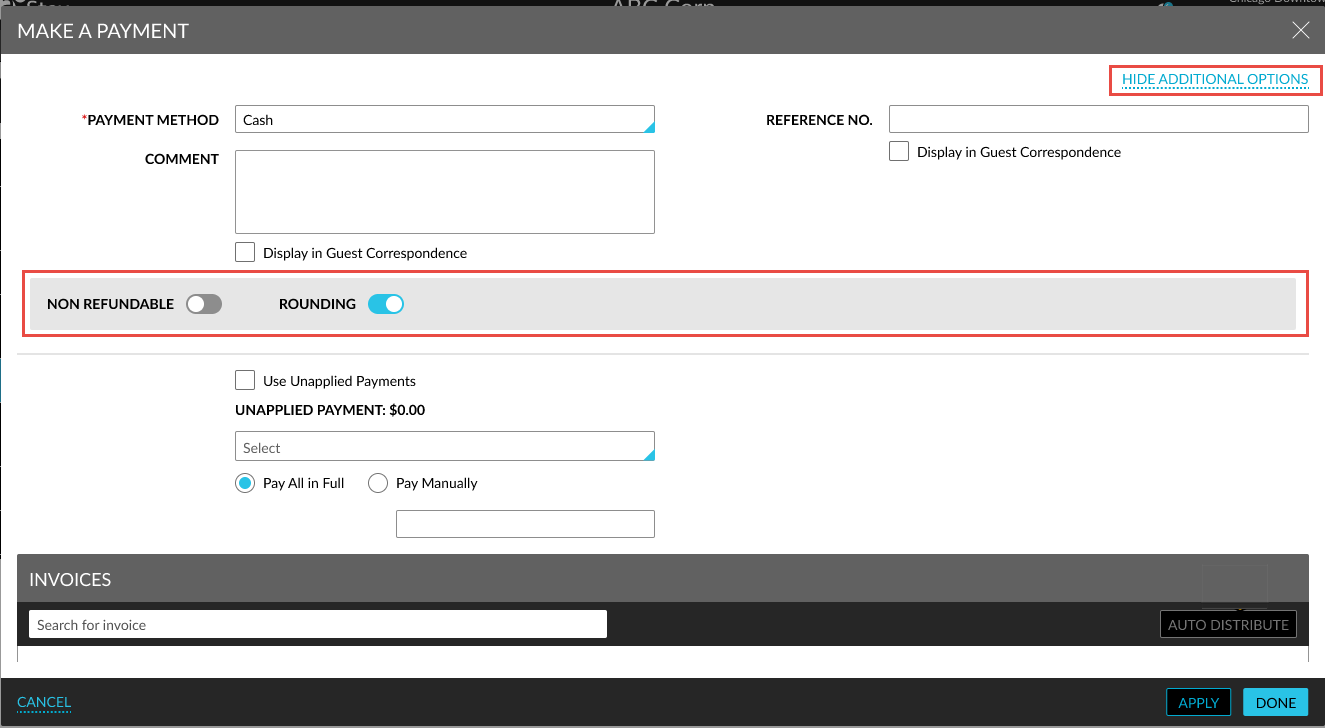
When clicked, an accordion is expanded that displays the following flags:
-
Non Refundable
-
Rounding
When the Pay All in Full option is selected, the full outstanding balance of each invoice is automatically populated in the Payment column. When the Rounding flag is enabled:
-
The total payable amount is automatically rounded
-
The rounded value is populated in the Payment field
-
The Adjusted Amount is displayed in the Adjusted column
-
Adjusted values ensure the invoice balance becomes zero
Users cannot modify the payment amount.
When the Pay Manually option is selected, users can enter a custom payment amount. On clicking Auto Distribute:
-
The entered amount will be distributed across all invoices
-
When the Rounding flag is enabled:
-
The rounding rules will be applied
-
Rounded values are populated in the Payment column
-
Any difference due to rounding is displayed in the Adjusted column
-
For example, consider the following values:
-
Distributed payments: $39.03 and $39.07
-
Rounding rule: Round Down
-
Smallest denomination: 0.05
Result of rounding:
-
Payment values: $39.00 and $39.05
-
Adjusted values:
-
Invoice 1 ➜ $0.03
-
Invoice 2 ➜ $0.02
-
-
The adjusted amounts are posted as credits
When users manually modify the distributed values, the amount will be validated against the configured denomination rules. When the validation fails, the following message will be displayed: Invalid amount due to rounding rule. The adjusted values continue to be displayed in the Adjusted column.
When users retrieve and print invoices, the transaction item used for posting the adjusted amount will be displayed.