Ability to Auto Settle Overdue Invoices
Stay allows users to automatically settle the A/R account invoices that have not been settled for a configured period.
Invoices that remain unpaid beyond a configurable period are now classified as bad debt. Through this feature, users can define a timeframe after which such invoices are automatically settled.
Permission
The following permission must be assigned to users:
-
Stay_ManageBadDebtSettings
This permission is assigned to the following roles by default:
-
System Administrator
-
Stay Hotel Manager
-
Department Manager
-
Accounts Receivable Manager
Users with this permission assigned can configure settings to settle bad debt invoices in the Accounts Receivable tab of the Guest Accounting screen.
Configure Bad Debt Invoice Settings
Users can configure the bad debt invoice settings in the Accounts Receivable tab of the Guest Accounting screen (Settings ➜ Guest Accounting). The Accounts Receivable Invoice Defaults section that was present in the Accounting tab of this screen has been moved to the Accounts Receivable tab.
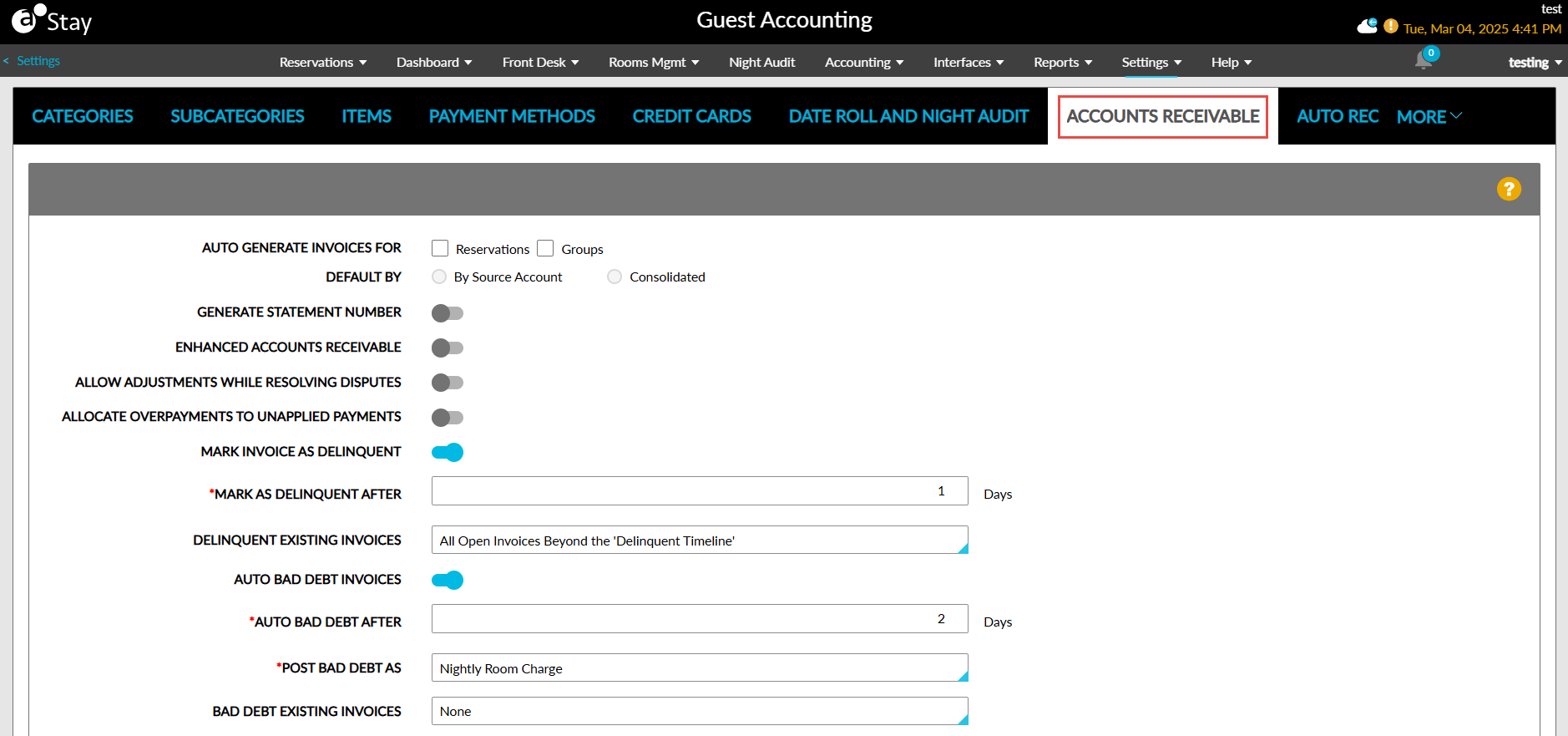
Additionally, the following fields are displayed in this tab:
|
Field |
Description |
|---|---|
|
Auto Bad Debt Invoices |
This flag must be enabled to track and settle bad debt invoices. When this flag is enabled, the following additional fields are displayed. |
|
Auto Bad Debt After |
This field is displayed once the Auto Bad Debt Invoices flag is enabled. Users can enter the timeframe for bad debt invoices in days. Any value between 1 and 9999 can be entered. Users cannot enter alphabets or special characters. |
|
Post Bad Debt As |
This is a single-select drop-down list that allows users to select a transaction item to be posted as credit when the bad debt invoices are settled. All active transaction items available at the property are displayed in this drop-down list. The transaction item selected cannot be made inactive. In this case, the following message is displayed: Item is associated with bad debt setting. Disassociate it from accounts receivables settings first. When the selected item is configured with tax, the ta amount is posted along with the credit. In this case, the amount will exceed the invoice balance, and the invoice cannot be marked as Bad Debt and closed. Hence users must select an item without tax for posting the credit. |
|
Bad Debt Existing Invoices |
This is a single-select drop-down list that allows users to define how the existing invoices that have aged beyond the bad debt timeline must be processed. Users can select from the following options:
|
Upon clicking Save, the bad debt invoice settings are saved for the property. When the settings configured are modified, the bad debt invoices are processed as follows:
-
When the Auto Bad Debt Invoices flag is disabled, the existing unsettled invoices will no longer be flagged as bad debt invoices. The invoices that were marked as bad debt previously will be retained and can be retrieved by selecting the Retrieve Closed Invoices option.
-
When the Auto Bad Debt After timeframe is modified, the updated timeframe will be applied for flagging invoices as bad debt.
-
When the item selected in the Post Bad Debt As field is modified, the credit for the balance due will be posted using the modified item post the night audit.
-
When the option selected in the Bad Debt Existing Invoices field is modified, the existing open invoices will be flagged as bad debt based on the modified option.
Settle Invoices During Night Audit
When the Auto Bad Debt Invoices flag is enabled and the Auto Bad Debt After field is configured with a specific number of days, the system automatically evaluates all invoices at the property after the date roll is completed on the configured day. An invoice is considered for bad debt when the following condition is satisfied:
Property Date - Invoice Created Date ≥ Bad Debt Timeline.
These invoices are settled by adding credit equal to the invoice balance. When an invoice already has a negative balance, the invoice will not be considered as bad debt even when the bad debt timeframe is reached. The A/R accounts in both the Open and Hold statuses are validated for bad debt. For accounts in the Closed status, all invoices will be closed and so they are not validated for bad debt.
The credit for the invoice balance is posted using the transaction item selected in the Post Bad Debt As field. Once the credit is posted and the balance is settled, the status of the invoice is moved to Closed.
When the A/R accounts management for a property is configured as External AR and for settlement reconciliation A/R accounts, the bad debt validation is skipped and the invoices with a balance due are allowed to age indefinitely.
Indicate and Retrieve Bad Debt Invoices
Manual Settlement of Invoices
-
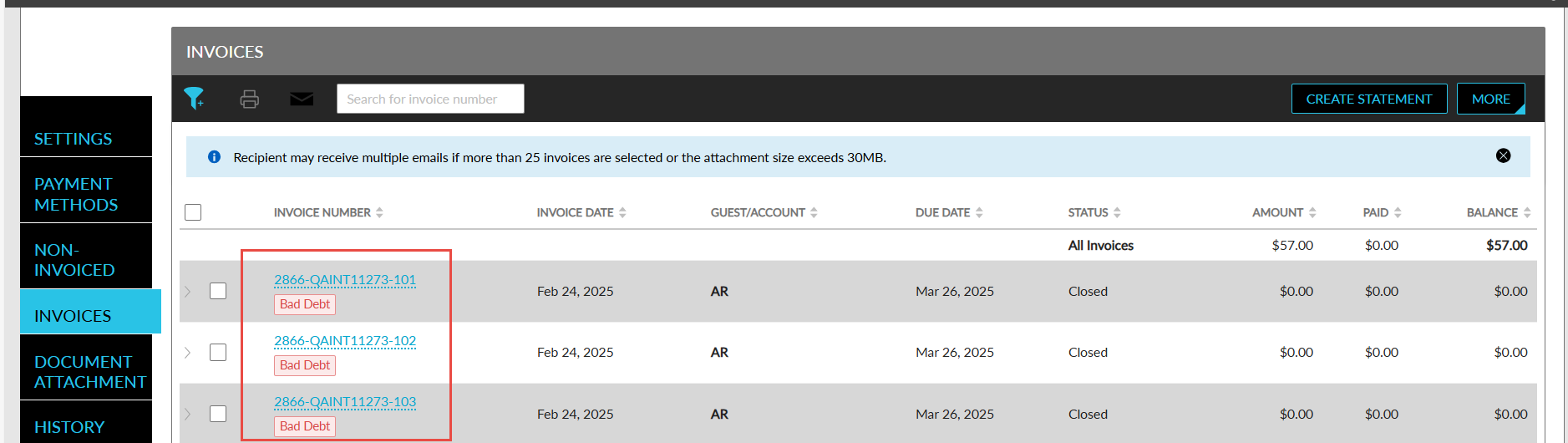
When a user manually settles an invoice by posting a credit using the transaction item selected in the Post Bad Debt As field, the invoice is considered bad debt, and the Bad Debt indicator is displayed. For example, when the balance of an invoice is $100 and a user posts a credit of $100 using the same transaction item defined in the bad debt settings, the invoice will be indicated as bad debt.
-
When a user adds a credit using the transaction item selected in the Post Bad Debt As field for an amount less than the invoice balance, the invoice will be considered and indicated as bad debt. For example, when the balance of an invoice is $100 and a user posts a credit of $50 using the same transaction item defined in the bad debt settings, the invoice will be indicated as bad debt.
-
When a user adds a credit equal to or less than the invoice balance with a transaction item that is different from the one selected in the Post Bad Debt As field, the invoice will not be considered or marked as bad debt.
-
When a user adds a charge using the transaction item selected in the Post Bad Debt As field for an amount equal to the invoice balance, the Bad Debt indicator for the invoice will be removed. For example, for a bad debt invoice with a balance of $50, when a charge of $50 is posted using the same transaction item defined in the bad debt settings, the Bad Debt indicator will be removed, and the invoice balance will be updated as $100.
Retrieve Bad Debt Invoices
A new option, Retrieve Bad Debt Invoices, has been added to the Invoices section of A/R accounts (A/R account ➜ Invoices section ➜ More). When clicked, the Retrieve Invoices pop-up screen appears that displays the following options:
|
Field |
Description |
|---|---|
|
Last Month |
This option is selected by default. When selected, the invoices that are marked as bad debt in the last 30 days from the current property date are retrieved and displayed. |
|
Last Six Months |
When selected, the invoices that are marked as bad debt in the last 6 months from the current property date are retrieved and displayed. |
|
Last Year |
When selected, the invoices that are marked as bad debt in the last 365 days from the current property date are retrieved and displayed. |
|
Custom Date |
When selected, users can define a custom date range for retrieving invoices in the following fields displayed:
|
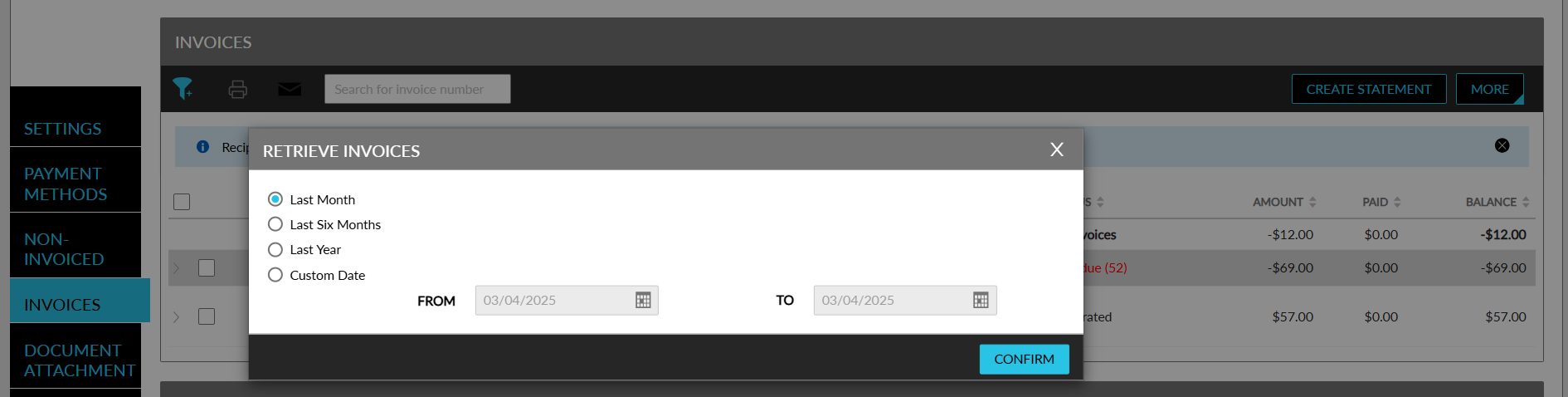
When users click Confirm, the bad debt invoices for the selected timeline will be retrieved and displayed.
Users can hide the bad debt invoices displayed by clicking on the Hide Bad Debt Invoices option displayed in the More menu in the Invoices section. When clicked, the invoices retrieved are no longer displayed to users in the Invoices section of the A/R account.
Modify Bad Debt Invoices
Users can make the following updates to the bad debt invoices:
-
Add a charge
-
Add a credit
-
Remove a posted charge
-
Remove a posted credit
During the next night audit, when the updated invoice falls into the bad debt category, the invoice will be marked as bad debt, and credit will be posted to the invoice to settle the balance due.
The bad debt invoices can be printed and emailed. The Bad Debt indicator is not displayed in the printed and emailed invoices.
Display Bad Debt Amount in Accounts Receivable Dashboard
When the Auto Bad Debt Invoices flag is enabled for a property, users can view the bad debt amount for an invoice by enabling the Include Bad Debt Amount flag in the Accounts Receivable dashboard (Accounting ➜ Accounts Receivable). When enabled, a new column, Bad Debt Amount is displayed in the dashboard. This column displays the credit posted to settle the balance of the invoice.
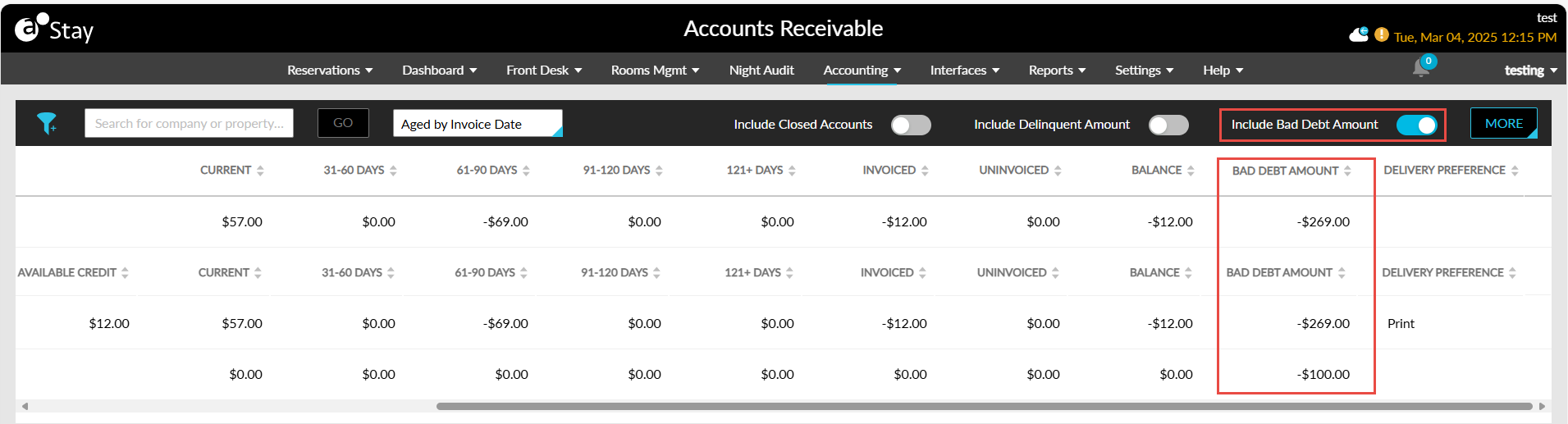
The Bad Debt Amount column is displayed only when the Include Bad Debt Amount flag is enabled. For each A/R account, the sum of the bad debt amounts of all the invoices in the A/R account are displayed in this column. This column is also displayed when users export the details in the dashboard with the Include Bad Debt Amount flag enabled.
A new filter option, Bad Debt Amount, has been added to the dashboard to allow users to filter invoices with a bad debt amount.
Record in Audit Log Screen
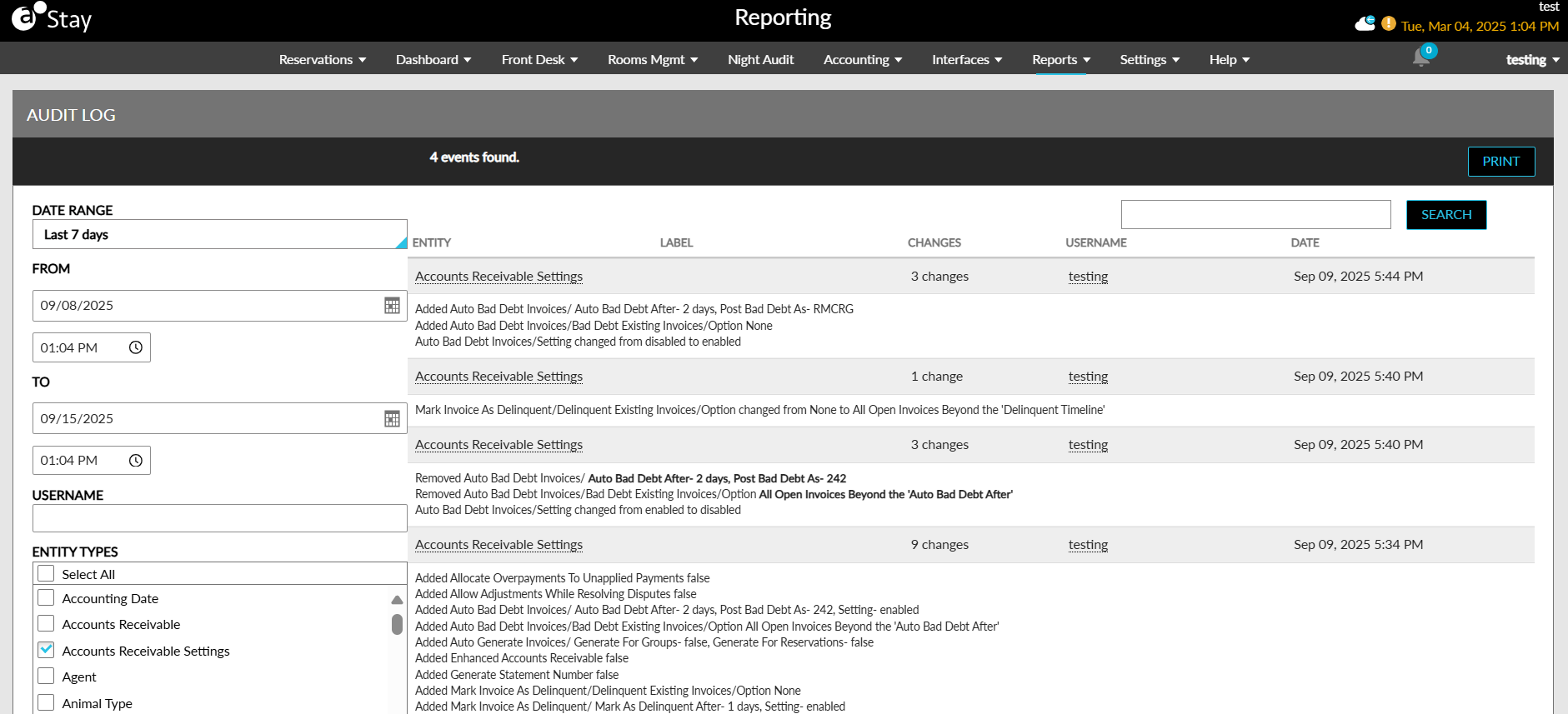
A new entity type, Accounts Receivable Settings, has been added to the Audit Log screen (Reports ➜ Audit Log) that captures the username, date, and time when a user adds, or modifies the following accounts receivable settings:
-
Auto Generate Invoices For
-
Default By
-
Generate Statement Number
-
Enhanced Accounts Receivable
-
Allow Adjustments While Resolving Disputes
-
Allocate Overpayments to Unapplied Payments
-
Auto Bad Debt Invoices
-
Bad Debt After
-
Post Bad Debt As
-
Bad Debt Existing Invoices
Track Settled Bad Debt Invoices in Invoice History
The bad debt invoices settled by posting a credit for an amount equal to the invoice balance is tracked in the Invoice History section of the account (A/R account ➜ History ➜ Invoice History).
The following details are displayed in the columns in the Invoice History tab:
|
Column |
Description |
|---|---|
|
Date |
The date and time when the invoice was settled. |
|
Event Type |
The event type is displayed as Invoice Bad Debt. |
|
Invoice Number |
The invoice number of the invoice for which the bad debt was settled. |
|
Description |
|
|
User |
|
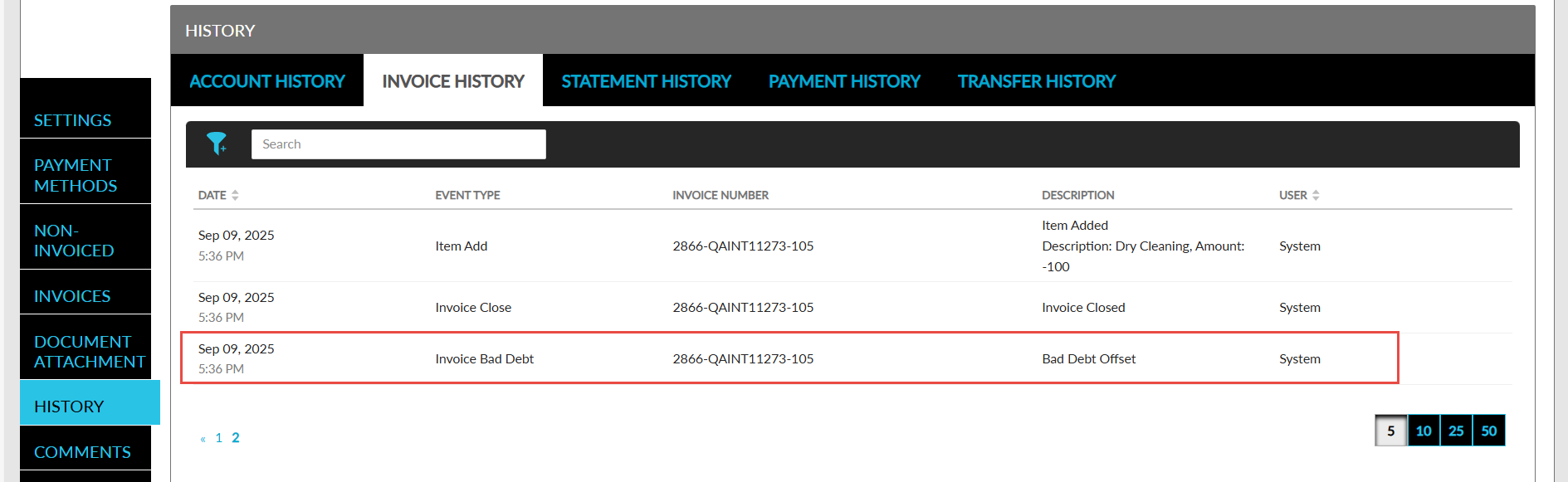
A record is also created in this tab for the Invoice Bad Debt event type when the Bad Debt indicator is removed for an invoice. In this case, the description is displayed as Bad Debt Removed.
A new option, Invoice Bad Debt, has been added to the Event Type filter in the Invoice History tab. Selecting this filter allows users to filter bad debt invoices settled by posting a credit.