Add Guest Messages and Comments to Group Reservations
Users can add guest messages and comments to the staged data available in the Staging section and the reservations available in the Reservations section of the Reservations tab of groups from the Bulk Update pop-up screen that appears when users click the Bulk Update option. The Add field displayed in this pop-up screen displays the following checkboxes:
-
Comment
-
Guest Message
When users select the Comment checkbox, the Comments section is displayed in the Bulk Update pop-up screen where users can configure the comment to be added. When users select the Guest Message checkbox, the Guest Message section is displayed in the Bulk Update pop-up screen where users can configure the guest message to be added.
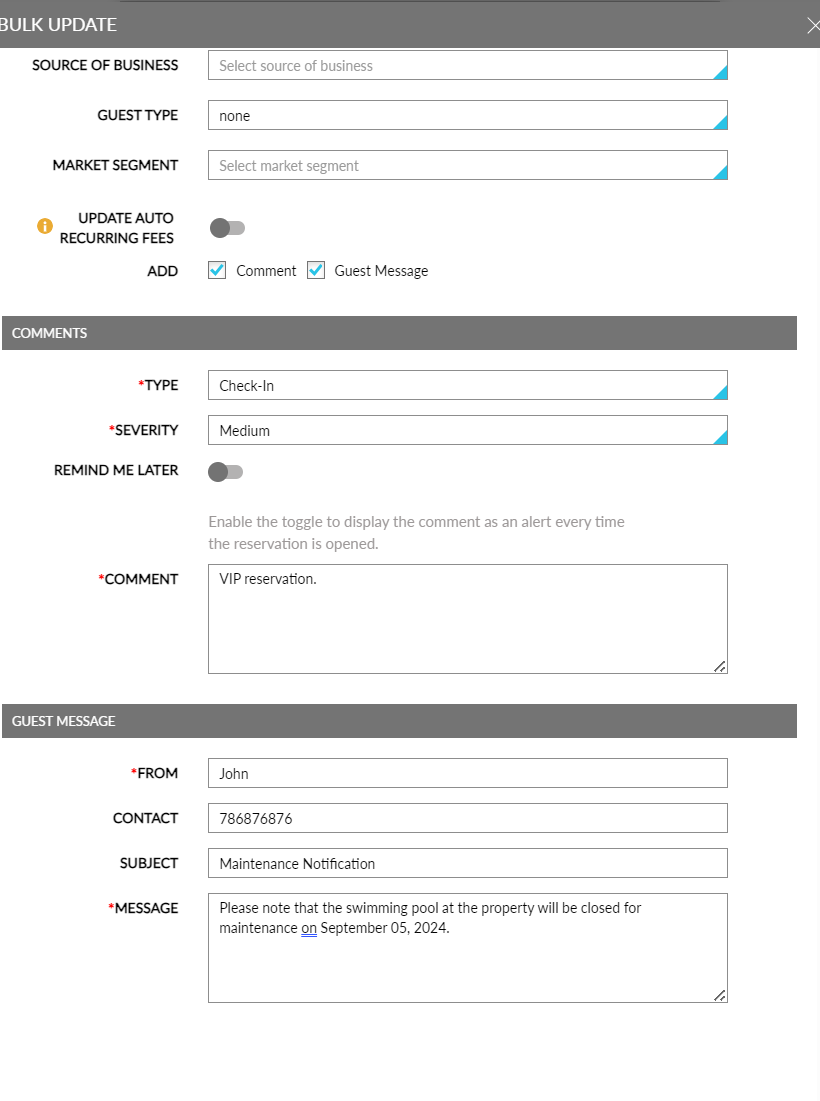
When users click Save, the bulk update is processed, and the guest message and comment is added to the selected staged data and reservations. When the guest message or comment already exists, the message and comment will not be added.