Additional Options for Adjustments/Corrections of Pantry Items
Stay provides users with the following abilities when performing an adjustment or correction to the payment made for a pantry item posted to a reservation/group/house account:
-
Return pantry item to inventory
-
Discard item from inventory
-
Refund the amount paid for the pantry item
Feature Settings
-
Name: Pantry items return/refund
-
Value: Must be enabled
-
Comments: License is required
Displaying Pantry Items Posted to Reservations, Group, A/R Accounts, and House Accounts
The Pantry Check Icon is enhanced to be displayed at the pantry check level and not at the transaction item level in reservations, groups, A/R accounts and house accounts. When payments are made for the posted pantry items, the pantry check is displayed in the following format: Pantry Month DD YYYY HH:MM:SS and the check icon is displayed next to it.
An accordion is provided for the pantry check that displays the payment method used for making the payment, the transaction items and the posted pantry items that are mapped to the transaction items. When users click the Pantry Check Icon, the Pantry screen appears that displays the following details:
|
Field |
Description |
|---|---|
|
Payments |
Displays the payment method and the amount paid using the payment method to settle the pantry items posted to the account. |
|
Include Override Details in Print Checkbox |
|
|
Select All Checkbox |
When selected, the pantry items across all the pages on the Pantry screen are selected. |
|
Pantry Item |
Displays the pantry item posted. |
|
Transaction item |
Displays the transaction item associated to the pantry item. |
|
Quantity |
Displays the quantity of the posted pantry items. |
|
Default Amount |
Displays the default amount of the pantry item excluding tax. |
|
Charged Amount |
Displays the actual amount charged excluding tax. |
|
Variance |
Displays the difference between charged and default amount. |
|
Variance Authorizer |
Displays the username of the user who performed the override |
Users can select one or more items and click the Print button to print the details of the posted pantry items.
Adjust Pantry Items
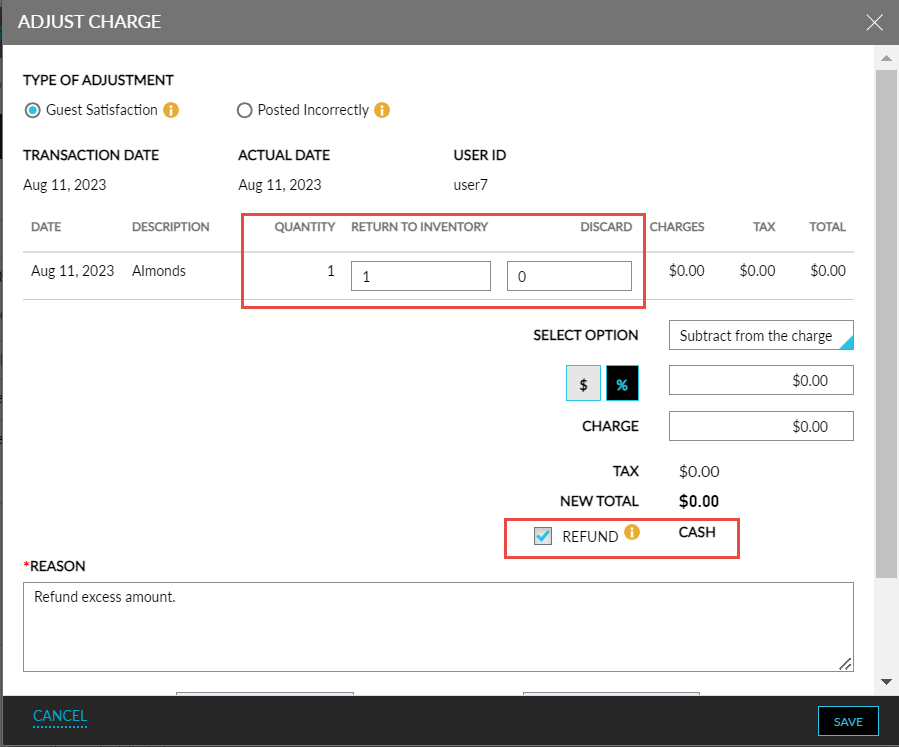
Users can adjust the payments made to the pantry items by clicking the pantry item hyperlink that is displayed when the pantry check’s accordion is expanded. When clicked, the Adjust Charge screen appears. Users can choose to adjust from the following options:
-
Guest Satisfaction
-
Posted Incorrectly
Guest Satisfaction
When users adjust a pantry charge using this option, the following options are displayed in the Select drop-down list:
-
Subtract from the Charge
-
Subtract from Quantity
Users can also choose to return or discard items from the inventory when either the Subtract from the Charge or the Subtract from Quantity option is selected. Users can select the quantity of items to be returned to inventory from the Return to Inventory field on the Adjust Charge screen. Users cannot select a value greater than the quantity displayed in the Quantity column. The quantity of items returned to inventory (non-zero values) is displayed in the adjustment record created in the folio.
When a pantry item is returned to the inventory, the available quantity of the item is increased. The available quantity is not updated for the pantry items that have the Require Inventory Tracking flag (Settings ➜ All Settings ➜ Pantry Management ➜ Add/Edit Pantry Item) turned off.
The updated quantity of the pantry items is displayed in the following screens:
-
Front Desk ➜ Pantry
-
Settings ➜ All Settings ➜ Pantry Management ➜ Pantry
-
Front Desk ➜ Pantry ➜ Dashboard
Users can select the quantity of items to be discarded from inventory from the Discard field on the Adjust Charge screen. Users cannot select a value greater than the quantity displayed in the Quantity column. The quantity of items discarded from the inventory (non-zero values) is displayed in the adjustment record created in the folio.
When the user selects Subtract from the Charge option and does not enter the quantity in Return to Inventory or Discard field, the following message is displayed: Enter the quantity in Return to Inventory and/or Discard to subtract it from the charge.
When the Subtract from Quantity option is selected and user enters the quantity in Return to Inventory or Discard field, the new charge is automatically recalculated. For example, the price of Candy for a quantity of 5 is $100.00. If user reduces the quantity by 2, then charge is calculated as $60.00 ($100.00 - $20.00 * 2), where, $20.00 is the price of each candy.
Posted Incorrectly
When users adjust a pantry charge using this option, users can choose from the following options in the Select drop-down list:
-
Add to the Charge
-
Subtract from the Charge
-
Subtract from Quantity
The Return to Inventory and Discard fields are not displayed when Add to the Charge option is selected. Users can adjust charge using the Subtract from the Charge and Subtract from Quantity options as mentioned.
Refund Amount Paid to the Payment Method Used
When performing an adjustment/correction to the posted pantry item, users can choose to refund the balance amount to the payment method used for making the payment by enabling the Refund checkbox on the Adjust Charge screen. This option is displayed only when payment is made for the posted charge. The reason entered for the refund is displayed in the refund record created in the folio.