Auto Apply Charges When Generating Keys for Access Areas
Stay allows users to apply charges automatically when generating keys for the access areas configured for a reservation. This feature allows users to select Add-Ons applicable for an access area when creating a key access configuration rule. When the access area is selected for a reservation, the associated Add-Ons will be applied to the reservation automatically. Without the Add-Ons, users cannot add the access area to the reservation.
For example, to access the gym, the Gym Add-On that contains charges for the services availed at the gym must be added to the reservation.
Permission
The following permission must be assigned to allow users to override the price of the Add-On associated with the access area.
-
Stay_ OverrideAccessAreaRate
Users without this permission will be prompted to authorize their credentials to complete the override successfully. This permission is provided to the following roles by default:
-
System Administrator
-
Stay Hotel Manager
-
Department Manager
Feature Setting
The following feature setting must be enabled to use this feature.
-
Name: Require Charge for Access Area
-
Comments: License is not required
The Enhanced Add-Ons feature setting must be enabled to use this feature.
Select Add-Ons in Key Access Configuration Rule
When users configure a key access configuration rule, the Add-Ons to be associated with the access area can be selected in the Add-Ons tab of the Add New Key Access Configuration pop-up screen (All Settings ➜ General ➜ Rooms & Room Types ➜ Key Access Configuration ➜ Add).
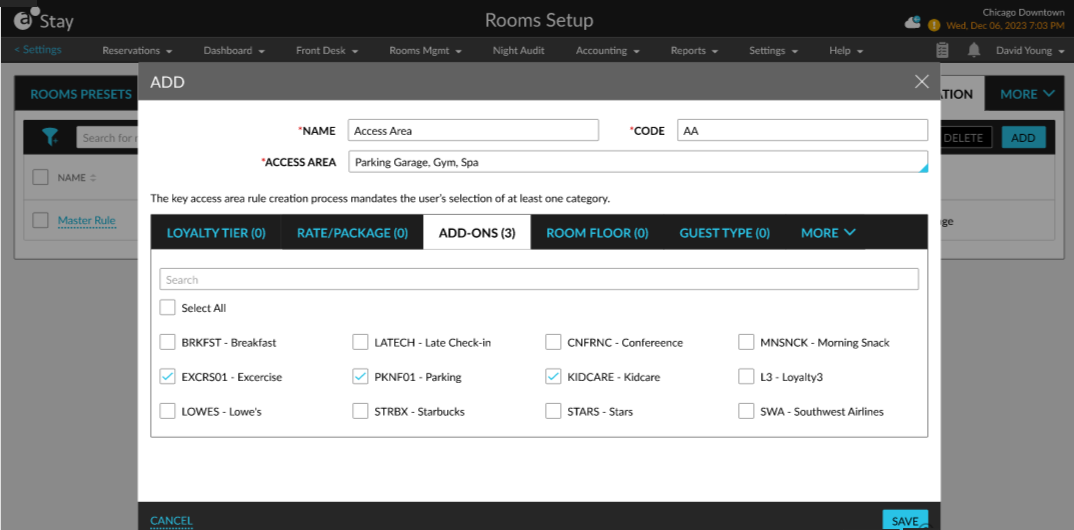
All the active Add-Ons available at the property will be displayed in this tab. Users can select the preferred Add-Ons to be associated with the access area.
Select Access Areas for Reservations
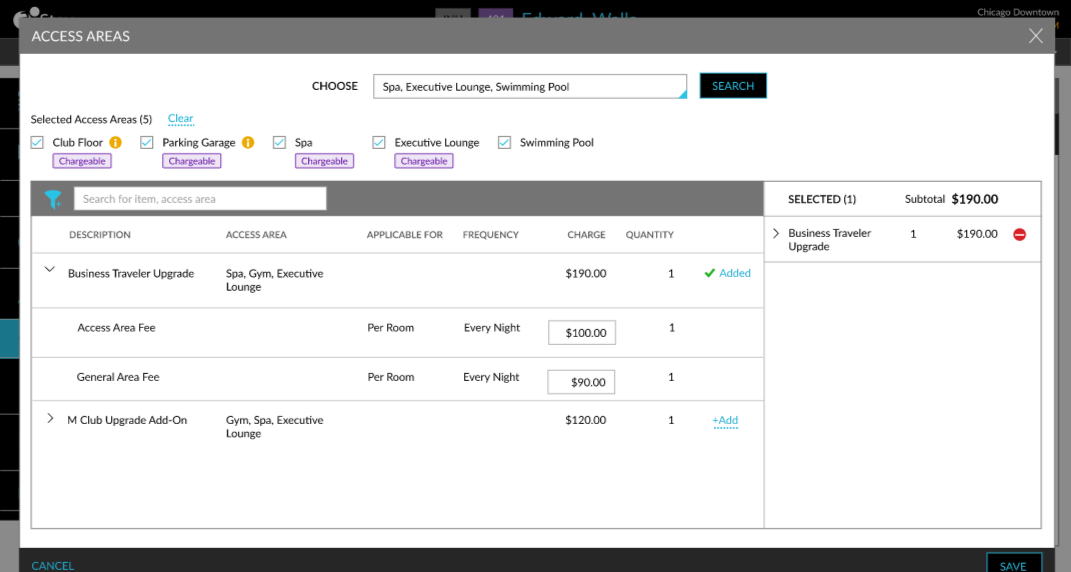
Users can add access areas to a reservation by clicking the Selected hyperlink in the Key section of the reservation. When clicked, the Access Areas pop-up screen appears that allows users to search and select an access area. Once an access area is selected, the Add-Ons associated with the access area will be displayed in the screen.
The Save button will be enabled once the Add-Ons are added. If the selected access area does not require an Add-On, users can save the rule directly without selecting an Add-On.
The key access configuration rule can be configured with both Add-Ons and recurring charges based on the feature settings.
|
Scenario |
Enhanced Add-On = Enabled |
Enhanced Add-On = Enabled |
Enhanced Add-On = Disabled |
Enhanced Add-On = Disabled |
|---|---|---|---|---|
|
Key access area configuration with Add-On |
Add-On is mandatory when adding the access area to the reservation manually. |
Add-On is not mandatory when adding the access area to the reservation manually. |
Add-On is mandatory when adding the access area to the reservation manually. |
Add-On is not mandatory when adding the access area to the reservation manually. |
|
Key access area configuration with recurring charge |
Recurring charge is mandatory when adding the access area to the reservation manually. |
Recurring charge is not mandatory when adding the access area to the reservation manually. |
Recurring charge is not mandatory when adding the access area to the reservation manually. |
Recurring charge is not mandatory when adding the access area to the reservation manually. |
|
Key access area configuration with both Add-On and recurring charge |
Add-On and recurring charges are mandatory when adding the access area to the reservation manually. |
Add-On and recurring charges are not mandatory when adding the access area to the reservation manually. |
Add-On and recurring charges are mandatory when adding the access area to the reservation manually. |
Add-On and recurring charges are not mandatory when adding the access area to the reservation manually. |
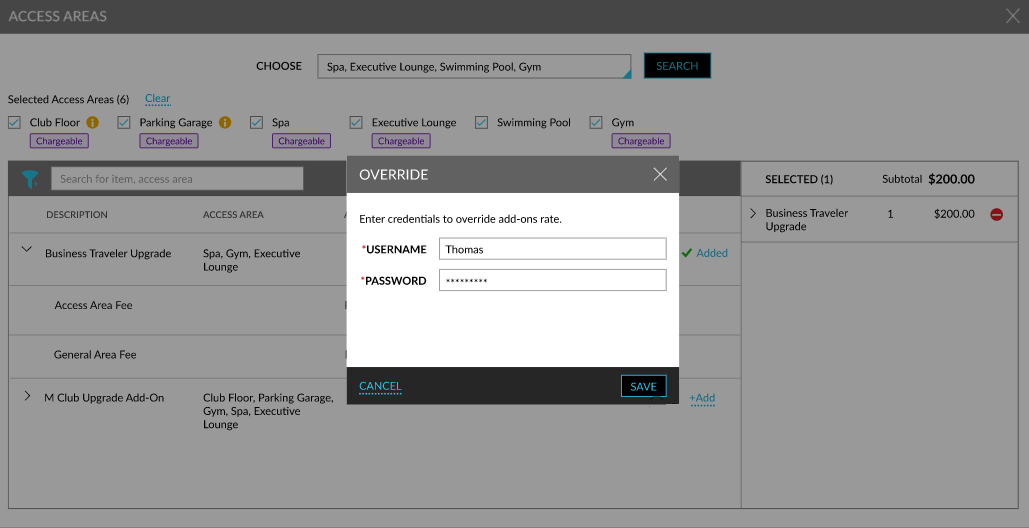
When adding the Add-Ons, users with the Stay_ OverrideAccessAreaRate permission can modify the price of the Add-On. For users without permission, the Override pop-up screen will be displayed. When users enter their credentials and click Save, the credentials will be validated, and the rate will be modified upon successful validation. When the credentials are not validated successfully, the following message is displayed: User does not have the required permission.
Once the access area is saved to the reservation successfully, the associated Add-Ons will be added automatically and displayed in the Estimated Charges section. Users can remove an Add-On if required using the remove (-) icon. When an Add-On is removed, the access area with which the Add-On is associated will also be removed. When the remove icon is clicked, the Remove Add-On pop-up screen appears that prompts users to confirm if the Add-On and the associated access area must be removed.
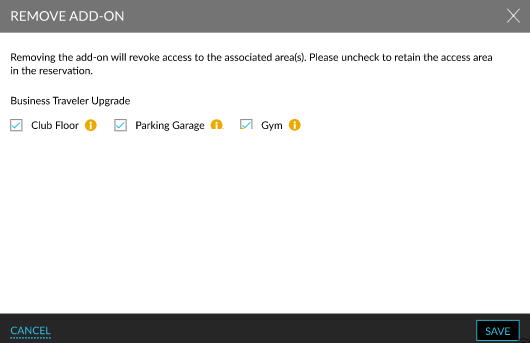
When users click Save, the Confirmation pop-up screen will be displayed that prompts users to confirm if the access area must be removed from the reservation. When users click Yes, the Add-On and the access area will be removed from the reservation.
Select Access Areas for Groups
Users can select access areas for groups from the Key Access Area field in the Reservation Presets tab of a group. When users click on the Selected hyperlink, the Access Areas pop-up screen appears. The access areas and the associated Add-Ons can be selected from this screen.
The selected access areas are displayed beneath the Selected hyperlink.
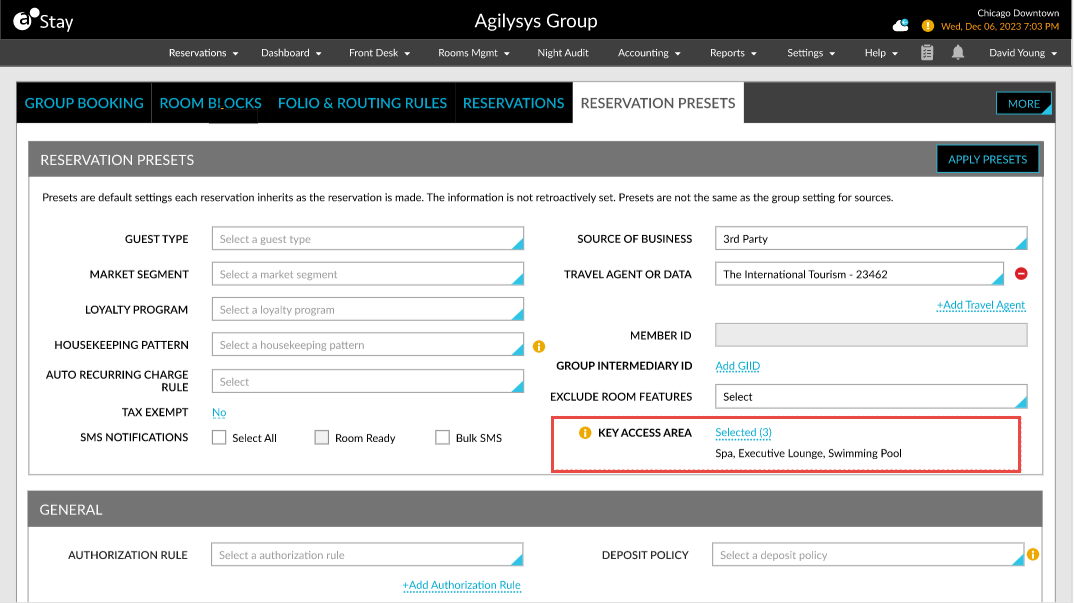
The access areas and Add-Ons configured in the Reservation Presets tab are applied to all reservations associated with the group. Users can modify the rate of Add-Ons at the reservation level. The access areas added or removed for a group will be updated in the Key section of the reservation.
When users copy a reservation, the Add-Ons associated with the access areas configured for the reservation will not be copied. When creating shared reservations, the Add-Ons associated with the access areas configured for the reservation will be displayed in the Add Add-On pop-up screen.
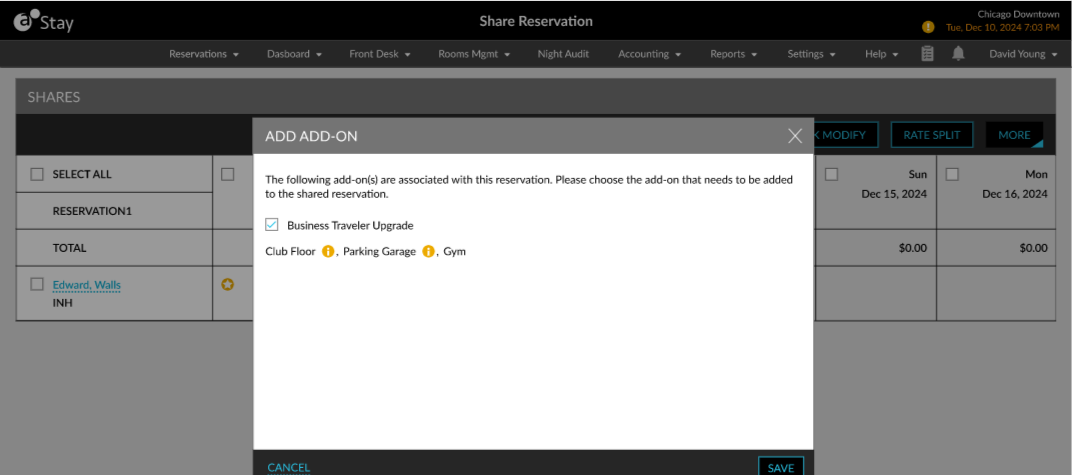
When users click Save, a Confirmation pop-up screen is displayed that displays the following message: The reservation has Add-Ons associated with the access area. Do you want to transfer these addons for the shared reservation? Users can select from the following options:
-
With Add-Ons: When selected, the Add-Ons associated with the access area will be moved to the new room.
-
Without Add-Ons: When selected, the shared reservation will be created without Add-Ons.
Logs
A record is created in the following areas when Add-Ons are added as part of access areas and the Add-On rate is overridden:
-
Reservation Audit Log
-
System Audit Log
-
Group history
The record captures the username, date, and time when the operation was performed.
Report
The Access Area with Add-Ons report in the Guests/Reservations section of the Reporting screen allows users to track the access areas associated with Add-Ons that are added to reservations. Users can also track the Add-On price and the following price override details of the Add-Ons if any:
-
Amount
-
Initiated By
-
Approved By