Automated Digital Check-In Process
-
When the automated digital check-in process begins at the configured start time or when the process is started by the user manually, the following message is displayed in the Automated Digital Check-In section: Automated check-in status: Running.
-
When the process stops at the configured end time or if the process is manually stopped by the user, the message, Automated check-in status: Stopped, is displayed.
-
When the automated digital check-in process is disabled by the user manually, Automated check-in status: Disabled, is displayed.
-
When an end time is not configured, the message, Automated check-in status: Running, is displayed until the next action is performed.
Based on the configured start and end time, the automated digital check-in process begins when a soft check-in is performed for the reservation and the mentioned criteria is met. Guests can check-in at the property directly and need not wait until the start time is reached to complete the check-in process. Users can also modify the configured start and end time if required. When the property date changes on date roll, the manually selected automated check-in process will be reset, and the value of the Manual Automated Check-In Process field will be reset to the value that was selected by default.
Once the Automated Digital Check-In feature setting is enabled, the automated check-in process is carried out for the entire day (24hrs) until the date roll to the next business date for the configured time frame.
An automated digital check-in icon is displayed when the property has configured the automated digital check-in feature. This icon is displayed on the menu bar before the property date, day, and time.
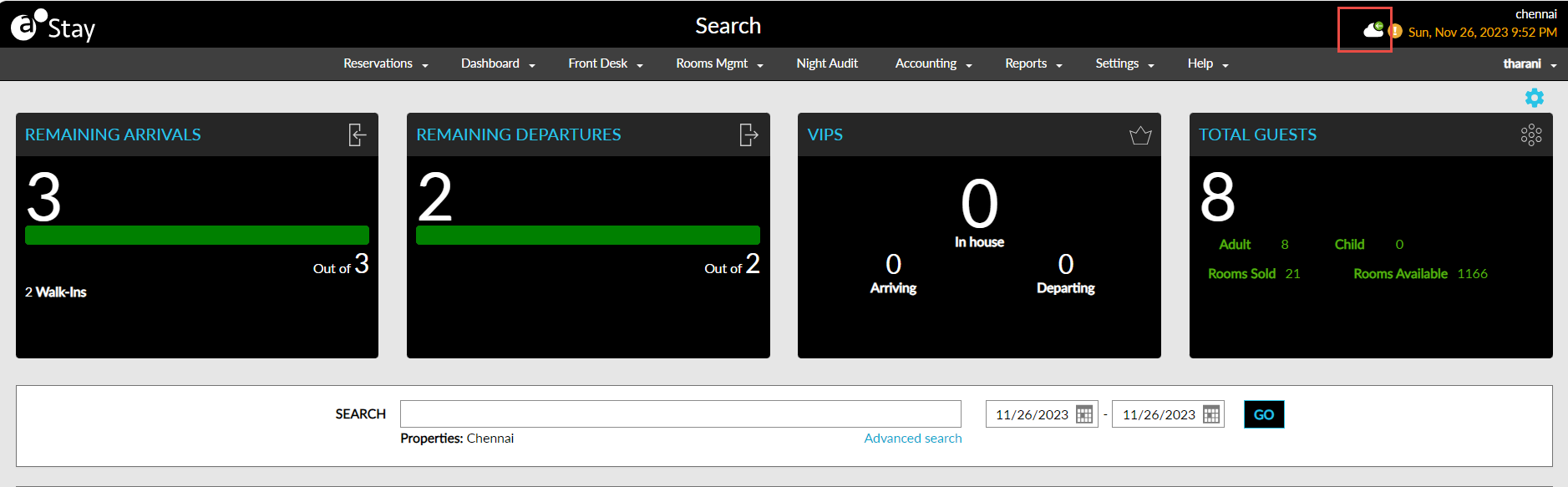
The icon color is displayed based on the automated check-in status as follows:
-
If the automated check-in process has started, the icon is displayed in green color, and when users hover over the icon, the following message is displayed: Automated check-in: Running.
-
If the automated check-in is stopped or disabled, the icon is displayed in red color, and when users hover over the icon, the following message is displayed: Automated check-in: Stopped or Automated check-in: Disabled.
-
If the automated check-in process ends at the configured time, the icon is displayed in grey color, and when users hover over the icon, the following message is displayed: Automated check-in: Not Running.
This icon is not displayed when the automated check-in process feature is not configured for the property. When the feature setting is enabled but the start and end time is not configured, the icon is displayed in blue colour and when users hover over the icon, the following message is displayed: Automated check-in: Active.
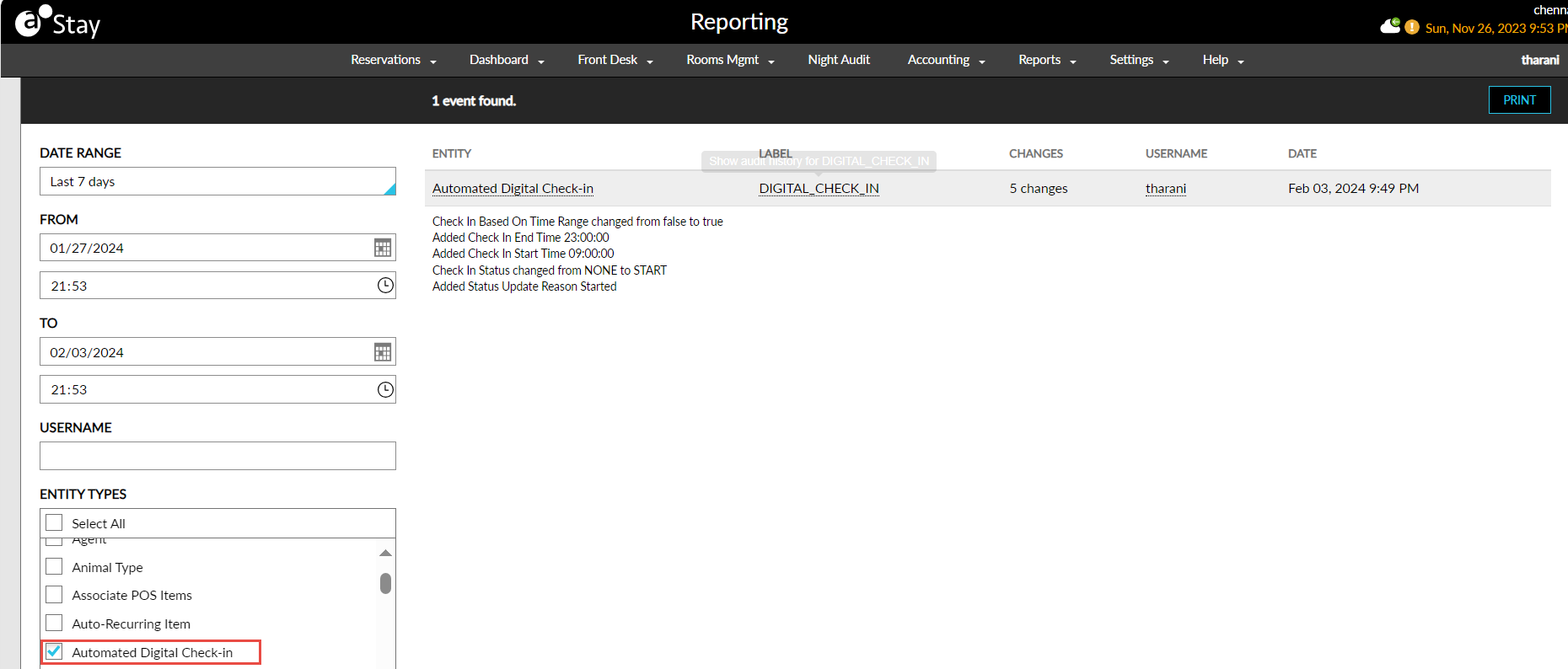
A record for the automated check-in process performed is created in the Audit Log screen under the Entity Type, Automated Digital Check-In. Logs are created for the following actions that displays the username, date, and time:
-
When the automated check-in start time is added/ updated.
-
When the automated check-in end time is added/ updated.
-
When the automated check-in time is manually started with a reason defined.
-
When the automated check-in time is manually stopped with a reason defined.
-
When the automated check-in time is manually disabled with a reason defined.