Batch Disconnect Reservations from a Group
The group cancellation process in Stay is streamlined thereby allowing users to batch disconnect or cancel reservations associated with a group.
Through this enhancement, users can batch disconnect reservations that are no longer required to be associated with the group.
This enhancement reduces the manual effort required to disconnect a group’s reservations and simplifies the group cancellation process for users.
Permissions
The following permissions must be assigned to use this feature:
-
Stay_BatchCancelGroupReservations: Only users with this permission assigned can batch cancel the reservations associated with a group. The Cancel option to cancel the reservations will be disabled for users without this permission.
-
Stay_BatchDisconnectGroupReservations: Only users with this permission assigned can batch cancel the reservations associated with a group. The Disconnect option to disconnect reservations will be disabled for users without this permission.
These permissions are assigned to the following roles by default:
-
System Administrator
-
Stay Hotel Manager
-
Guest Service Agent
-
Stay Front Desk
-
Stay Hotel Supervisor
-
GSA Supervisor
-
Stay Night Audit
Cancel Groups
When users modify the status of a group associated with active reservations to Cancelled in the Status field, in the Group Booking tab of a group, and click Save, the Cancel Group pop-up screen appears that informs users that the group has one or more active reservations that must be removed for the group to be cancelled.
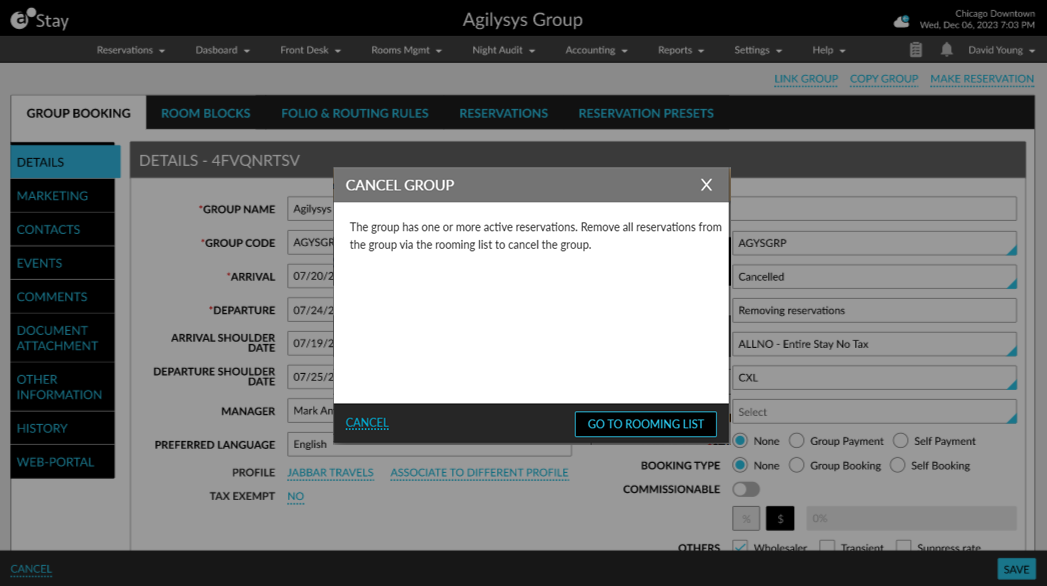
When users click the Go to Rooming List button, they are navigated to the Reservations tab of the group. The Cancel Group pop-up screen will not be displayed when the group has departed reservations. In this case, the following message is displayed: The group cannot be cancelled as there are one or more departed reservations associated to this group.
Batch Disconnect Reservations from a Group
Users can disconnect multiple reservations from a group by selecting the reservations from the Reservations section of the Reservations tab and clicking on More ➜ Disconnect. When selected, the Batch Disconnect Reservation(s) pop-up screen appears. By default, the following message is displayed in this pop-up screen: Cancelled/ No-Show/ Departed reservations cannot be disconnected.
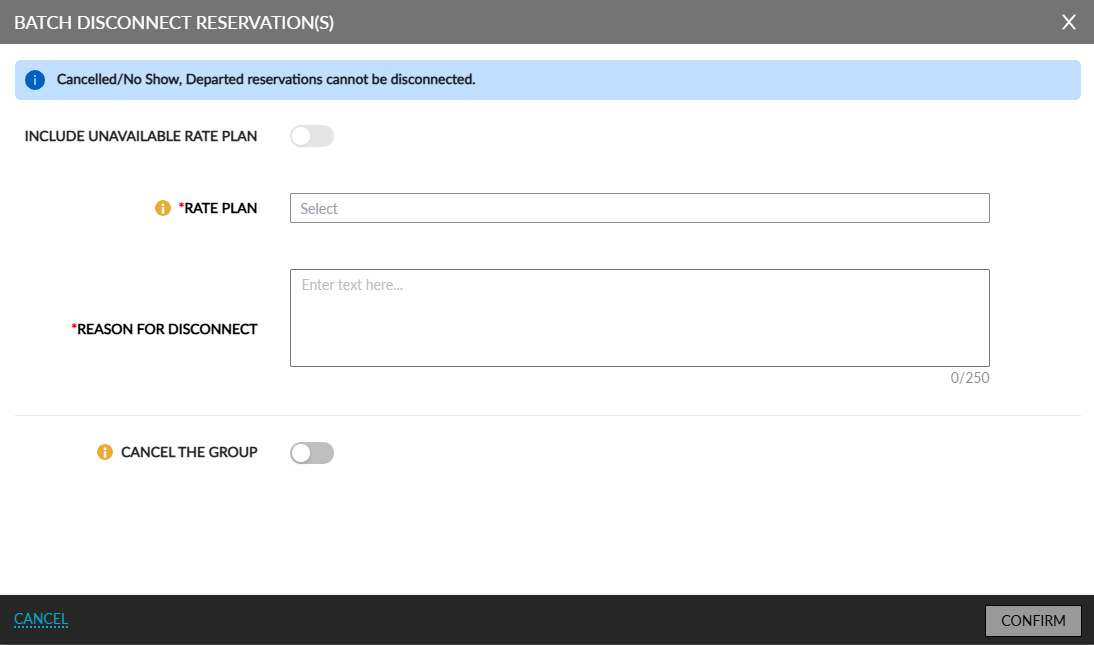
The rate plan to be applied for the disconnected reservations can be selected from the Rate Plan drop-down list. No rate plan is selected in this field by default. This field displays only the available rate plans and packages that are suitable and can be applied to all the selected reservations.
The following conditions are validated for the display of rate plans and packages in this field:
|
Condition |
Description |
|---|---|
|
Room type associated with the rate plan/package |
Room types that are associated with the selected reservations must be associated with the rate plans and packages displayed. |
|
Scheduled room move |
For reservations booked using a different room type for each night of stay, rate plans associated with the room type for the current stay night are displayed. Room types for the future dates will not be validated and filtered. |
|
Active rate plan/package |
Only active rate plans and packages will be displayed. |
|
Effective dates |
Only rate plans and packages whose end dates are equal to or beyond the departure dates of the selected reservations are displayed. |
|
Restrictions |
Rate plans and packages configured with any of the following restrictions are not displayed:
|
Users can enter the reason for disconnecting reservations in the Reason for Disconnect field.
Include Unavailable Rate Plans
Users can include the unavailable rate plans and packages by enabling the Include Unavailable Rate Plan flag in the Batch Disconnect Reservation(s) pop-up screen. This flag can be enabled only by users with the following permissions assigned:
-
OverbookRate
-
OverbookHotelAvail
-
OverbookHotelAvailLimited
-
OverbookRoomType
-
OverbookRoomTypeLimited
-
OverbookRateAllocations
-
OverrideRestriction
This flag is disabled for users who do not have the permissions assigned. When this flag is enabled, the unavailable rate plans and packages are displayed in the Rate Plan drop-down list. The Unavailable indicator is displayed next to the unavailable rate plans. The following message is displayed when an unavailable rate plan is selected: Selected rate plan is unavailable. Please verify room availability before making any changes. As you have overbooking permission changes will be applied regardless of room availability.
Cancellation of Group
Users can choose to cancel the group after the reservations are disconnected from the group successfully by enabling the Cancel the Group flag. When this flag is enabled, the group will be cancelled once all the associated reservations are disconnected.
This toggle will not be available for selection when:
-
The group has departed reservations
-
User selects only a few of the active reservations available for the group. For example, when a group has 10 active reservations, a user selects only 5 reservations and clicks Disconnect.
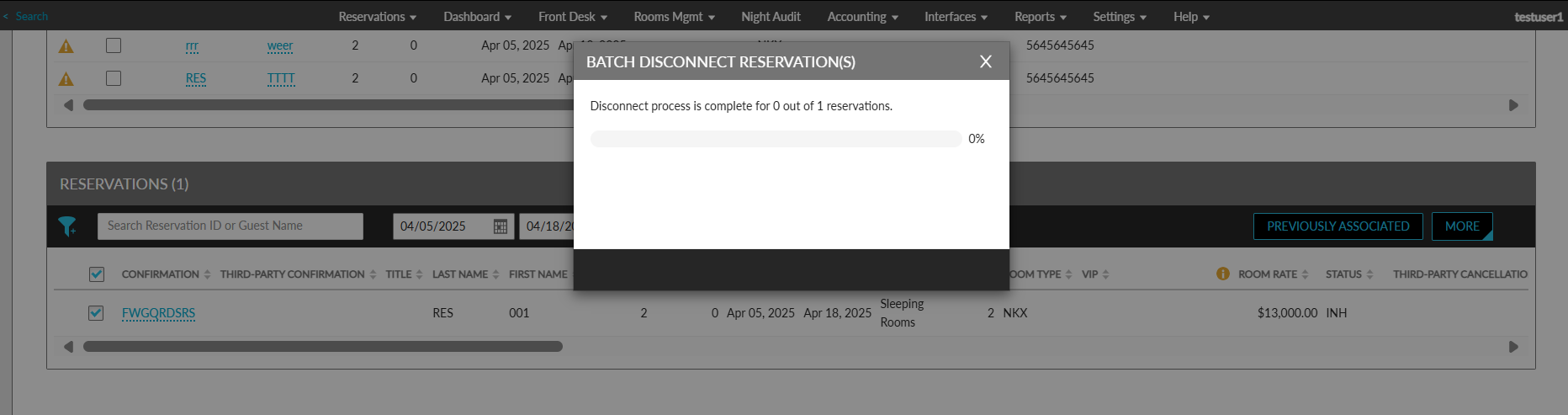
Once the flag is enabled, the Reason for Cancellation field is displayed. Users must enter the reason for the cancellation of the group in this field. When users enter the reason and click Confirm, the Batch Disconnect Reservation(s) pop-up screen appears that displays the status of the reservations disconnected.
Once the reservations are disconnected and the group is cancelled successfully, users are navigated to the Group Booking tab. The following message is displayed in this tab: Disconnect process for the selected reservations is complete, and the group has been successfully cancelled.
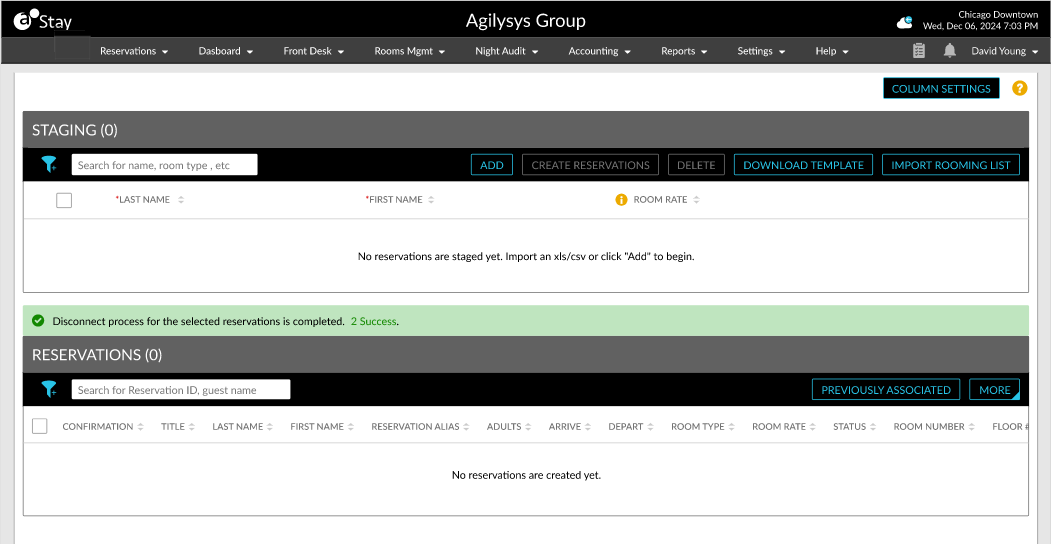
When users choose to disconnect the reservations without cancelling the group, the following message is displayed in the Reservations section in the Reservations tab of the group after the reservations are disconnected successfully: Disconnect process for the selected reservations is complete. <No of reservations> success.
Impacts of Rate Plan Change in Disconnected Reservations
Once the reservations are disconnected successfully and the rate plans of the disconnected reservations are modified to the rate plans/packages selected in the Rate Plan field of the Batch Disconnect Reservation(s) pop-up screen, the following impacts are observed in the disconnected reservations:
|
Impacts |
Description |
|---|---|
|
Selecting package rate plan |
Current rates will change because package components are added. Base rates will not change. Only the component charges will be added. |
|
Additional guest charges |
Additional guest charges will not be applied since current rates will be retained. |
|
Surcharge of package rate plans |
Surcharge rates will not be applied since current rates will be retained. |
|
Tax exempt status |
The tax-exempt status will be updated based on the new rate plan selected. |
|
Deposit policy |
The deposit policy will be updated based on the new rate plan selected. |
|
Cancellation policy |
The cancellation policy will be updated based on the new rate plan selected. |
|
Authorization rule |
The authorization rule will be updated based on the new rate plan selected. |
|
Early departure policy |
The early departure policy will be updated based on the new rate plan selected. |
|
No show policy |
The no show policy will be updated based on the new rate plan selected. |
|
Validate ID for rate plan |
The ID of the guest will be verified and updated based on the new rate plan selected. |
|
Housekeeping pattern |
The housekeeping pattern will be updated based on the new rate plan selected. When there is no housekeeping pattern associated with the selected rate plan, the default pattern configured for the property will be applied. |
|
Auto recurring charges |
The auto recurring charges will be updated based on the new rate plan selected. |
|
Routing rules |
Routing rules will be added based on the new rate plan selected. Group routing rules that were added previously will be removed. |
|
Rate increment defined in room type |
No impact since the current rates will not be changed. |
|
Rates defined in Daily Rates screen |
No impact since the current rates will be retained. |
|
Yielding rules |
No impact since the current rates will be retained |
|
Hurdles |
No impact since the current rates will be retained |
|
ETA and ETD defined in group |
These values are retained in reservations even after the rate plan is modified. |
|
TA commissionable |
The GIID will be removed from the disconnected reservations. The travel agency profile associated with the reservations will be retained but the commission amount will be updated as per the property setup. |
|
Third-party confirmation number added |
The third-party confirmation number will be retained. |
|
Loyalty program added to a group |
The loyalty program added will be retained. |
|
Key access areas added to a group |
The access areas will be removed along with the associated add-ons and the digital key for the reservation will be updated accordingly. |
|
Shared reservations |
Shared reservations are not impacted since the room type of the reservation will not change. |
|
Group add-ons |
The group add-ons will be removed from the reservations. |
|
Add-On Criteria |
No impact since the existing add-ons will not be retained in the reservations. |
|
Group Comments |
Group comments posted to reservations will be retained. |
|
Room Features |
Room features will be retained since the room type will not be changed. |
Batch Cancel Reservations in a Group
The Cancel Selected option in the More menu (Group ➜ Reservations tab ➜ Reservations section ➜ More) has been renamed as Cancel. Users can cancel the reservations of a group using this option. When clicked, the existing Batch Cancel Reservation pop-up screen appears.
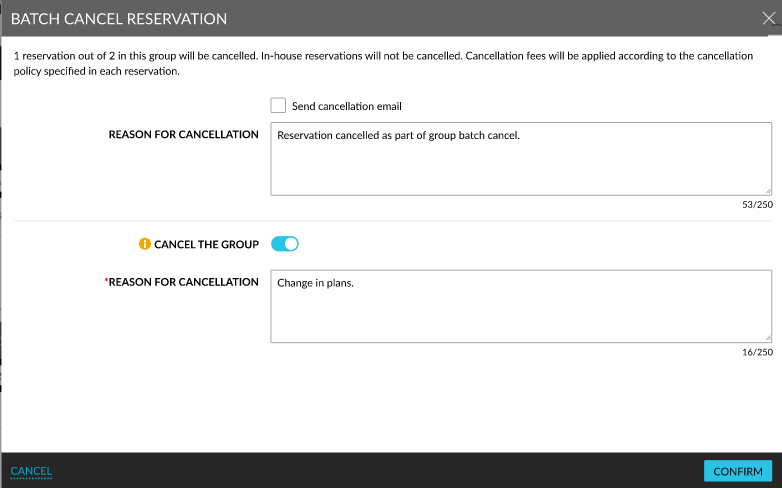
The following enhancements have been made to this screen:
-
A new flag, Cancel the Group, has been added to this pop-up screen. This flag must be enabled to cancel the group after the selected reservations are cancelled.
-
When this flag is enabled, the Reason for Cancellation field is displayed. Users must enter the reason for cancelling the group in this field.
-
When users click the Confirm button, the selected reservations are cancelled followed by the group. The cancellation fee will be posted to each reservation based on the cancellation policy associated with the reservation. When a user without the CancelWithRefundDue permission assigned attempts to cancel a reservation with a negative balance, the reservation will not be cancelled, and the following message is displayed: Need to take care of the refund first before cancelling this reservation.
View Reservations Previously Associated With a group
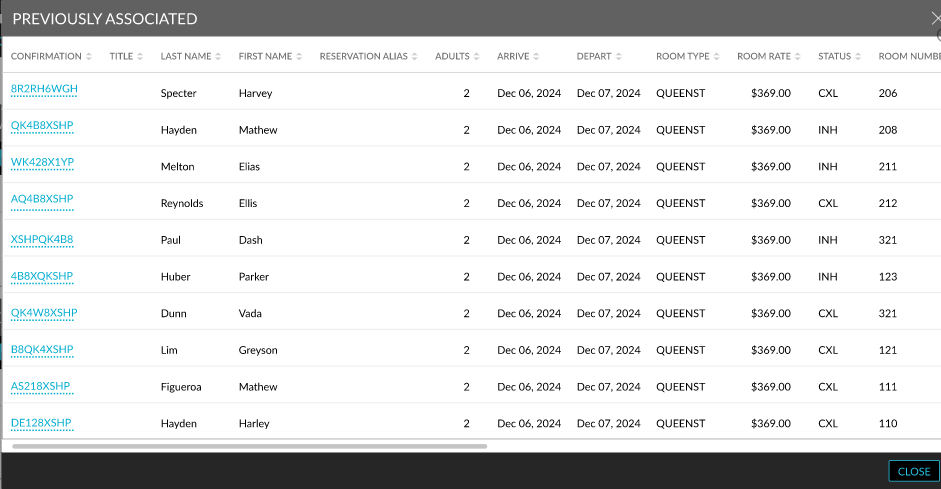
A new button, Previously Associated, has been added to the Reservations section of groups (Group ➜ Reservations tab ➜ Reservations section). When clicked, a new pop-up screen, Previously Associated, appears. Reservations that were previously associated with a group are displayed in this screen. The columns displayed in this screen are based on the selections made by the users in the Manage Column Settings pop-up screen (Group ➜ Reservations tab ➜ Column Settings).
Records for Reservations
Reservation History Section
When reservations are disconnected from a group and modified to a different rate plan, the reason for the disconnection is captured in the Reservation History section of the reservations.
Group History Section
The count of reservations disconnected from a group and the changes in the count of rooms blocked, picked up, and remaining are captured in the Group History section of the group.
Audit Log Screen
A record is created in the Audit Log screen (Reports ➜ Audit Log) for the entity type, Reservation, for each reservation disconnected from a group. The record includes the details of the rate plan to which the disconnected reservation is modified and the reason for the disconnection.
A record is also created for the entity type, Group, that includes the count of reservations disconnected from a group and the updates in the room blocks.