Capturing Travel and Transportation Information when Booking a Reservation
When the feature settings and property level settings are enabled for this feature, the Travel & Transportation section is displayed in the Book a Reservation screen. Clicking this option displays the following two sections: Arrival Information and Departure Information.
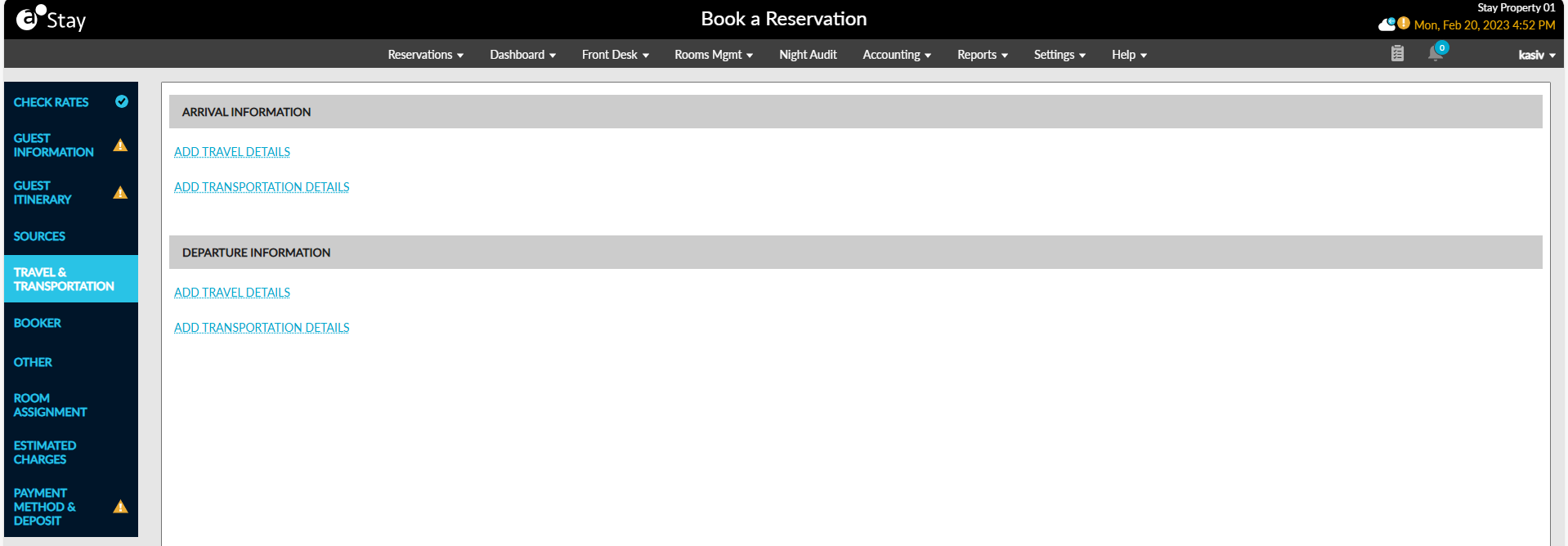
The Arrival Information and Departure Information sections consists of the following two hyperlinks:
|
Field |
Description |
||||||||||
|---|---|---|---|---|---|---|---|---|---|---|---|
|
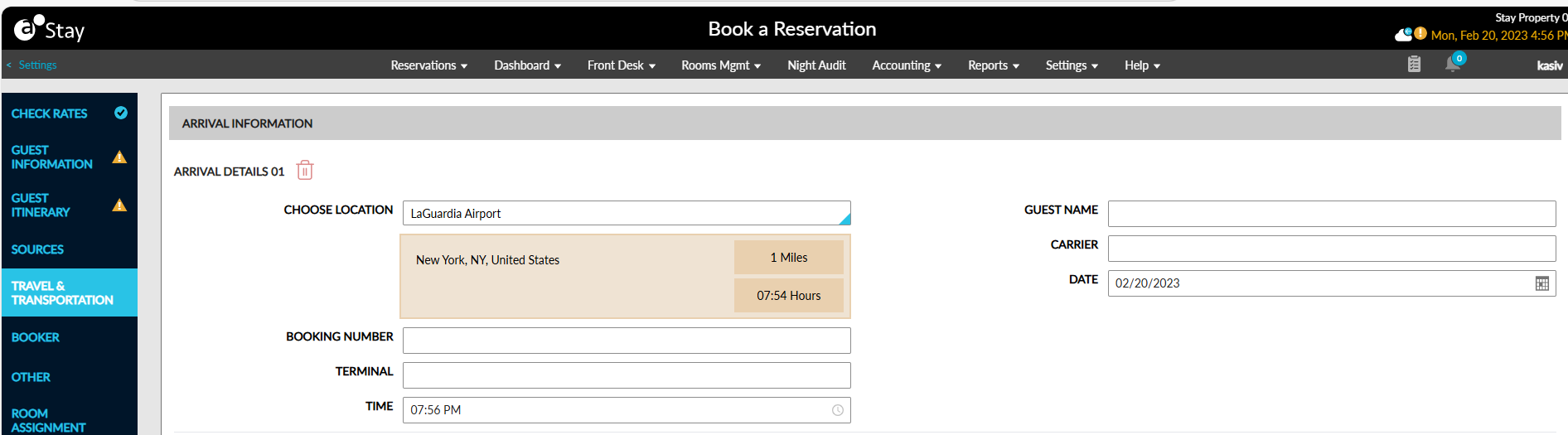
Add Travel Details This link will be displayed only if the Collect Guest Travel information flag is enabled in the Travel Information set up. Users can add any number of travel detail records for arrivals and departures by clicking this link. All fields in the section are not mandatory. Users can delete a travel record by clicking the delete icon. As records get added, they are titled as Arrival Details 01, Arrival Details 02, or Departure Details 01, Departure Details 02 and so on. |
|||||||||||
|
Choose Location |
Select a location of arrival from the drop-down list. Once selected, the address of the location, distance, and the estimated travel time between the location and the property in the HH:MM format is displayed below the Choose Location field. |
||||||||||
|
Guest Name |
The name of the guest who is traveling. The guest's name is auto-populated if a profile is associated with the reservation. |
||||||||||
|
Booking Number |
The booking number for the travel detail record. |
||||||||||
|
Carrier |
The name of the carrier for the travel type. |
||||||||||
|
Terminal |
The terminal of arrival. |
||||||||||
|
Date |
The date of arrival. |
||||||||||
|
Time |
The time of arrival. |
||||||||||
|
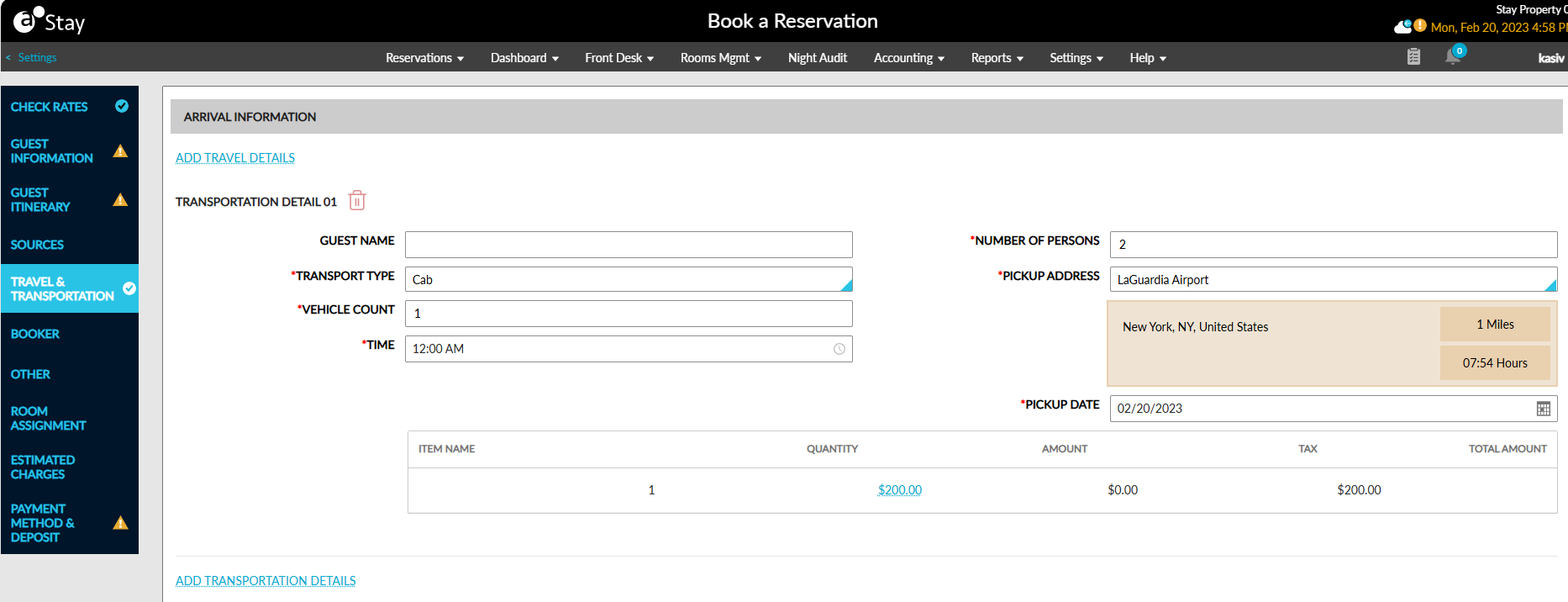
Add Transportation Details This link will be displayed only if the Provide Guest Transportation Service flag is enabled in the Transportation Information set up. Users can add any number of transport detail records for arrivals by clicking this link. Transport details can be added even if the reservation is checked-in Users can delete a transport record by clicking the delete icon. As records get added, they are titled as Transportation Detail 01, Transportation Detail 02, and so on. |
|||||||||||
|
Guest Name |
The name of the guest who is travelling. The guest's name is auto-populated if a profile is associated with the reservation. |
||||||||||
|
Number of persons |
The number of people that need transportation.
|
||||||||||
|
Transport Type |
Select a transport type from the drop-down list.
|
||||||||||
|
Vehicle Count |
The number of vehicles needed for the selected transport type. By default, 1 is displayed. |
||||||||||
|
Pick Up Address |
Select the address to pick-up the guest from the locations defined. On selection, the address of the location, distance, and estimated travel hours are displayed below the Pick Up Address field. |
||||||||||
|
Pick Up Date |
Select the date to pick up the guest from the date picker. |
||||||||||
|
Pick Up Time |
Select the time to pick up the guest. |
||||||||||
|
Charge |
Transportation charge for the requested transport will be displayed based on the Transport Type selected. Once selected the following fields are displayed:
Charge should be displayed in the below formatted under each transport request in booking modal. |
||||||||||