Charge Guests When Shipping Lost and Found Items
Stay allows properties to charge a guest when an item reported as lost is claimed by the guest and shipped to them. This feature allows users to configure the shipper details and the amount to be charged when a claimed item is shipped to the guest.
The shipping charges can either be posted to the default house account folio or to the folio of the reservation associated with the guest profile.
Configuration of Shipper Details
Users can configure the default house account for posting the shipping charges and the shipper details in the Shipper tab of the Lost and Found screen (Rooms Mgmt ➜ Lost and Found ➜ Settings ➜ Shipper). The Shipper tab displays the following two sections:
-
General Configuration
-
Shipper Details
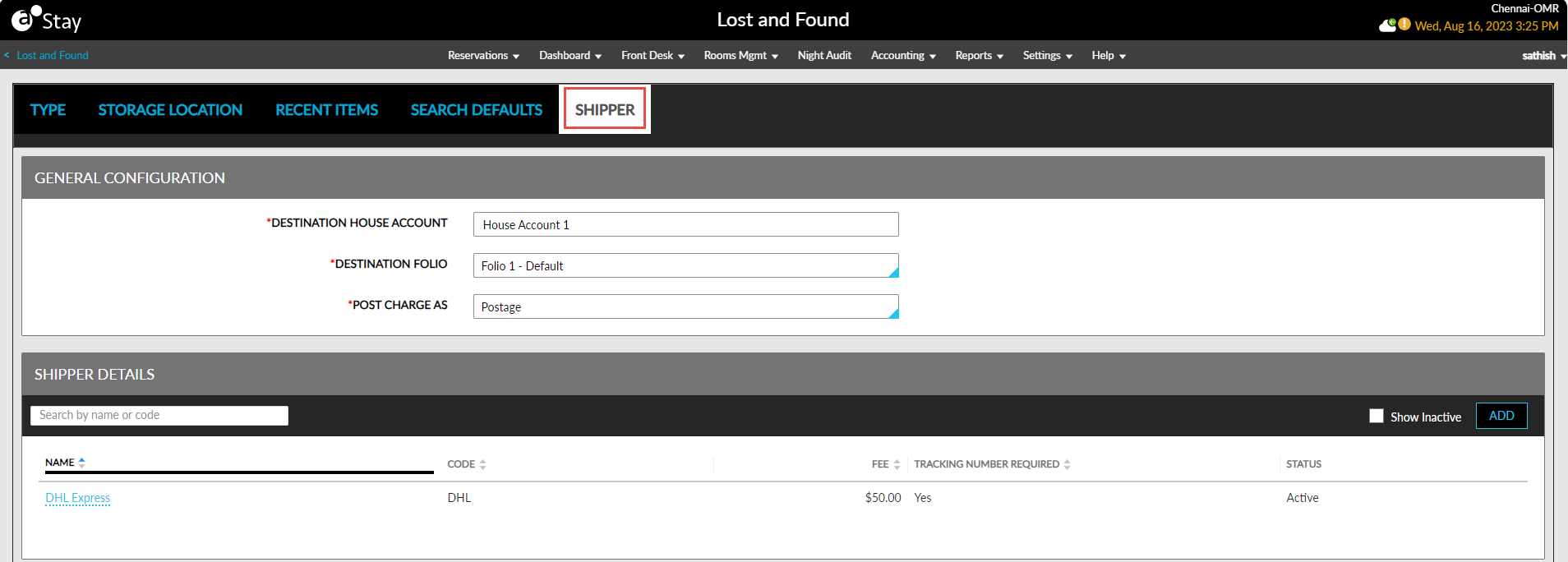
The following table lists the fields present in the General Configuration section:
|
Field |
Description |
|---|---|
|
Destination House Account |
This is a mandatory field that allows users to search and select the house account to which the shipping charges for a claimed item must be posted. |
|
Destination Folio |
|
|
Post Charge As |
|
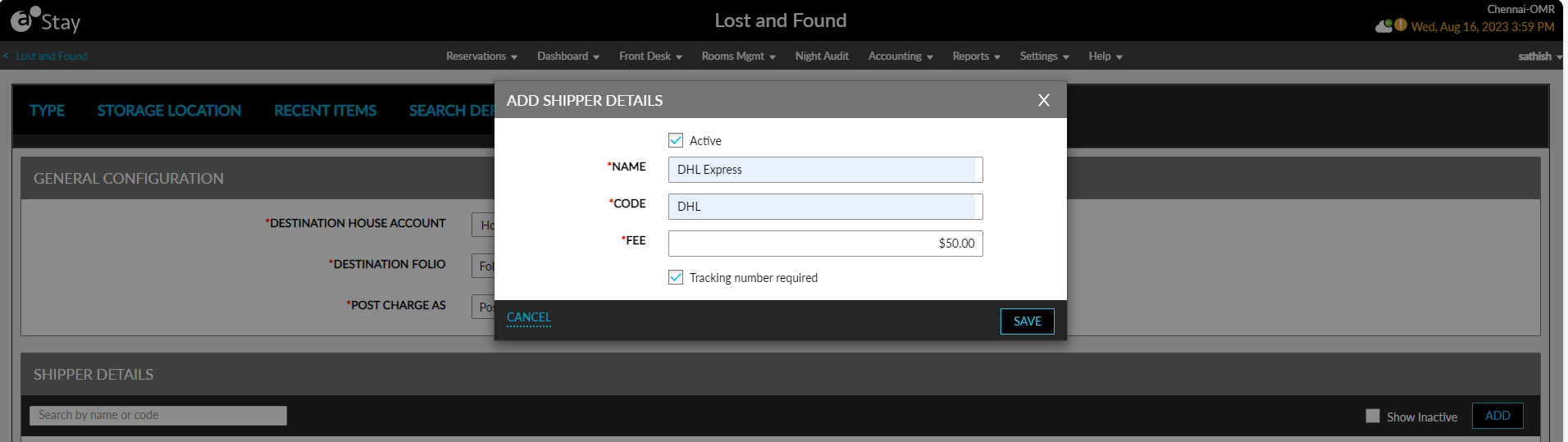
The Shipper Details section allows users to configure the shipper details and the amount to be charged. When users click Add, the Add Shipper Details pop-up screen appears that displays the following fields:
|
Field |
Description |
|---|---|
|
Active |
Select this checkbox to activate the shipper. |
|
Name |
|
|
Code |
|
|
Fee |
|
|
Tracking number required |
|
Once the shipper details are saved, the details configured are displayed in the following columns in the Shipper Details section:
-
Name
-
Code
-
Fee
-
Tracking Number Required
-
Status
All columns can be sorted. Users can search for a record using the shipper’s name and code.
Release Claimed Item and Post Shipping Charges
When users release a claimed item using the Release option (Rooms Mgmt ➜ Lost and Found ➜ Release), and select the Status as Closed-Sent in the Release pop-up screen, the following fields are displayed:
|
Field |
Description |
|---|---|
|
Date/Time Shipped |
Users can select the date and time when the item is shipped. |
|
Shipper |
|
|
Tracking Number |
|
|
Fee |
|
|
Payment Options |
|
|
Payment Method |
|
|
Reference |
|
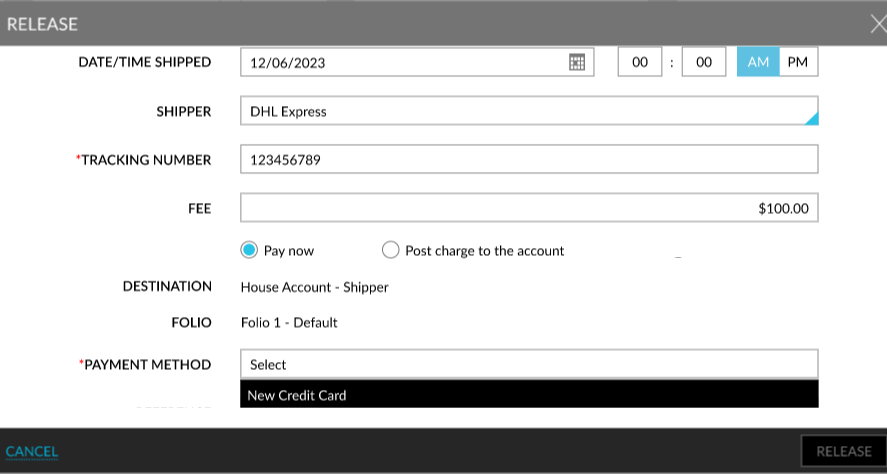
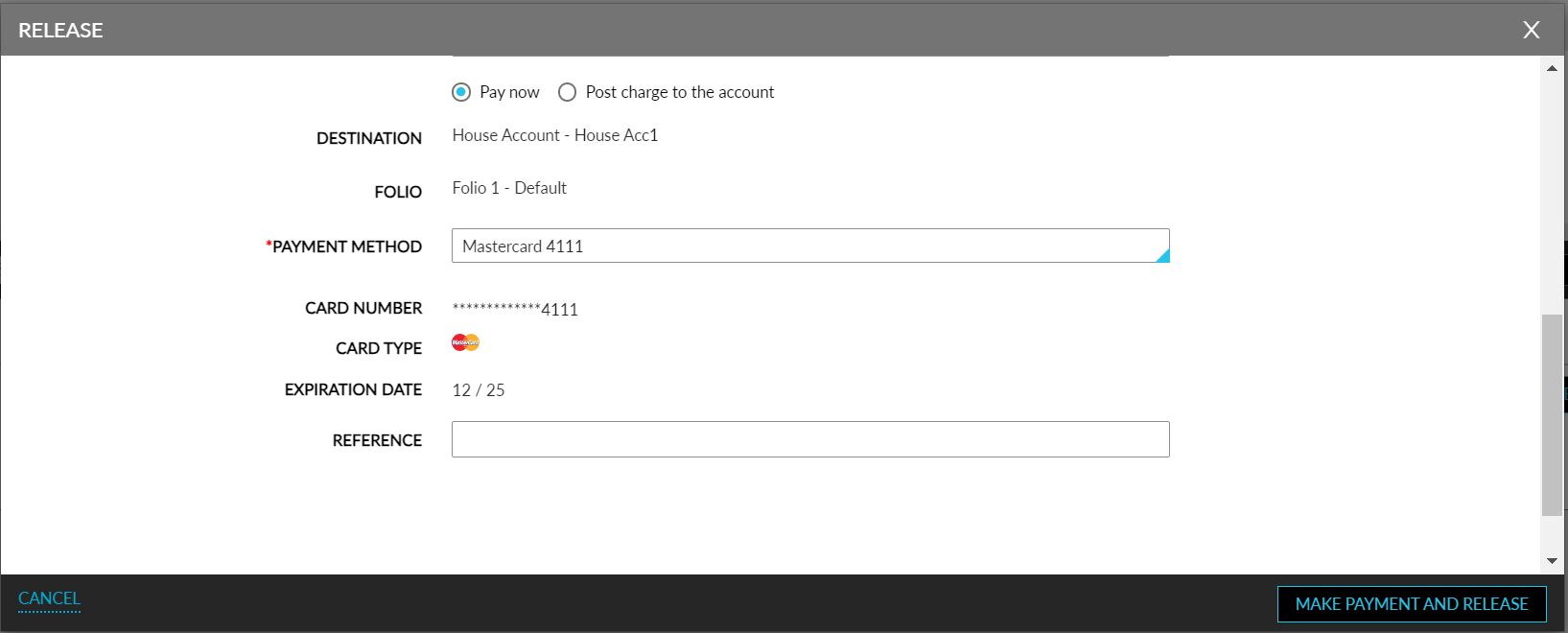
When the payment method is selected as New Credit Card, the card details entered by the user is verified and the Make Payment And Release option appears. When clicked, the payment is processed, and the item is released.
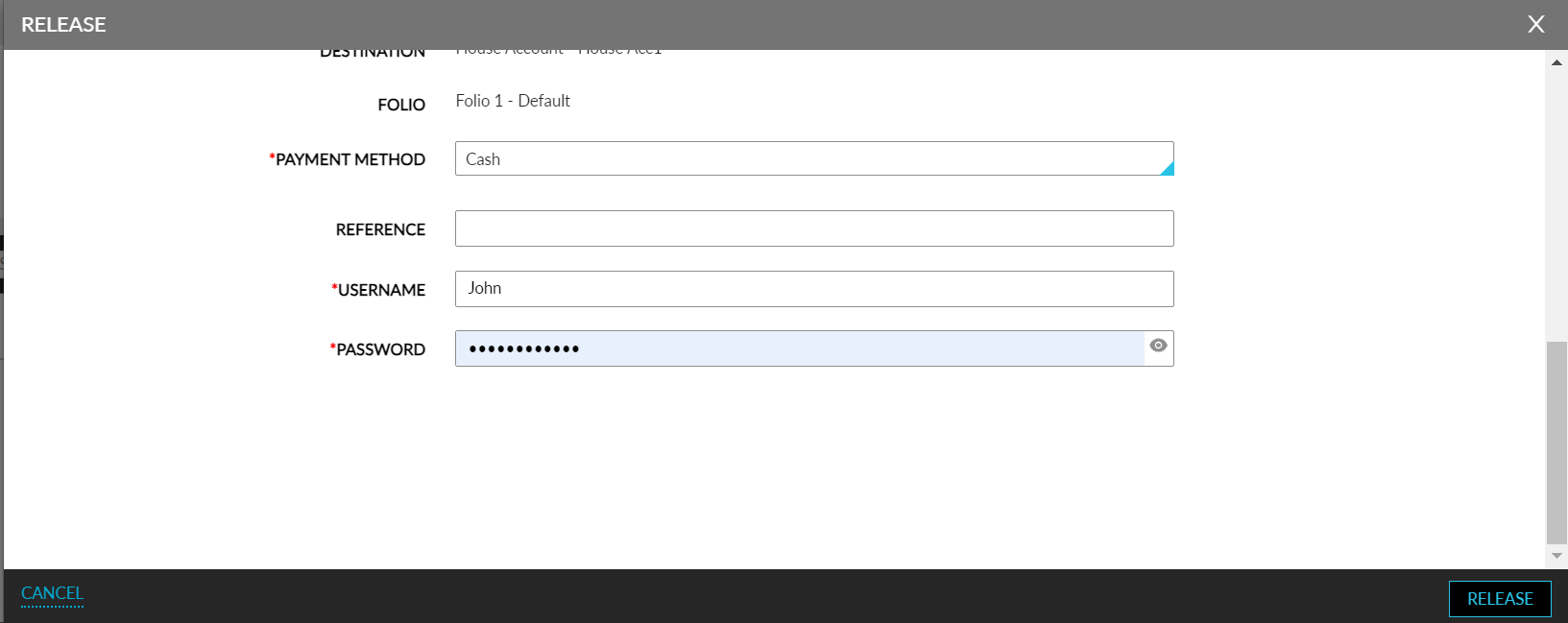
When the payment method mapped to the Cash payment class is selected, the Username and Password fields appear where users must enter their credentials. When users click Release, the user’s credentials are validated. On successful validation of the user’s credentials, the payment is processed, and the item is released.
If the payment is not successful, users can retry making payment using a different payment method.
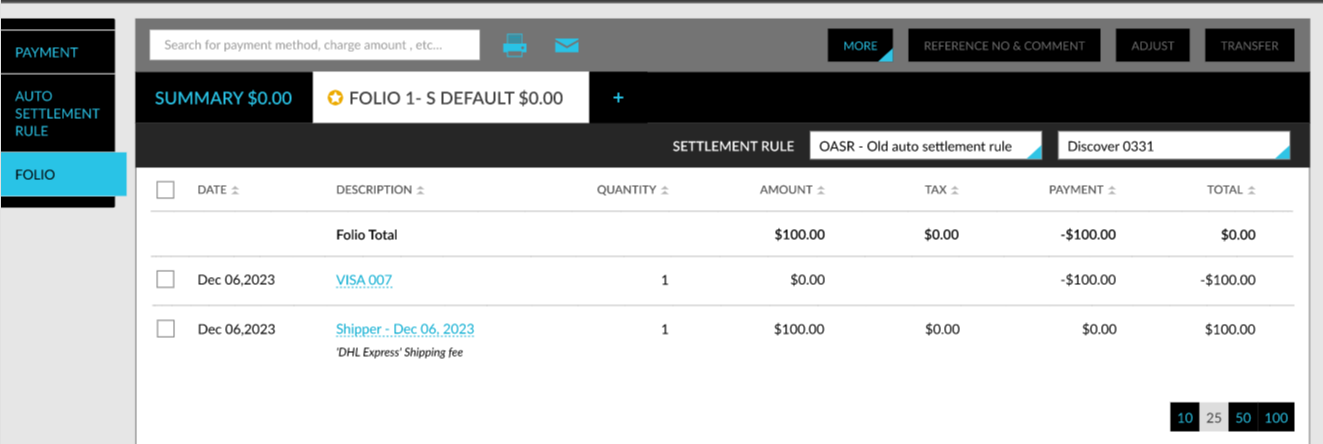
The payment processed and the shipping charges are posted to the folio of the reservation, or the house account selected.
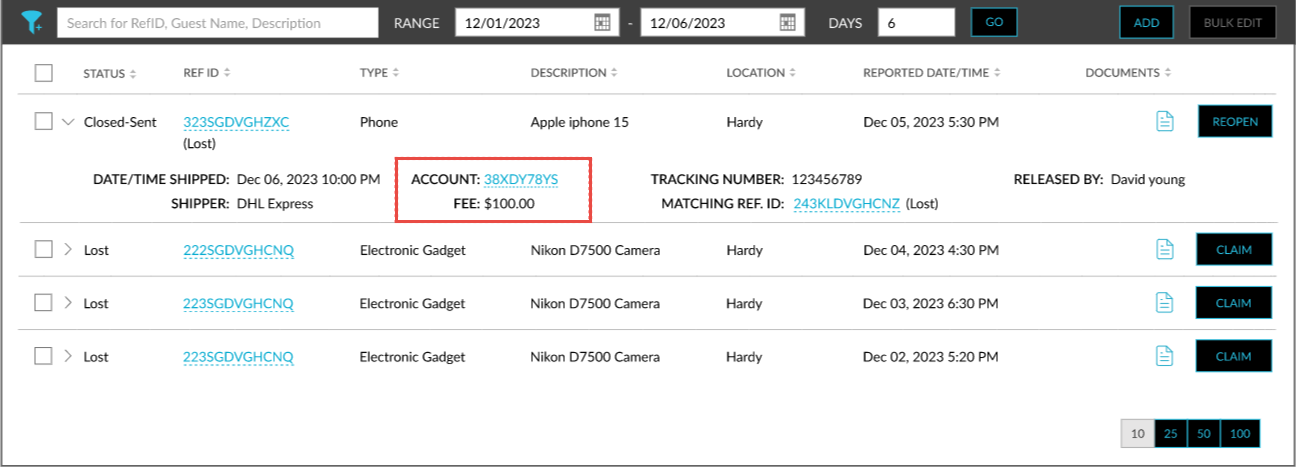
The details of the account to which the charges are posted, and the amount charged are displayed when users expand the accordion for the record in the Lost and Found screen.