Claim, Release, and Match Items
An item added as lost or found can be claimed and subsequently released.
Claim an Item
Perform the following steps to claim an item:
Navigate to Rooms Mgmt ➜ Lost and Found.
Click the Claim button in the item entry. The Claim pop-up screen is displayed.
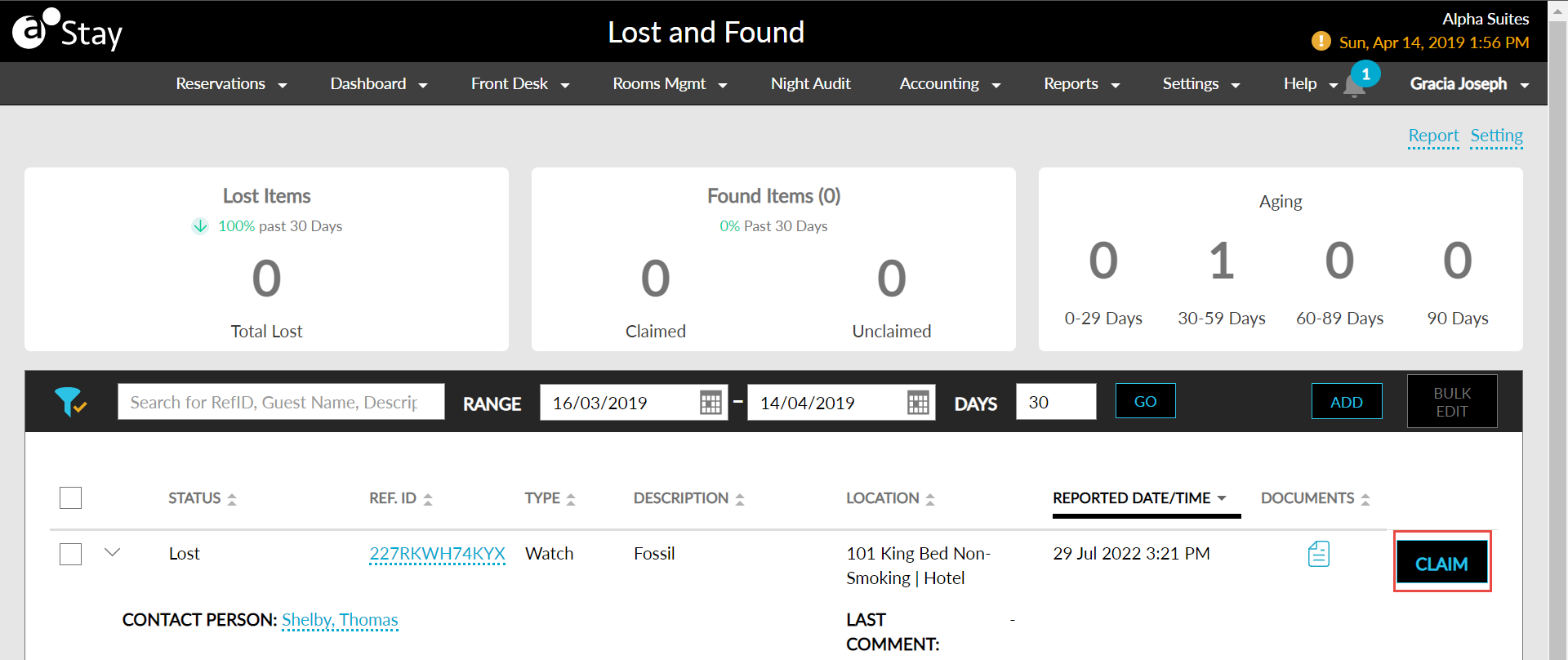
The item’s status now changes from Lost to Found-Unclaimed.
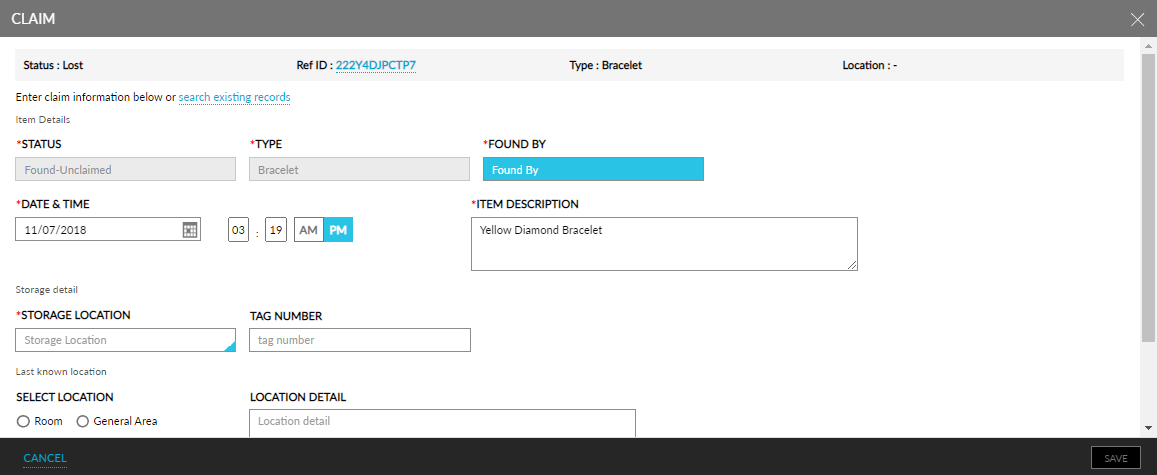
Refer to the following table and fill in the fields:
|
Field |
Description |
|---|---|
|
Found By |
Enter the name of the person who found the item, which in general should be an employee. |
|
Date & Time |
Select the date from the calendar and set the time when reported. |
|
Item Description |
Enter a relevant description of the item. For example, color, brand, or model. |
|
Storage Location |
Select a location from the drop-down list where the item is stored. |
|
Tag Number |
Enter the tag number of the stored item. |
|
Select Location |
Select between Room and General Area and enter the relevant details of where the item was found. |
|
Location Details |
Description of the whereabouts of the found item. |
Click Save to record the Found-Unclaimed item entry.
Release an Item
Perform the following steps to release an item:
Navigate to Rooms Mgmt ➜ Lost and Found.
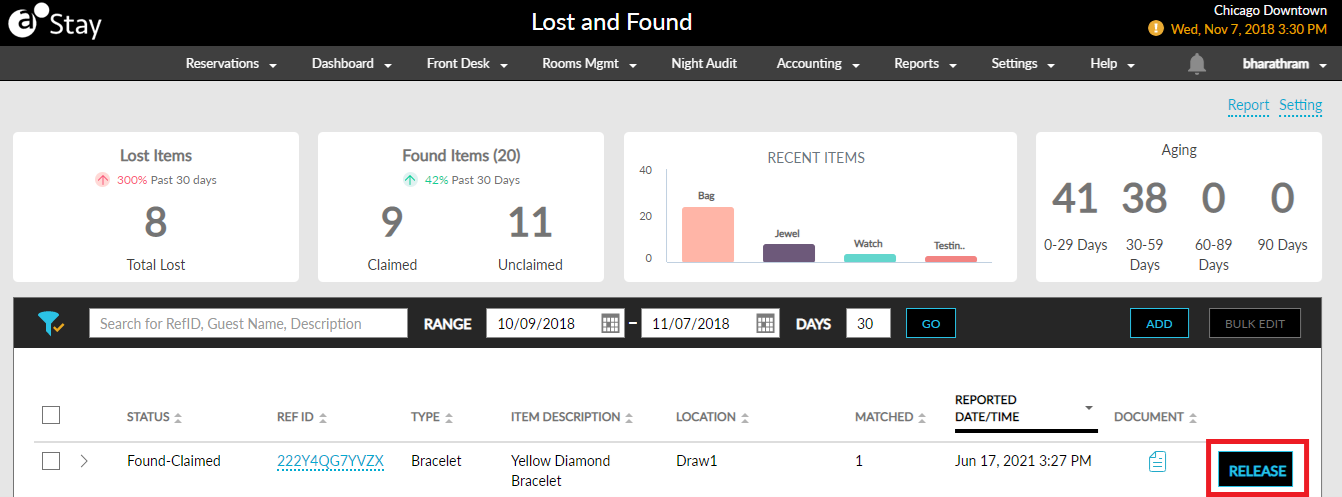
Click the Release button in the item entry. The Release pop-up screen is displayed.
The item’s release status needs to be updated on the Release pop-up screen.
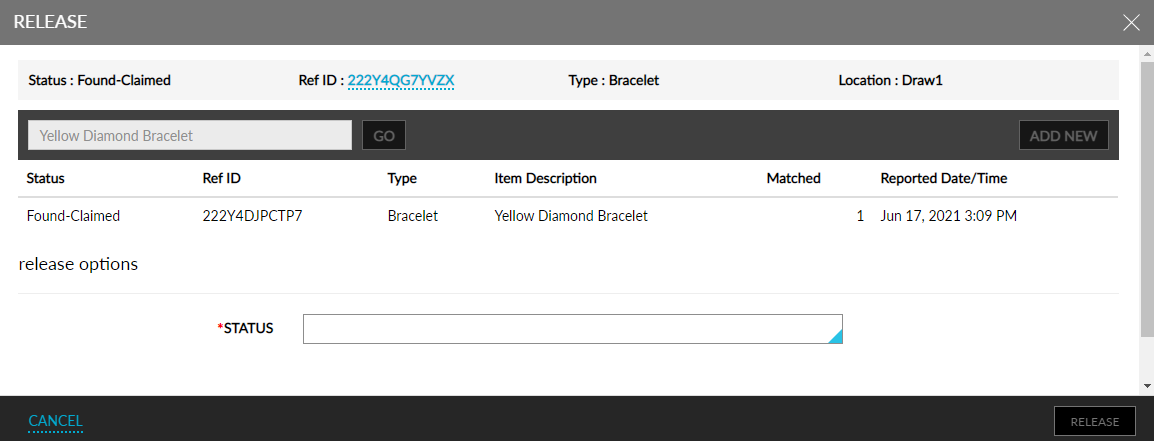
Select one of the following options for closed status:
-
Closed-Sent
-
Closed-Pickup
-
Closed-Discarded
-
Closed-Other
Refer to the following table and fill in the details for the Closed-Sent option:
|
Field |
Description |
|---|---|
|
Date/Time Shipped |
Select the date and time when shipped. |
|
Shipper |
Enter the details of the shipper. |
|
Tracking Number |
Enter the tracking number of the shipment. |
Refer to the following table and fill in the details for the Closed-Pickup option:
|
Field |
Description |
|---|---|
|
Received By |
Enter the name of the person who collected the item. |
|
Phone Number |
Enter the phone number of the person who collected the item. |
|
Did you verify ownership? |
Select yes or no. |
Verify user credentials and enter relevant comments if Closed-Discarded or Closed-Other options are chosen.
Click Release to confirm the release of the item.
Match an Item
Users can search existing records and match lost items with found but unclaimed items.
Perform the following steps to match an existing item:
Navigate to Rooms Mgmt ➜ Lost and Found.
Click the Claim button in the item entry. The Claim pop-up screen is displayed.
Click the Search Existing Records link.
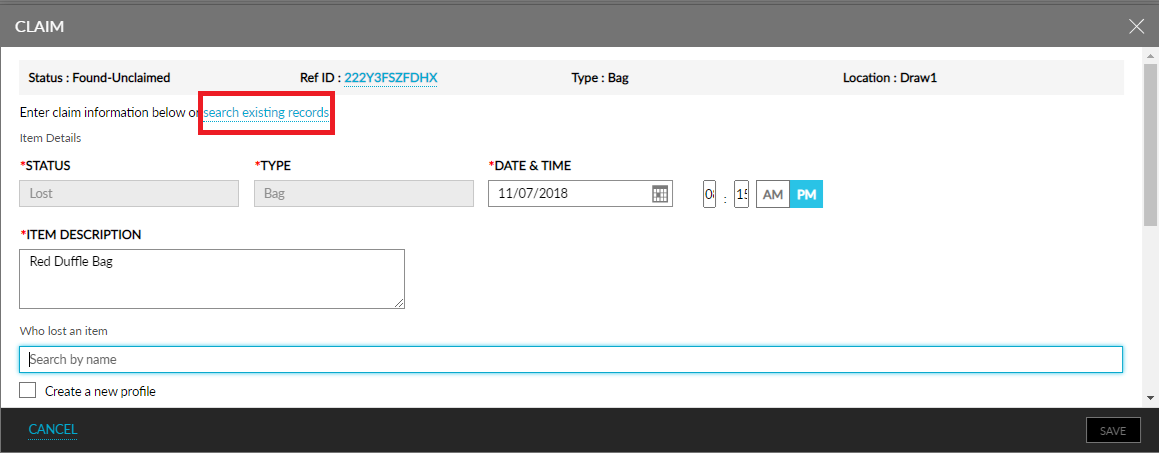
Select the auto-populated items or search for items using the search field.
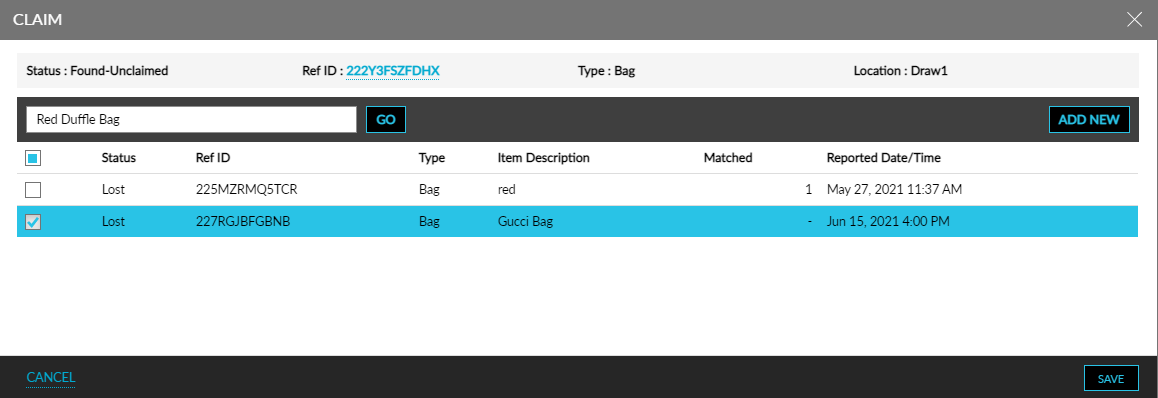
Click Save to match the items and change the status to found-unclaimed.
The reference ID of the matched item will now be displayed in the Matching Ref ID field as a hyperlink.