Close Folios Manually/Automatically in Reservations, Groups, and House Accounts
Stay allows users to close folios manually or automatically in reservations, groups, and house accounts.
Feature Setting
-
Name: Close Folios - Allow users to close folios manually or automatically
-
Value: Must be enabled
-
Comments: License is not required
Permission
The following permission is added to
-
Stay_OverrideClosedFolio
-
Allows users to override and perform various operations in a closed folio.
-
Roles assigned - This permission can be provided to the required roles based on the property’s preference.
-
Close Folios Manually
Users can close folios manually by clicking on the Close Folio button. For default folios, this button is enabled only when the folio balance is $0. When any auto recurring fee, deposit or cancellation policy is associated with the default folio, the Close Folio button is enabled only when the reservation status is Departed, No Show, or Cancelled.
When a house account is set as a default folio in the Pantry Management settings, the Close Folio button for the folio in the house account is disabled until it is removed as the default folio.
For third-party reservations, the Close Folio button does not appear until the reservation is checked out. For default folios, the Close Folio button is enabled only when the folio balance is $0 and the reservation status is Departed, No Show, or Cancelled.
When users close folios with or without routing rules attached, the following changes take place:
-
When the Close Folio button is clicked for reservations/groups/house accounts with no routing rules attached, the Confirm pop-screen appears that displays the following message: Any changes to the closed folio will be restricted. Do you still want to proceed?
-
When the folio has routing rules attached, the following message is displayed: Any changes to the closed folio will be restricted and the associated routing rule will be affected. Do you still want to proceed?
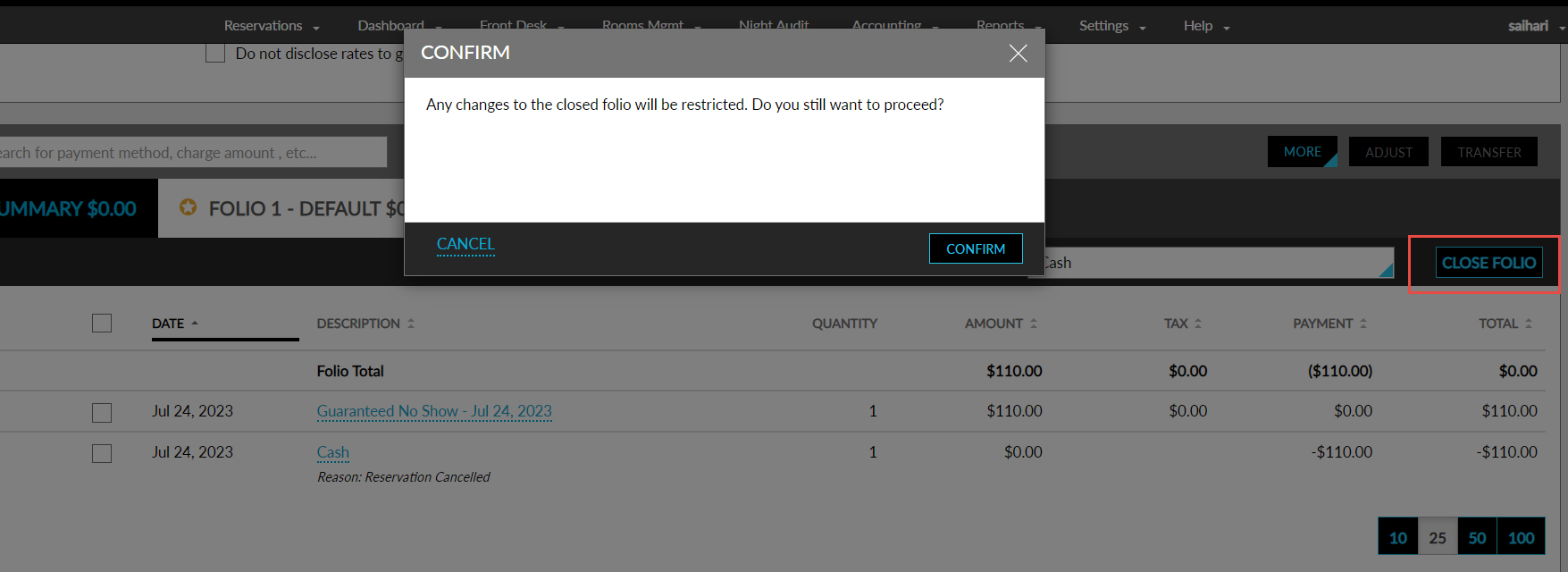
The details of the routing rule associated with the reservation and its origin account are displayed on the Confirm pop-screen. When user clicks Confirm, the folio is closed, and a visual indicator is displayed near the folio name. The indicator is displayed on the following screens:
-
Reservation Folio
-
Group Folio
-
House Account Folio
-
Folio Summary
-
All Folios
-
Reservation – Payment method
-
Add/Edit Routing Rule – To Destination
-
Add a Charge
-
Add a Credit
-
Make a Payment
-
Transfer Amount
-
Authorization & Payment History
-
Pantry
-
Issue / Load Gift Card
After closing the folio, the Close Folio option is renamed as Open Folio if the user has enabled the Enable Open Folio option in Guest Accounting. If this option is not enabled, the Close Folio button is not renamed and is disabled.
Once the folio is closed, all the check boxes and hyperlinks inside the folio are disabled. In the All Folios tab users cannot edit or drag and drop items from the closed folio to the other folios.
Manual Override of Closed Folios
Users with the Stay_OverrideClosedFolio permission can override and perform the following operations to a closed folio:
-
Add a Charge
-
Add a Credit
-
Make a Payment
-
Transfer Amount
-
Pantry
-
Issue/Load Gift Card
-
Add Routing Rule
-
Routing Rule Template
When users try to override a closed folio, the Override Closed Folio pop-up screen appears that requests users to authenticate their credentials. On successful authentication, the folio is overridden, and the closed folio visual indicator is removed. When users click the Open Folio button, the folio is reopened.
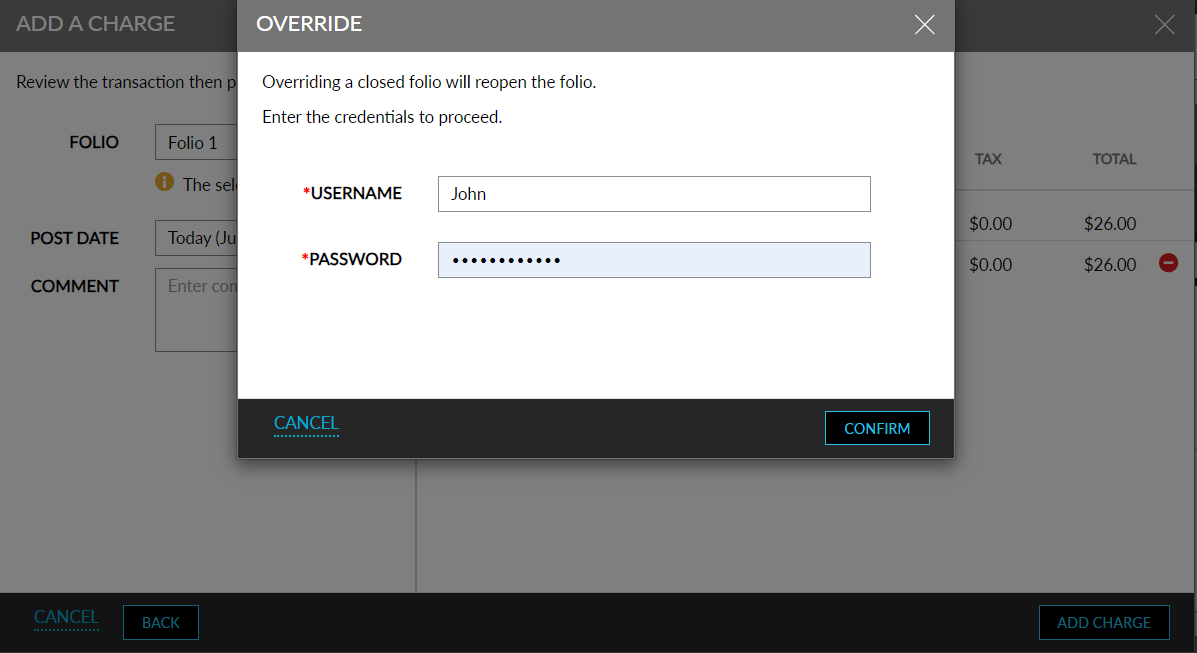
When the feature setting is turned off after the folios of reservations/groups/house accounts are closed, the folios remain closed and can be overridden by the users to post charges.
When users without the Stay_OverrideClosedFolio permission try to override a closed folio, the following message is displayed: User does not have the required permission.
Close Folios Automatically
When the Auto Close Folio option is enabled, the reservation folio can be closed automatically on date roll when the following conditions are met:
-
The departure date is equal to the current property date.
-
The folio balance is $0.
The group folios can be closed automatically on date roll when the following conditions are met:
-
The shoulder departure date is equal to the current property date.
-
The folio balance is $0.
-
All the reservations in the group have been checked out.
When all the folios in the reservation or group are closed manually/automatically, the Summary tab and the All Folios tab are closed during date roll and a visual indicator is displayed. The drag and drop feature is disabled in the All Folios tab and the following options are disabled in the Summary tab:
-
Default Folio selector
-
Add reservation routing rule
-
Add account routing rule
The Summary tab or the All Folios tab is reopened when one or more reservations or group folios are reopened.
When all the folios are closed and the reservation is checked out, the Lock icon is displayed at the top of the reservation and on the Search screen. The Lock icon is also displayed for the departed groups/house accounts/reservations with closed folios after date roll.
Reopening Closed Folios
Closed folios are reopened when the following operations are performed:
-
When Undo Checkout is performed for a reservation with its default folio closed, and when the user selects the current property date as the new departure date, the Reopen Default Folio pop-up screen appears. When user clicks Yes, the default folio is reopened. When the user selects a future date as the new departure date, Reopen Default Folio pop-up screen appears after the Modify Stay screen.
-
When Reverse Comp is performed for a charge and when the default folio of the reservation is closed, the Override Closed Folio pop-up screen appears. When users click Confirm, the default folio is reopened, and reverse comp is completed successfully.
-
When Undo Cancel is performed for a reservation with default folio closed, the default folio is automatically reopened.
-
When charges are posted from IG POS system to a departed/departing reservation with the default folio closed, the charges are not posted, and the following message is displayed: Charges cannot be posted as the folio is closed.
-
When users try to post charges to a reservation with routing rule attached and default folio closed, the charges are not posted, and the following message is displayed: Charges cannot be posted as the folio is closed.
-
Users cannot change the payment method of a closed folio. For closed folios, the payment method drop-down list is greyed out.
The following fields support this feature:
-
The Close Folio section in the Folio Defaults tab on the Guest Accounting screen displays the following new options:
-
Applicable For: This is a multi-select drop-down list that allows users to select from the following options:
-
Reservations: When selected, the Close Folio option is available for all the folios inside the reservation.
-
Groups: When selected, the Close Folio option is available for all the folios inside the groups.
-
House Accounts: When selected, the Close Folio option is available for all the folios inside the house accounts.
-
-
Auto Close Folio: When enabled, the folios of the reservation and groups with $0 balance are closed automatically on the departure date during date roll. This option is displayed only when at least one option is selected in the Applicable For section.
-
Enable Open Folio Option: When enabled, the Open Folio option is made available to users to reopen a closed folio. This option is displayed only when at least one option is selected in the Applicable For section.
-
-
When the Close Folios feature setting is enabled, the task, Auto Close Folio, is added to the date roll tasks. This task indicates the success/failure of the auto close of folios. In case of failure of this task, date roll is continued and does not stop.
-
The following details are captured in the Audit Log screen and in the Reservation Logs for reservations, groups, and house accounts when the folios are closed and reopened:
-
Date
-
Time
-
Username
-