Copying Reservations
The copy reservation feature allows a GSA to duplicate a reservation, even if the reservation has been cancelled, no showed, is a departure, or already checked out. The copy action is used, for example, when a guest asks for a similar or identical stay in the near future. A majority of the reservation information automatically duplicates, with options to duplicate the reservation's attributes, such as Payment Methods, Notes, Specials, Packages, and Item Inventory. The following permissions are required for a user to be able to copy reservations: CopyReservation. While copying reservations, the following conditions can be copied from one reservation to another:
-
Reservation Alias
-
Arrival/Departure
-
Pet Details
-
VIP status
-
Loyalty Programs
-
Comments
-
Guest Preferences
-
Room Preferences
-
Identification Information
-
Documents
Perform the following to duplicate reservations:
From the menu bar, navigate to the Reservations ➜ Search.
Select the reservation users wish to copy details.
In the Reservation Summary panel, click Copy Reservation. The Copy Reservation screen opens.
Inactive guest types, market segments, and source of business cannot be copied.
In the Number of Reservation Copies box, enter the number of copies users wish to make of a reservation.
From Arrive, select the date of arrival and from Depart, select the date of departure.
Enter the number of Nights users wish to set the stay for.
Click Go. On successful completion of copy users will see the screen below.
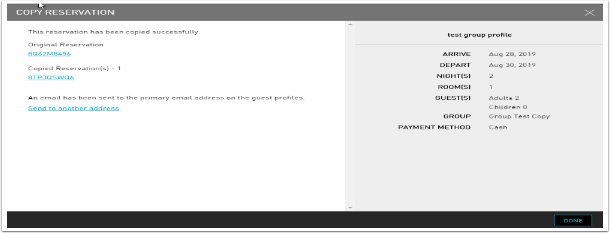
An email is by default sent to the primary reservation. If users wish to send an email to another address, click the Send to another address link.
The Email Confirmation screen opens. The email addresses can either be added to the Profile email or the reservation email.
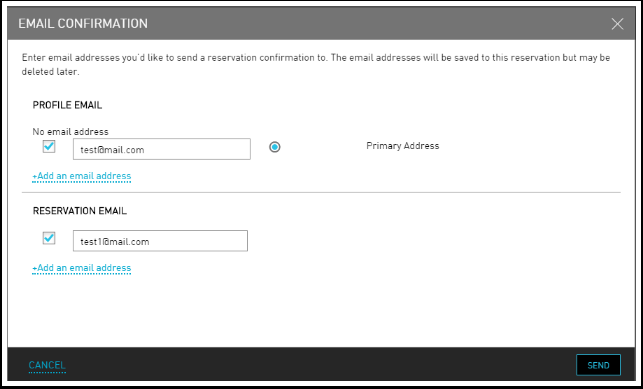
Click Send.