Create and Apply Promotional Offers When Booking Reservations
Stay allows users to configure promotional/complimentary offers that can be applied automatically when reservations are created. The nights with the lowest nightly room rate are offered as complimentary for the reservations booked using rate plans with promotional/complimentary offers applied.
For example, let us consider a promotional offer configured to offer 2 nights as complimentary when paid for 3 nights (Buy: 3, Get: 2) applied to a reservation booked for 5 nights from June 20, 2024, to June 25, 2024, for the following nightly room rates:
|
Date |
Room Rate |
|---|---|
|
June 20th |
$180 |
|
June 21st |
$140 |
|
June 22nd |
$160 |
|
June 23rd |
$120 |
|
June 24th |
$180 |
In this scenario, the nightly room rates are compared for all 5 nights of stay and the nights with the lowest nightly room rate, that is, June 21st and June 23st are offered as complimentary.
This enhancement is also applicable for the reservations booked through Fuel Booking Engine and Agilysys Book.
Feature Setting
-
Name: Promotional Offers - Allows users to create promotional offers.
-
Value: Must be enabled
-
Comments: License is not required
Configure Promotional Offers
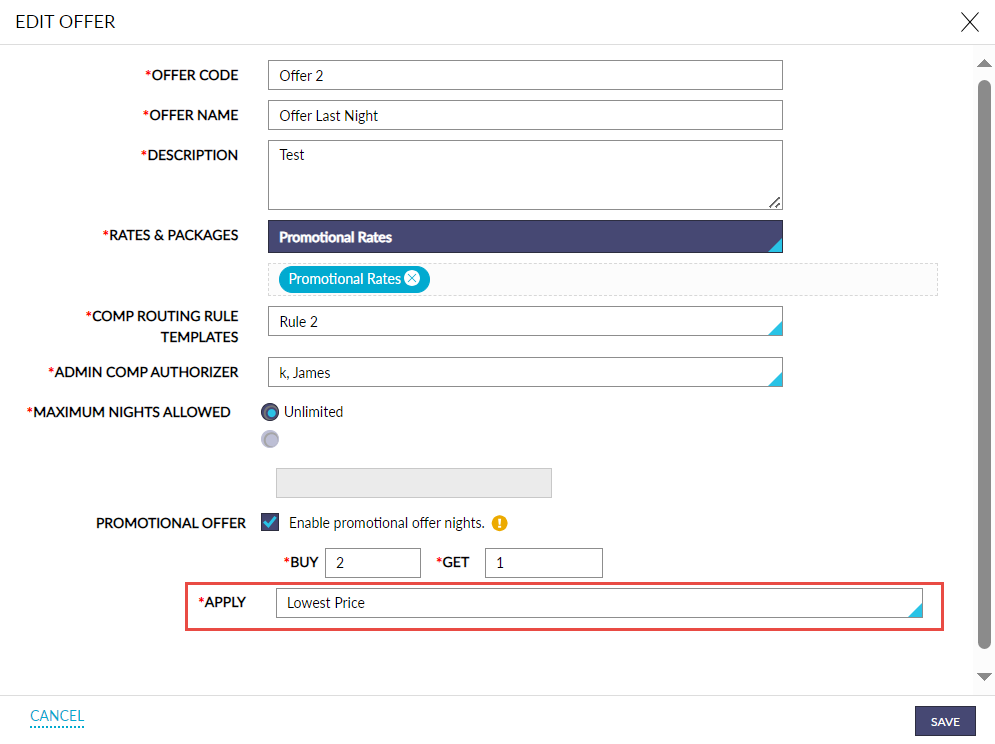
When the feature setting is enabled, users can create promotional offers by enabling the Enable promotional offer nights checkbox in the Add/Edit Offer screen (All Settings ➜ Comp Accounting Configuration ➜ Offers Setup).
Users can select how the complimentary nights must be offered for a promotional offer from the Apply drop-down list in the Add/Edit Offer screen. This drop-down list displays the following options:
-
Last Night: This option is selected by default. When this option is selected, complimentary nights are offered sequentially as per the existing functionality.
-
Lowest Price: When selected, the nights with the lowest nightly room rates are offered as complimentary nights.
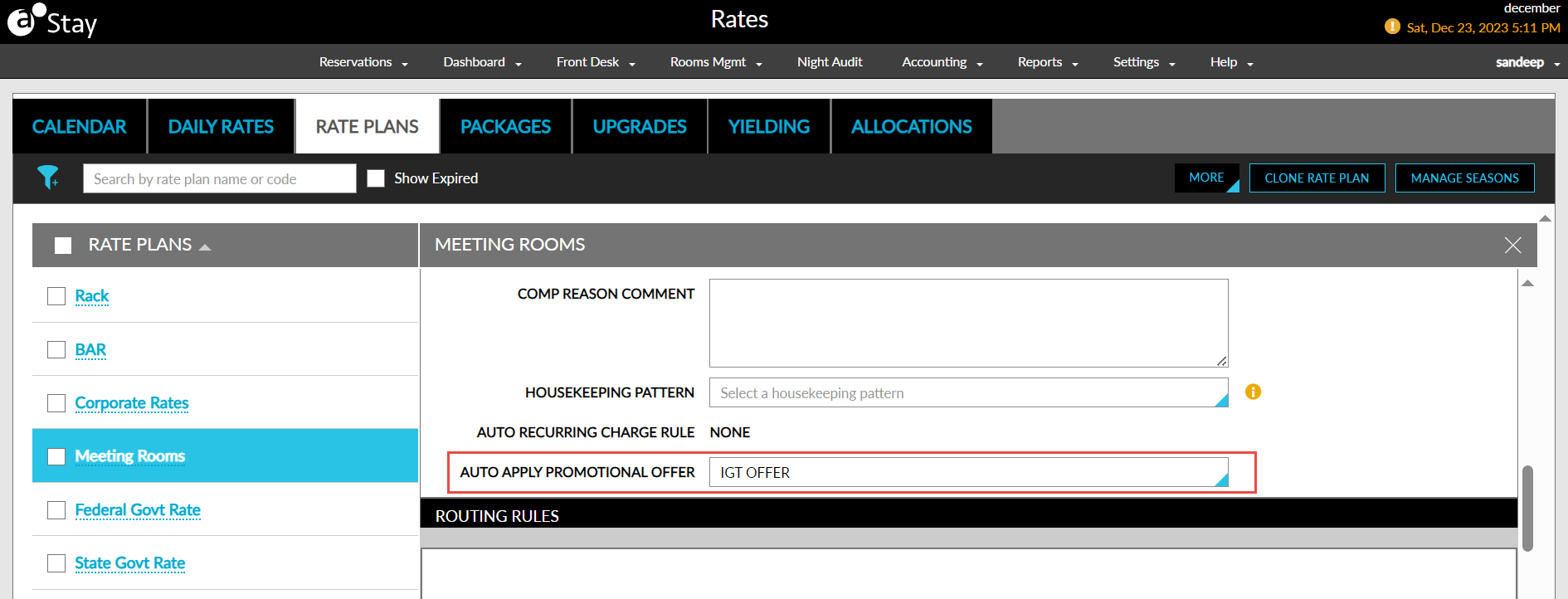
The promotional offers configured by the users can be selected from the Auto Apply Promotional Offer drop-down list in the Defaults section of the rate plans and packages. This drop-down list displays the list of all the active promotional offers configured at the property. The selected offer is automatically applied to the reservations created using the rate plan.
Apply Promotional Offers in Book a Reservation Screen
When users click on Check Rates in the Book a Reservation screen when the Show All Offers checkbox is enabled, the promotional offer associated with the selected rate plan is automatically applied to the applicable nights of stay selected for the reservation.
When users click the Show Offers hyperlink, the nights for which the promotional offer is applied are highlighted and for the remaining nights the rate is displayed as NA. The promotional offers that are not associated with the selected rate plan are also displayed when users click the Show Offers hyperlink. Users can select the preferred offer to be applied manually based on the duration of stay. When users select an offer manually, the previously applied offer is removed, that is, only one offer can be applied at a time to a reservation.
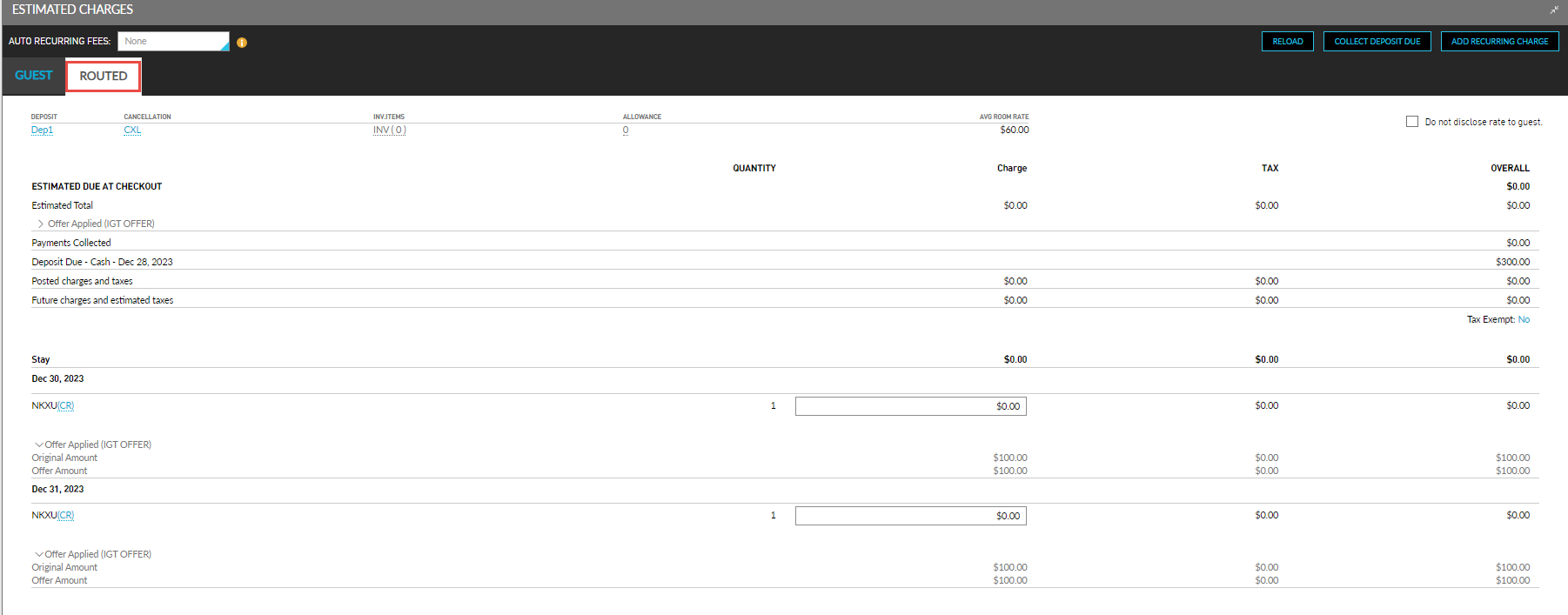
The stay nights that are paid by the guest are displayed in the Guest tab and the nights that are availed as complimentary are displayed in the Routed tab of the Estimated Charges section of the reservation. The charges in the Routed tab are posted to the Comp folio.
When users modify the rate plan of the reservations created using promotional offers, the offer applicable to the new rate plan is applied and the offer that was applied previously is removed. If no offers are associated with the new rate plan, the offer that was applied previously is removed and no new offer is applied.
When the duration of the reservations created using promotional offers is reduced, the offer that was applied previously is removed and regular rates are applied for the duration of stay. When the duration of the reservation is increased, the offers applicable for the selected dates are applied.
Reservations Created from Fuel Booking Engine and Agilysys Book
When reservations are created from Fuel Booking Engine and Agilysys Book, the rate plan used for the reservation is checked and if any promotional offer is associated with the rate plan in Stay, the complimentary nights are offered for the reservation based on the Apply value selected for the offer.
Deposit Calculation for Reservations
The deposit amount for reservations created using rate plans that have promotional/complimentary offers applied are calculated as follows:
-
When the deposit policy, associated with the reservation, is configured to charge the nightly room rate with tax of the first night of stay as the deposit amount and when the first night of stay is offered as the complimentary night, the nightly room rate prior to the application of the promotional offer is calculated as the deposit amount for the reservation.
For example, consider a reservation with the following nightly room rates that has a promotional offer, Buy 3 Get 2, applied.
|
Date |
Nightly Room Rate ($) |
Complimentary Nights |
|---|---|---|
|
Jan 01, 2025 |
100.00 |
Yes |
|
Jan 02, 2025 |
110.00 |
No |
|
Jan 03, 2025 |
90.00 |
Yes |
|
Jan 04, 2025 |
120.00 |
No |
|
Jan 05, 2025 |
140.00 |
No |
For this reservation, the first and third nights of stay are offered as complimentary nights. When this reservation is associated with a deposit policy, configured to charge the first night of stay as the deposit amount, the nightly room rate prior to the application of the complimentary first night of stay, that is, $100.00, is charged as the deposit amount.
-
When the deposit policy associated with the reservation is configured to charge the nightly room rate with tax of the entire duration of stay as the deposit amount, the deposit amount is calculated for the nights that are not offered as complimentary.
In this scenario, based on the example mentioned, the first and third nights of stay are offered as complimentary nights. In this case, the nightly room rate of all nights of stay, that is, ($100.00 + 110.00 + $90.00 + $120.00 + $140.00 = $560.00) is calculated as the deposit amount for the reservation.
The calculated deposit amount is displayed in the Estimated Charges section of the Book a Reservation screen and reservation.
This enhancement is also applicable to reservations created through Agilysys Book and Fuel Booking Engine.
Feature Configuration
Enable the Promotional Offers feature setting.
Navigate to the Add Offer screen (All Settings ➜ Comp Accounting Configuration ➜ Offers Setup) and create promotional offers.
Navigate to Settings ➜ Rate Plans/Packages tab ➜ Select a rate plan/package ➜ Defaults section ➜ Auto Apply Promotional Offer drop-down list and select the promotional offer for the rate plan/packages.
Navigate to the Book a Reservation screen and book reservations using the rate plans/packages with promotional offers applied.