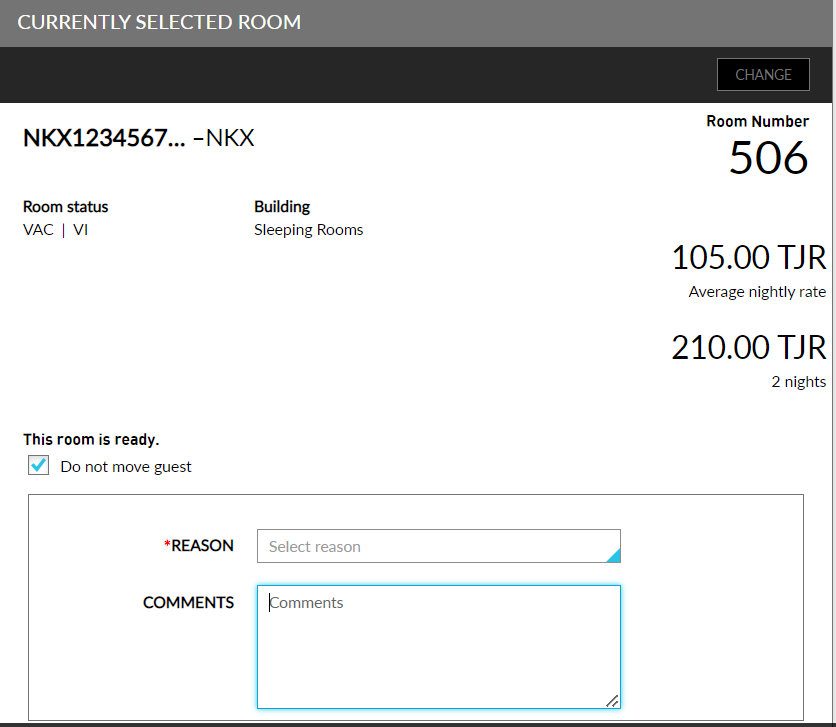
Currently Selected Room
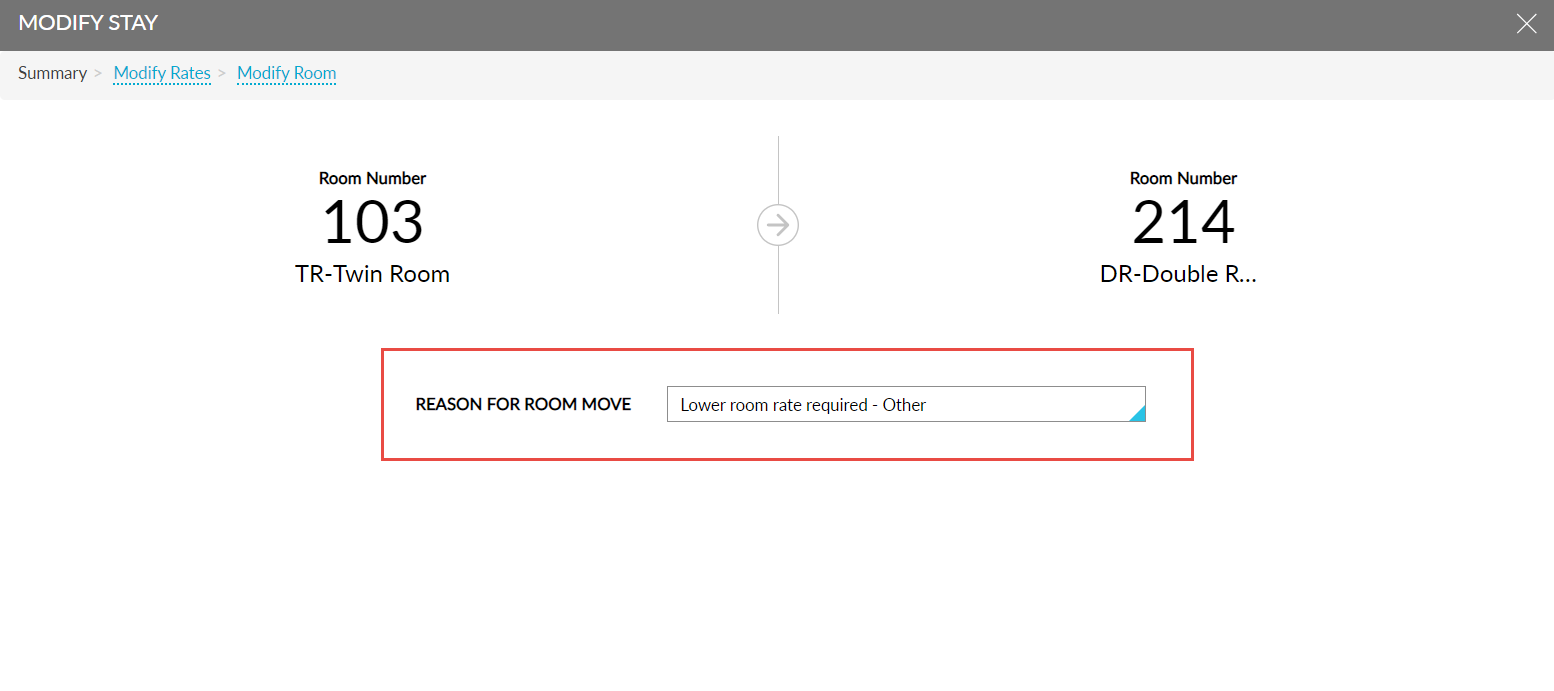
The user can access the guest's current room number, room type, status, building, housekeeping status, and average nightly rate with this option. Users can also change the room number in response to the guest's request. When users select different room types from the Currently Selected Room section of the reservation and click Save, the Modify Stay screen is displayed. Users can select the required room move reasons from the Reason for Room Move drop-down list in this screen.
Whenever the room number or room type of the room assigned to a reservation is changed, the room move reasons will be displayed in the Reason for Room Move drop-down list based on the rank comparison between the room types.
-
Room Move Between the Same Room Type: Room move reasons categorized as Others are displayed. There is no change in the room rate as the room type is the same.
-
Room Type Change to a Higher Rank: Room move reasons categorized as Upsell and Upgrade are displayed. When Upsell is selected, the current room rates will be greyed out and the room rate will be updated based on the new room type selected. When Upgrade is selected, there will be no change in the current room rate.
-
Room Type Change to a Lower Rank: Room move reasons categorized as Others are displayed. Users can select to keep the current rates or change the rates.
-
Room Type Change to a Room Type of Same Class: Room move reasons categorized as Others are displayed. Users can select to keep the current rates or change the rates.
Follow the below outlined steps to change the room number.
Navigate to and click the Change button.
The Change Room pop-up box appears.
Enter the desired room number
The Modify Stay pop-up box appears.
Select any one of the configured Room Move Reasons and click Save.
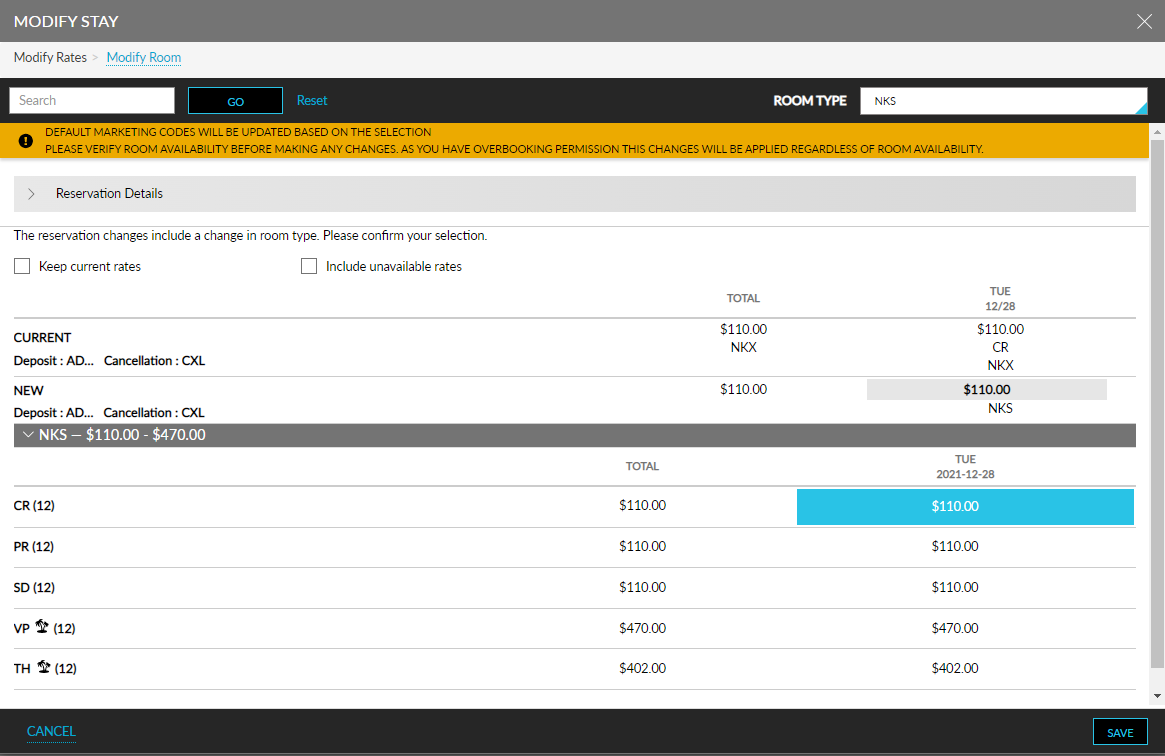
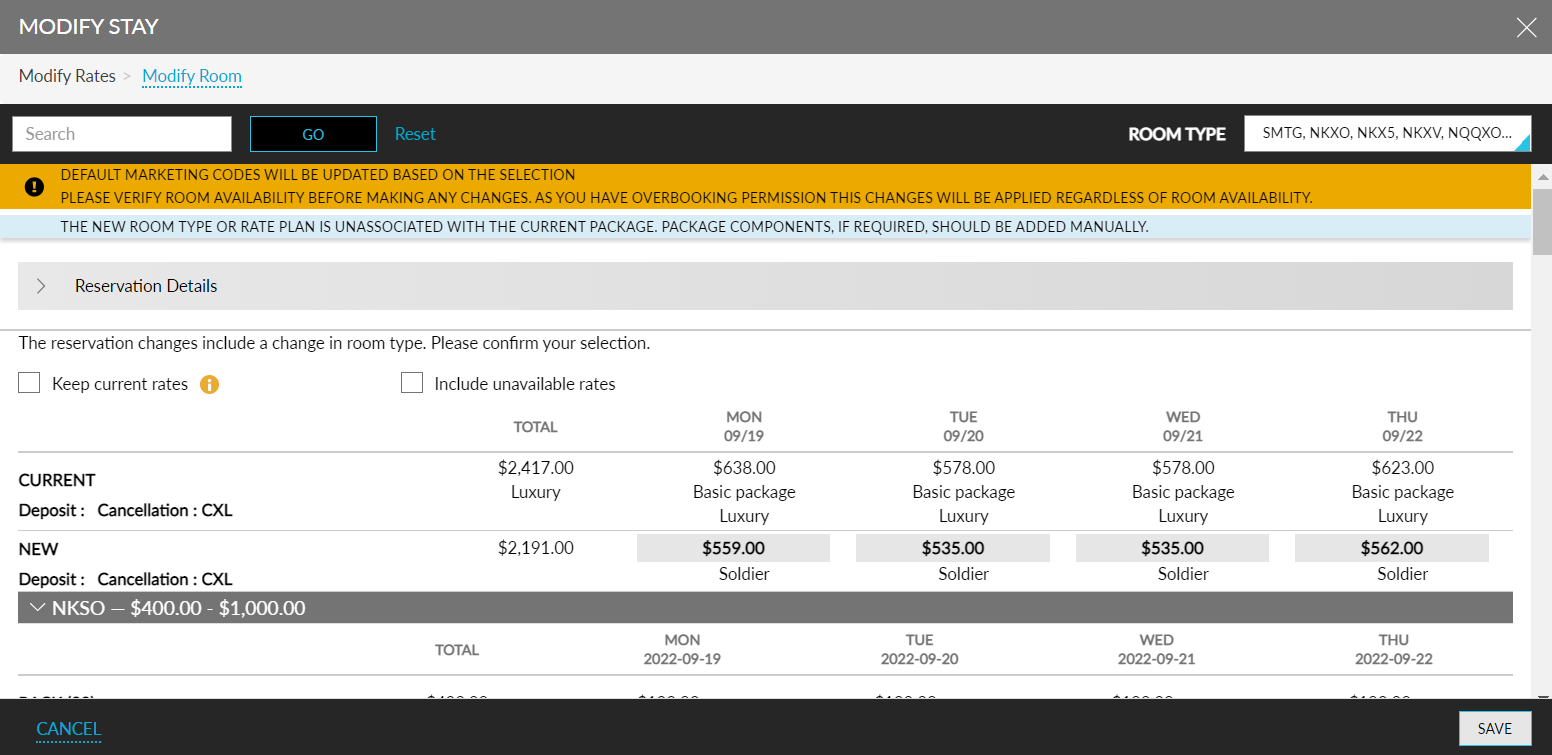
The changes in the price will be shown in this window. Click Save post verifying the current and new pricing details.
When the user selects a room type unassociated with the package component, a toast message is displayed with the following text: The new room type or rate plan is unassociated with the current package. Package components, if required, should be added manually.
A further pop-up will display to confirm your selection. To proceed, select Yes, and the guest will be assigned to their desired room.
Users can also mark as a reservation as Do Not Move by enabling the Do not move guest checkbox in the Currently Selected Room section.
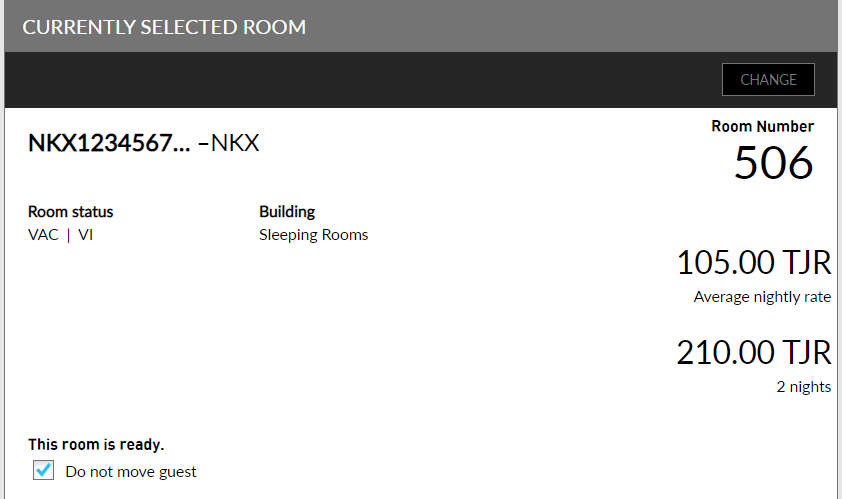
If any Do Not Move reasons are configured in the Do Not Move Reason page (Settings ➜ All Settings ➜ Reservations ➜ Do Not Move Reason), a drop-down list, Reason, is displayed when users choose to mark a room number as Do Not Move. Any one of the configured reasons can be selected.
If reasons are configured but no reasons are active, this field will not be displayed when users choose to mark the room number as Do Not Move.