Deposit Policies for Groups
Stay allows users to create deposit policies that can be associated with a group master in the Tentative and Definite statuses.
Feature Setting
The following feature setting must be enabled to allow users to configure deposit policies for groups:
-
Name: Deposit Policy for Group
-
Comments: License is not required
Permission
The following permission must be assigned to users to enable them to create deposit policies for groups:
-
WritePropertyConfig
Only when this permission is assigned, users can create deposit policies in the Group Policies tab in the Policies and Codes screen (All Settings ➜ Reservations ➜ Polices & Codes ➜ Deposit Settings ➜ Group Policies). Users without this permission can only view the Group Policies tab. They cannot create new deposit policies.
The following permission must be assigned to enable users to override and update the Deposit Policy field that was configured as mandatory in the Details section of the Group Booking tab as an optional field:
-
Stay_OverrideGroupDeposit
Create Group Deposit Policies
When the Deposit Policy For Group feature setting is enabled, the Group Policies tab will be displayed in the Policies and Codes screen (All Settings ➜ Reservations ➜ Polices & Codes ➜ Deposit Settings ➜ Group Policies). The existing deposit polices will be moved to the Reservation Policies tab.
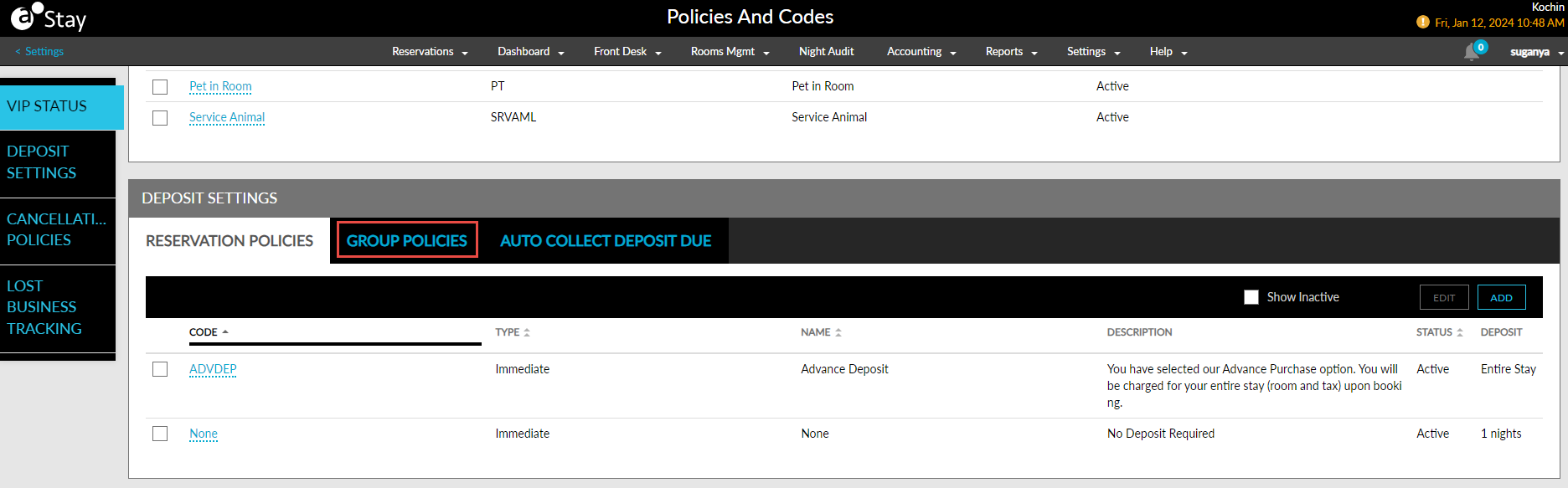
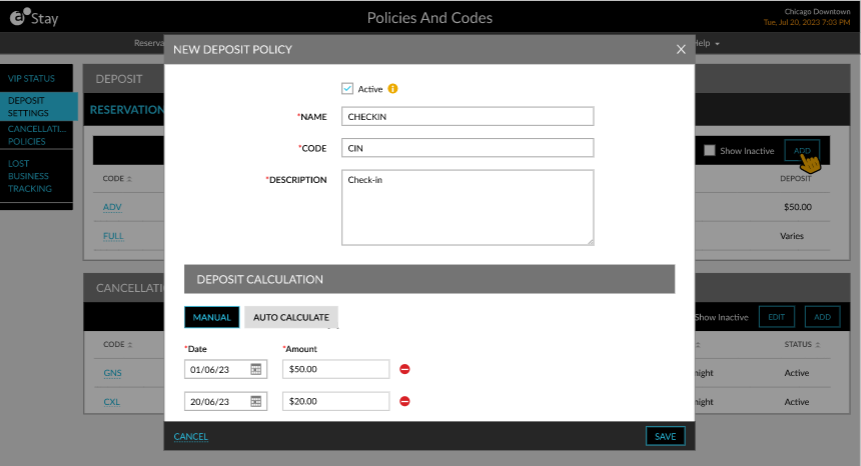
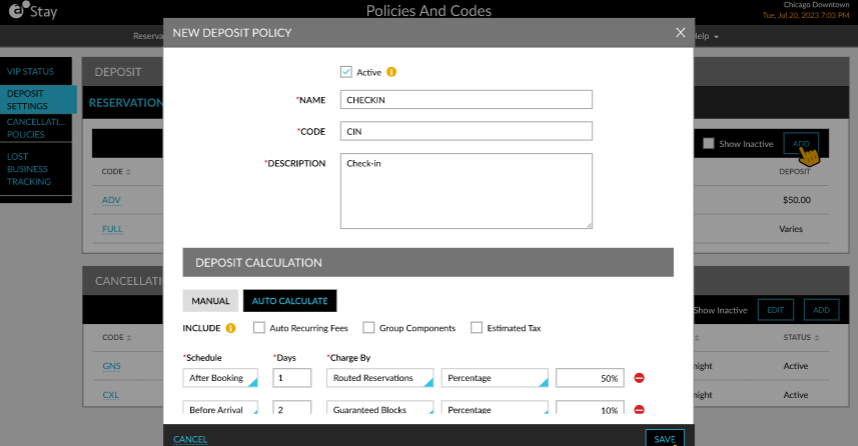
When users click Add in the Group Policies tab, the New Deposit Policy pop-up screen appears that displays the following fields:
|
Field |
Description |
||||||||||||||||||||
|---|---|---|---|---|---|---|---|---|---|---|---|---|---|---|---|---|---|---|---|---|---|
|
Active |
Select this checkbox to activate the deposit policy. |
||||||||||||||||||||
|
Name |
This is a mandatory field that allows users to enter a unique name for the deposit policy. Users can enter a maximum of 50 characters. |
||||||||||||||||||||
|
Code |
This is a mandatory field that allows users to enter a unique code for the deposit policy. Users can enter a maximum of 6 characters. |
||||||||||||||||||||
|
Description |
This is a mandatory field that allows users to enter the description for the policy. Users can enter a maximum of 200 characters. |
||||||||||||||||||||
|
Deposit Calculation |
Users can select from the following options for calculating the deposit amount:
|
||||||||||||||||||||
|
Manual |
When selected, users must select the date when the deposit amount must be collected from the Date field.
|
||||||||||||||||||||
|
Auto Calculate |
Users can configure the schedules for collecting the deposit amount.
|
When users click Save, the deposit policies will be created successfully. The following columns in the Group Policies tab displays the details of the deposit policies created:
-
Code: The code of the deposit policy.
-
Type: The type of the deposit policy (Manual/Auto Calculate).
-
Name: The name of the deposit policy.
-
Description: The description of the deposit policy.
-
Status: The status of the deposit policy.
-
Deposit: The deposit amount to be collected when the type is selected as Manual. Displays the amount as Varies when the type is selected as Auto Calculate.
Sample Scenarios
Consider a group with the following count of rooms blocked, picked up, remaining, and the nightly room rate for various room types:
|
Room Type |
June 25, 2024 |
June 26, 2024 |
June 27, 2024 |
June 28, 2024 |
|---|---|---|---|---|
|
King |
B-5 Rate - $100.0 |
B-4 Rate - $200.00 |
B-5 Rate - $200.00 |
B-10 Rate - $100.00 |
|
Queen |
B-5 Rate - $200.00 |
B-5 Rate - $100.00 |
B-4 Rate - $200.00 |
B-10 Rate - $100.00 |
Where B denotes blocked, P denotes picked up, R denotes remaining, and Rate denotes the room rate.
-
When the Guaranteed Blocks option is selected and the Percentage is configured as 10, the deposit amount is calculated as follows:
|
Room Type |
June 25, 2024 |
June 26, 2024 |
June 27, 2024 |
June 28, 2024 |
|---|---|---|---|---|
|
King |
0.5 * $100.00 = $50.00 |
0.4 *$200.00 = $80.00 |
0.5 * $200.00 = $100 |
1.0 * $100.00 = $100.00 |
|
Queen |
0.5 * $200.00 = $100 |
0.5 * $100.00 = $50.00 |
0.4 *$200.00 = $80.00 |
1.0 * $100.00 = $100.00 |
Deposit amount: $150.00 + $130.00 + $180.00 + $200.00 = $660.00.
When the rate is not defined or when the room type of the reservation is changed to a non-group room type, the rate is considered as 0.
-
When the Routed Reservations option selected, the Percentage is configured as 10, and if the group has 2 reservations from which charges were routed to a group folio, 10% of each charge routed will be considered for calculating the deposit:
|
Reservation |
June 25, 2024 |
June 26, 2024 |
June 27, 2024 |
June 28, 2024 |
|---|---|---|---|---|
|
1 |
Pepsi - $10.00 10% = $1.00 Room rate - $100.00 10% = $10.00 |
Room rate - $100.00 10% = $10.00 Burger - $50.00 10% = $5.00 |
Room rate - $100.00 10% = $10.00 Burger - $50.00 10% = $5.00 |
Room rate - $100.00 10% = $10.00 Burger - $50.00 10% = $5.00 |
|
2 |
Room rate - $100.00 10% = $10.00 Coke - $50.00 10% = $5.00 |
Room rate - $100.00 10% = $10.00 Coke - $50.00 10% = $5.00 |
Room rate - $100.00 10% = $10.00 Coke - $50.00 10% = $5.00 |
Room rate - $100.00 10% = $10.00 Coke - $50.00 10% = $5.00 |
Deposit amount: $26.00 + $30.00 + $30.00 + $30.00 = $116.00.
-
If the Maximum no of reservations is configured as 1, the deposit amount will be calculated as follows:
|
Reservation |
June 25, 2024 |
June 26, 2024 |
June 27, 2024 |
June 28, 2024 |
|---|---|---|---|---|
|
1 |
Pepsi - $10.00 Room rate - $100.00 |
Room rate - $100.00 Burger - $50.00 |
Room rate - $100.00 Burger - $50.00 |
Room rate - $100.00 Burger - $50.00 |
Deposit amount: $110.00 + $150.00 + $150.00 + $150.00 = $560.00.
Users can configure a default group deposit policy for the groups created through ACRS and other OTAs using the Set as default policy hyperlink in the Deposit Settings section of the Policies and Codes screen. When clicked, the Set Default Policy pop-up screen appears that allows users to select a default policy.
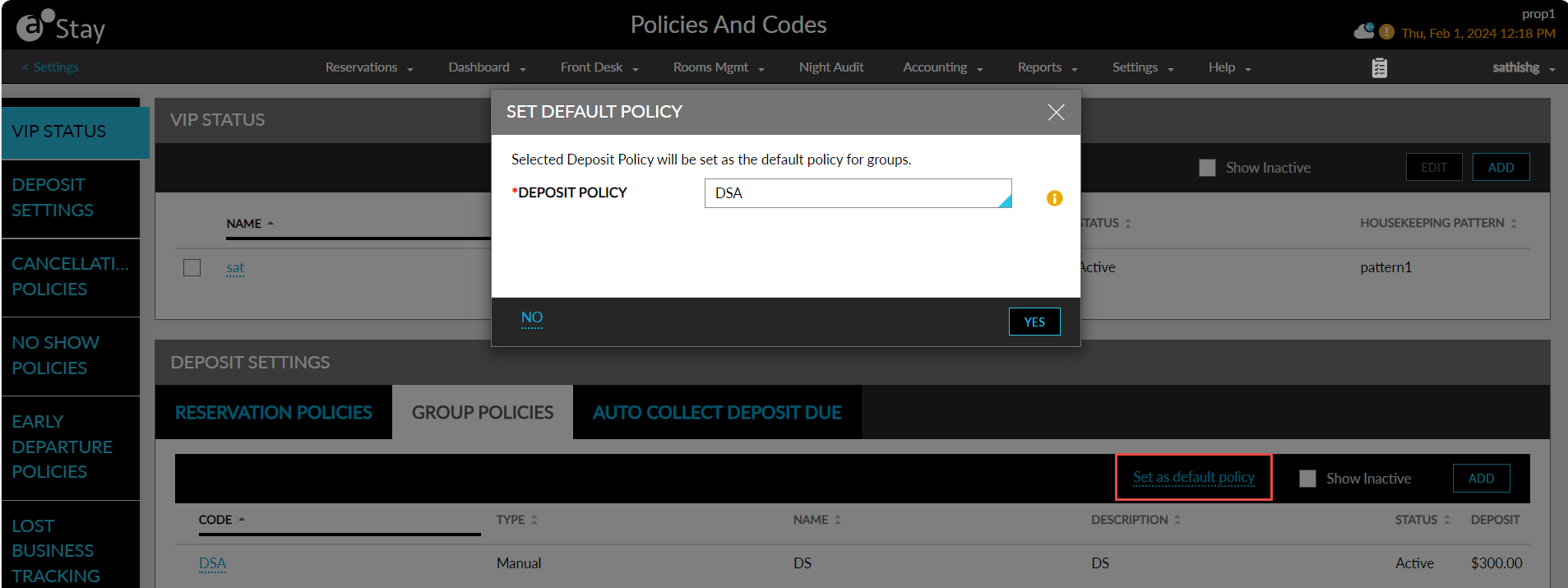
When the deposit policies of the groups created through ACRS and other OTAs do not match the group deposit policies configured at the property, the policy set as the default policy will be applied to these groups.
Associate Deposit Policies with Groups
When the Deposit Policy For Group feature setting is enabled, the deposit policy that was previously selected to be applied for group reservations will be displayed in the Deposit Policy field in the General section of the Reservation Presets tab of the group. The deposit policy selected in this field will be applied to the group’s reservations in Reserved status.
The deposit policy for the group master must be selected from the Deposit Policy field in the Details section of the Group Booking tab. This field displays all the active group deposit policies configured by the property. Users can select the preferred deposit policy to be applied for the group master. This field is displayed as a mandatory field when the Group Deposit Policy option is selected in the All Fields drop-down list in the Groups tab on the Stay Fields Settings screen (All Settings ➜ General ➜ Field Settings).
Users with the Stay_OverrideGroupDeposit permission can override and change the Deposit Policy field as optional using the Override option displayed below the field. This option will be displayed only when the Deposit Policy field is mandatory.
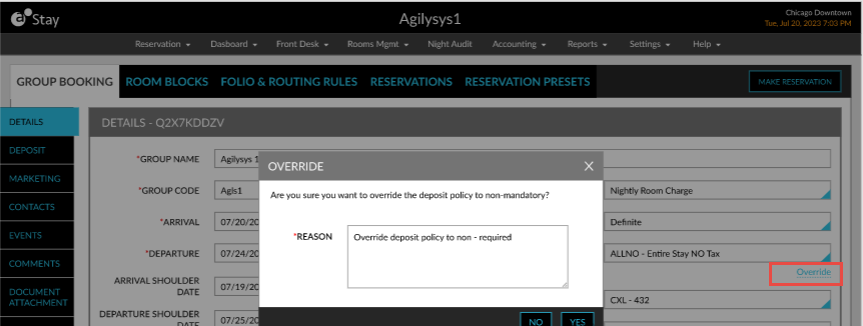
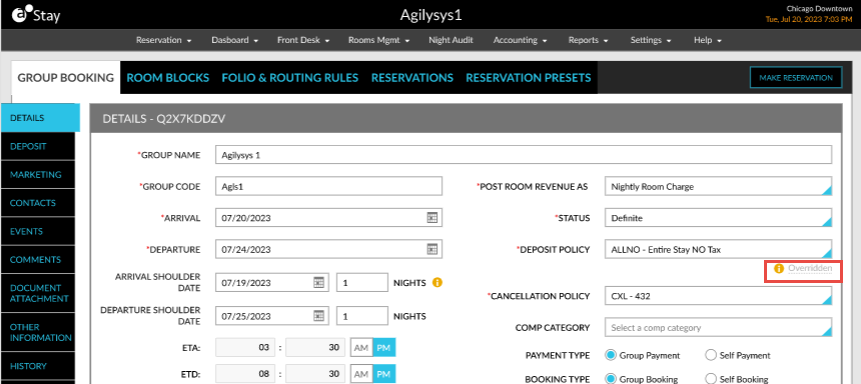
When clicked, the Override pop-up screen appears that prompts users to enter the reason for the override. Users can enter a maximum of 250 characters. When more than 250 characters are entered, the message, Exceeds 250 characters, will be displayed. When users click Yes, the Deposit Policy field will be changed to an optional field and when users hover over the info icon displayed next to the Overridden indicator, the reason for the override will be displayed.
Deposit Section in Groups
The Deposit section in groups displays the following tabs:
-
Deposit Due
-
Deposit Policy
Deposit Due Tab
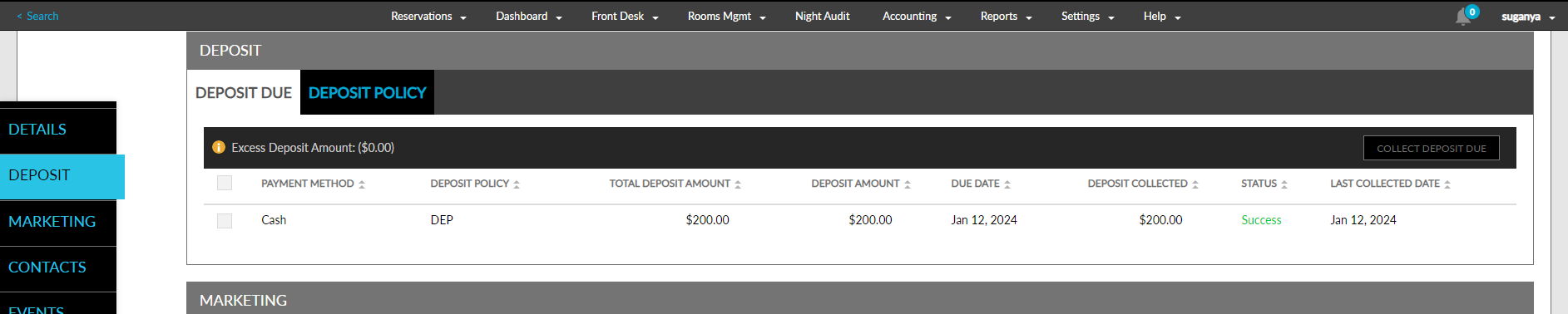
Based on the deposit policy selected in this field, the deposit amount to be collected will be calculated and displayed in the Deposit Due tab of the Deposit section. The deposit schedules for the upcoming dates will also be displayed.

The details of the deposit amount to be collected is displayed in the following columns:
|
Column |
Description |
|---|---|
|
Payment Method |
The default payment method of the group.
|
|
Deposit Policy |
The code of the deposit policy associated with the group.
|
|
Total Deposit Amount |
The total deposit amount to be collected based on all the schedules configured for the deposit policy. |
|
Due Date |
The date when the deposit amount must be collected. |
|
Deposit Amount |
The deposit amount calculated for the current schedule. |
|
Deposit Collected |
The total deposit amount collected based on all the schedules configured for the deposit policy. |
|
Status |
The status of the deposit amount collected.
|
|
Last Collected Date |
The date when the deposit amount was collected. |
Deposit Policy Tab
When a group deposit policy is not available, users can create custom deposit policies for the group from the Deposit Policy tab.

When users click Add, the New Deposit Policy pop-up screen appears that allows users to create a new group policy for the group. Users can create a new deposit policy, or create a policy based on a deposit policy created at the property level by selecting a policy from the Select Template drop-down list in this screen.
The details of the deposit policies configured for the group are displayed in this section. Once the policies are created, users can select the preferred policy from the Deposit Policy field.
Collect Deposit Amount
The deposit amount for a group can be collected from the following screens:
-
Batch Operations ➜ Deposit Due
-
Night Audit ➜ Date Roll
-
Policies and Codes ➜ Deposit Settings ➜ Auto Collect Deposit Due
-
Group ➜ Group Booking ➜ Deposit ➜ Deposit Due
Deposit Due Tab of Groups
Users can collect the deposit amount for a group from the Deposit Due tab in the Deposit section. When the due date for the deposit is passed, an Overdue indicator is displayed below the payment method of the record.
When users select the deposit schedules, the Collect Deposit Due option will be enabled for selection.
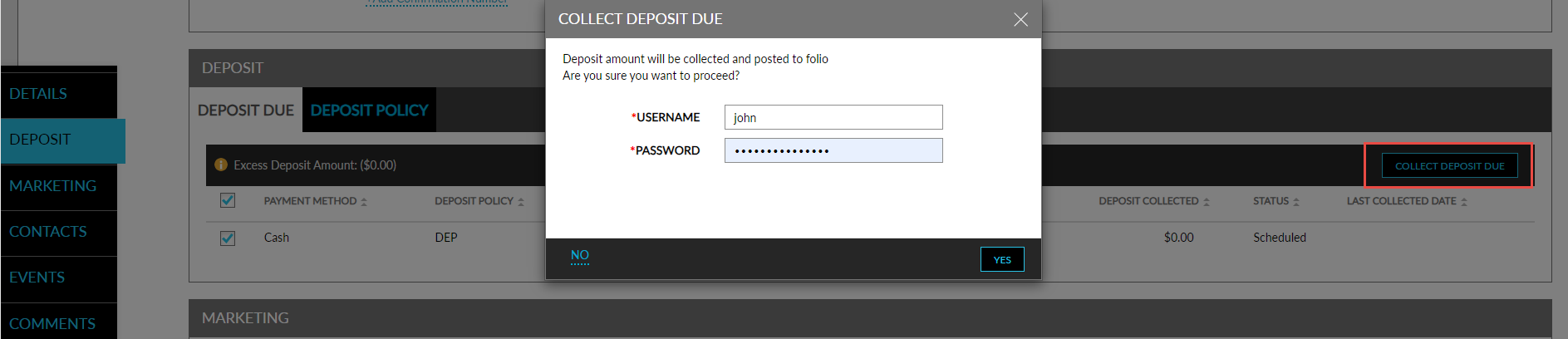
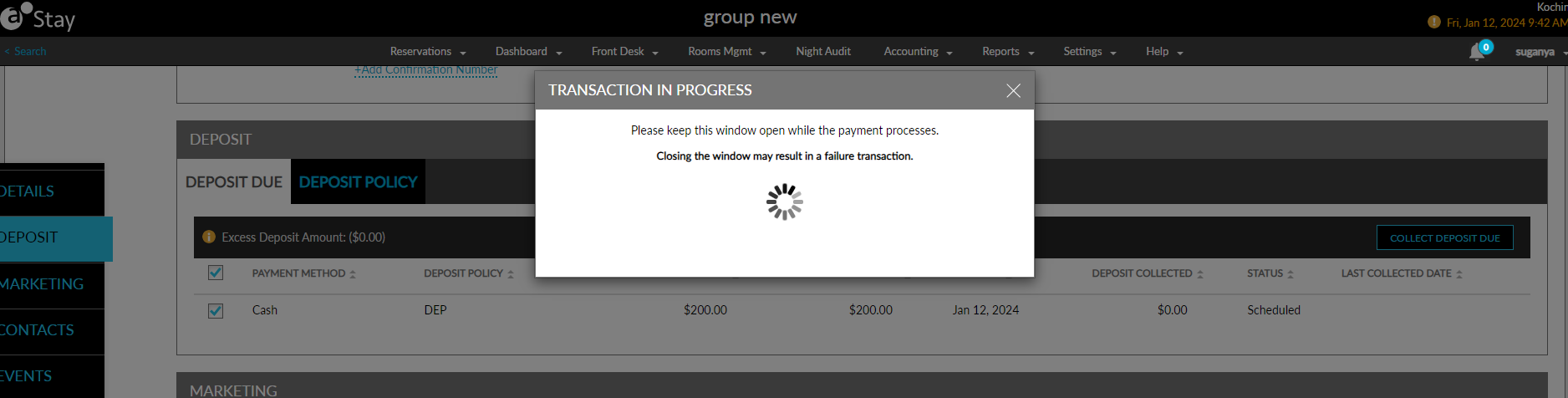
When selected, the Collect Deposit Due pop-up screen appears that prompts users to enter their credentials. When users click Yes, the entered credentials are validated. On successful validation, the payment is processed, and the Transaction In Progress pop-up screen appears that informs users that the payment is being processed.
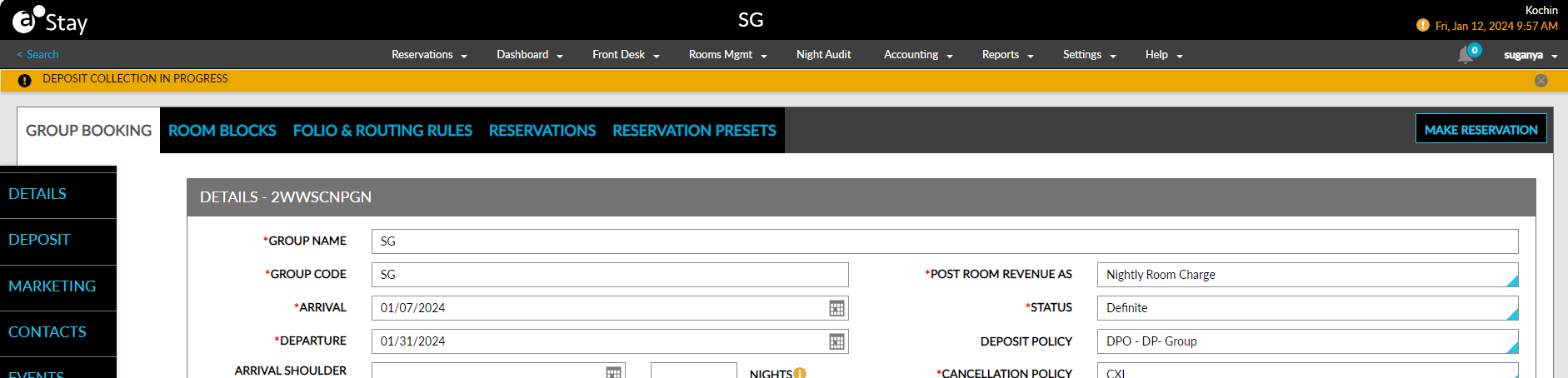
When users close this pop-up screen, the following message is displayed as a banner in the Group screen: Deposit collection is in progress.
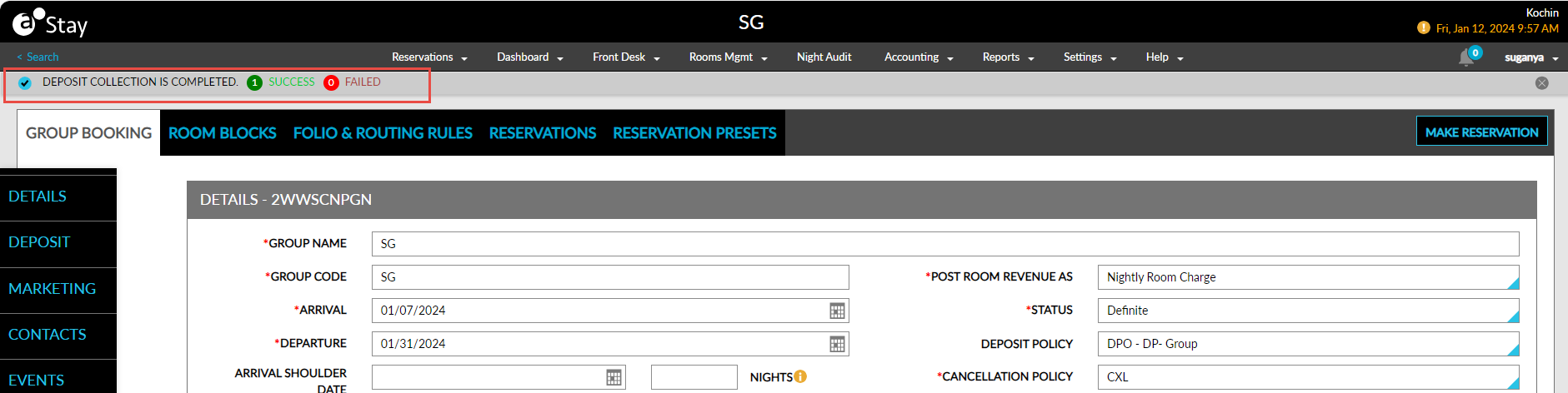
Once the payment is processed successfully, the deposit amount is posted to the folio, the status of the deposit collection is displayed as a banner in the Group screen, and the Status for the deposit schedule is updated in the Deposit Due tab. A confirmation email is sent to the email address of the guest profile associated with the group.
When the deposit policy for a group is modified after the deposit amount is collected and if the deposit amount calculated for the new policy is lesser than the previously collected amount, the difference between the amount is updated in the Excess Deposit Amount field. When the status of the group is modified to Cancelled or Turndown after the deposit amount is collected, the Cancel/Turndown Group pop-up screen appears that prompts users to confirm if the status of the group must be modified.

When users click Yes, the status of the group will be modified.
Auto Collect Deposit Due
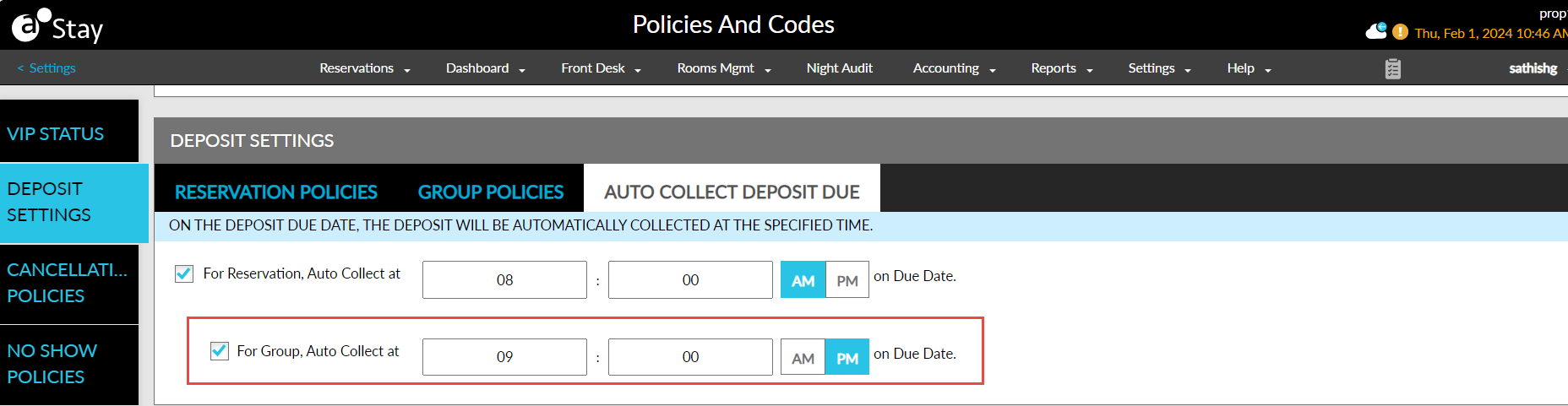
The deposit amount for a group can be collected automatically based on the time configured in the Auto Collect Deposit Due tab in the Deposit Section of the Policies and Codes screen (All Settings ➜ Reservations ➜ Policies and Codes ➜ Deposit Settings ➜ Auto Collect Deposit Due).
Batch Operations ➜ Deposit Due
The deposit amount for groups can be collected from the Deposit Due tab of the Batch Operations screen. Only the deposit schedules associated with the credit card payment method will be processed. The deposit amount collected will be posted to the default folio of the group.
Night Audit Screen
The deposit amount for groups can be collected from the Date Roll tab of the Night Audit screen using the Collect Deposits Due option. Only the deposit schedules associated with the credit card payment method will be processed. The deposit amount collected will be posted to the default folio of the group.
Records in Audit Log Screen and Group History Section
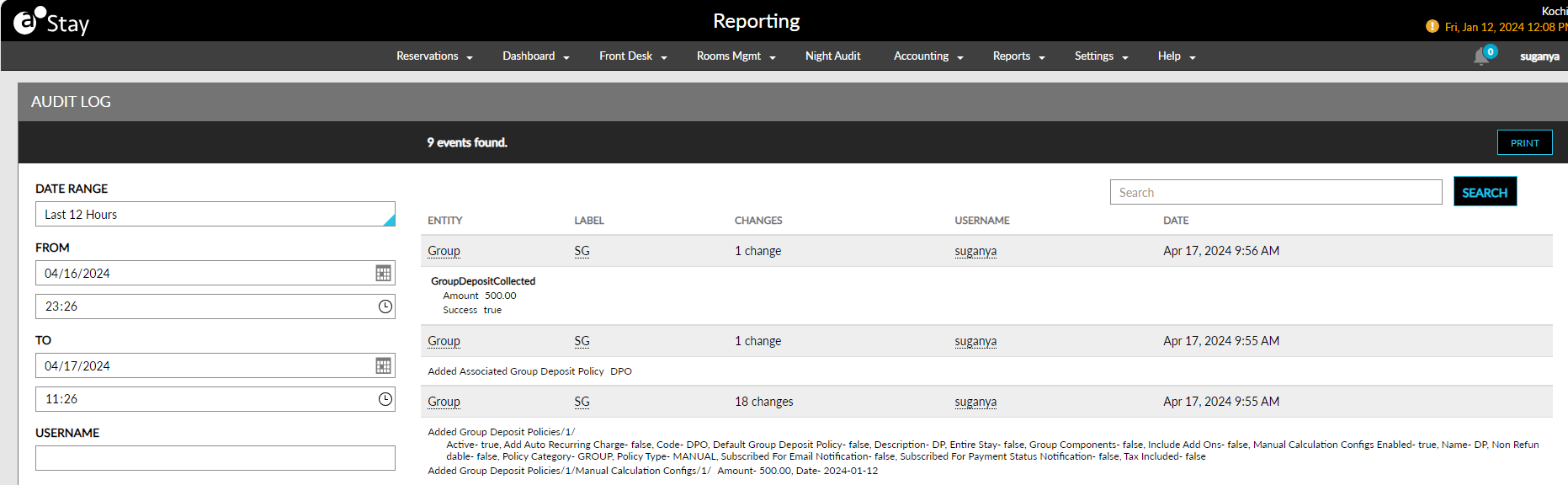
A record is created in the Audit Log screen that captures the username, date, and time when a new group deposit policy was created at the property-level and when the following fields of a group deposit policy was modified:
-
Status
-
Name
-
Code
-
Description
-
Date and Amount in the Manual tab
-
Delete the Date and Amount in the Manual tab
-
Add a new Date and Amount in the Manual tab
-
Schedule/Charge By/Amount/Percentage values in the Auto Calculate tab
-
Delete a schedule in the Auto Calculate tab
-
Add a new schedule in the Auto Calculate tab
-
Select/deselect the ARF/Group Components/Estimated Tax checkboxes
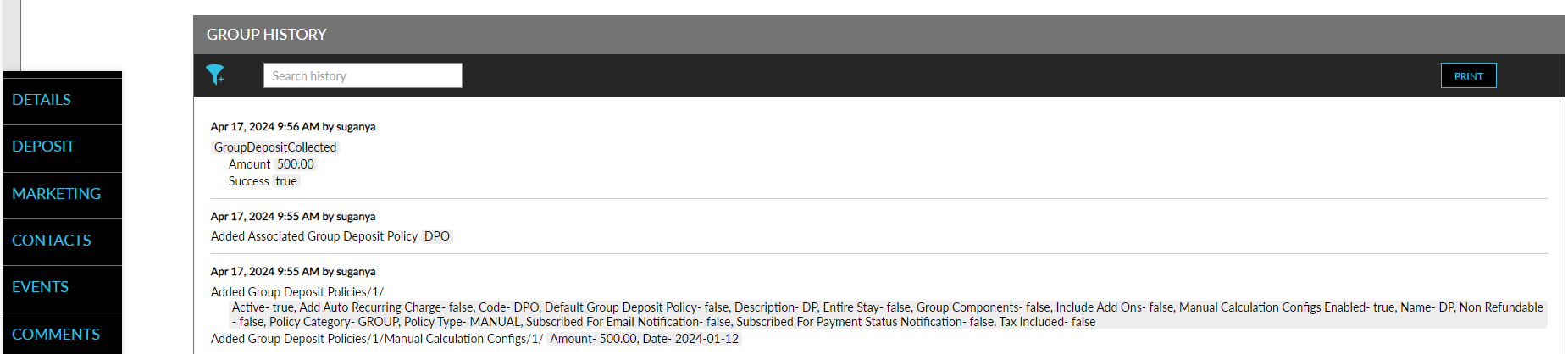
A record is created in the Group History section of the groups that captures the username, date, and time when the following operations are performed:
-
Add a new group deposit policy at the property-level
-
Update the Deposit Policy field in the Details section of the Group Booking tab to an optional field
-
Modify the following fields of a group deposit policy:
-
Status
-
Name
-
Code
-
Description
-
Date and Amount in the Manual tab
-
Delete the Date and Amount in the Manual tab
-
Add a new Date and Amount in the Manual tab
-
Schedule/Charge By/Amount/Percentage values in the Auto Calculate tab
-
Delete a schedule in the Auto Calculate tab
-
Add a new schedule in the Auto Calculate tab
-
Select/deselect the ARF/Group Components/Estimated Tax checkboxes
-
-
When the deposit policy associated with a group is modified
-
When the deposit due is collected from the Deposit Due section of the group