Groups - Reservations Tab
Manage Column Settings
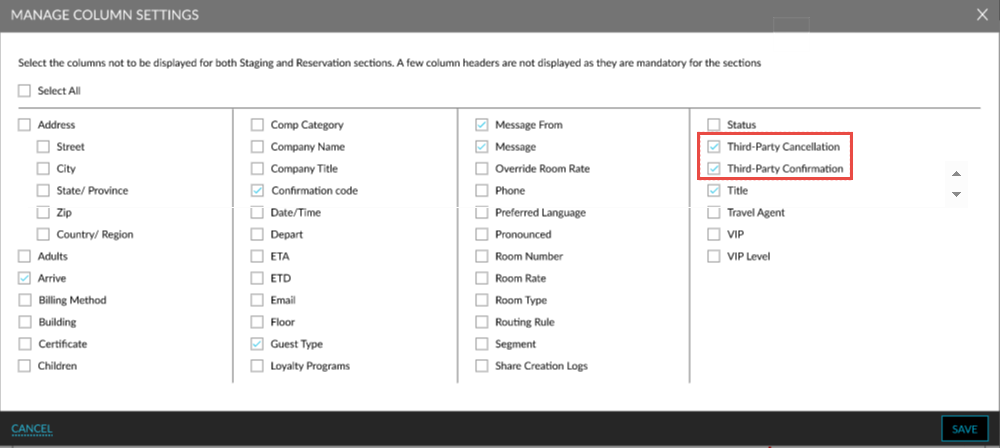
The following fields are displayed in the Manage Column Settings pop-up screen (Groups ➜ Reservations ➜ Column Settings) to allow users to display the third-party confirmation and cancellation numbers in the Staging and Reservations section.
-
Third-Party Cancellation
-
Third-Party Confirmation
Staging Section
Download Template
When users click the Download Template button, the templates created with the selected fields are displayed in the Download Template pop-up screen. These fields are updated accordingly when the template is downloaded.
When the Send as Email flag is enabled in the pop-up screen, the Third-Party Confirmation Number and Third-Party Cancellation Number fields are updated accordingly when the user sends an email to the guest.
Import Rooming List
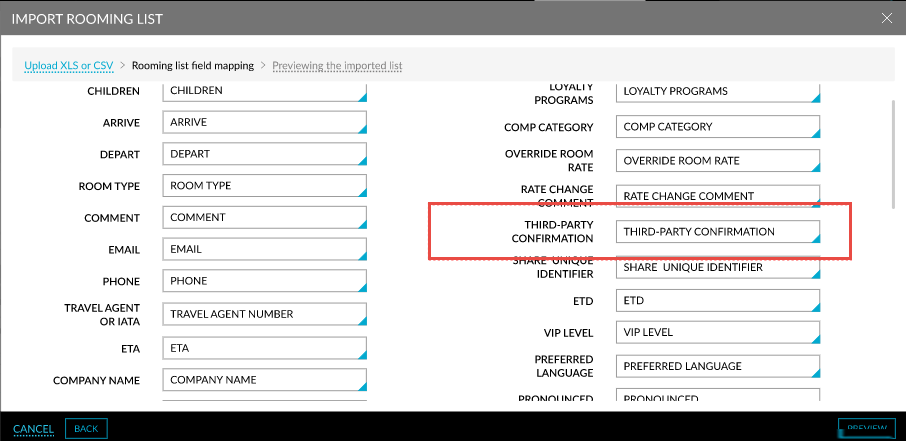
When users click the Import Rooming List button, a drop-down list, Third-Party Confirmation, is displayed in the Rooming list field mapping tab of the Import Rooming List pop-up screen.
When users navigate to the Previewing the imported list tab, the Thid-Party Confirmation column is displayed. This column contains a text field that allows users to enter the third-party confirmation number along with a valid source code. When an invalid source code is entered, the following message is displayed: Invalid third-party confirmation - source code: <value>. When the confirmation number is entered in an invalid format, the following message is displayed: Invalid third-party confirmation - source code: <value>.
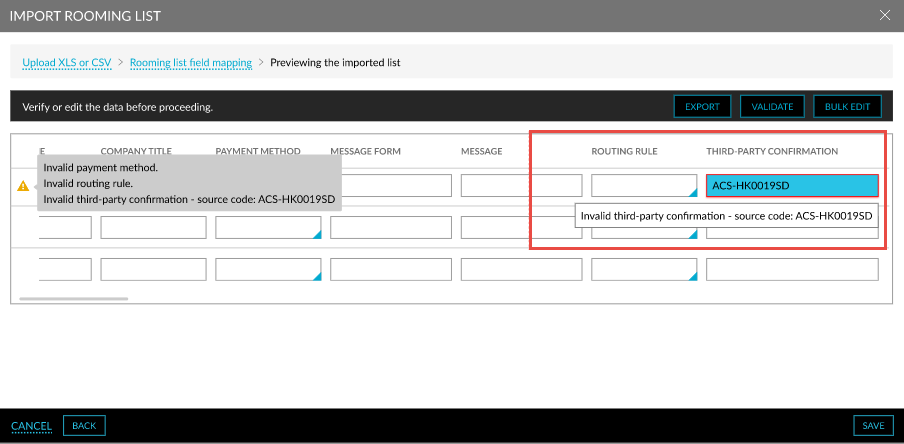
Only one third-party confirmation can be added in this field. If the user requires to add multiple confirmation numbers, they can do so in the Reservation Summary section after the reservations are created.
The imported details are displayed in the Staging section. When creating reservations, the third-party confirmation number entered for the staged data is updated for the reservation.
Reservations Section
When users click the Export option (More ➜ Export), the templates created with the selected fields are displayed in the Template drop-down list in the Export pop-up screen. These fields are updated accordingly when the template is downloaded.
When the Send as Email flag is enabled in the pop-up screen, the Third-Party Confirmation Number and Third-Party Cancellation Number fields are updated accordingly when the user sends an email to the guest.