Groups
Users can unassign the rooms assigned to reservations created for a group by selecting the reservations in the Reservations section (Group ➜ Reservations tab ➜ Reservations section) and clicking on More ➜ Unassign Room. Two new columns, Building and Floor have been added to this section that displays the building and floor details of the room assigned to the reservations.
When the Unassign Room option is clicked, the Confirmation pop-up screen appears that informs users that unassigning the room might change the auto recurring fee rule applied to the reservation.
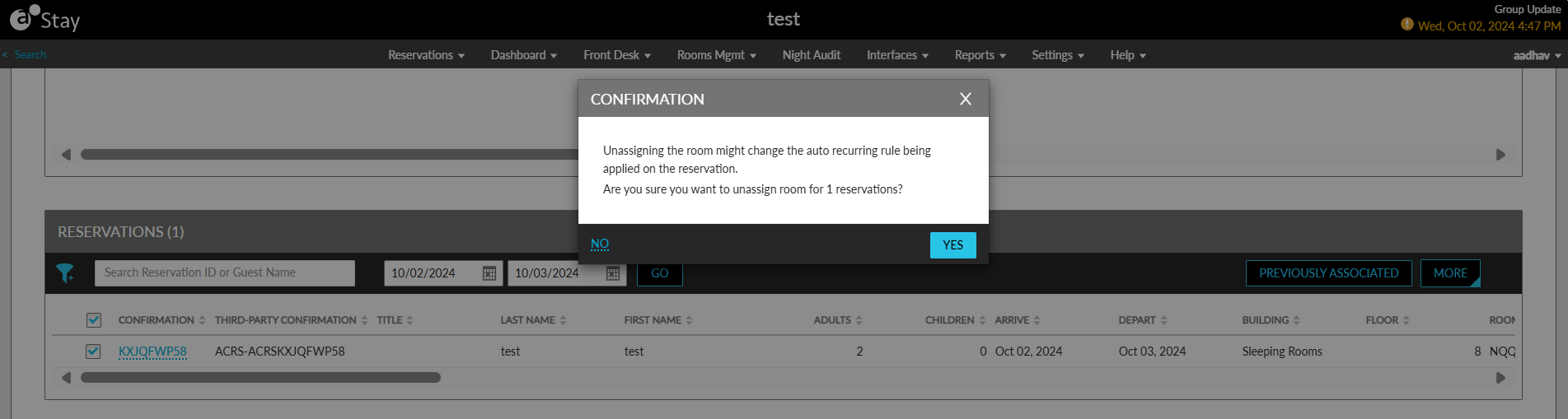
When users click Yes, the following message is displayed as a banner: “Unassign Room” is in progress. Click here for the status.
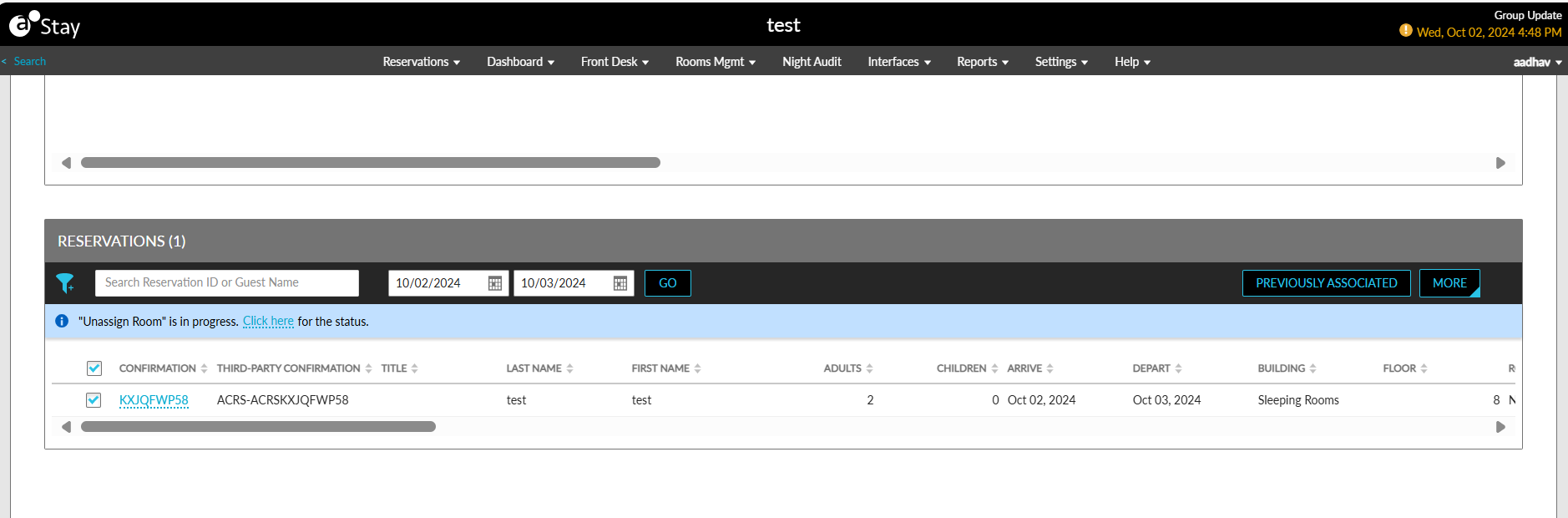
When users click the Click here hyperlink, the Unassign Room Process pop-up screen appears that displays a progress bar that indicates the count of reservations for which rooms are unassigned.
Once the process is completed, the count of reservations processed successfully and failed are displayed as a banner.
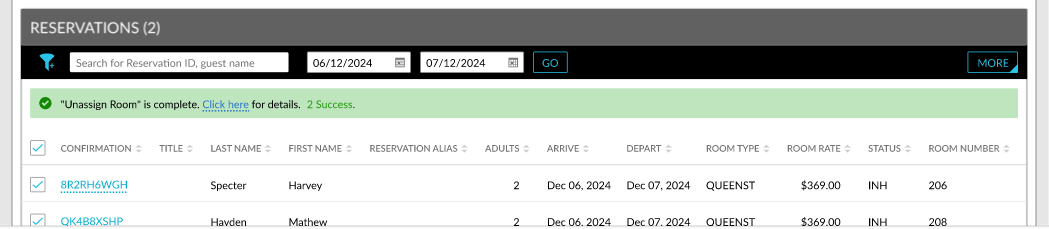
When users click on the Click here hyperlink, the Results pop-up screen appears that displays the count of reservations that were processed successfully and failed.
|
Section |
Description |
|---|---|
|
Success |
Displays the list of reservations for which the rooms are successfully unassigned. The rooms are successfully unassigned for reservations in the following statuses:
|
|
Failed |
Displays the list of following reservations for which the rooms were not unassigned successfully:
|
Users can perform a retry for the failed reservations using the Retry option.