Guest Satisfaction Setup
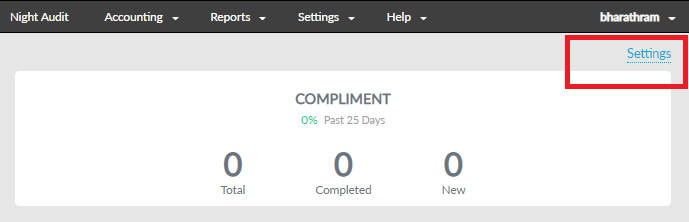
Click Settings at the top right corner of the screen to add new categories for recording complaints and compliments and customize it.
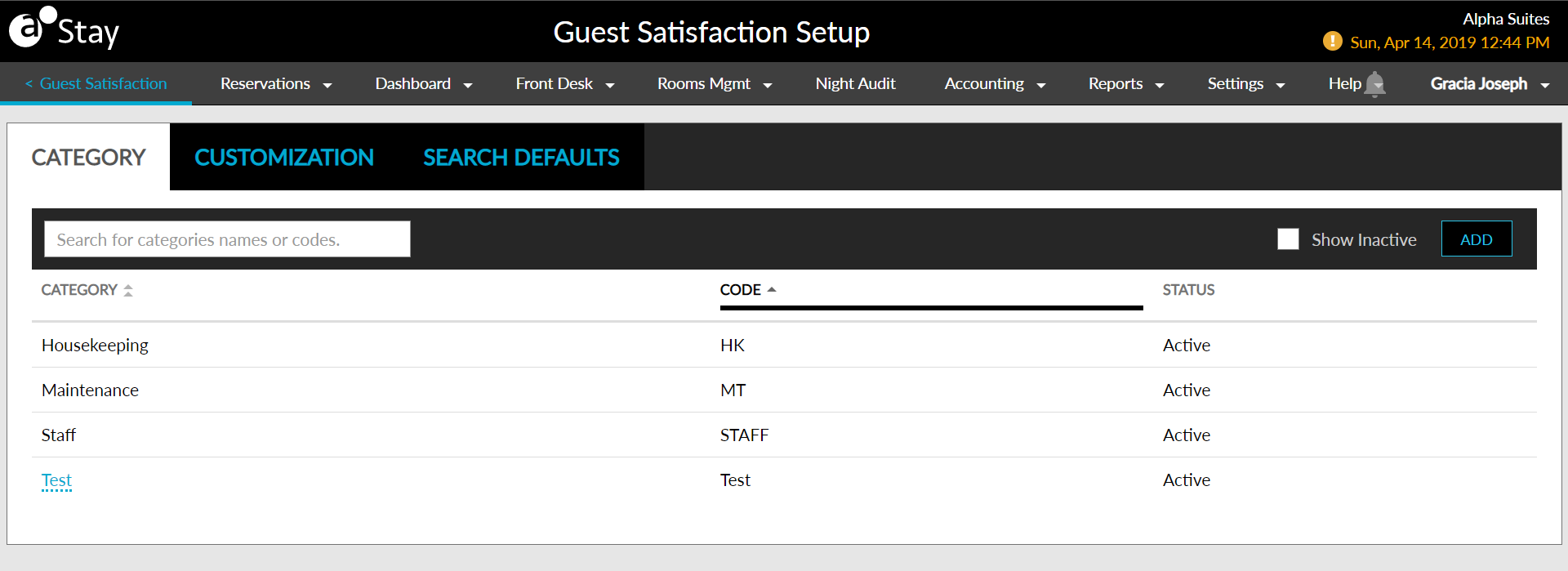
The Guest Satisfaction Setup screen appears as shown below.
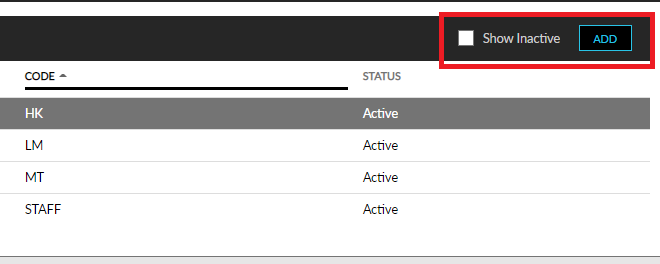
Add new categories to record complaints and compliments in the Category tab by clicking the Add button in the right top corner.
Select Show Inactive to show the inactive categories in the table.
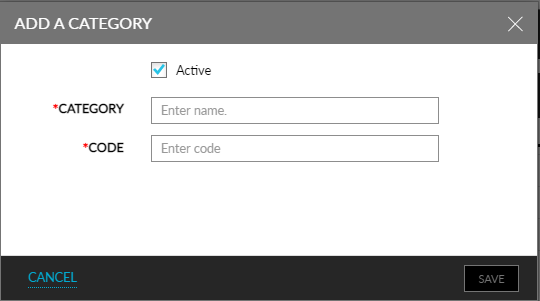
Enter the following information in the Add a Category pop-up screen that appears when the Add button is clicked.
|
Field |
Description |
|---|---|
|
Active |
Select the checkbox to activate the category. |
|
Category |
Enter the name of the category. |
|
Code |
Enter a specific code for the category. |
Click on the category name to edit, activate, or inactivate.
The categories Housekeeping, Maintenance, and Staff are available by default.
Search for categories by typing the name using the search bar.
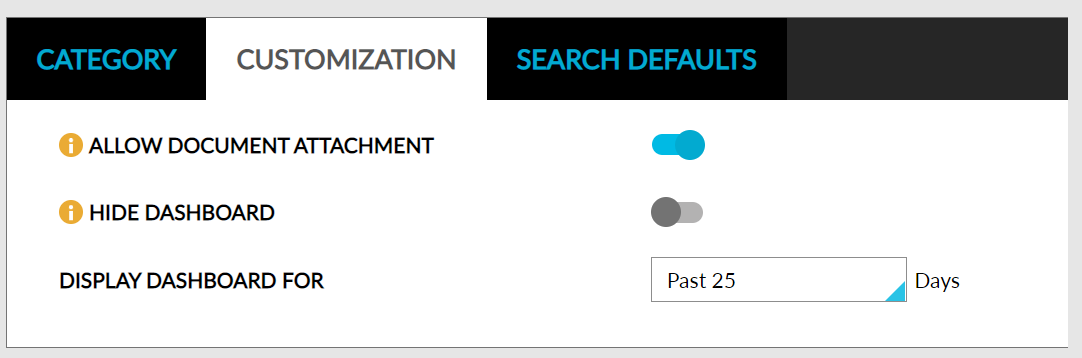
Click the Customization tab to customize options in the Guest Satisfaction screen.
|
Field |
Description |
|---|---|
|
Allow Document Attachment |
Enable the toggle to allow attachment of documents to a Guest Satisfaction record. |
|
Hide Dashboard |
Enable to toggle to hide the statistical and graphical information on the Guest Satisfaction dashboard. |
|
Display Dashboard For |
Using the drop-down list, choose between 5 to 30 past days in increments of 5. |